# Fluidkey Documentation
> Documentation for the Fluidkey interface: private, self-custodial onchain accounts, receiving and sending funds, and technical architecture.
## Terms & Conditions
Campaign open to select users who have completed identity verification (KYC).
Yield Boost applies to yield-earning tokens, from July 6th to Aug 15th, 2026. The boost activates as soon as your balance meets the applicable threshold. Join by July 15th to qualify.
* Frontier members:
* 50% yield boost
* Hold a minimum total balance of $100,000 equivalent throughout the period to unlock a 100% yield boost
* Non-Frontier users:
* Hold a minimum total balance of $30,000 equivalent throughout the period to unlock a 50% yield boost
* Hold a minimum total balance of $100,000 equivalent throughout the period to unlock a 100% yield boost
Total asset balance, including tokenized stocks, will be used to determine threshold eligibility. If the average total asset balance from July 15th to Aug 15th falls below the applicable threshold, the account will not be eligible for a reward. Rewards are capped at 2,000 USDC per account and will be claimable in USDC on Base after Aug 15th. The exact claim date will be announced via in-app notification.
Fluidkey Frontier Status requires depositing and maintaining a minimum balance of $30,000 USD equivalent, based on the following schedule:
* Deposit by July 7th — Hold til Aug 1st
* Deposit by July 15th — Hold til Aug 15th
Eligible recipients will be notified via in-app notification and have the status permanently displayed on their profile.
This promotion applies where lawful. Fluidkey reserves the right to deny or withhold rewards in cases of fraud, abuse, or gaming — including sybil behavior, wash activity, bot usage, or violations of our terms. Fluidkey may modify or close this promotion at any time before Aug 15th, 2026 (23:59 UTC+8).
This is not investment, legal, or tax advice. Participation is voluntary and at your own risk. For questions, contact [hey@fluidkey.com](mailto\:hey@fluidkey.com)
## Frontier Campaign Terms & Conditions
Campaign open to select users who have completed identity verification (KYC).
Fluidkey Frontier Status requires depositing and maintaining a minimum balance of $30,000 USD equivalent from July 7th to August 1st. Eligible recipients will be notified via in-app notification and have the status permanently displayed on their profile.
This promotion applies where lawful. Fluidkey reserves the right to deny or withhold rewards in cases of fraud, abuse, or gaming — including sybil behavior, wash activity, bot usage, or violations of our terms. Fluidkey may modify or close this promotion at any time before August 1st, 2026 (23:59 UTC+8).
This is not investment, legal, or tax advice. Participation is voluntary and at your own risk. For questions, contact [hey@fluidkey.com](mailto\:hey@fluidkey.com)
## Tokenised Stock Sprint Campaign - Terms & Conditions
The APY rewards apply to tokenised stock holdings calculated on a rolling weekly basis. Rewards are calculated using your 7-day average tokenised stock balance and made claimable each week. Rewards are distributed in USDC on the Base network. Users must manually claim rewards in the "+" section within 3 days of each weekly distribution.
During the campaign period, each week Fluidkey will update the reward pool size and applicable APY reward percentage. If the campaign banner is visible on your main page after updating the app, the current week's pool is still available for you to join. Existing tokenized stock holders will see the APY reward reflected directly on their tokenised stock balance in-app.
**Calculation Example** (approximate estimate)
Suppose you hold tokenised stocks with a total value of $100,000 USD — any combination of tokens is eligible, for example: $10,000 of Stock Token A + $50,000 of Stock Token B + $40,000 of Stock Token C.
APY rewards are calculated on an annualised basis and distributed weekly. Assuming your holdings remain at the same value throughout the week:
* Week 1 reward (15% APY): $100,000 × 15% ÷ 52 ≈ 288 USDC
* Week 2 reward (assuming APY adjusted to 10%): $100,000 × 10% ÷ 52 ≈ 192 USDC
This promotion applies where lawful. Fluidkey reserves the right to deny or withhold rewards in cases of fraud, abuse, or gaming — including sybil behavior, wash activity, bot usage, or violations of our terms. Fluidkey may modify or close this promotion at any time without prior notice.
This is not investment, legal, or tax advice. Participation is voluntary and at your own risk. For questions, contact [hey@fluidkey.com](mailto\:hey@fluidkey.com)
## 條款與條件
**活動資格** 本活動僅限特定用戶參與,須完成身份驗證(KYC)。
**收益加成** 適用於享有收益的代幣,加成期間為 2026 年 7 月 6 日至 8 月 15 日。只要餘額達到門檻標準,收益加成即自動啟動。請於 7 月 15 日前加入以符合資格。
* Frontier 會員:
* 50% 收益加成
* 期間內持有至少 100,000 美元等值總餘額,即可享 100% 收益加成
* 非 Frontier 用戶:
* 期間內持有至少 30,000 美元等值總餘額,即可享 50% 收益加成
* 期間內持有至少 100,000 美元等值總餘額,即可享 100% 收益加成
總資產餘額(包含股票代幣)將作為門檻計算依據;若 7 月 15 日至 8 月 15 日期間的平均總資產餘額低於門檻標準,該帳戶將不符合獎勵資格。每帳戶獎勵上限為 2,000 USDC,將於 8 月 15 日後以 Base 鏈上 USDC 發放,確切領取日期將透過 App 通知公告。
Fluidkey Frontier 身份:需於指定期間存入並維持相當於 30,000 美元以上的資產。相關時程如下:
* 7 月 7 日前存入,維持資產至 8 月 1 日
* 7 月 15 日前存入,維持資產至 8 月 15 日
符合資格的用戶將於活動結束後收到 App 通知,並於個人檔案中永久顯示此身份。
本活動於法律許可的地區適用。如發現詐欺、濫用或套利行為(包括女巫攻擊、刷量交易、使用機器人,或違反本公司條款),Fluidkey 保留取消或扣留獎勵的權利。Fluidkey 得於 2026 年 8 月 15 日(UTC+8 23:59)前隨時修改或終止本活動。
本活動內容不構成投資、法律或稅務建議,參與與否由用戶自行決定,風險自負。如有任何問題,請聯繫 [hey@fluidkey.com](mailto\:hey@fluidkey.com)。
## Frontier 活動條款與條件
活動資格:本活動僅限特定用戶參與,須完成身份驗證(KYC)。
Fluidkey Frontier 身份需於 7 月 7 日至 8 月 1 日期間存入並維持相當於 30,000 美元以上的餘額。符合資格的用戶將於活動結束後收到 App 通知,並於個人檔案中永久顯示此身份。
本活動於法律許可的地區適用。如發現詐欺、濫用或套利行為(包括女巫攻擊、刷量交易、使用機器人,或違反本公司條款),Fluidkey 保留取消或扣留獎勵的權利。Fluidkey 得於 2026 年 8 月 1 日(UTC+8 23:59)前隨時修改或終止本活動。
本活動內容不構成投資、法律或稅務建議,參與與否由用戶自行決定,風險自負。如有任何問題,請聯繫 [hey@fluidkey.com](mailto\:hey@fluidkey.com)。
## Fluidkey 主頁
歡迎來到 Fluidkey,你的理財基地。
透過跨國收付帳戶與自動收益,讓資金跨越鏈上鏈下,持續增值、靈活流通,隨時為你所用!
從[建立帳戶](/zh-TW/readme/account-set-up)開始。
## Tokenised Stock Sprint 獎勵活動 - 條款與條件
APY 獎勵適用於每週滾動計算的代幣化股票持倉。獎勵依據您 7 日的平均代幣化股票餘額計算,並於每週開放領取。獎勵將以 Base 鏈上的 USDC 做發放,用戶須在每週獎勵發放後的 3 日內,於「+」頁面手動領取獎勵。
活動期間,Fluidkey 將每週更新獎勵池規模及適用的 APY 獎勵。更新應用程式後,若活動橫幅仍顯示於您的主頁,即代表本週獎勵池仍有名額可供參與。已參與的代幣化股票持有人將可直接於應用程式中看到 APY 獎勵反映於其代幣化股票餘額上。
**獎勵試算說明**(以下為粗略估算)
假設您持有總市值 $100,000 美元的代幣化股票,不限種類組合,例如:$10,000 股票代幣 A + $50,000 股票代幣 B + $40,000 股票代幣 C。 APY 獎勵為年化計算,以週為單位發放。
假設該週持倉市值維持不變:
* 第一週獎勵(15% APY): $100,000 × 15% ÷ 52 ≈ 288 USDC
* 第二週獎勵(假設調整為 10% APY): $100,000 × 10% ÷ 52 ≈ 192 USDC
本活動於法律允許的範圍內提供。如有欺詐、濫用或操縱行為 — 包括女巫攻擊、洗售交易、機器人使用或違反本條款 — Fluidkey 保留拒絕或撤銷獎勵的權利。Fluidkey 可於事前不另行通知的情況下,隨時修改或終止本活動。
本內容不構成投資、法律或稅務建議。參與本活動屬自願行為,風險由參與者自行承擔。如有疑問,請聯繫 [hey@fluidkey.com](mailto\:hey@fluidkey.com)
## ENS 鏈下解析器(Offchain Resolver)
[ENS 鏈下解析器](https://docs.ens.domains/learn/ccip-read#offchain-resolution)在 Fluidkey 的使用者體驗中扮演關鍵角色:在維持良好體驗與相容性的同時,產生保護隱私的地址。與每次解析都須寫入鏈上紀錄的傳統解析器不同,Fluidkey 的做法主要在鏈下完成,可**大幅降低手續費與延遲**,也是唯一能**藉由鏈下解析維持預期隱私水準的方式。Coinbase 的 cb.id、Uniswap 的 uni.eth 等服務亦採用鏈下解析**;Fluidkey 則進一步利用鏈下解析來強化隱私,這是其他系統所不具備的特點。
#### 隱私層面的細節
在 Fluidkey 中,每位使用者帳戶皆有一組[「檢視」與「支出」金鑰](/zh-TW/technical-documentation/technical-walkthrough#2-user-keys)。透過區分這兩把金鑰,Fluidkey 得以**僅使用檢視金鑰**產生新地址,而**無法**控制這些地址中的資產,整體架構仍維持**完全自我託管**。
在實作 ENS 鏈下解析器時,Fluidkey 在**功能性**與**隱私**之間取得了關鍵平衡:能夠取得已產生的地址對營運至關重要,例如用於索引,讓 Fluidkey 能支援使用者的查詢與互動、在網路內加總跨地址餘額以改善使用體驗,或計算出**最能保護隱私**的交易執行路徑。
隱匿地址的產生建構在[開源程式庫](https://github.com/fluidkey/fluidkey-stealth-account-kit)之上;須特別強調的是,此架構使 Fluidkey 具備對使用者地址的檢視權限,但**無法**控制這些地址內的資產。
#### 去中心化路線圖
Fluidkey 規劃逐步過渡至**完全去中心化**的 ENS 鏈下解析器。此目標極具挑戰性,仍需持續研究以達成可在正式環境中穩定運行的方案。
## Stealth Account Initdata(初始化資料)
當**自動收益**功能關閉時,Fluidkey **不會**使用任何 initdata。
當**自動收益**功能開啟時,會傳入 initdata 以啟用 [Fluidkey Earn 模組](https://github.com/fluidkey/fluidkey-earn-module)。自動收益說明見[此處](/zh-TW/readme/earn)。此 initdata 可用於在**不依賴 Fluidkey App**的情況下[復原隱匿地址](/zh-TW/readme/frequently-asked-questions#can-i-access-my-funds-without-fluidkey)。
### Initdata 版本
#### Auto-earn v1.0(2025 年 4 月 10 日前)
```
// to address
0xa238cbeb142c10ef7ad8442c6d1f9e89e07e7761
// data
0x8d80ff0a00000000000000000000000000000000000000000000000000000000000000200000000000000000000000000000000000000000000000000000000000000212012dd68b007b46fbe91b9a7c3eda5a7a1063cb5b47000000000000000000000000000000000000000000000000000000000000000000000000000000000000000000000000000000000000000000000000000000648d0dc49f0000000000000000000000000000000000000000000000000000000000000020000000000000000000000000000000000000000000000000000000000000000100000000000000000000000074995e1075f1b0c308efacc56520d14e4954da6f0074995e1075f1b0c308efacc56520d14e4954da6f000000000000000000000000000000000000000000000000000000000000000000000000000000000000000000000000000000000000000000000000000001046d61fe70000000000000000000000000000000000000000000000000000000000000002000000000000000000000000000000000000000000000000000000000000000c000000000000000000000000000000000000000000000000000000000000000200000000000000000000000000000000000000000000000000000000000000002000000000000000000000000833589fcd6edb6e08f4c7c32d4f71b54bda02913000000000000000000000000ee8f4ec5672f09119b96ab6fb59c27e1b7e44b6100000000000000000000000060a3e35cc302bfa44cb288bc5a4f316fdb1adb420000000000000000000000001c155be6bc51f2c37d472d4c2eba7a637806e1220000000000000000000000000000
```
#### Auto-earn v1.1(2025 年 4 月 10 日 — 2025 年 8 月 20 日)
在 v1.0 基礎上擴充至更多區塊鏈與資金池。
```
// to address
0xa238cbeb142c10ef7ad8442c6d1f9e89e07e7761
// data
0x8d80ff0a00000000000000000000000000000000000000000000000000000000000000200000000000000000000000000000000000000000000000000000000000000172012dd68b007b46fbe91b9a7c3eda5a7a1063cb5b47000000000000000000000000000000000000000000000000000000000000000000000000000000000000000000000000000000000000000000000000000000648d0dc49f000000000000000000000000000000000000000000000000000000000000002000000000000000000000000000000000000000000000000000000000000000010000000000000000000000003bdb857afe9b51d8916d80240d2ade40d4d3f2f9003bdb857afe9b51d8916d80240d2ade40d4d3f2f9000000000000000000000000000000000000000000000000000000000000000000000000000000000000000000000000000000000000000000000000000000646d61fe70000000000000000000000000000000000000000000000000000000000000002000000000000000000000000000000000000000000000000000000000000000208aaeeb0a8f69d357a5b5fbe03dd796645c25526e98f41b8432dcd4fc21774cbf0000000000000000000000000000
```
#### Auto-earn Core Profile v1.2(2025 年 8 月 20 日起/現行版本)
```
// to address
0xa238cbeb142c10ef7ad8442c6d1f9e89e07e7761
// data
0x8d80ff0a00000000000000000000000000000000000000000000000000000000000000200000000000000000000000000000000000000000000000000000000000000172012dd68b007b46fbe91b9a7c3eda5a7a1063cb5b47000000000000000000000000000000000000000000000000000000000000000000000000000000000000000000000000000000000000000000000000000000648d0dc49f000000000000000000000000000000000000000000000000000000000000002000000000000000000000000000000000000000000000000000000000000000010000000000000000000000003bdb857afe9b51d8916d80240d2ade40d4d3f2f9003bdb857afe9b51d8916d80240d2ade40d4d3f2f9000000000000000000000000000000000000000000000000000000000000000000000000000000000000000000000000000000000000000000000000000000646d61fe7000000000000000000000000000000000000000000000000000000000000000200000000000000000000000000000000000000000000000000000000000000020d55dfa1406e6096fa99a5afb63577182aea39b3f05d26158ed25037102bc6a0b0000000000000000000000000000
```
#### Auto-earn Optimized Profile v1.2(2025 年 8 月 20 日起/現行版本)
```
// to address
0xa238cbeb142c10ef7ad8442c6d1f9e89e07e7761
// data
0x8d80ff0a00000000000000000000000000000000000000000000000000000000000000200000000000000000000000000000000000000000000000000000000000000172012dd68b007b46fbe91b9a7c3eda5a7a1063cb5b47000000000000000000000000000000000000000000000000000000000000000000000000000000000000000000000000000000000000000000000000000000648d0dc49f000000000000000000000000000000000000000000000000000000000000002000000000000000000000000000000000000000000000000000000000000000010000000000000000000000003bdb857afe9b51d8916d80240d2ade40d4d3f2f9003bdb857afe9b51d8916d80240d2ade40d4d3f2f9000000000000000000000000000000000000000000000000000000000000000000000000000000000000000000000000000000000000000000000000000000646d61fe70000000000000000000000000000000000000000000000000000000000000002000000000000000000000000000000000000000000000000000000000000000206d49fa56e09c4c8f4de4728d61253fb34f3a1950798f615c880235ea633ff5f90000000000000000000000000000
```
## 技術導覽
本導覽說明 Fluidkey 的核心密碼學功能;相關程式碼以[開放程式庫](https://github.com/fluidkey/fluidkey-stealth-account-kit)釋出。
### 1. 前置閱讀
為保持篇幅精簡,下文預設讀者已具備以下概念的基礎知識;若不熟悉,可先參考各連結:
* [橢圓曲線密碼學](https://blog.cloudflare.com/a-relatively-easy-to-understand-primer-on-elliptic-curve-cryptography/)
* [公開 EVM 區塊鏈上的帳戶與交易](https://github.com/ethereumbook/ethereumbook)
* [隱匿地址(Stealth addresses)](https://vitalik.eth.limo/general/2023/01/20/stealth.html)
### 2. 使用者金鑰
使用者登入 Fluidkey 時,須以現有的以太坊帳戶簽署一則**金鑰產生訊息**,該簽章用於衍生使用者的金鑰對。
請參閱程式庫中的 [`generateKeysFromSignature`](https://github.com/fluidkey/fluidkey-stealth-account-kit/blob/main/src/generateKeysFromSignature.ts)。
私人金鑰對**不會離開**使用者端裝置,也**不**會在本地持久儲存。每次重新開啟 Fluidkey 並需要發送資金時,都必須再次簽署該訊息以重新產生私鑰。
金鑰對包含兩把鑰匙:
* **私人支出金鑰(Private Spending Key)**:控制使用者資金並簽署交易
* **私人檢視金鑰(Private Viewing Key)**:取回/檢視使用者相關資金與交易
為讓 Fluidkey 能**代使用者產生地址**並**檢索資金**,使用者會向 Fluidkey 分享其私密檢視金鑰中,依 [BIP-32](https://github.com/bitcoin/bips/blob/master/bip-0032.mediawiki) 衍生的某一個子節點(node)。
分享節點路徑形式為 `m/5564'/N'`,其中 `N` 為識別所分享節點的編號。`5564` 對應專注於隱匿地址標準化的 [ERC-5564](https://eips.ethereum.org/EIPS/eip-5564)。目前 Fluidkey 對所有使用者使用 `N = 0`。未來 `N` 也可能用於指涉特定時間維度(如年份、Unix 時間戳)或其他維度,使第三方僅能取得該維度的檢視權限。
請參閱程式庫中的 [`extractViewingPrivateKeyNode`](https://github.com/fluidkey/fluidkey-stealth-account-kit/blob/main/src/extractViewingPrivateKeyNode.ts)。
### 3. 隱匿帳戶
Fluidkey 目前以 1/1 [Safe 智能帳戶](https://github.com/safe-global/safe-contracts)作為隱匿帳戶的實作;在具備隱匿地址特性的同時,亦享有智能帳戶的使用體驗優勢,例如 Gas 代付。
採用 Safe 作為底層實作,使用者同時受益於經長期驗證的智能帳戶安全性。
#### 3.a. 隱匿簽署者之生成(Stealth Signer Derivation)
每個隱匿帳戶由一個**隱匿 EOA** 控制,該 EOA 為唯一獲授權可核准交易、控制該隱匿帳戶的簽署者。
隱匿 EOA 以偽隨機方式,自使用者分享的檢視金鑰節點(見第 2 節)生成。每次需要建立新隱匿帳戶時,用來衍生該 EOA 的**暫時私鑰**為該分享節點上的**新葉子節點(Leaf Node)**。
具體而言,每次新的隱匿地址請求會將檢視金鑰節點的 `p/n` 遞增 1,並從所得葉子 `m/5564'/N'/c0'/c1'/0'/p'/n'` 衍生秘密,其中 `c0` 與 `c1` 為所用鏈的 coinType,依 [ENSIP-11](https://docs.ens.domains/ens-improvement-proposals/ensip-11-evmchain-address-resolution)定義。
我們使用 `c0'/c1'` 與 `p'/n'`的拆分方式,以確保衍生路徑中**任一路徑數值皆小於** `0x80000000`(`2^31`),符合 BIP-32 的規範要求。
目前 Fluidkey 使用的 coinType 對應 chainId `0`,可在介面支援的所有 EVM 鏈上產生相容地址。因此 Fluidkey 的衍生路徑形如 `m/5564'/0'/8'/0'/0'/p'/n'`。
請參閱程式庫中的 [`generateEphemeralPrivateKey`](https://github.com/fluidkey/fluidkey-stealth-account-kit/blob/main/src/generateEphemeralPrivateKey.ts) 與 [`generateStealthAddresses`](https://github.com/fluidkey/fluidkey-stealth-account-kit/blob/main/src/generateStealthAddresses.ts)。
以偽隨機方式衍生隱匿 EOA,確保使用者可**獨立重播**所有已產生的隱匿地址,**無須**依賴 Fluidkey 也能復原資金。
#### 3.b. 反事實部署(Counterfactual Instantiation)
將資產送入使用者的隱匿帳戶時,**無須**事先部署底層合約。隱匿帳戶地址以反事實方式預測,僅在**提領/執行**交易時才實際部署。
請參閱程式庫中的 [`predictStealthSafeAddressWithClient`](https://github.com/fluidkey/fluidkey-stealth-account-kit/blob/main/src/predictStealthSafeAddress.ts)。
### 4. ENS 解析
Fluidkey 提供形如 `username.fkey.id` 與 `username.fkey.eth` 的**固定 ENS 識別碼**;每次查詢該識別碼時,都會解析出一個由收款方控制的全新隱匿地址。如此一來,付款方只需使用單一人類可讀的識別碼,即可在保護收款方隱私的前提下完成付款。
Fluidkey 使用 [ENS 鏈下解析器(offchain resolver)](https://github.com/ensdomains/offchain-resolver/) 回傳隱匿地址。
## 建立帳戶
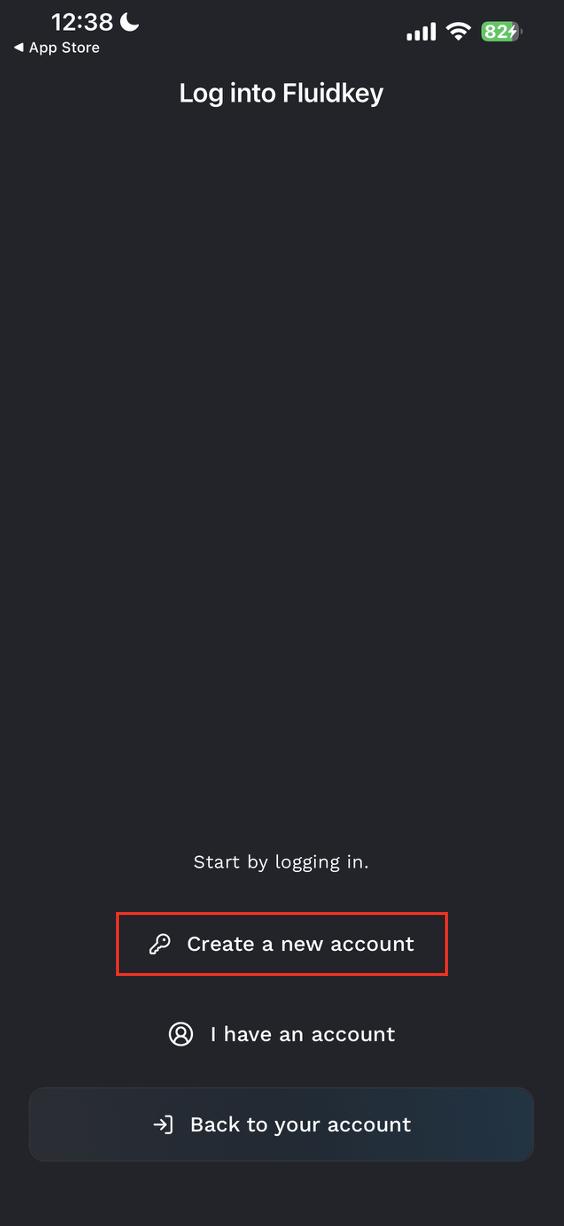
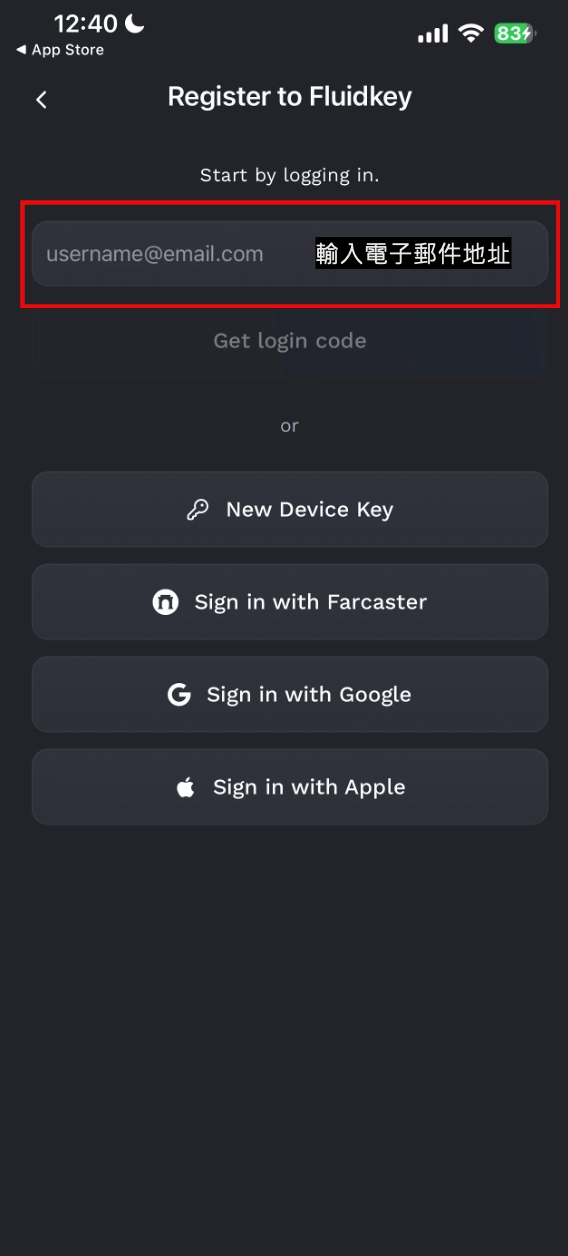
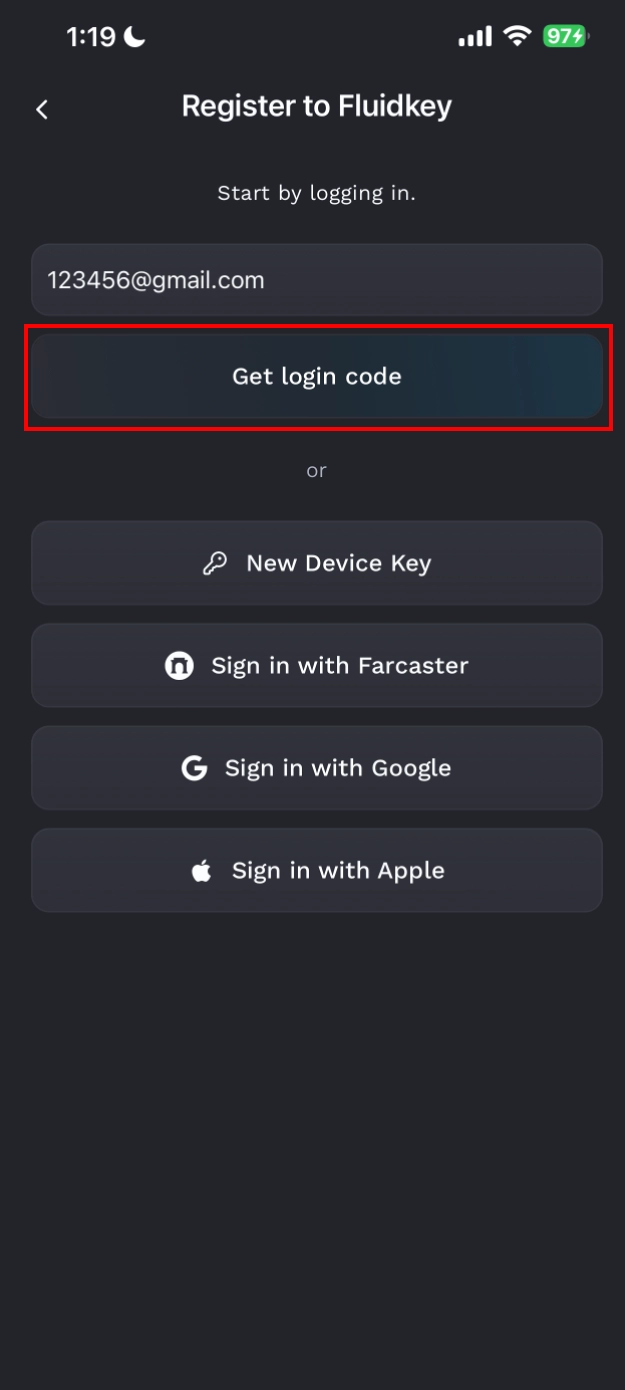
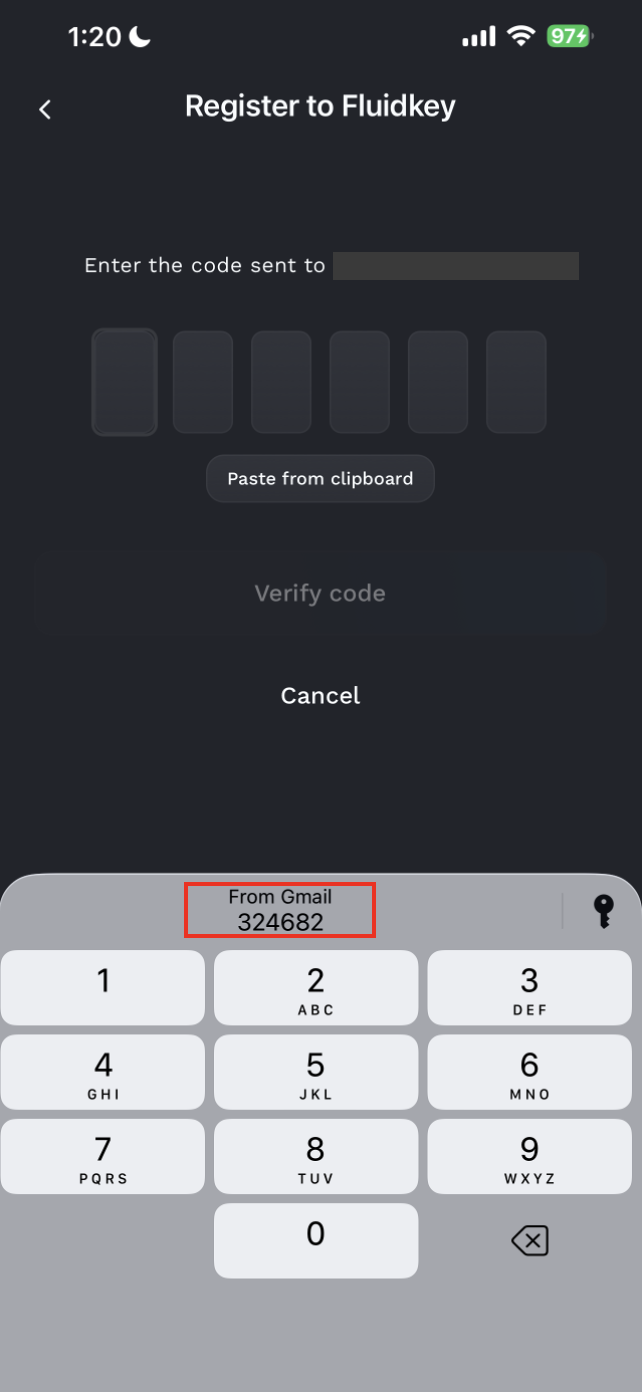
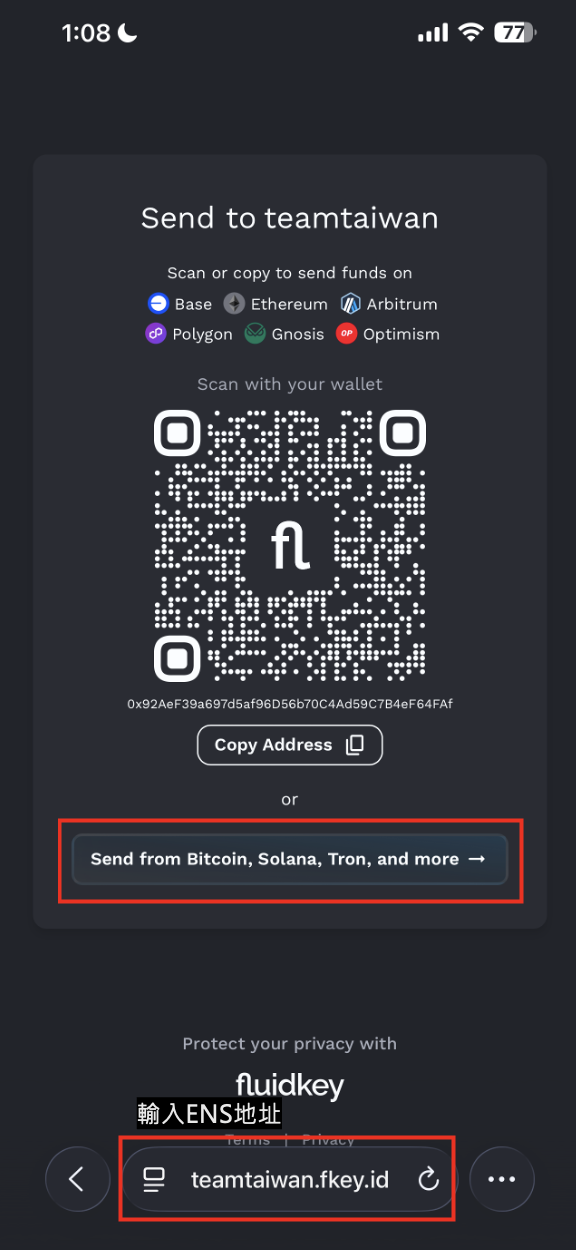
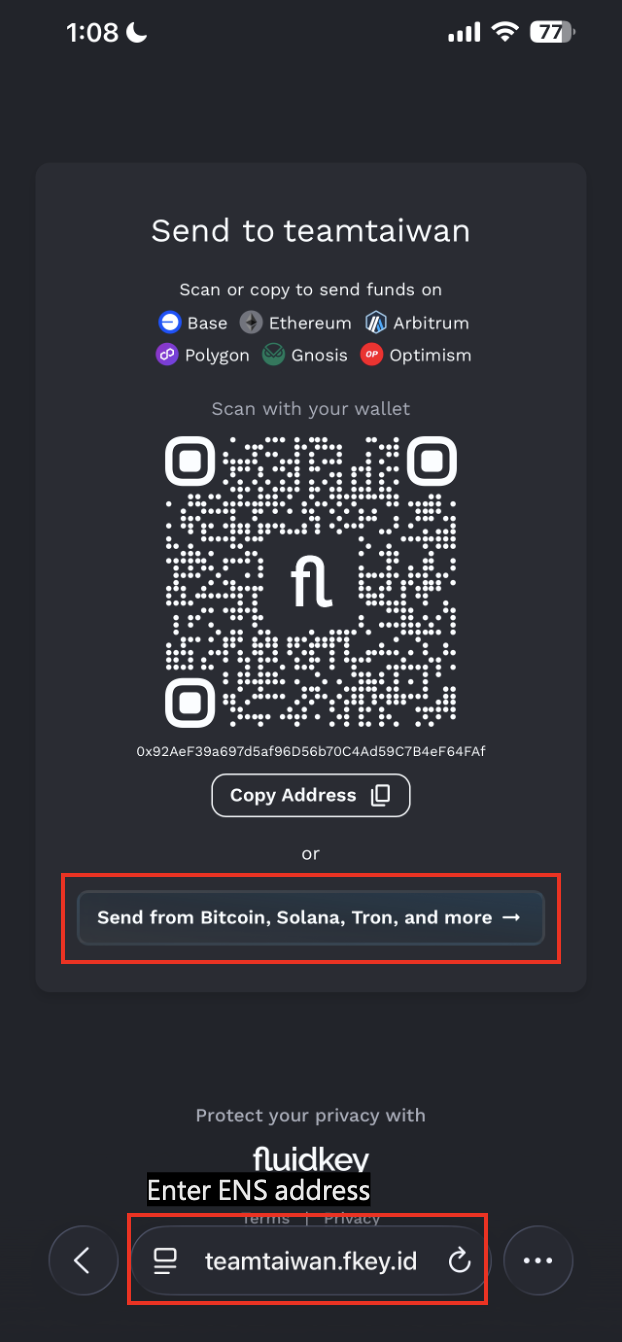
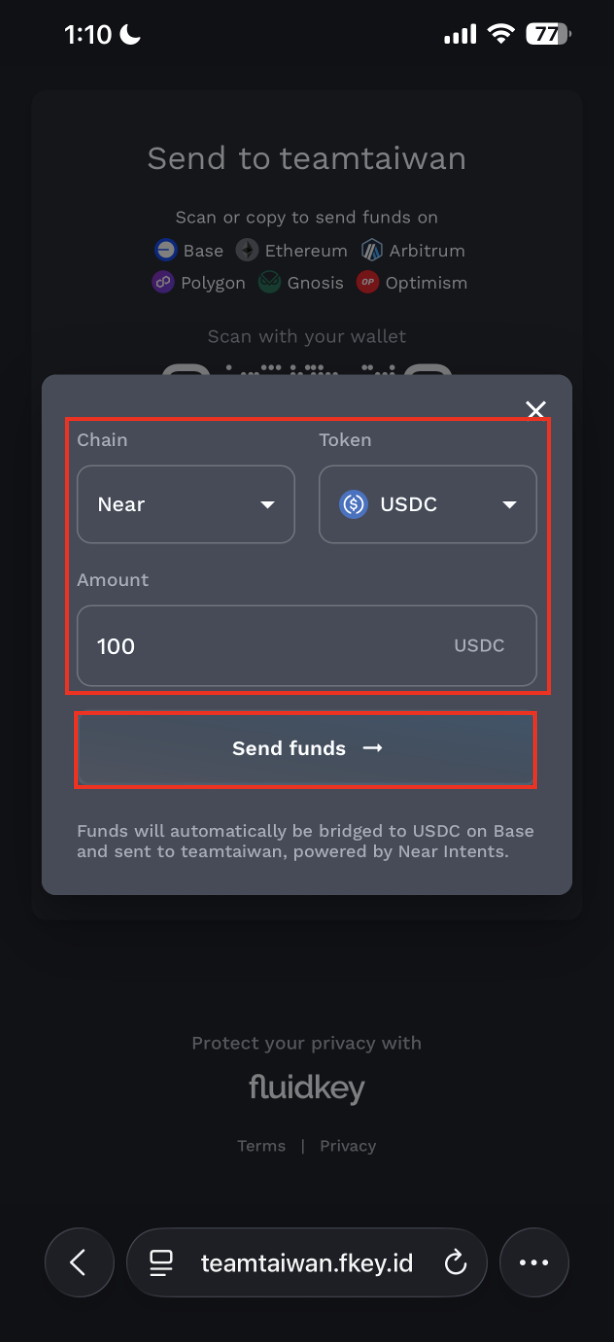
進入頁面後,往下找到「Send from Bitcoin, Solana, Tron, and more →」並點選。
### 步驟二:選擇來源鏈與加密貨幣
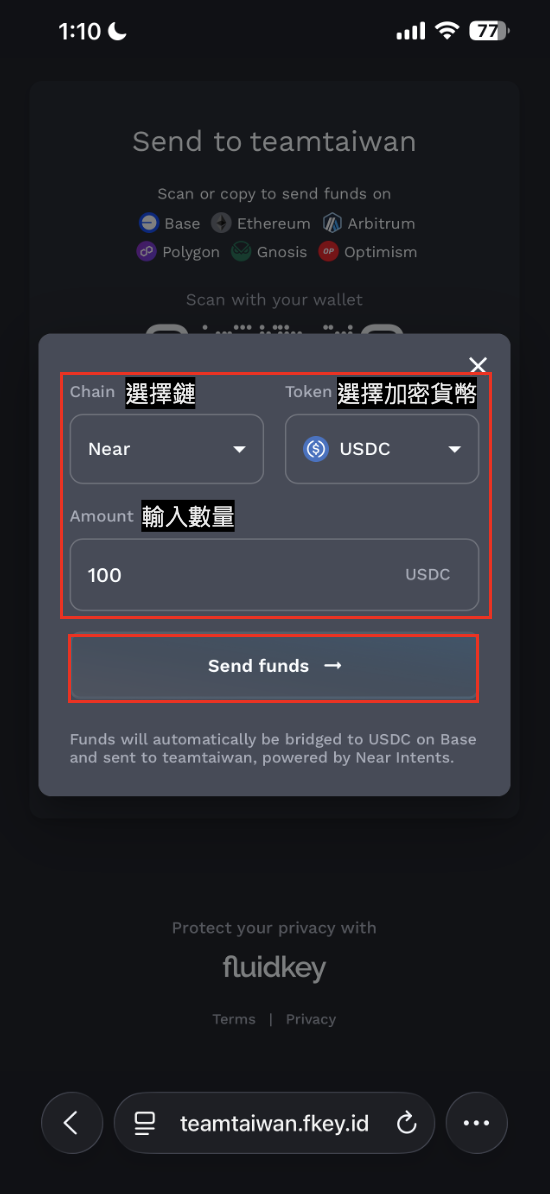
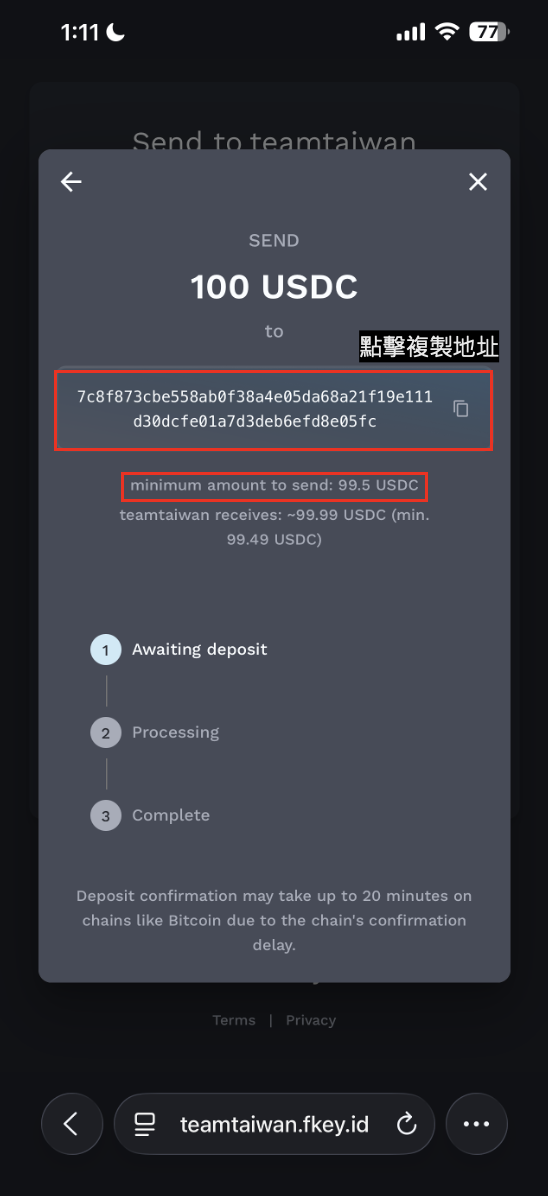
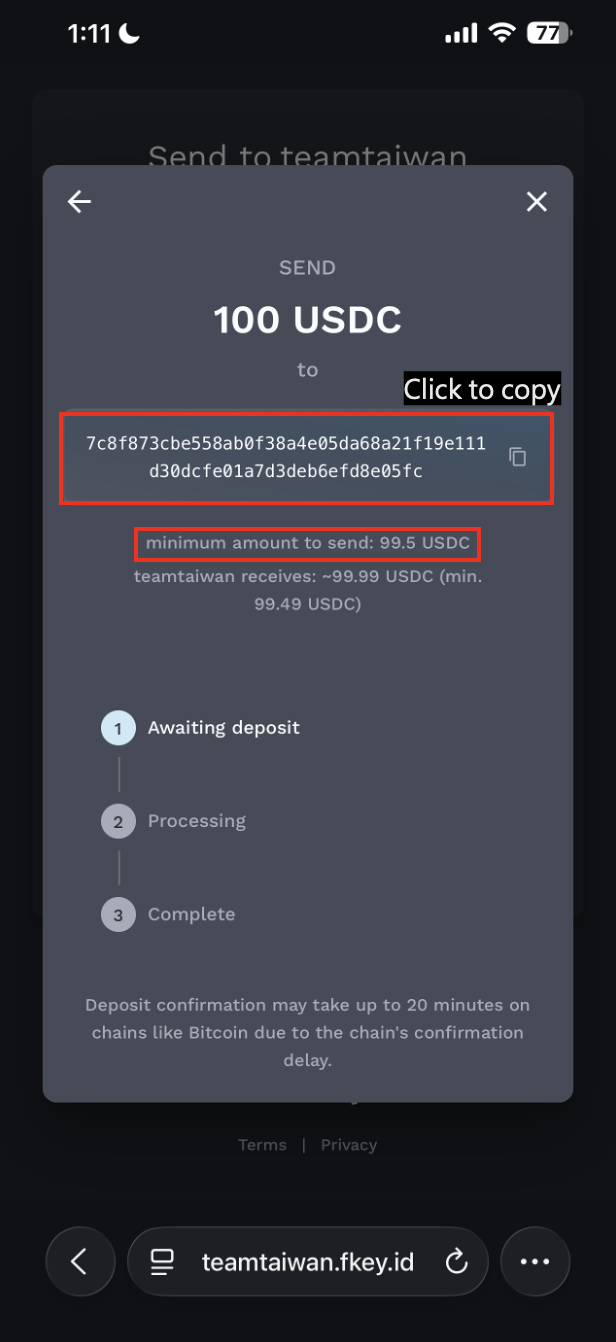
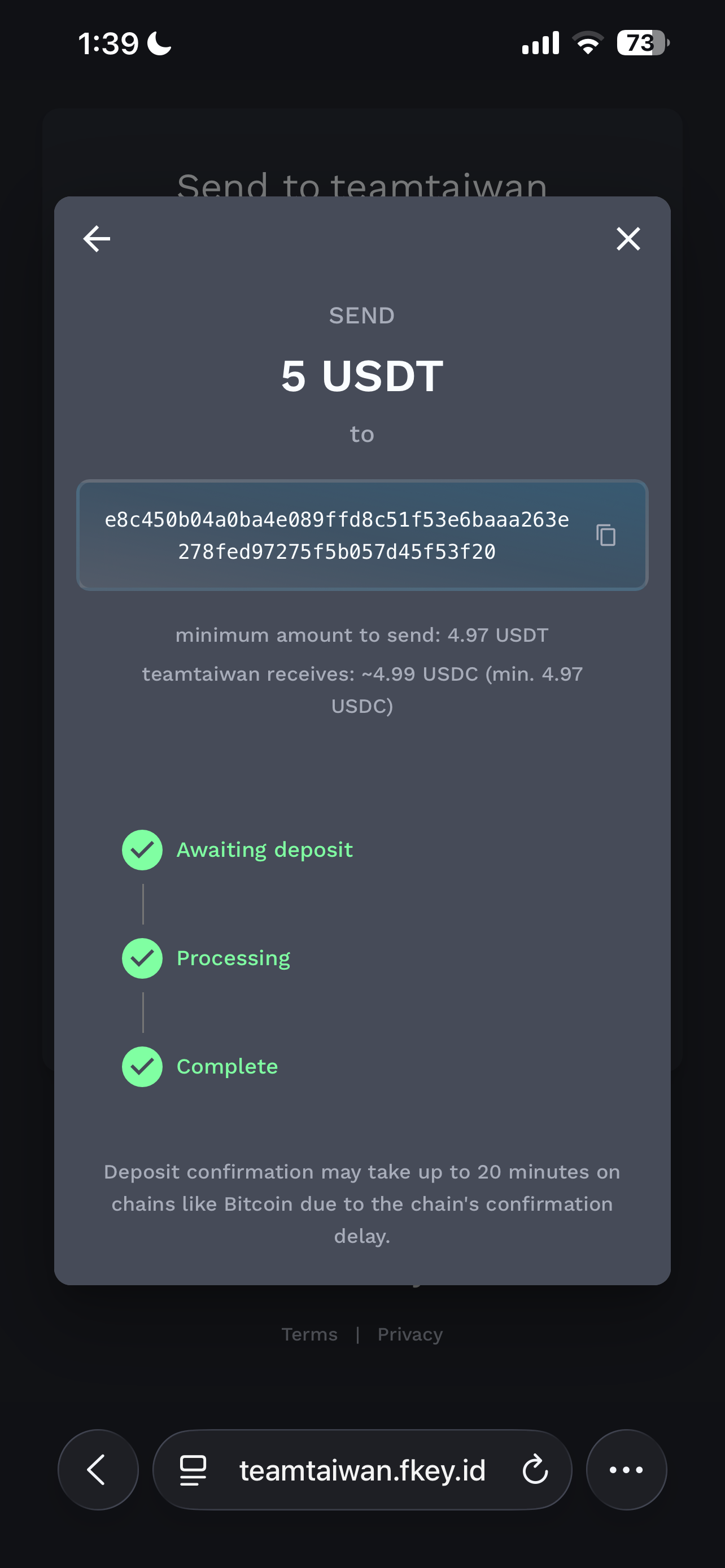
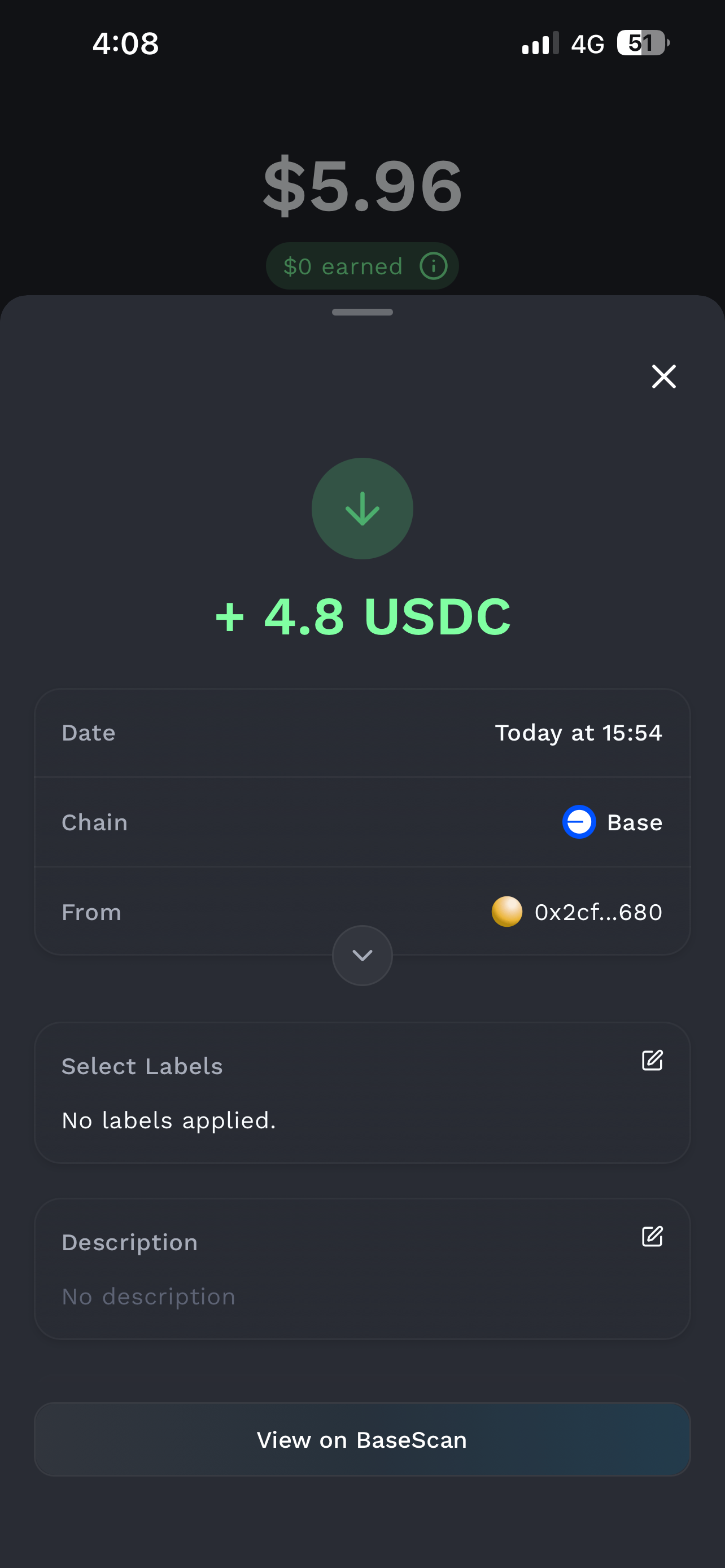
點選後,系統會開啟跨鏈轉入視窗。請選擇你要從哪一條鏈轉入資金,並選擇對應的 Token。例如,如果你想從 Near 轉入 USDC,就選擇 Near 作為來源鏈,並選擇 USDC 作為轉入資產並輸入金額數量。
## 社群活動
這裡整理 Fluidkey 華語社群的活動公告與參與資訊。
* [分享你的 Fluidkey 故事|華語區徵稿活動+推薦獎勵計劃](/zh-TW/community-events/fluidkey-story-campaign)
## ENS Offchain Resolver
An [ENS Offchain Resolver](https://docs.ens.domains/learn/ccip-read#offchain-resolution) represents a crucial part of Fluidkey's UX, facilitating the generation of privacy-preserving addresses while keeping a great UX and compatibility. Unlike traditional resolvers that require each transaction to be recorded on the blockchain, Fluidkey's solution operates offchain. This approach significantly reduces transaction fees and processing times, and it's the only way to maintain privacy. Other ENS systems like Coinbase's cb.id and Uniswap's uni.eth also use offchain resolvers, Fluidkey is however the only system that also provides enhanced privacy through an offchain resolver.
#### Detailed Privacy Implications
Inside Fluidkey, each user has [a **viewing** and a **spending** key](/technical-documentation/technical-walkthrough#2-user-keys) associated to his own account. By differentiating between viewing and spending keys, Fluidkey ensures that it can generate new addresses by accessing the viewing key, while not able to control these addresses, keeping the solution fully self-custodial.
In implementing the ENS Offchain Resolver, Fluidkey achieves a critical **balance** **between functionality** **and privacy**. Having access to generated addresses is crucial for operational purposes, such as indexing, which enables Fluidkey to effectively support user queries and interactions within the network, improving the UX by showing the total balance across addresses, or computing the most privacy preserving path to execute a transaction.
While the generation of Stealth Addresses is based on an [open source kit](https://github.com/fluidkey/fluidkey-stealth-account-kit), it's important to emphasize that this setup gives Fluidkey view access to the user's addresses, but doesn't enable Fluidkey to control any of the assets within these addresses.
#### Embracing Decentralization
Fluidkey's roadmap includes transitioning to a fully decentralized ENS Offchain Resolver. This ambitious goal is not straightforward and requires further research to get to a production-ready solution.
## Stealth Account Initdata
Fluidkey does not use any initdata when the auto-earn feature is disabled.
When the auto-earn feature is enabled, initdata is passed to enable the Fluidkey [Fluidkey Earn module](https://github.com/fluidkey/fluidkey-earn-module). You can learn more about the auto-earn feature [here](/readme/earn). This initdata can be used to [recover stealth addresses](/readme/frequently-asked-questions#can-i-access-my-funds-without-fluidkey) independently of the Fluidkey app.
### Initdata versions
#### Auto-earn v1.0 (till April 10th 2025)
```
// to address
0xa238cbeb142c10ef7ad8442c6d1f9e89e07e7761
// data
0x8d80ff0a00000000000000000000000000000000000000000000000000000000000000200000000000000000000000000000000000000000000000000000000000000212012dd68b007b46fbe91b9a7c3eda5a7a1063cb5b47000000000000000000000000000000000000000000000000000000000000000000000000000000000000000000000000000000000000000000000000000000648d0dc49f0000000000000000000000000000000000000000000000000000000000000020000000000000000000000000000000000000000000000000000000000000000100000000000000000000000074995e1075f1b0c308efacc56520d14e4954da6f0074995e1075f1b0c308efacc56520d14e4954da6f000000000000000000000000000000000000000000000000000000000000000000000000000000000000000000000000000000000000000000000000000001046d61fe70000000000000000000000000000000000000000000000000000000000000002000000000000000000000000000000000000000000000000000000000000000c000000000000000000000000000000000000000000000000000000000000000200000000000000000000000000000000000000000000000000000000000000002000000000000000000000000833589fcd6edb6e08f4c7c32d4f71b54bda02913000000000000000000000000ee8f4ec5672f09119b96ab6fb59c27e1b7e44b6100000000000000000000000060a3e35cc302bfa44cb288bc5a4f316fdb1adb420000000000000000000000001c155be6bc51f2c37d472d4c2eba7a637806e1220000000000000000000000000000
```
#### Auto-earn v1.1 (April 10th 2025 - August 20th 2025)
Extends auto-earn v1 to more chains and pools.
```
// to address
0xa238cbeb142c10ef7ad8442c6d1f9e89e07e7761
// data
0x8d80ff0a00000000000000000000000000000000000000000000000000000000000000200000000000000000000000000000000000000000000000000000000000000172012dd68b007b46fbe91b9a7c3eda5a7a1063cb5b47000000000000000000000000000000000000000000000000000000000000000000000000000000000000000000000000000000000000000000000000000000648d0dc49f000000000000000000000000000000000000000000000000000000000000002000000000000000000000000000000000000000000000000000000000000000010000000000000000000000003bdb857afe9b51d8916d80240d2ade40d4d3f2f9003bdb857afe9b51d8916d80240d2ade40d4d3f2f9000000000000000000000000000000000000000000000000000000000000000000000000000000000000000000000000000000000000000000000000000000646d61fe70000000000000000000000000000000000000000000000000000000000000002000000000000000000000000000000000000000000000000000000000000000208aaeeb0a8f69d357a5b5fbe03dd796645c25526e98f41b8432dcd4fc21774cbf0000000000000000000000000000
```
#### Auto-earn Core Profile v1.2 (August 20th 2025 - now)
```
// to address
0xa238cbeb142c10ef7ad8442c6d1f9e89e07e7761
// data
0x8d80ff0a00000000000000000000000000000000000000000000000000000000000000200000000000000000000000000000000000000000000000000000000000000172012dd68b007b46fbe91b9a7c3eda5a7a1063cb5b47000000000000000000000000000000000000000000000000000000000000000000000000000000000000000000000000000000000000000000000000000000648d0dc49f000000000000000000000000000000000000000000000000000000000000002000000000000000000000000000000000000000000000000000000000000000010000000000000000000000003bdb857afe9b51d8916d80240d2ade40d4d3f2f9003bdb857afe9b51d8916d80240d2ade40d4d3f2f9000000000000000000000000000000000000000000000000000000000000000000000000000000000000000000000000000000000000000000000000000000646d61fe7000000000000000000000000000000000000000000000000000000000000000200000000000000000000000000000000000000000000000000000000000000020d55dfa1406e6096fa99a5afb63577182aea39b3f05d26158ed25037102bc6a0b0000000000000000000000000000
```
#### Auto-earn Optimized Profile v1.2 (August 20th 2025 - now)
```
// to address
0xa238cbeb142c10ef7ad8442c6d1f9e89e07e7761
// data
0x8d80ff0a00000000000000000000000000000000000000000000000000000000000000200000000000000000000000000000000000000000000000000000000000000172012dd68b007b46fbe91b9a7c3eda5a7a1063cb5b47000000000000000000000000000000000000000000000000000000000000000000000000000000000000000000000000000000000000000000000000000000648d0dc49f000000000000000000000000000000000000000000000000000000000000002000000000000000000000000000000000000000000000000000000000000000010000000000000000000000003bdb857afe9b51d8916d80240d2ade40d4d3f2f9003bdb857afe9b51d8916d80240d2ade40d4d3f2f9000000000000000000000000000000000000000000000000000000000000000000000000000000000000000000000000000000000000000000000000000000646d61fe70000000000000000000000000000000000000000000000000000000000000002000000000000000000000000000000000000000000000000000000000000000206d49fa56e09c4c8f4de4728d61253fb34f3a1950798f615c880235ea633ff5f90000000000000000000000000000
```
## Technical Walkthrough
This walkthrough provides background on Fluidkey's core crypto functions, which are released as an [open source kit](https://github.com/fluidkey/fluidkey-stealth-account-kit).
### 1. Background Reading
To keep the walkthrough concise, we assume the reader has a basic understanding of the following concepts. If you're not familiar with them, you can start with the linked resources.
* [Elliptic Curve Cryptography](https://blog.cloudflare.com/a-relatively-easy-to-understand-primer-on-elliptic-curve-cryptography/)
* [Accounts and transactions on public EVM blockchains](https://github.com/ethereumbook/ethereumbook)
* [Stealth addresses](https://vitalik.eth.limo/general/2023/01/20/stealth.html)
### 2. User Keys
When a user signs into Fluidkey, they are asked to sign a key generation message with their existing Ethereum account. The signature of this message is used to derive the user's private key pair.
See [`generateKeysFromSignature`](https://github.com/fluidkey/fluidkey-stealth-account-kit/blob/main/src/generateKeysFromSignature.ts) in the kit.
The private key pair never leaves the user's client and is not stored locally. Every time the user re-opens the Fluidkey app and wants to send funds out, they must sign the key generation message again to derive their private keys.
The private key pair is composed of two keys:
* A **private spending key** used to control user funds and sign transactions
* A **private viewing key** used to retrieve user funds and view transactions
To allow Fluidkey to generate addresses on behalf of the user and retrieve their funds, the user shares a [BIP-32](https://github.com/bitcoin/bips/blob/master/bip-0032.mediawiki) derived node of their private viewing key with Fluidkey.
The shared node is of the form `m/5564'/N'` where `N` is the number identifying the specific node shared. 5564 refers to [ERC-5564](https://eips.ethereum.org/EIPS/eip-5564), focused on standardizing the use of stealth addresses. Fluidkey currently uses `0` as the `N` value for all users. In the future, `N` may also be used to reference a specific time period (e.g. year, Unix timestamp) or other dimension to be able to give third parties view access to this specific dimension only.
See [`extractViewingPrivateKeyNode`](https://github.com/fluidkey/fluidkey-stealth-account-kit/blob/main/src/extractViewingPrivateKeyNode.ts) in the kit.
### 3. Stealth Accounts
Fluidkey currently uses 1/1 [Safe smart accounts](https://github.com/safe-global/safe-contracts) as stealth accounts. They act as stealth addresses with the added UX benefits of smart accounts, such as gas sponsorship.
By using Safe as the underlying smart account, Fluidkey users also benefit from the security of a battle-tested smart account implementation.
#### 3.a. Stealth Signer Derivation
Each stealth account is controlled by a stealth EOA that acts as the sole signer authorized to approve transactions and control the stealth account.
The stealth EOA is derived pseudo-randomly using the viewing key node shared by the user (see section 2.). Every time a new stealth account is required, the ephemeral private key used to derive the stealth EOA is a new leaf of the shared viewing key node.
Specifically, each new stealth address request increments the viewing key node `p/n` by one and derives the secret from the obtained leaf `m/5564'/N'/c0'/c1'/0'/p'/n'`, where `c0` and `c1` represent the coinType of the chain used following [ENSIP-11](https://docs.ens.domains/ens-improvement-proposals/ensip-11-evmchain-address-resolution).
We use `c0'/c1'` and `p'/n'` to ensure no single number in the derivation path exceeds or equals `0x80000000` (`2^31`) in line with BIP-32 requirements.
Currently Fluidkey uses a coinType corresponding to chainId `0`, which allows us to generate addresses valid across all EVM chains supported in the interface. A Fluidkey derivation path should therefore look like `m/5564'/0'/8'/0'/0'/p'/n'`.
See [`generateEphemeralPrivateKey`](https://github.com/fluidkey/fluidkey-stealth-account-kit/blob/main/src/generateEphemeralPrivateKey.ts) and [`generateStealthAddresses`](https://github.com/fluidkey/fluidkey-stealth-account-kit/blob/main/src/generateStealthAddresses.ts) in the kit.
The pseudo-random derivation of the stealth EOA ensures that the user can independently replay all stealth addresses generated and recover funds without relying on Fluidkey.
#### 3.b. Counterfactual Instantiation
Sending assets to a user's stealth account does not require the deployment of the underlying smart contract. Instead, the stealth account's address is counterfactually predicted and is only deployed at the moment of withdrawal.
See [`predictStealthSafeAddressWithClient`](https://github.com/fluidkey/fluidkey-stealth-account-kit/blob/main/src/predictStealthSafeAddress.ts) in the kit.
### 4. ENS Resolution
Fluidkey provides users with a static ENS of the form `username.fkey.id` and `username.fkey.eth`. This identifier resolves a new stealth address controlled by the recipient on every query. This allows users to send funds to a single human-readable identifier while protecting recipient privacy.
Fluidkey uses an [ENS offchain resolver](https://github.com/ensdomains/offchain-resolver/) to return stealth addresses.
## Account Set-up
Fluidkey is self-custodial - you hold the keys to your money. We build the app, but we can never touch your funds. Even if Fluidkey disappeared tomorrow, you could still access your account if you have a backup.
Your login is everything though. If someone else gets access to it, they get access to your funds. Here are three simple steps to keep your account safe:
### 1. Choose a secure login you can access long-term
We recommend signing in with Google or Apple, with their two-factor authentication turned on.
On our web app, your keys are generated from your login via a [Privy](https://www.privy.io/) embedded wallet; on our mobile apps, they are generated on-device and secured by the secure enclave.
Either way, only you can access them - so pick a login you're confident you'll still have access to years from now.
### 2. Set up a backup
A backup is a second way to recover your account if you lose access to your login or device. You have two options:
* Cloud backup: an app-specific, encrypted file stored in iCloud (iOS) or Google Drive (Android), protected by a password you set.
* Local backup: download the encrypted file, or export your private keys, and store them somewhere secure (e.g. offline storage).
### 3. Enable spend limits
For extra peace of mind, set a spend limit that requires email or code verification for large transfers. See [Multi-Factor Authentication](/readme/multi-factor-authentication) to set it up.
Do all three and your account stays protected even if you lose your phone.
### Already have a crypto wallet?
On our web app, you can also create your Fluidkey account by connecting an existing wallet.
Your Fluidkey keys are then secured by that wallet, so losing access to it means losing access to your Fluidkey account - make sure it is backed up.
## Advanced Privacy Features
### Hide Trail
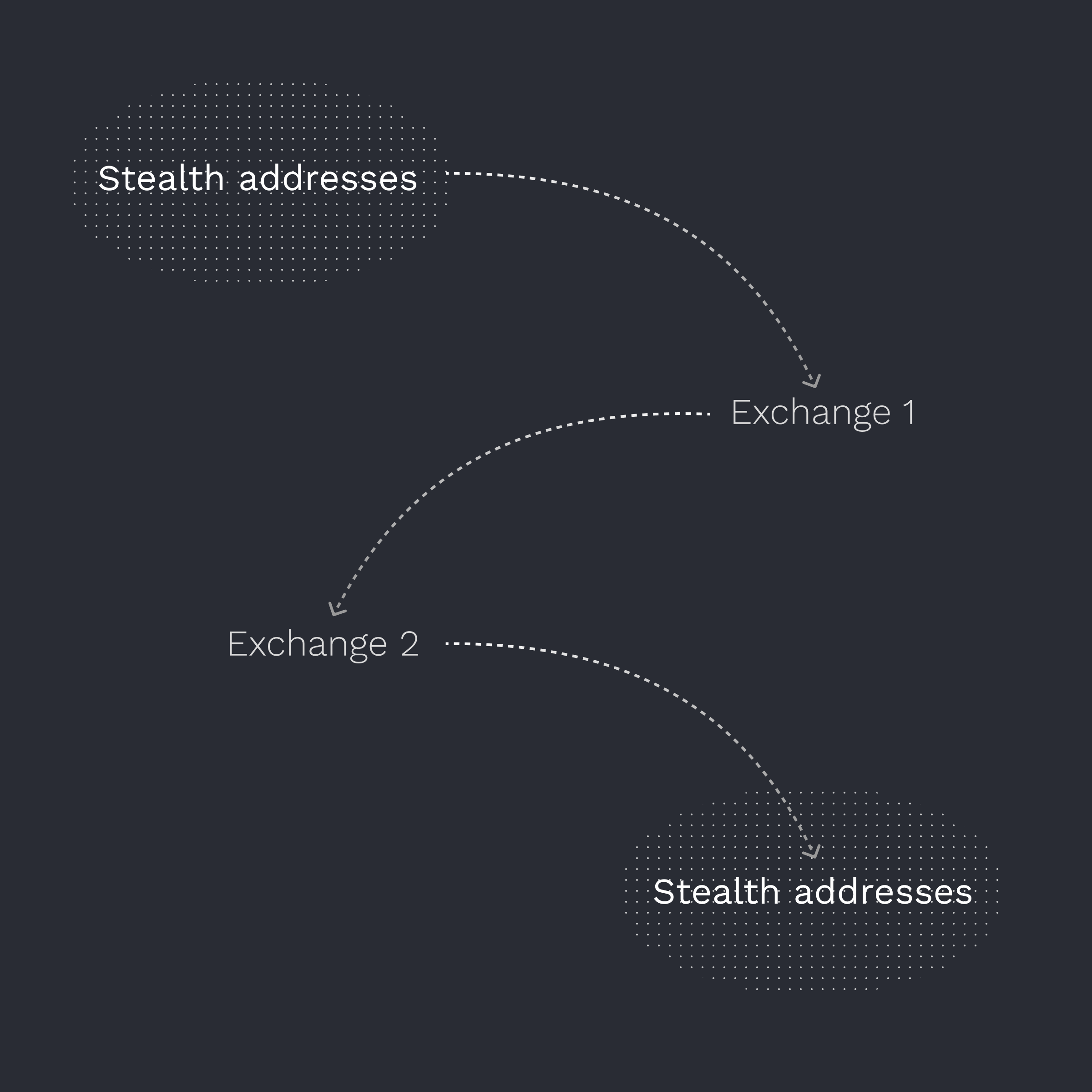
This feature is powered by [Houdini Swap](https://houdiniswap.com/), a swap aggregator with a unique [private mode](https://docs.houdiniswap.com/houdini-swap/private-swaps/private-mode) that routes funds through two exchanges to remove the link between your existing address and the newly funded one.
The full flow typically takes between 5 and 30 minutes and partner exchanges use live AML monitoring to ensure compliance.
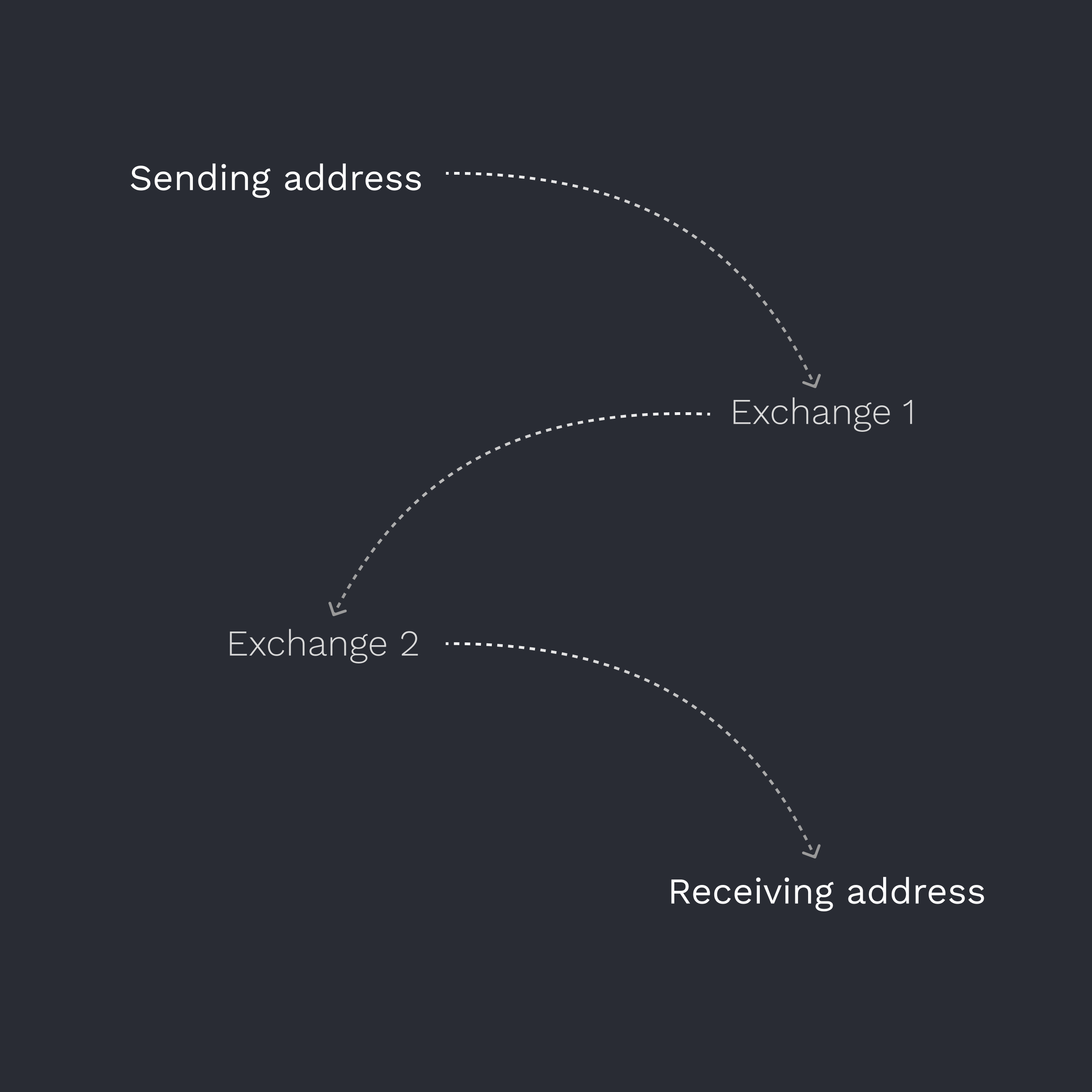
Combined with Fluidkey’s stealth addresses you get the best of both worlds: your funds are both untraceable and unlinkable onchain.
The integration is available for incoming transfers with a value of $60 to $100,000 across the chains and tokens listed below.
| Chain | Available tokens |
| -------- | ----------------------------------- |
| Ethereum | USDC, DAI, USDT, WETH, EURC, wstETH |
| Polygon | USDC, DAI, USDT, wstETH |
| Arbitrum | USDC, DAI, USDT, wstETH |
| Optimism | USDC, USDT, wstETH |
| Base | USDC |
To get started, simply tap the activity details of an incoming transfer and press the *Hide Trail* button.
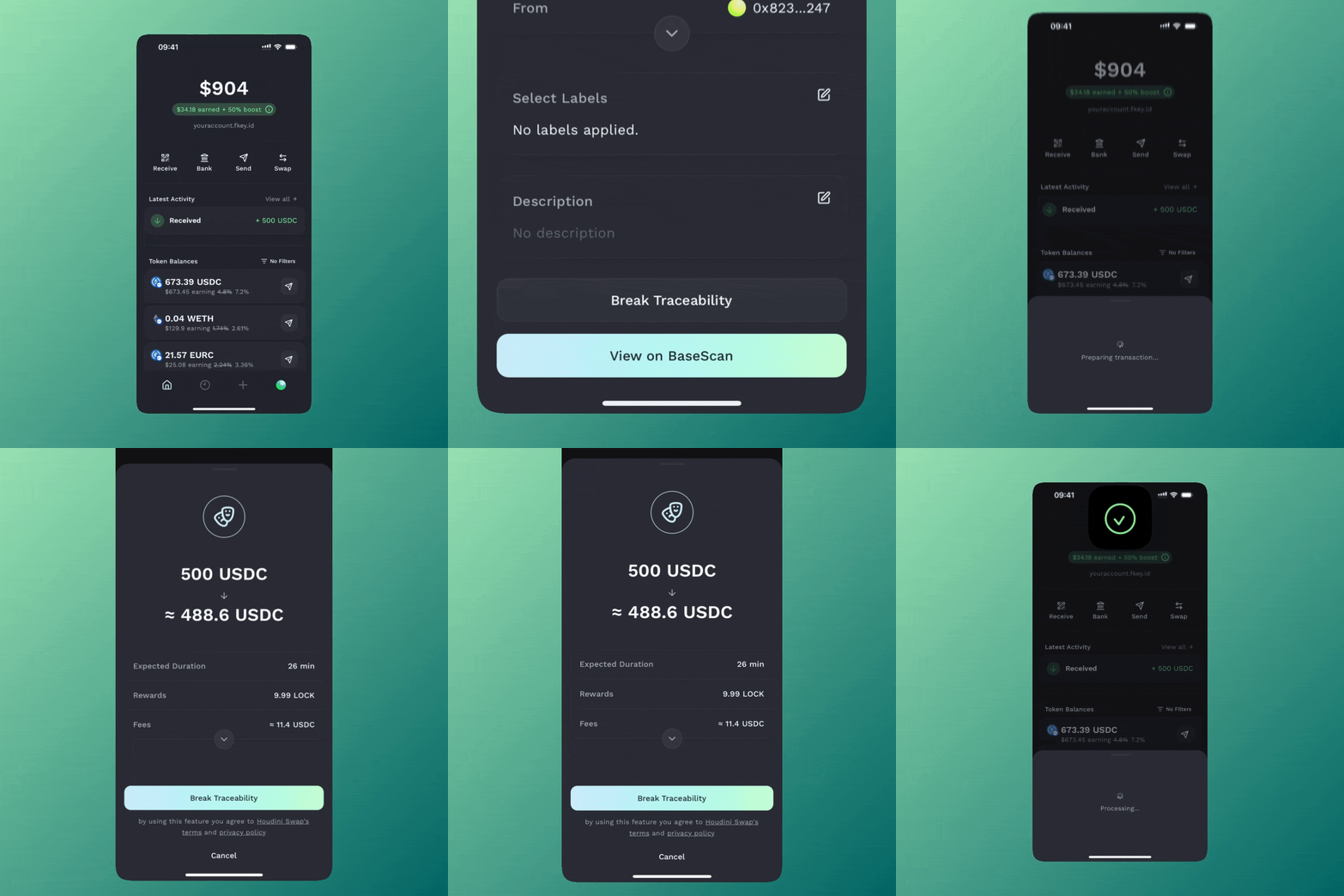
:::warning
Exact fees and output amounts can vary from the amounts shown in the confirmation modal.
:::
## Bank Transfers
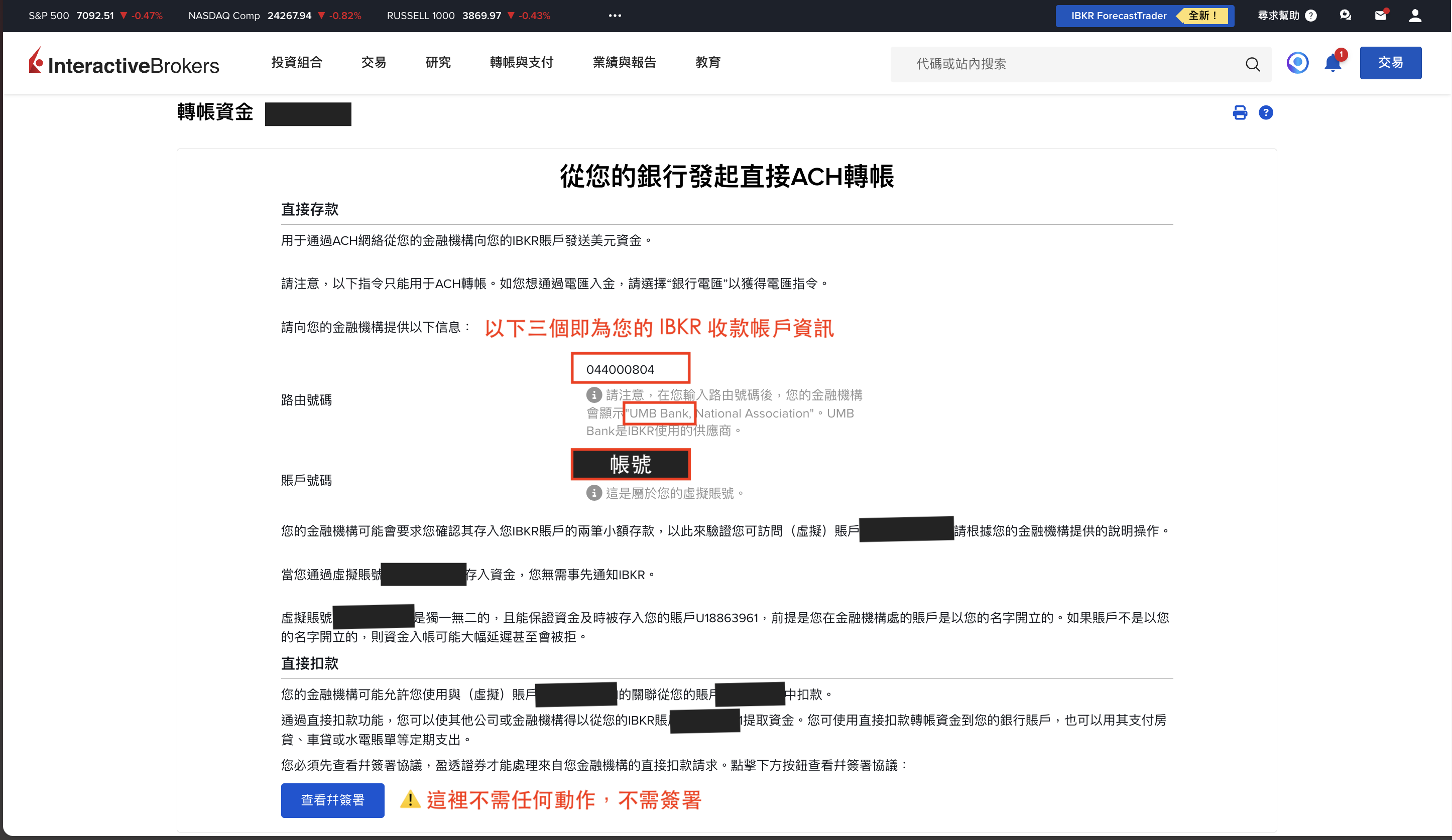
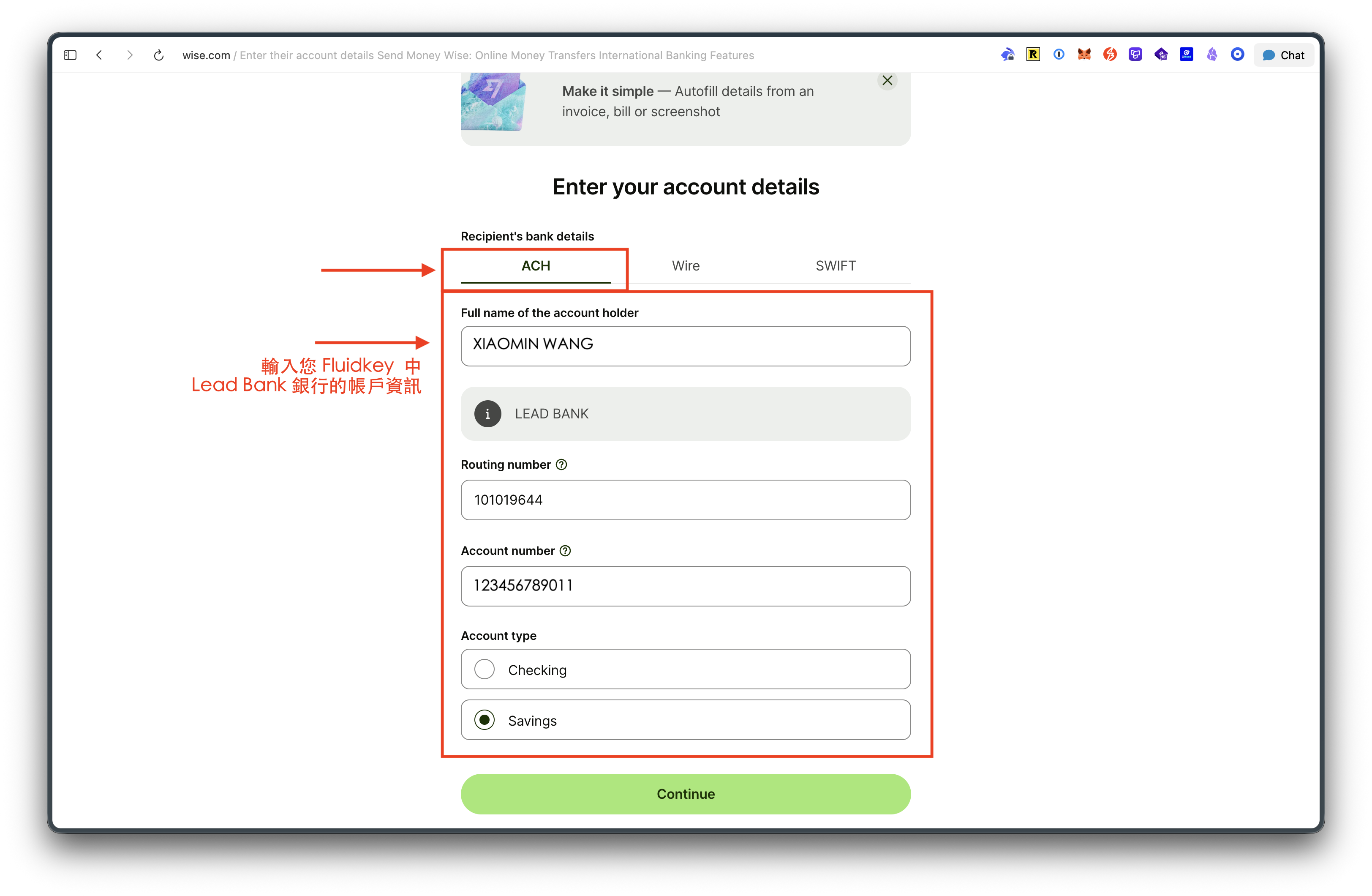
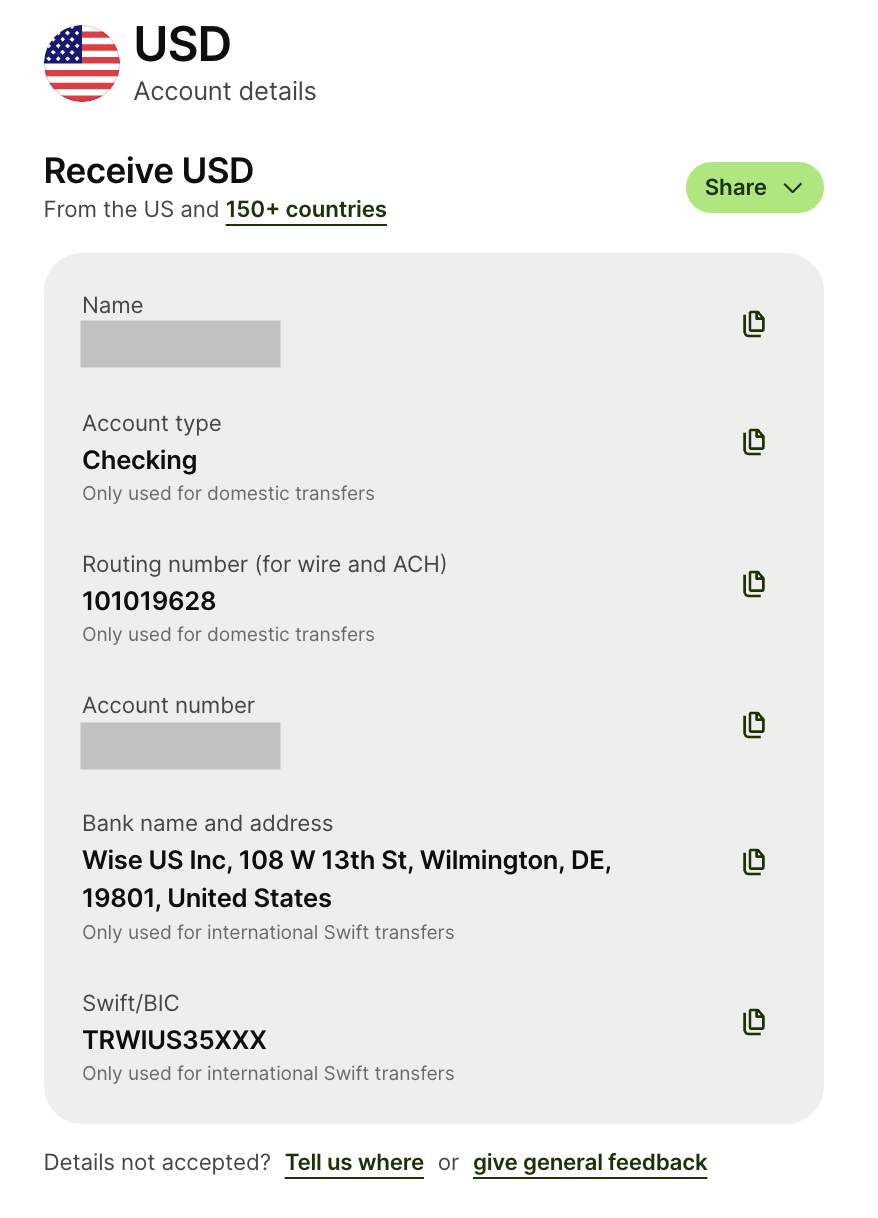
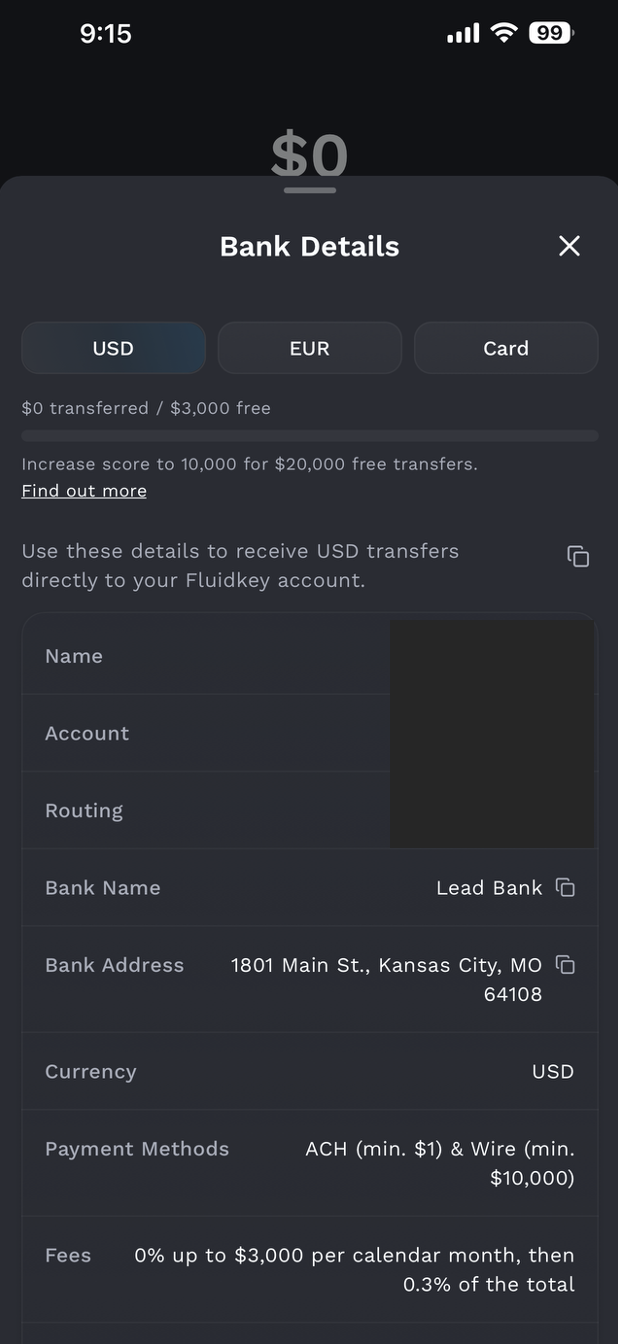
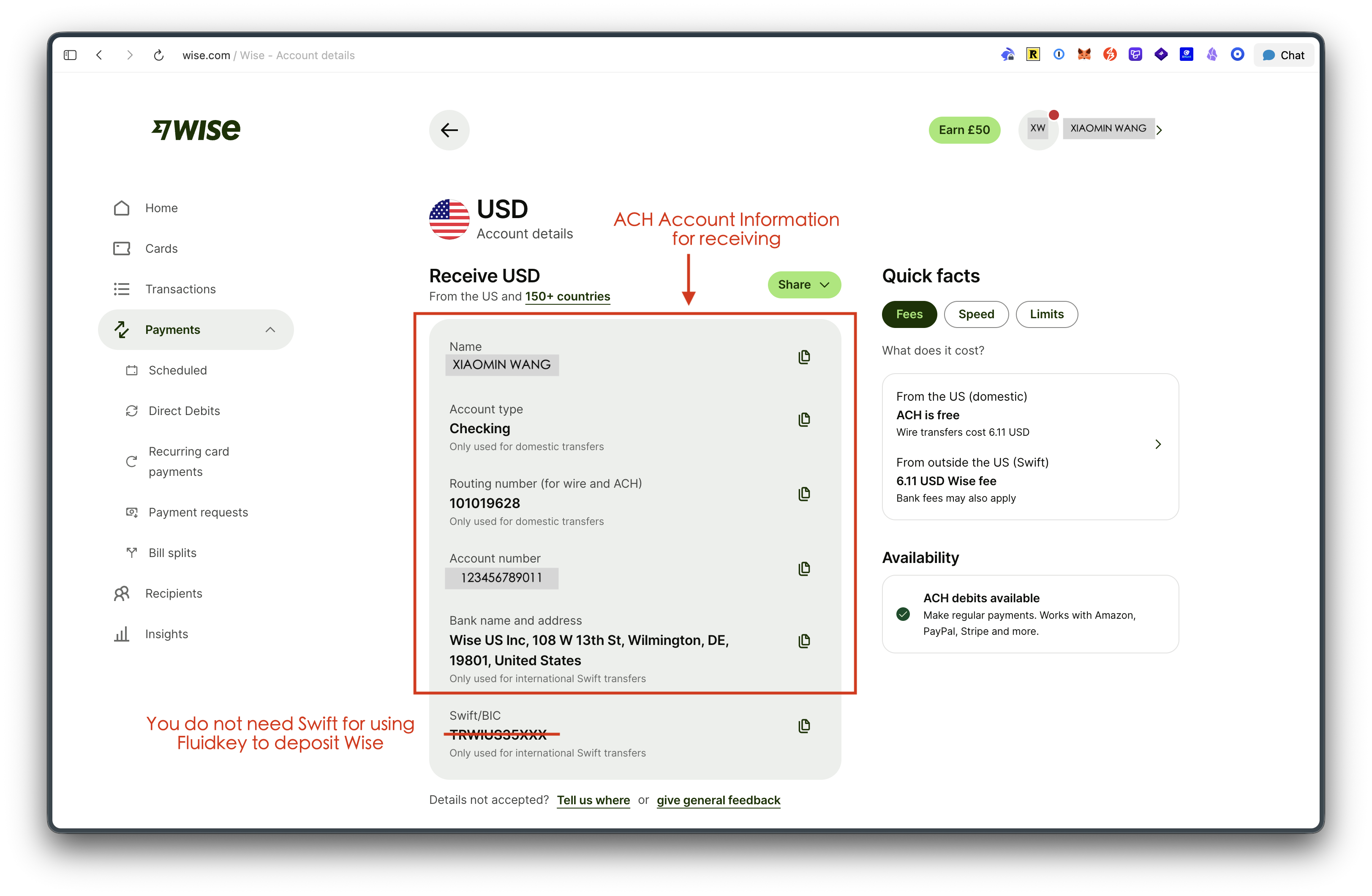
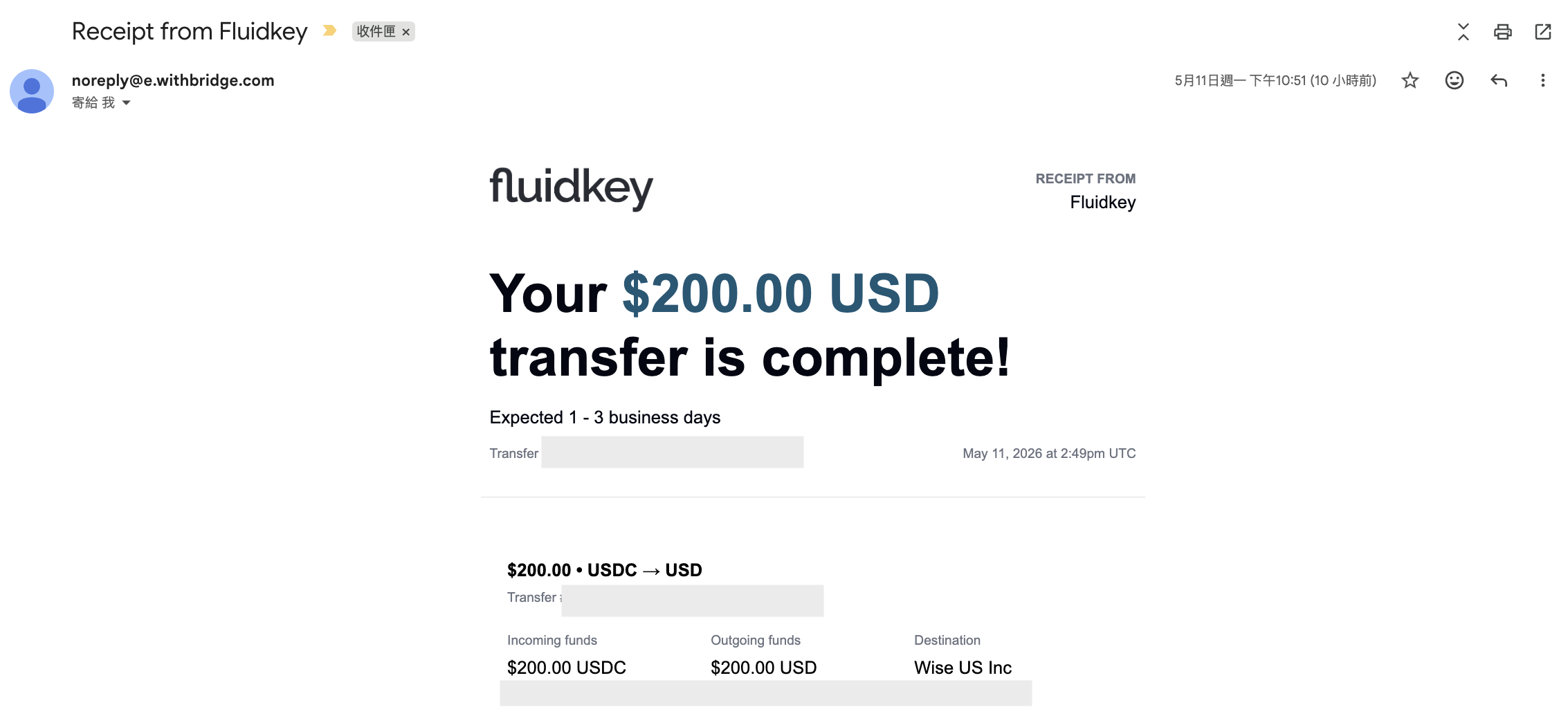
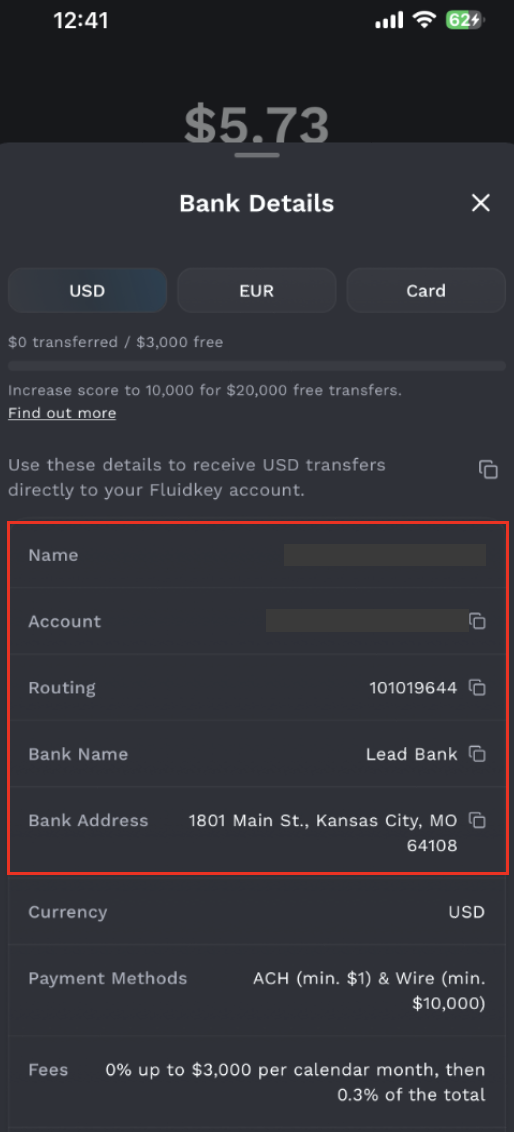
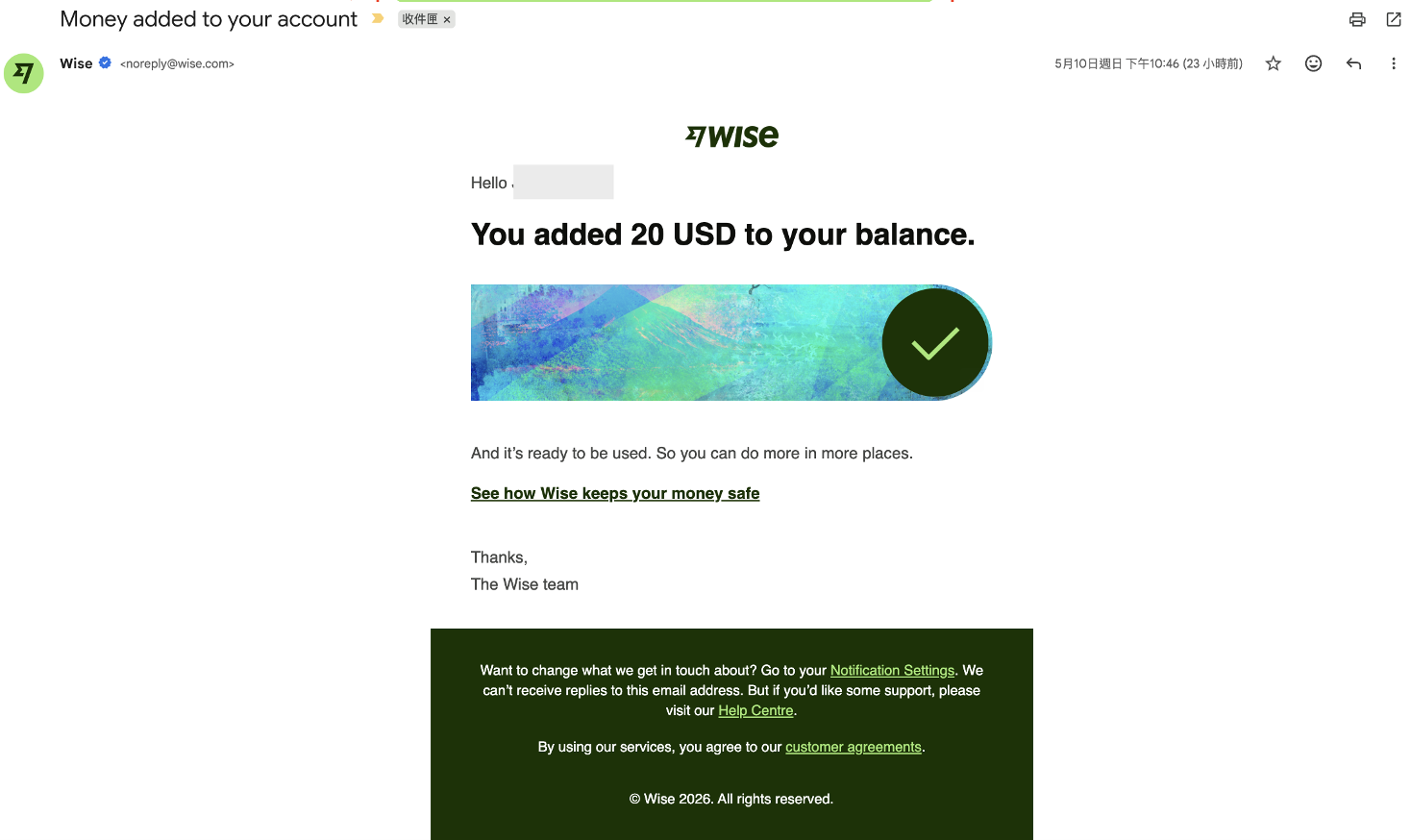
Get an account in minutes and start receiving & sending USD & Euro transfers from any bank. Incoming transfers will automatically be deposited as USDC into your self-custodial Fluidkey account in a privacy-preserving manner.
This feature is powered by [Noah](https://noah.com) and is available to both individual users and organizations.
### Key Information
Free monthly limits:
* [Fluidkey Score](/readme/score) below 10k: $3,000 per calendar month
* [Fluidkey Score](/readme/score) over 10k: $20,000 per calendar month
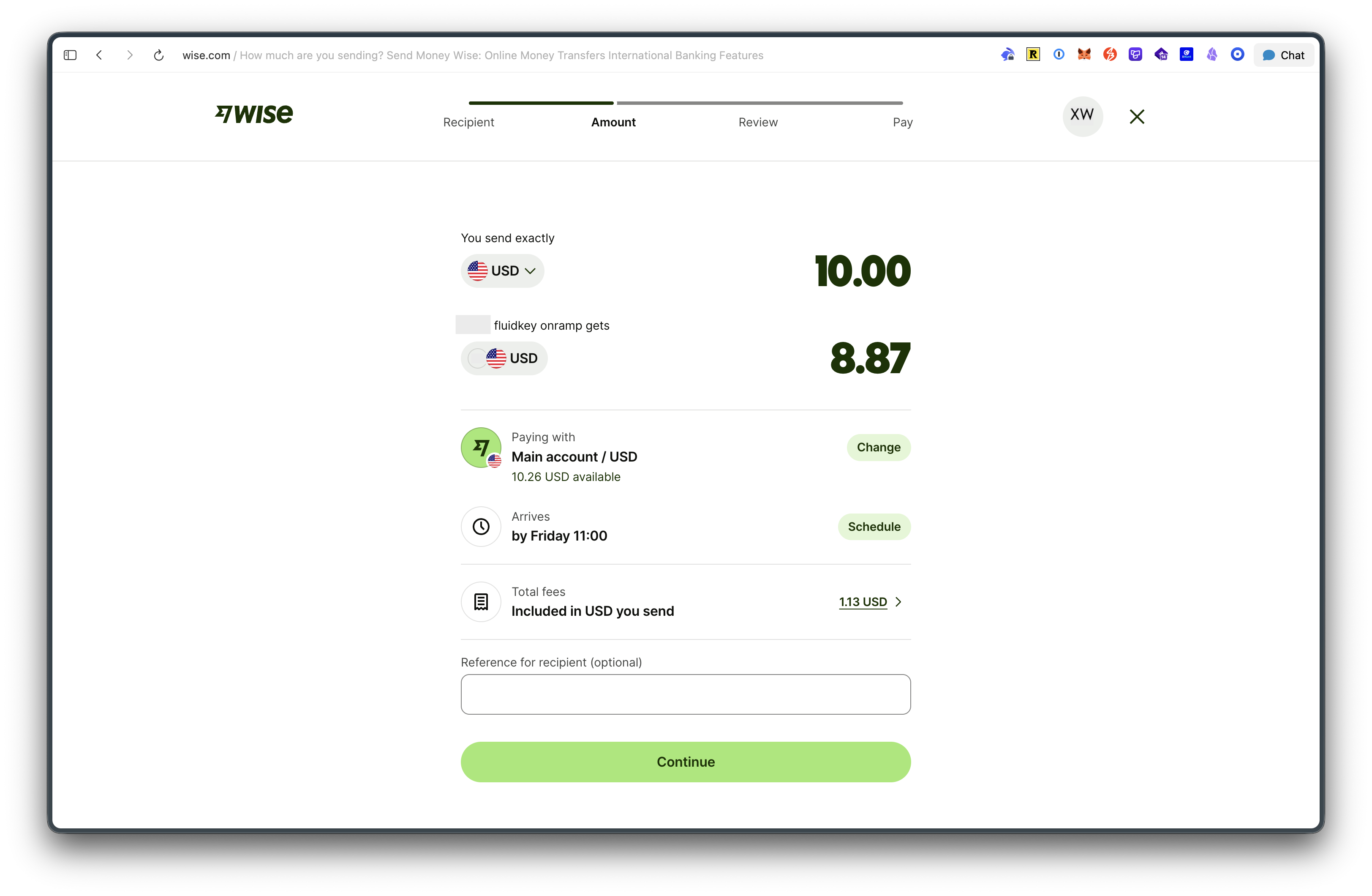
Beyond your free monthly limit, a flat **0.3%** fee will apply to bank transfers. Note that the limit is cumulative across all onramp and offramp transfers.
Deposits and withdrawals are available via four methods:
* **ACH** (US domestic, USD)
* **SEPA** (Europe, EUR)
* **Fedwire** (US domestic wire, USD)
* **SWIFT** (international wire, USD)
Minimum per transfer: $1 for ACH and SEPA. Fedwire and SWIFT transfers incur a flat **$25** fee per transaction. Fees may change over time; actual charges are shown in the Fluidkey interface.
### Account Creation
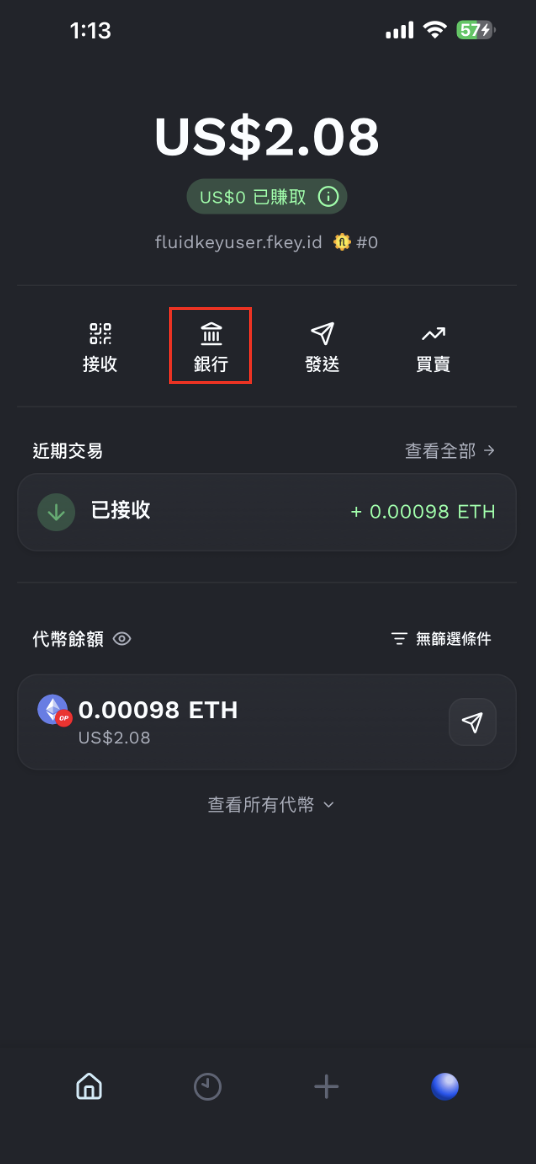
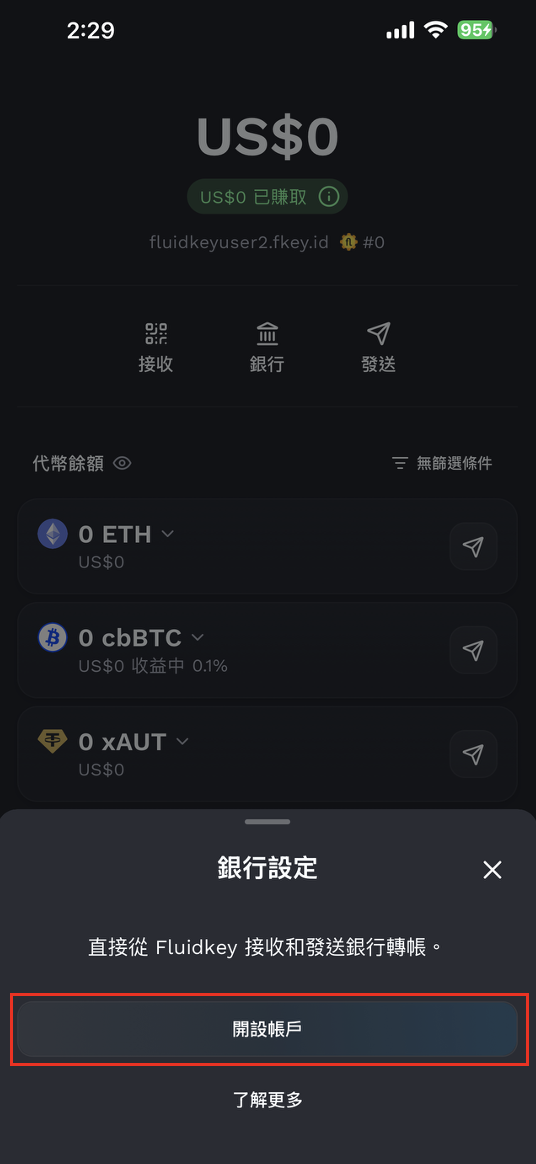
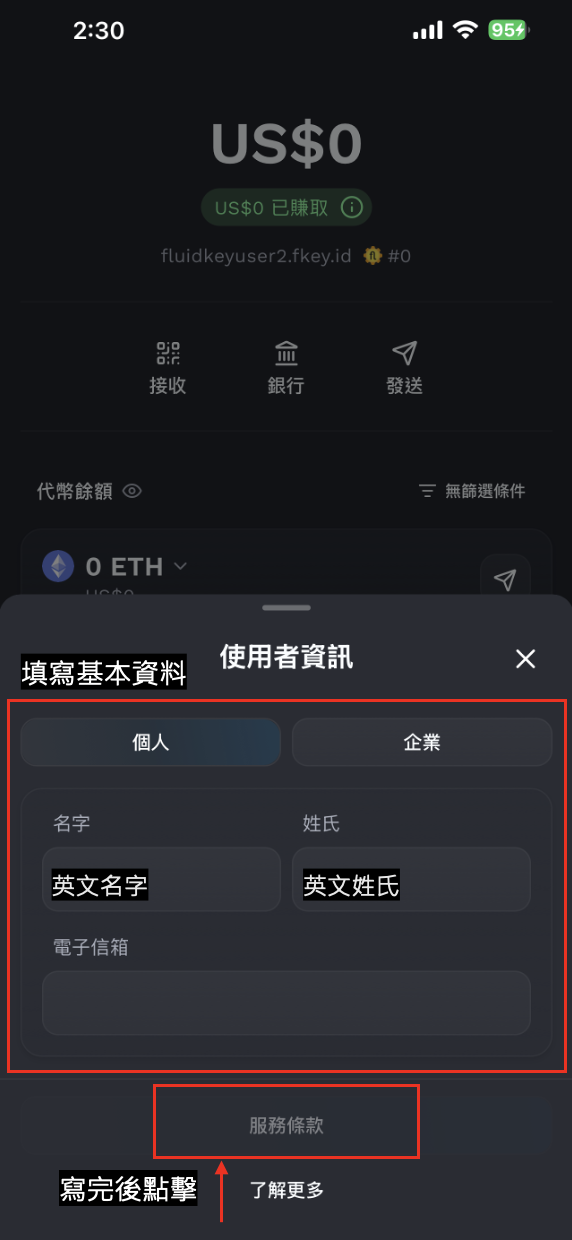
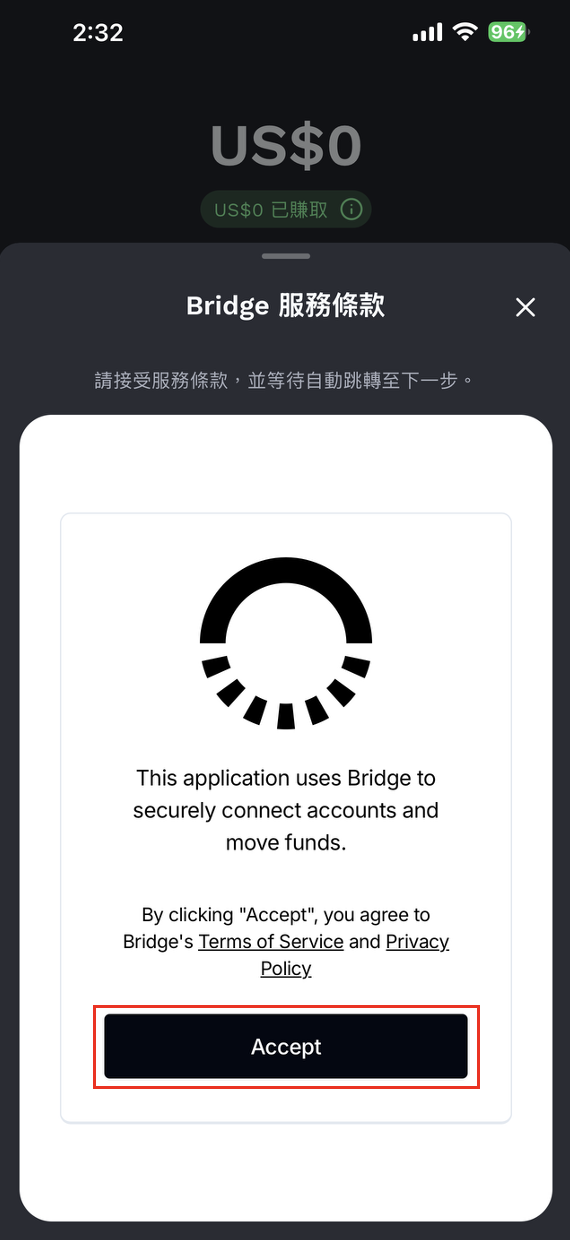
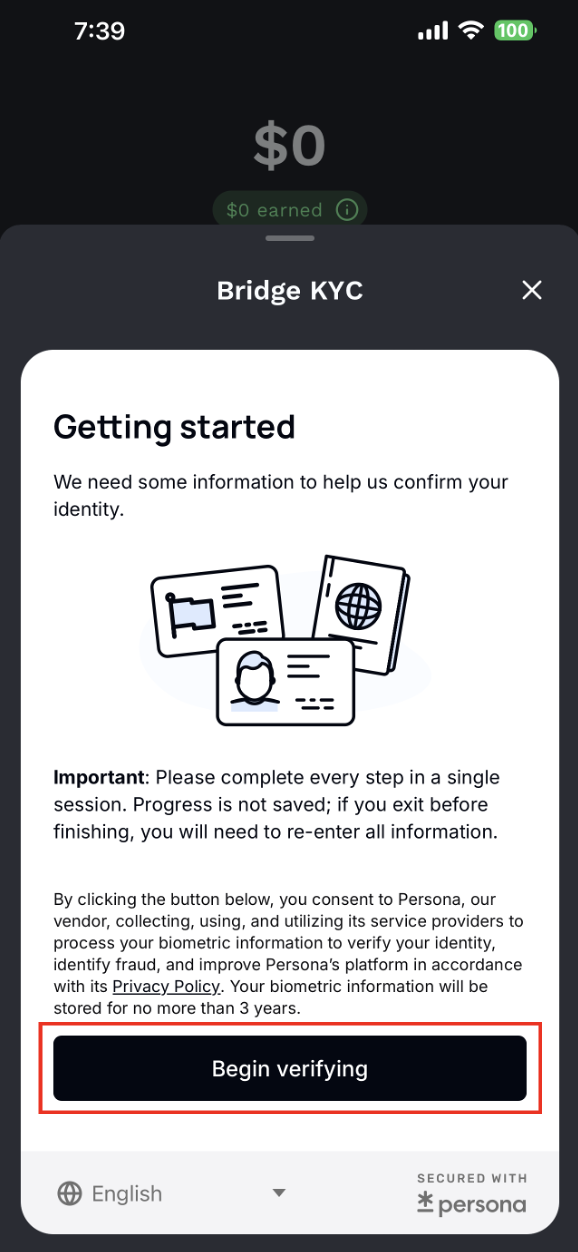
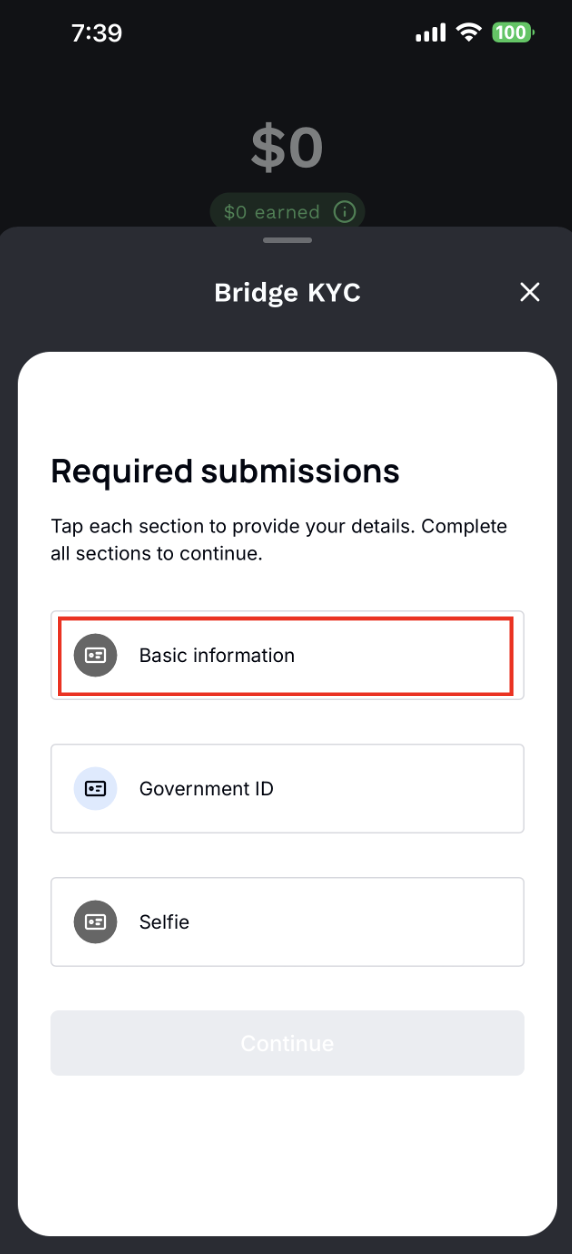
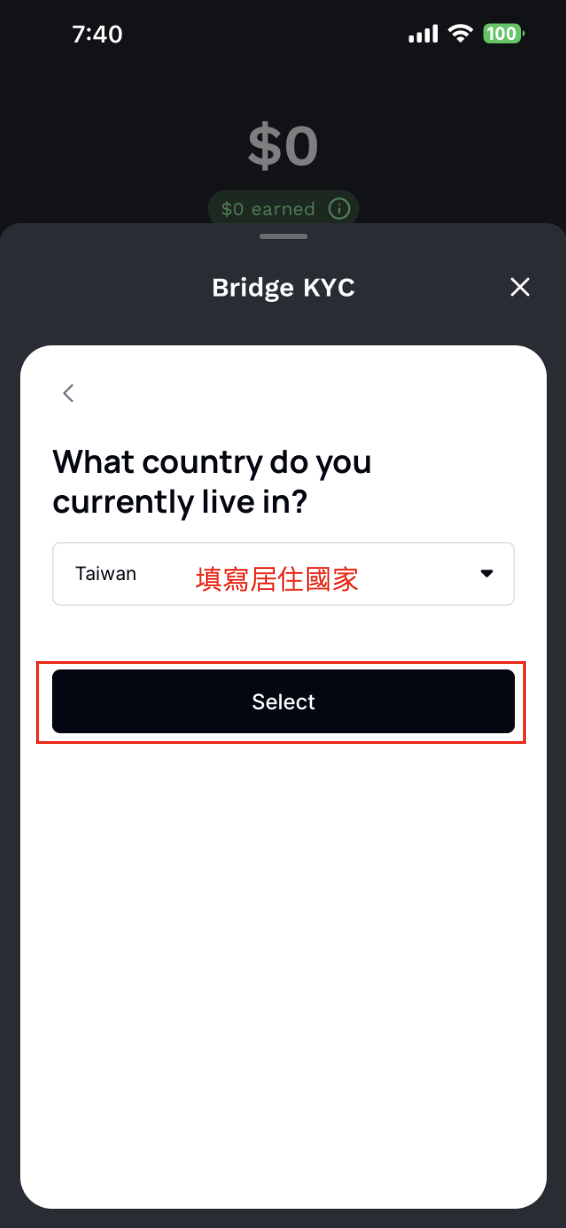
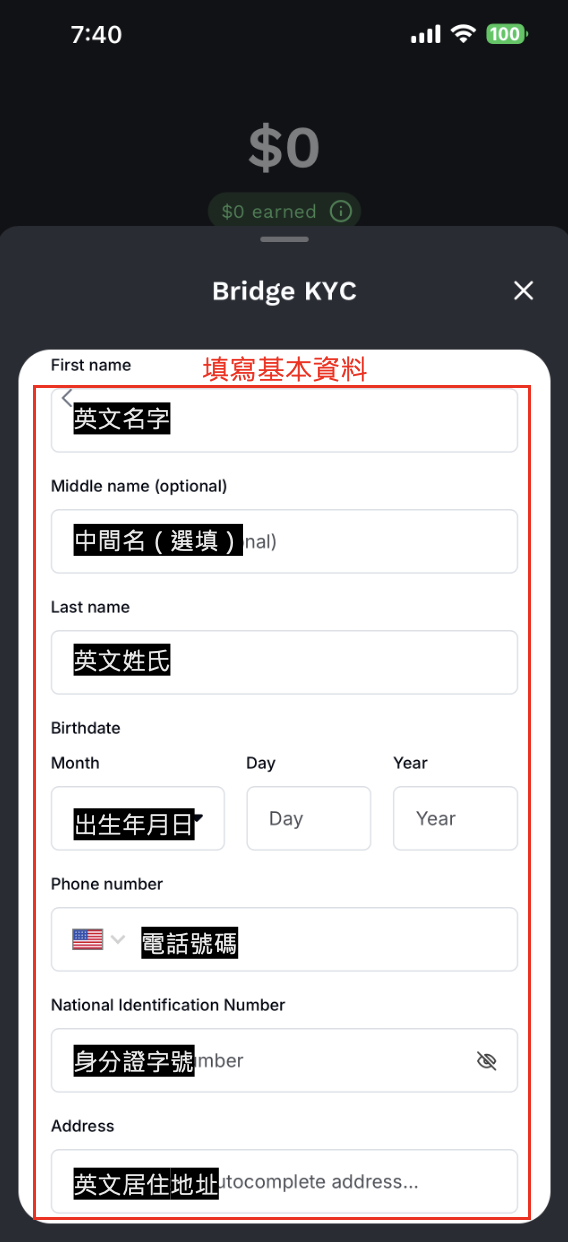
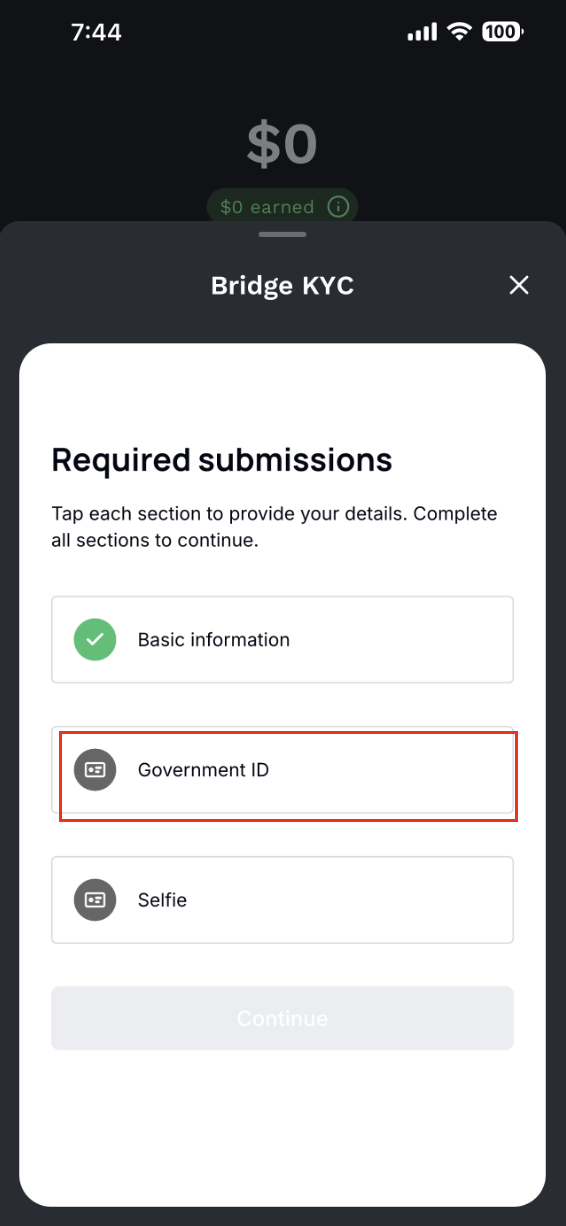
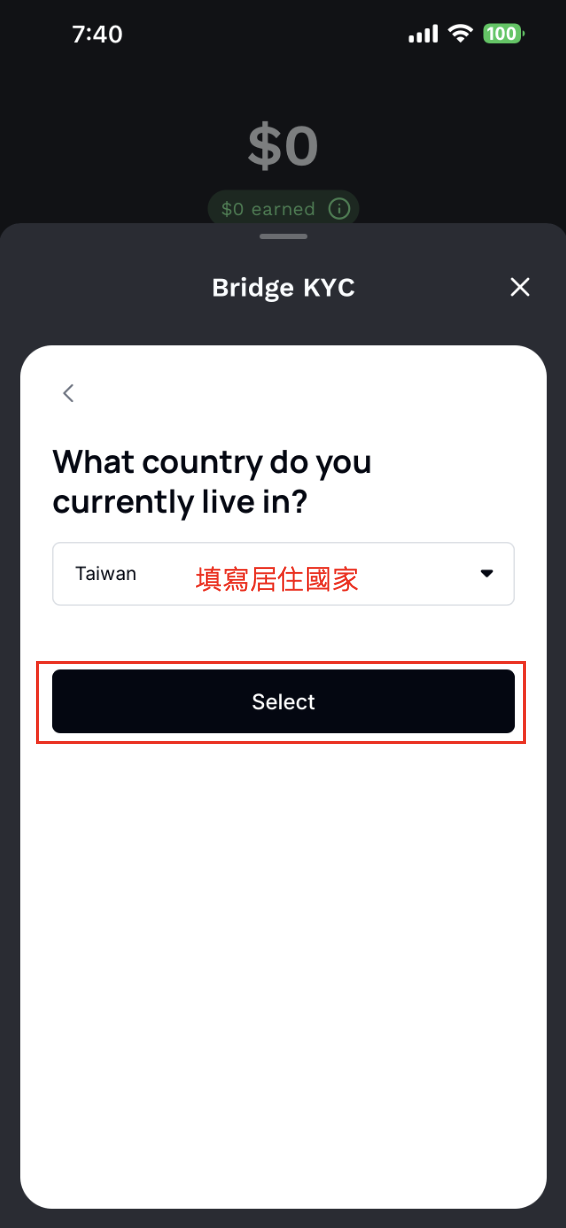
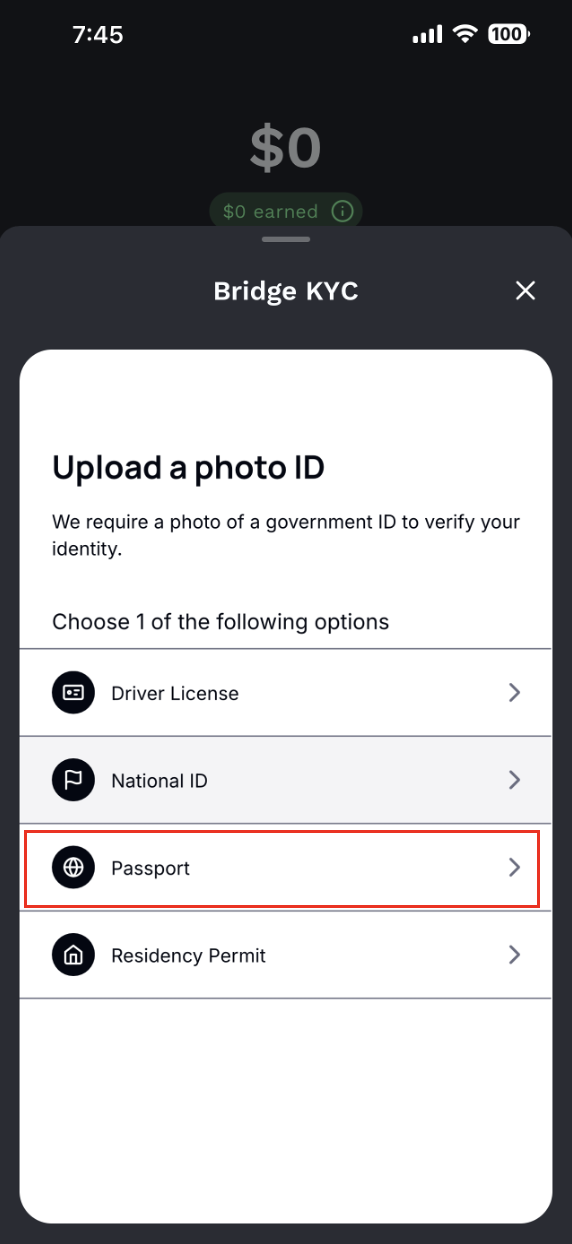
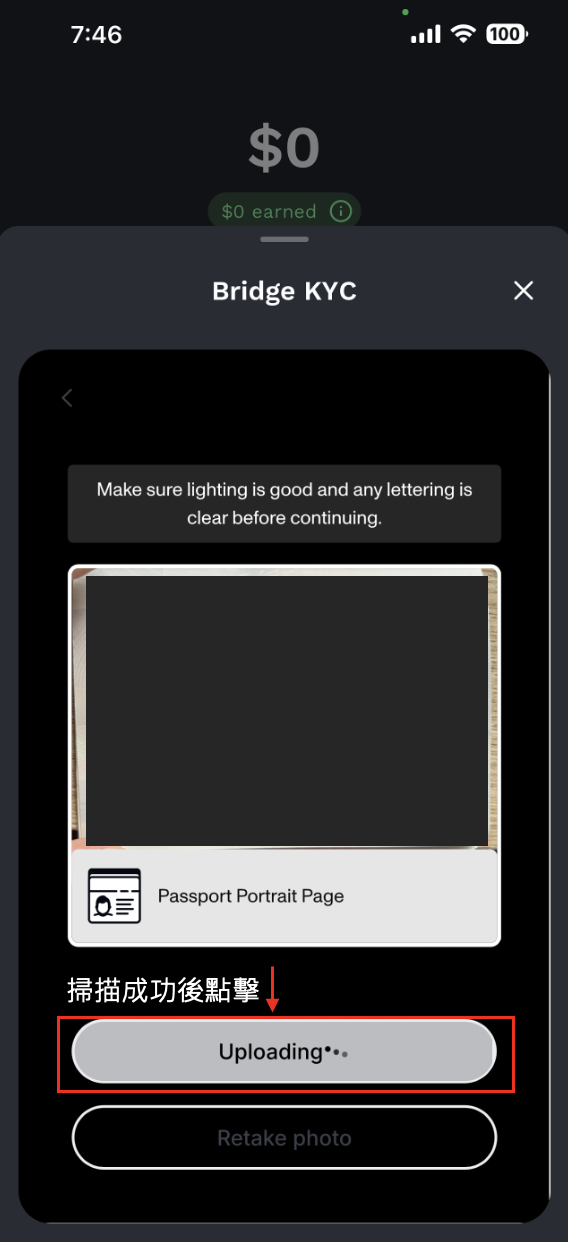
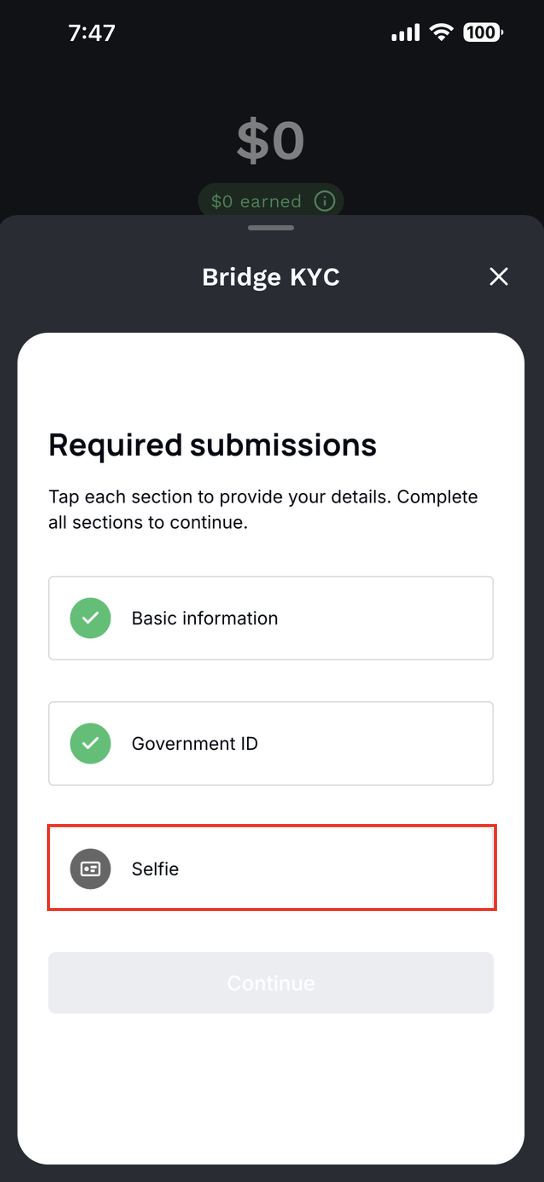
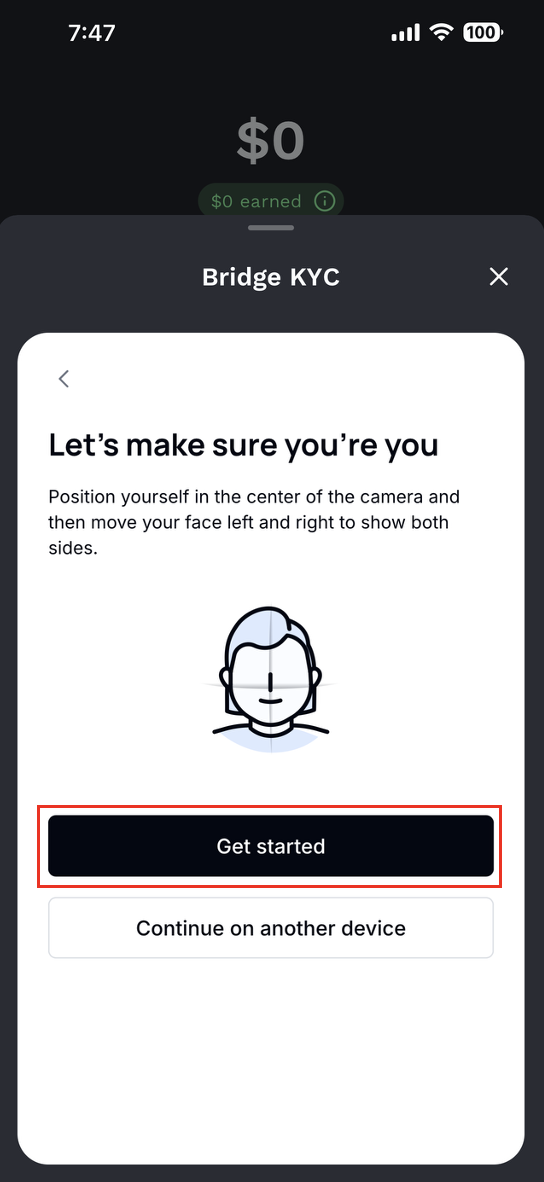
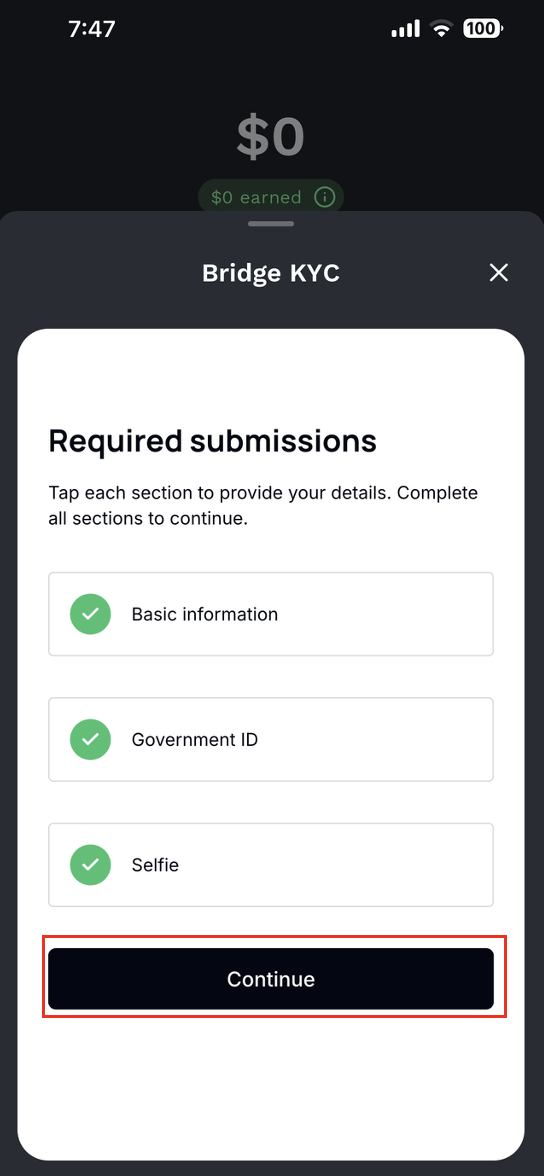
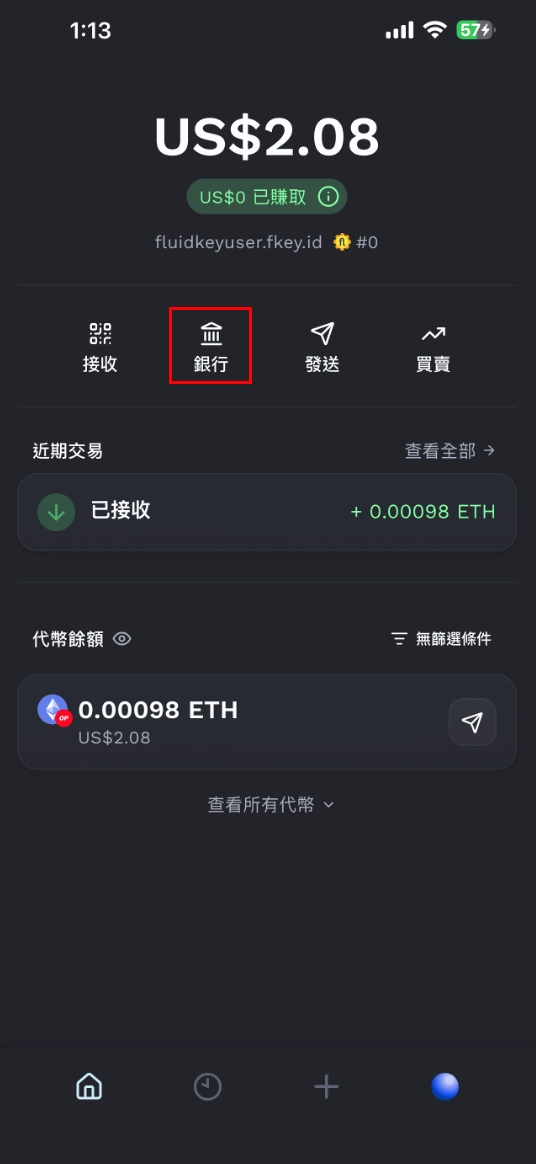
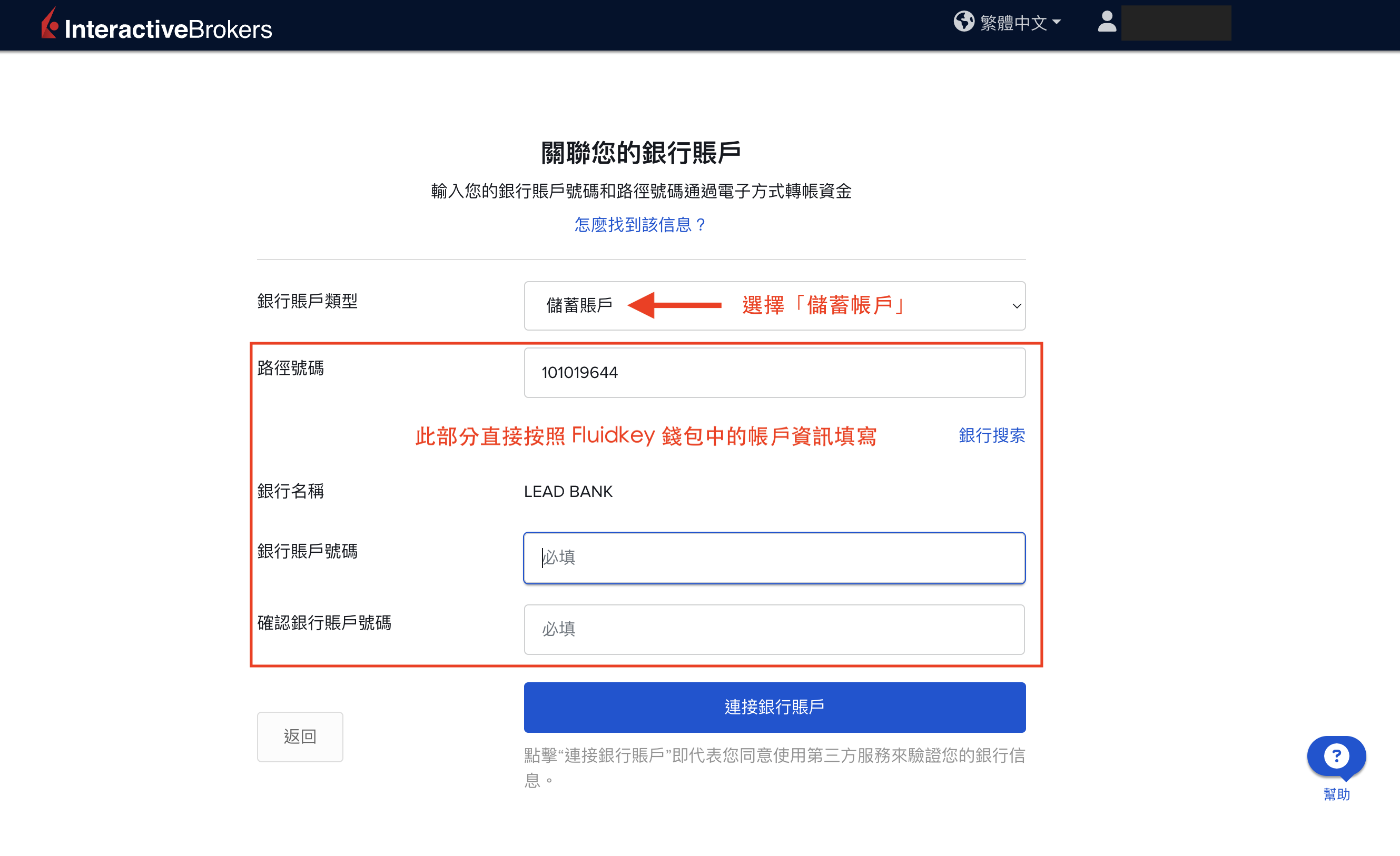
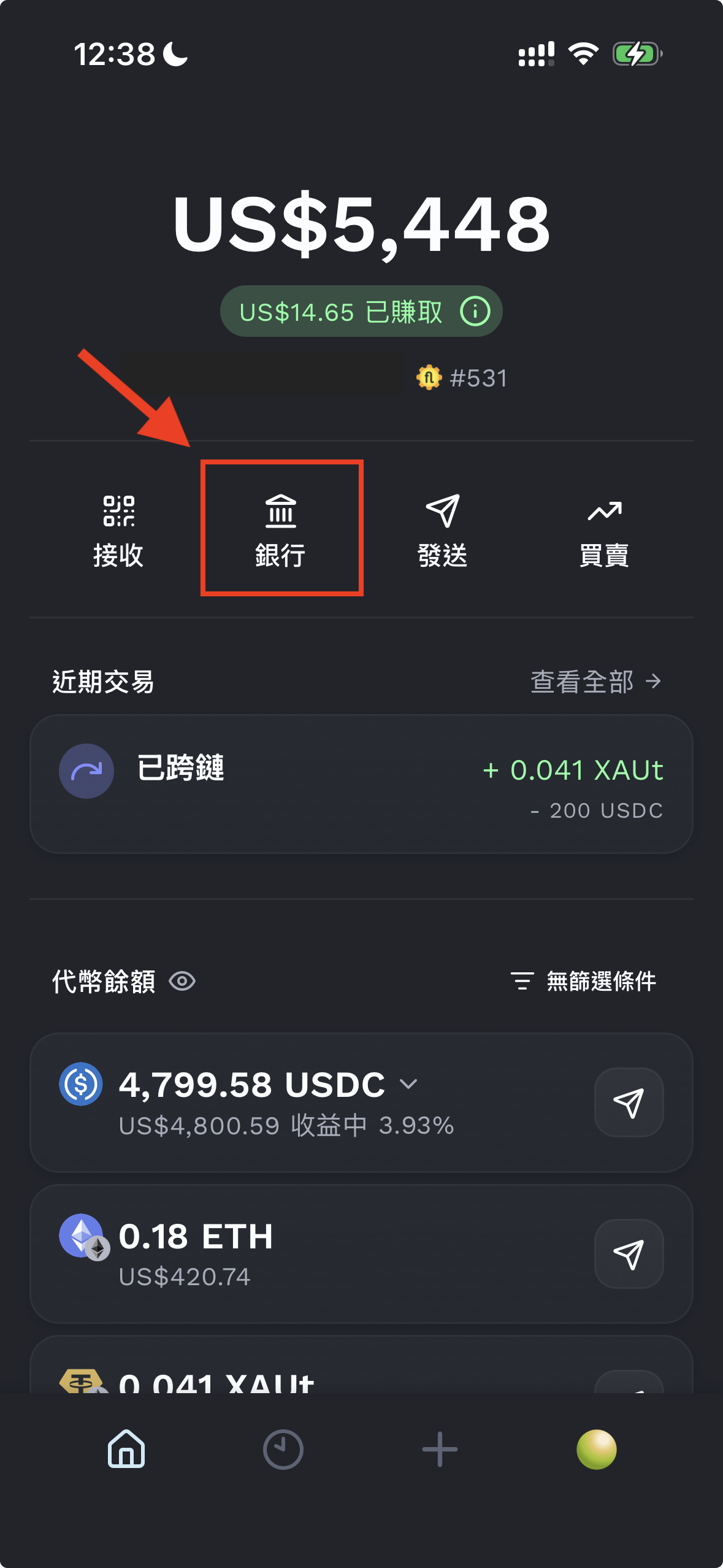
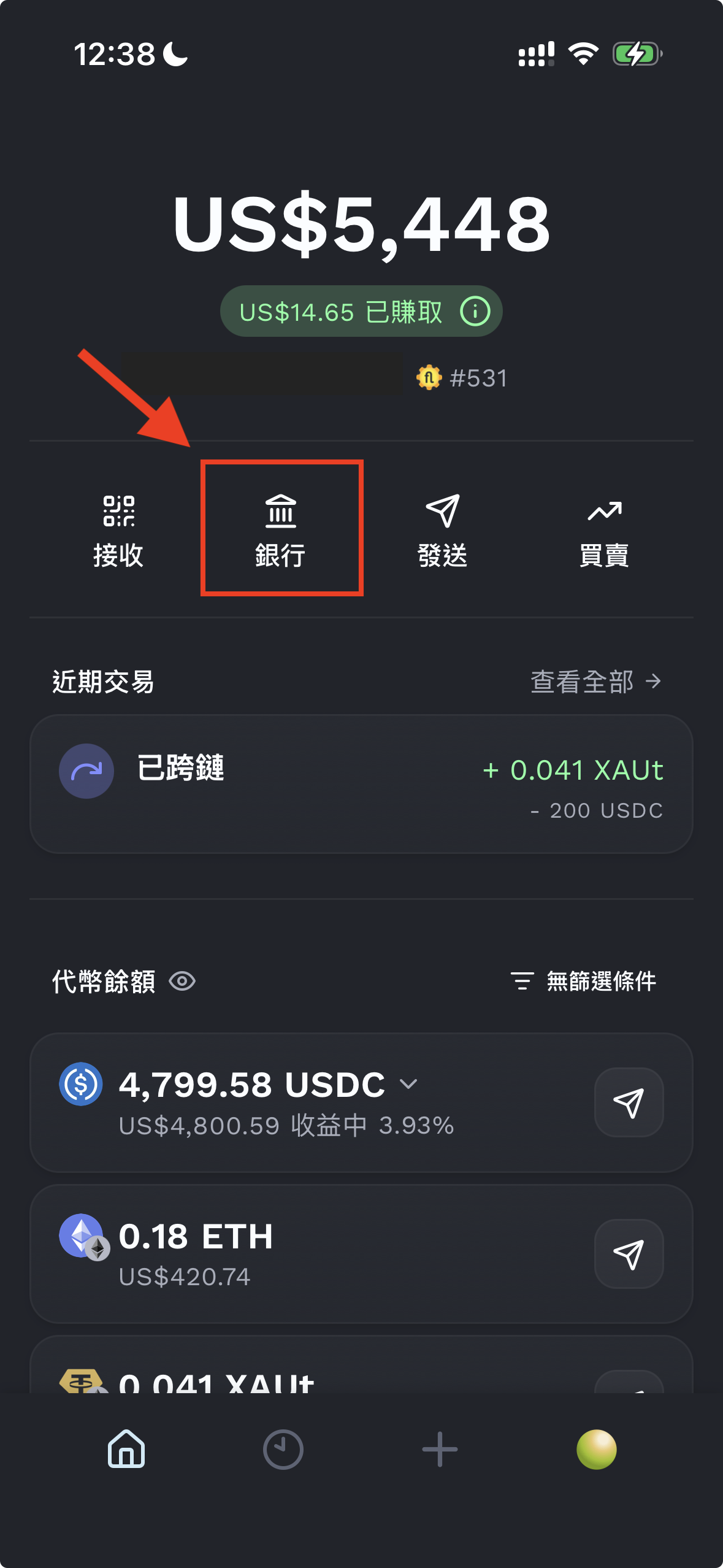
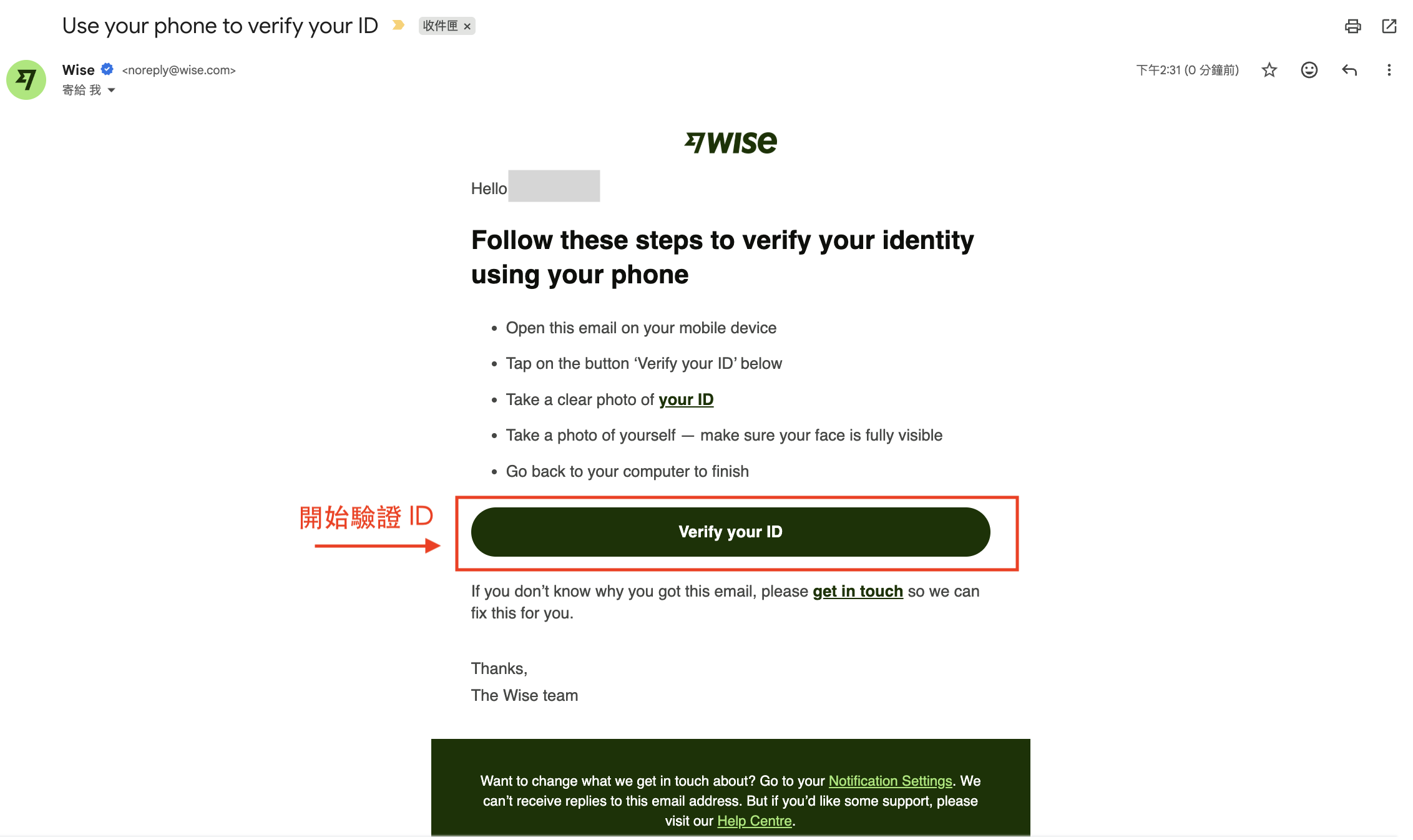
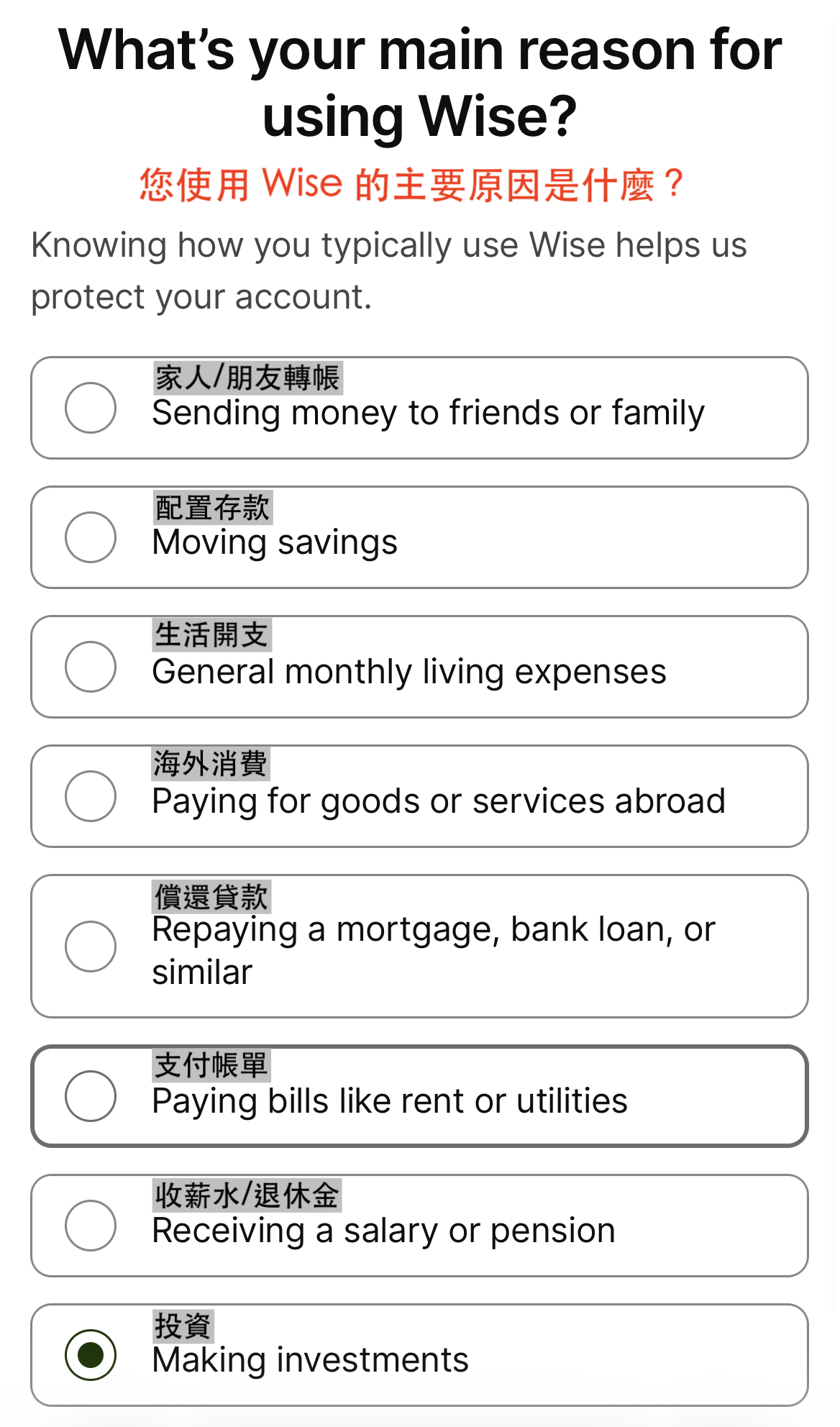
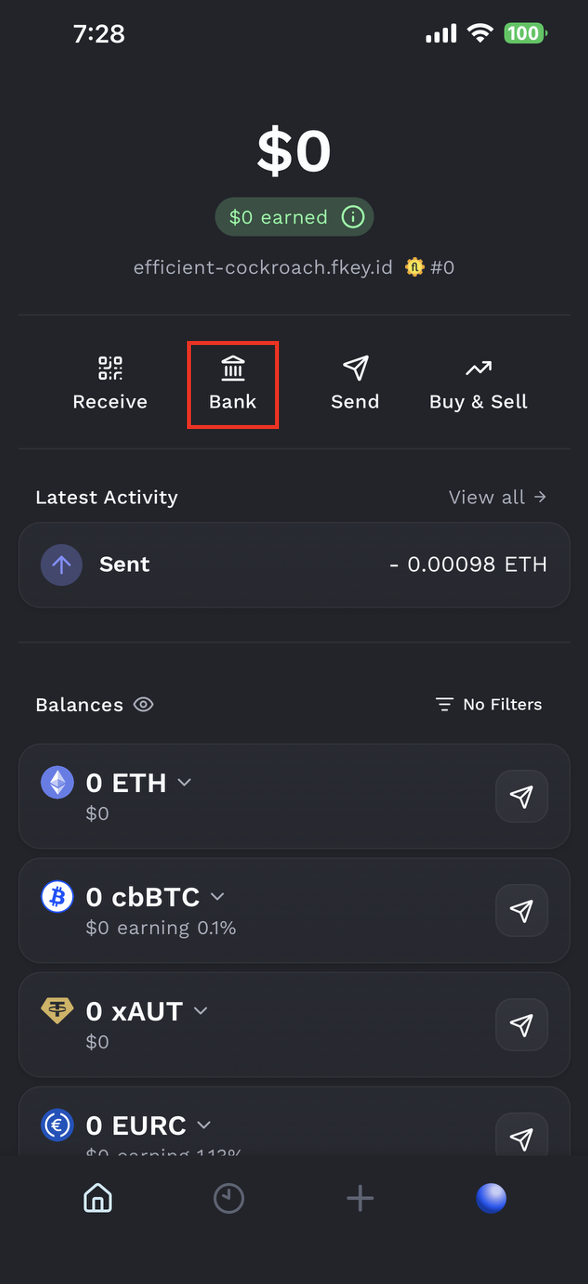
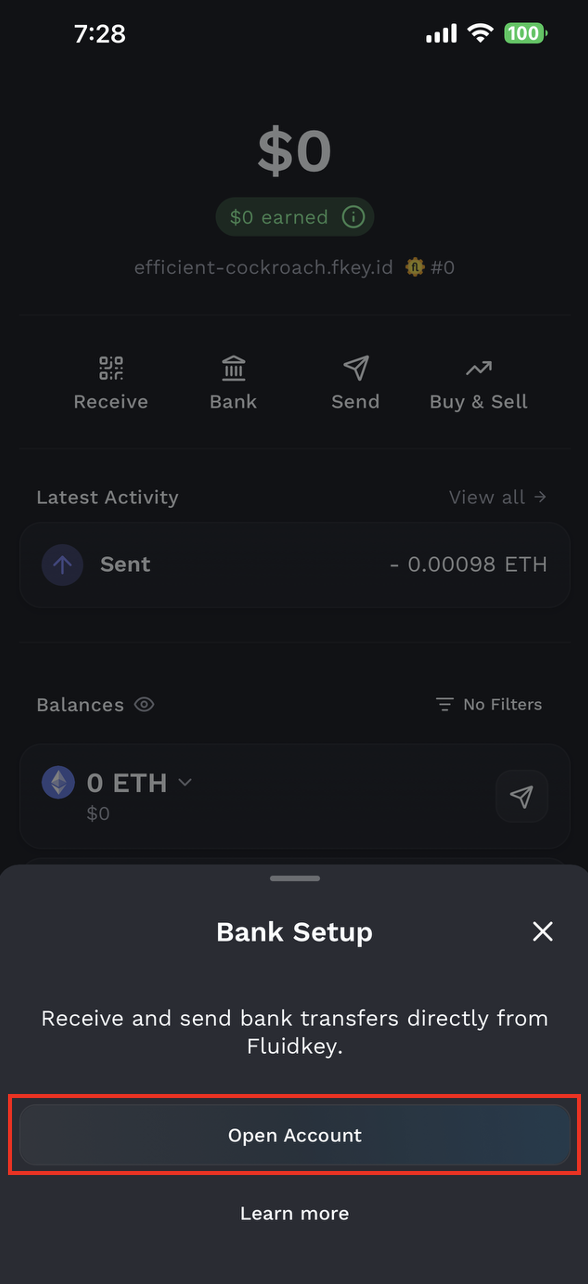
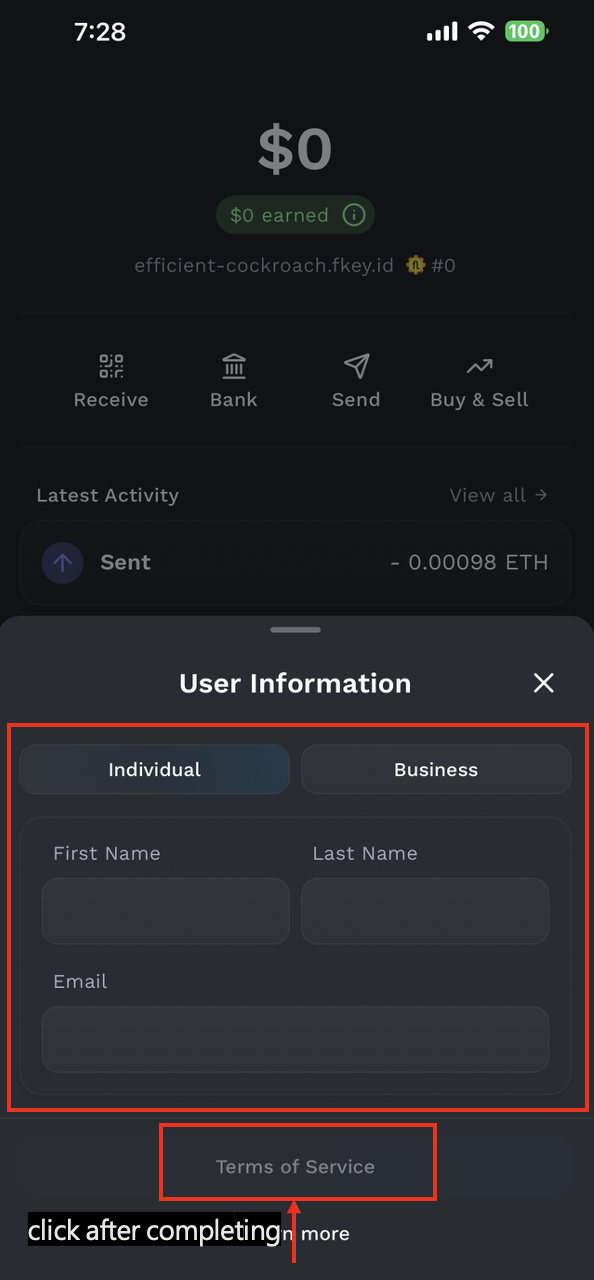
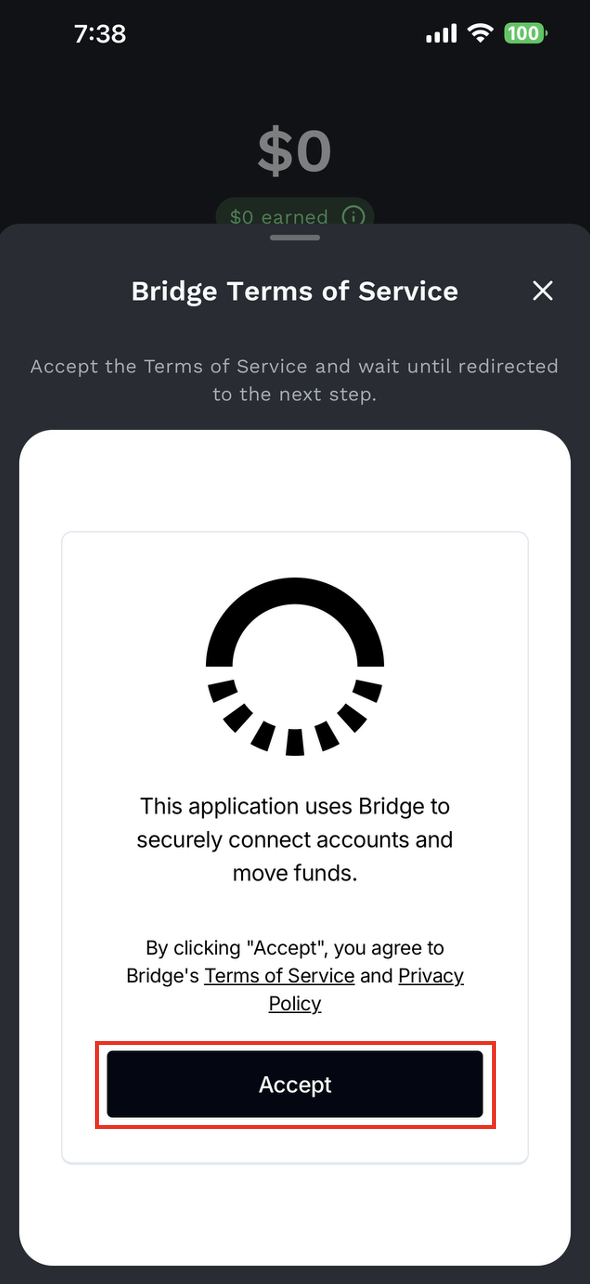
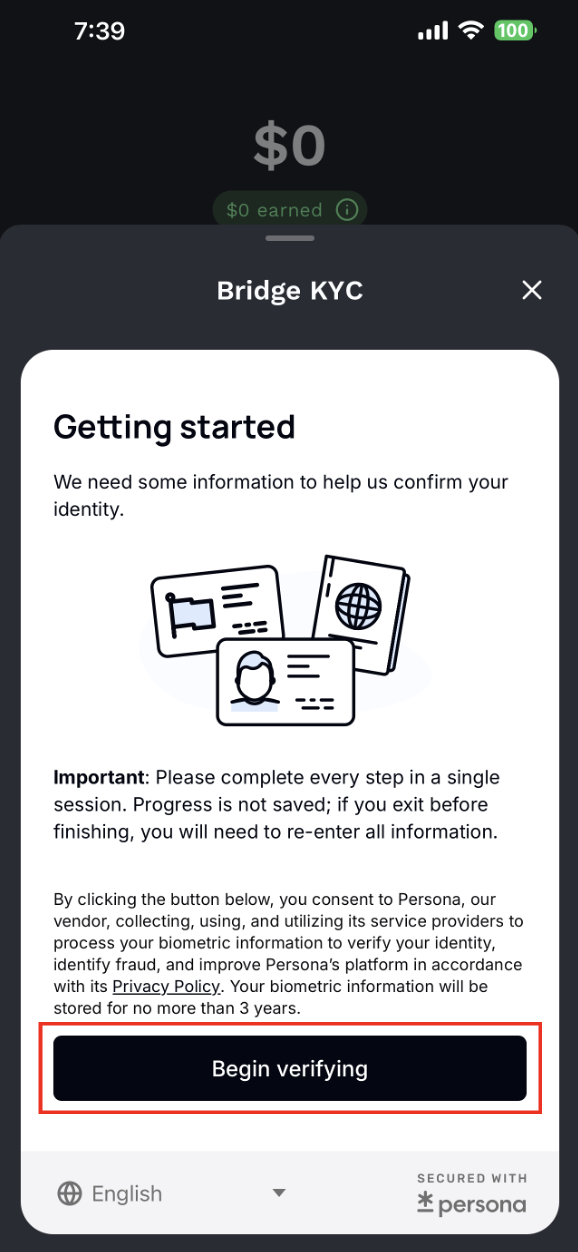
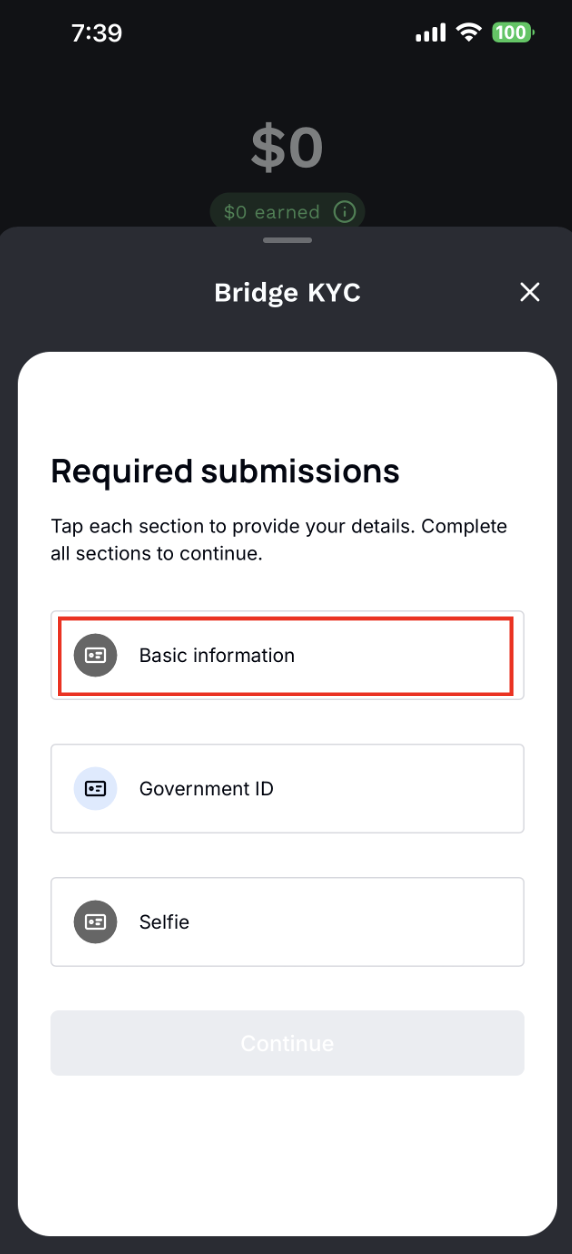
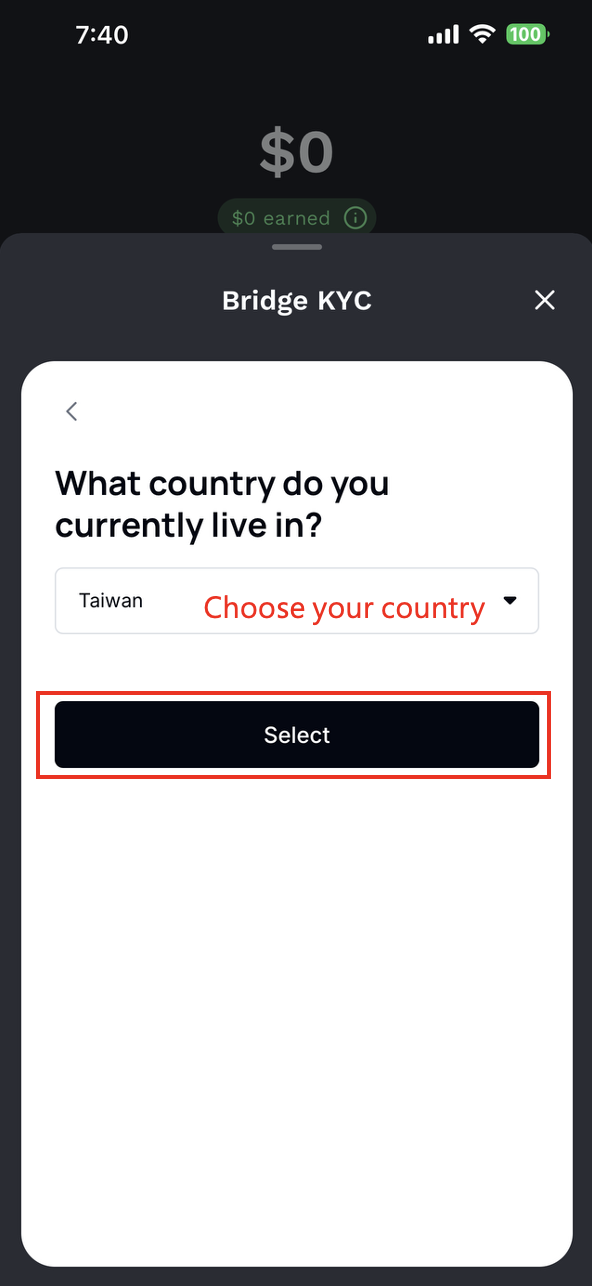
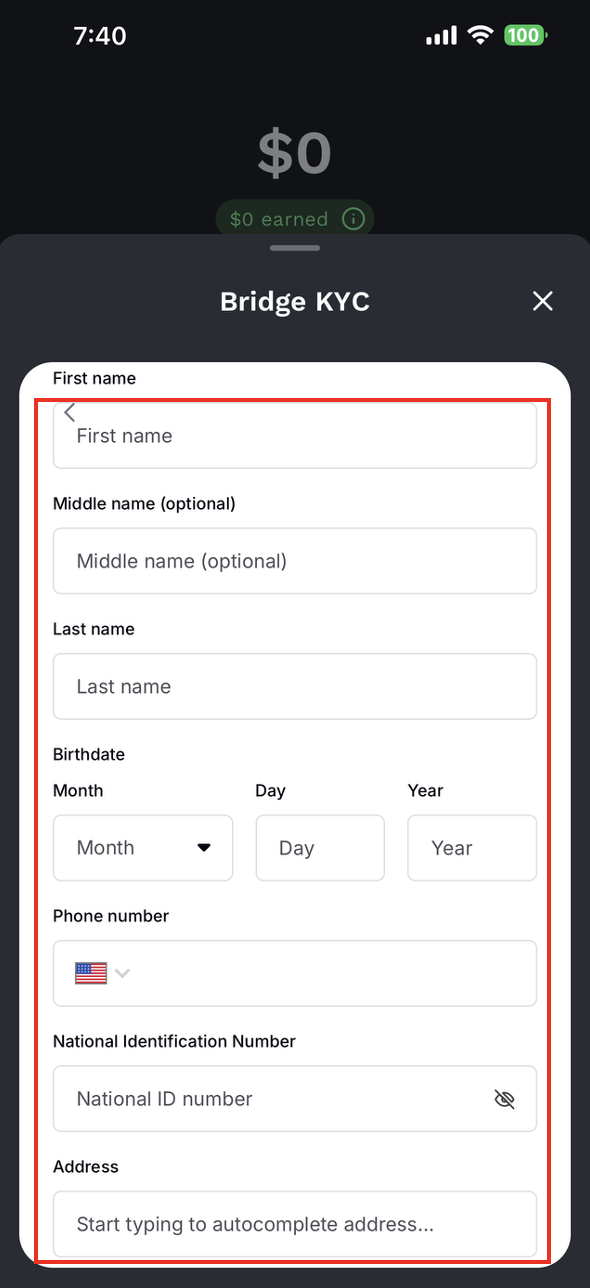
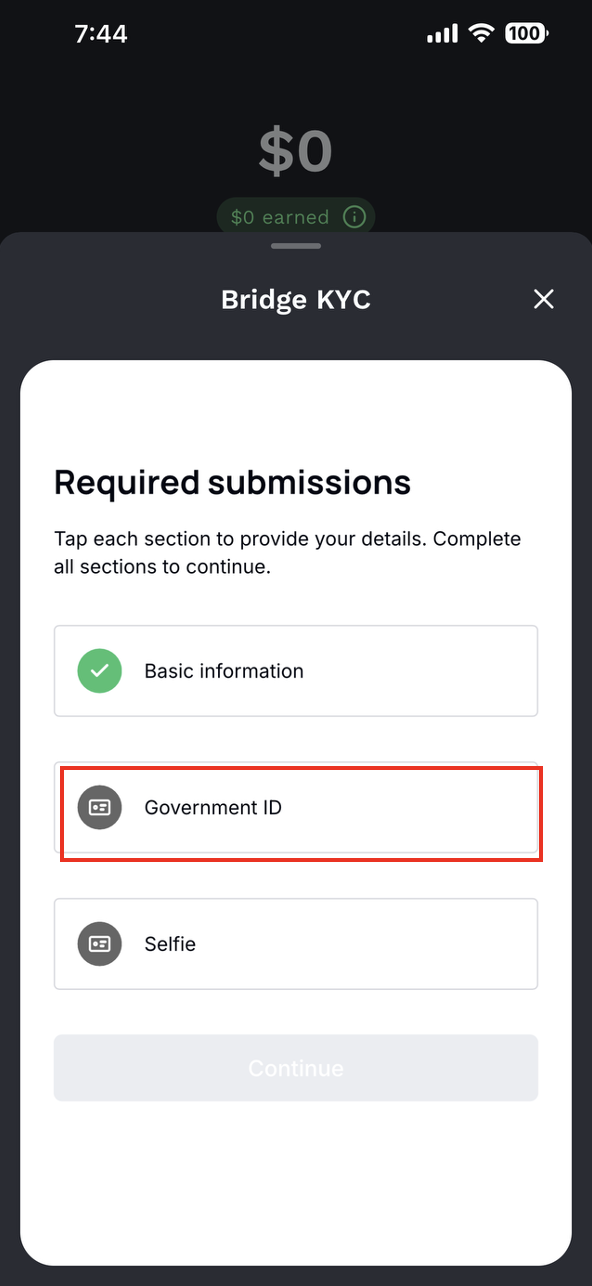
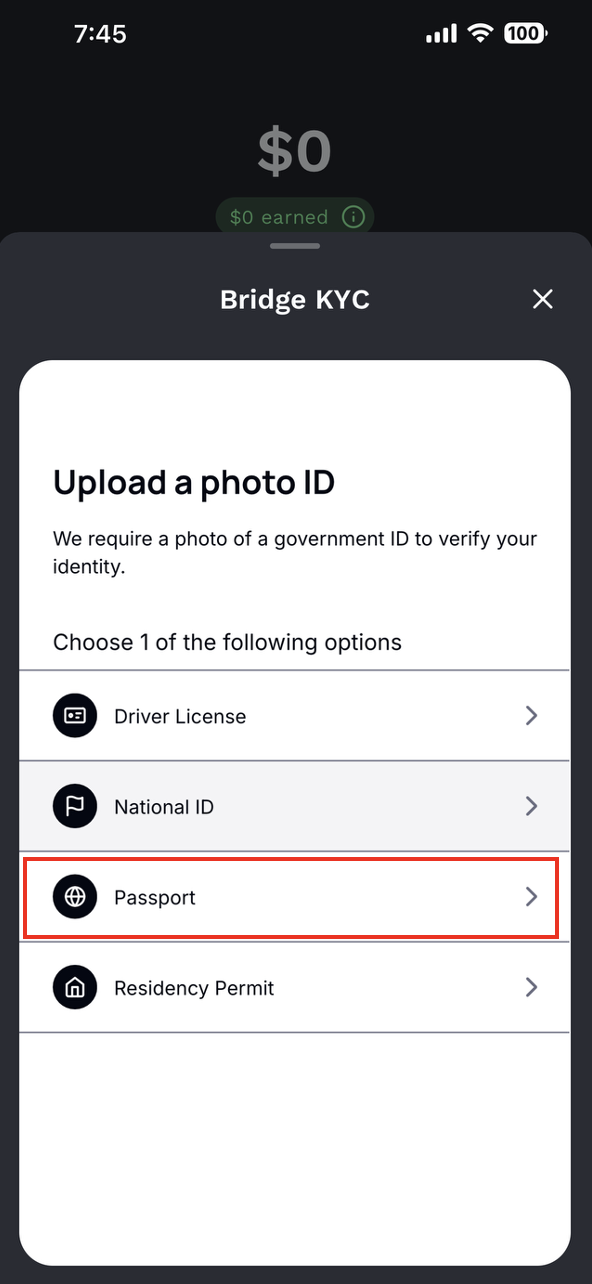
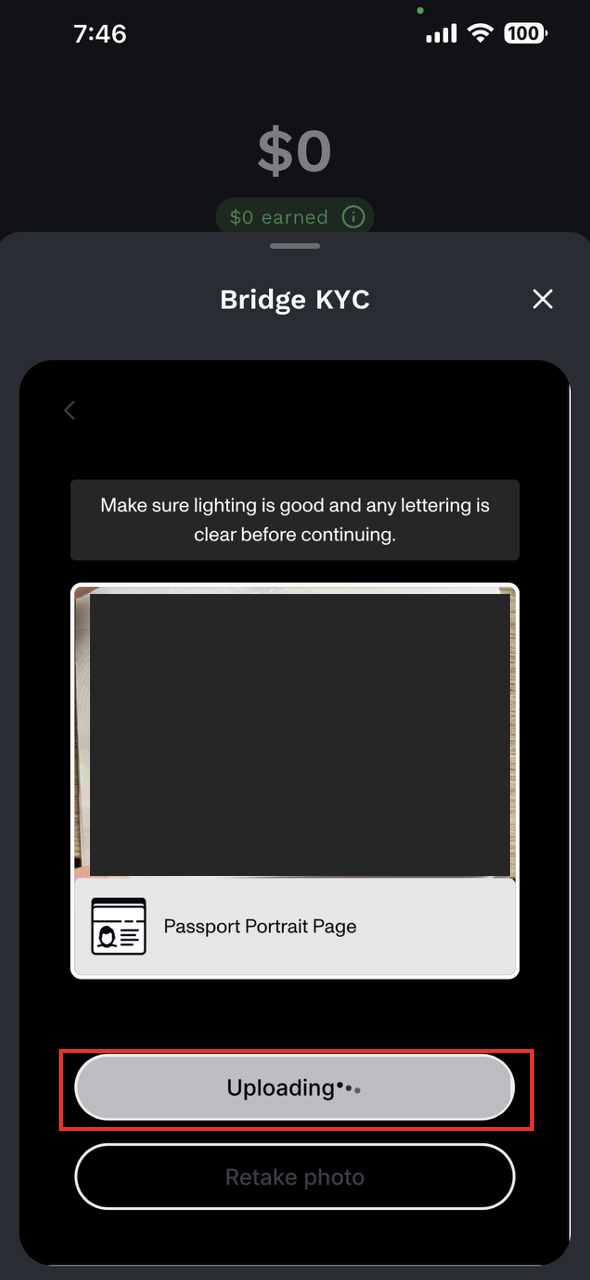
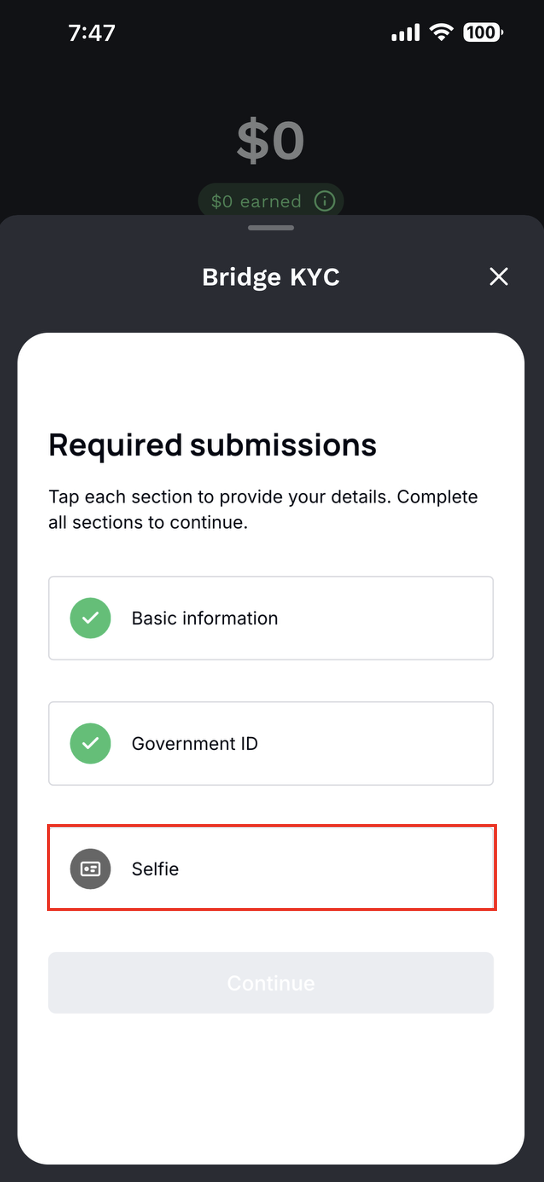
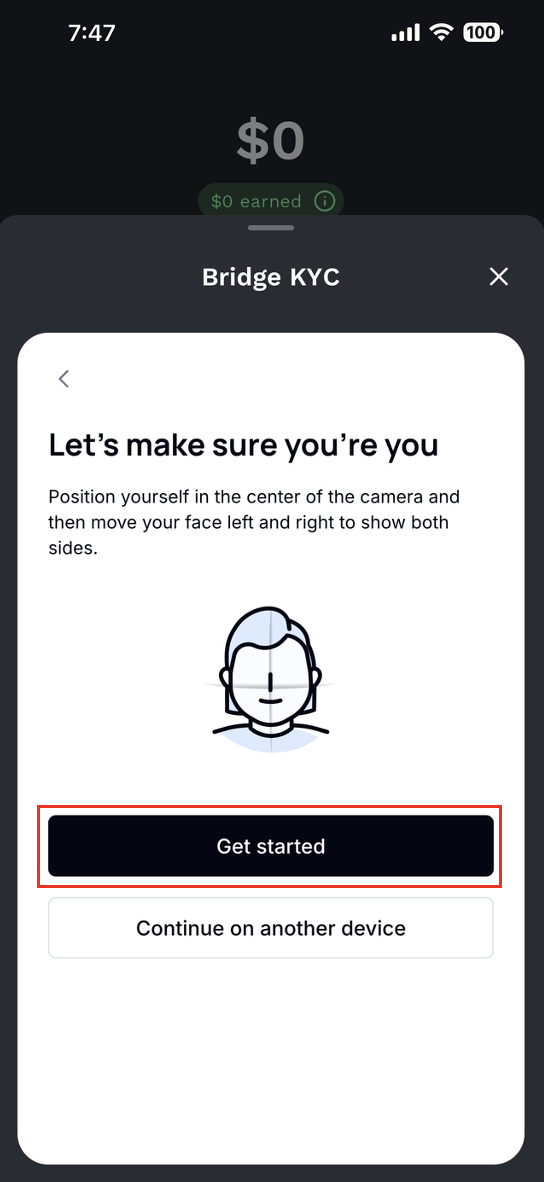
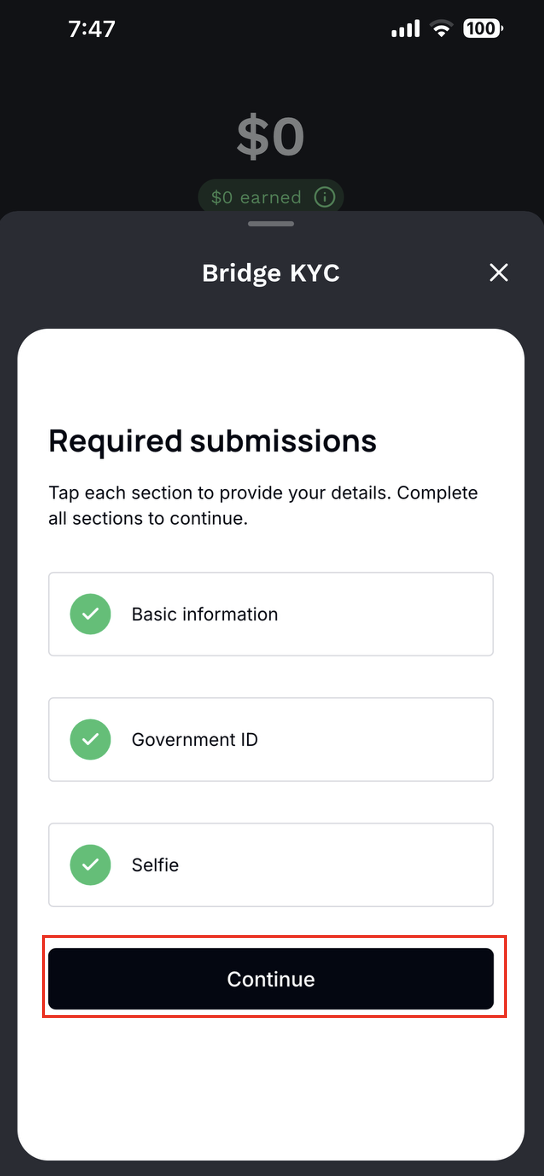
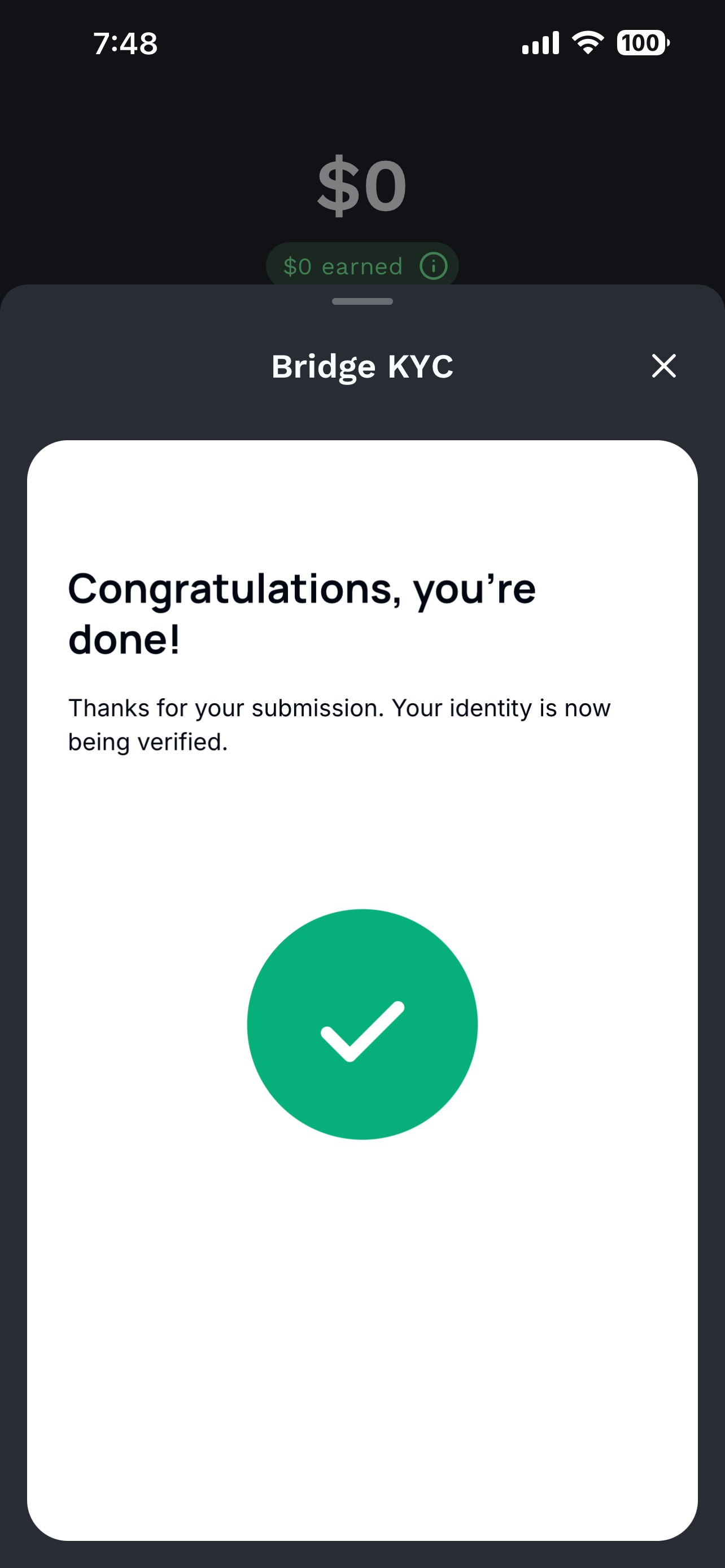
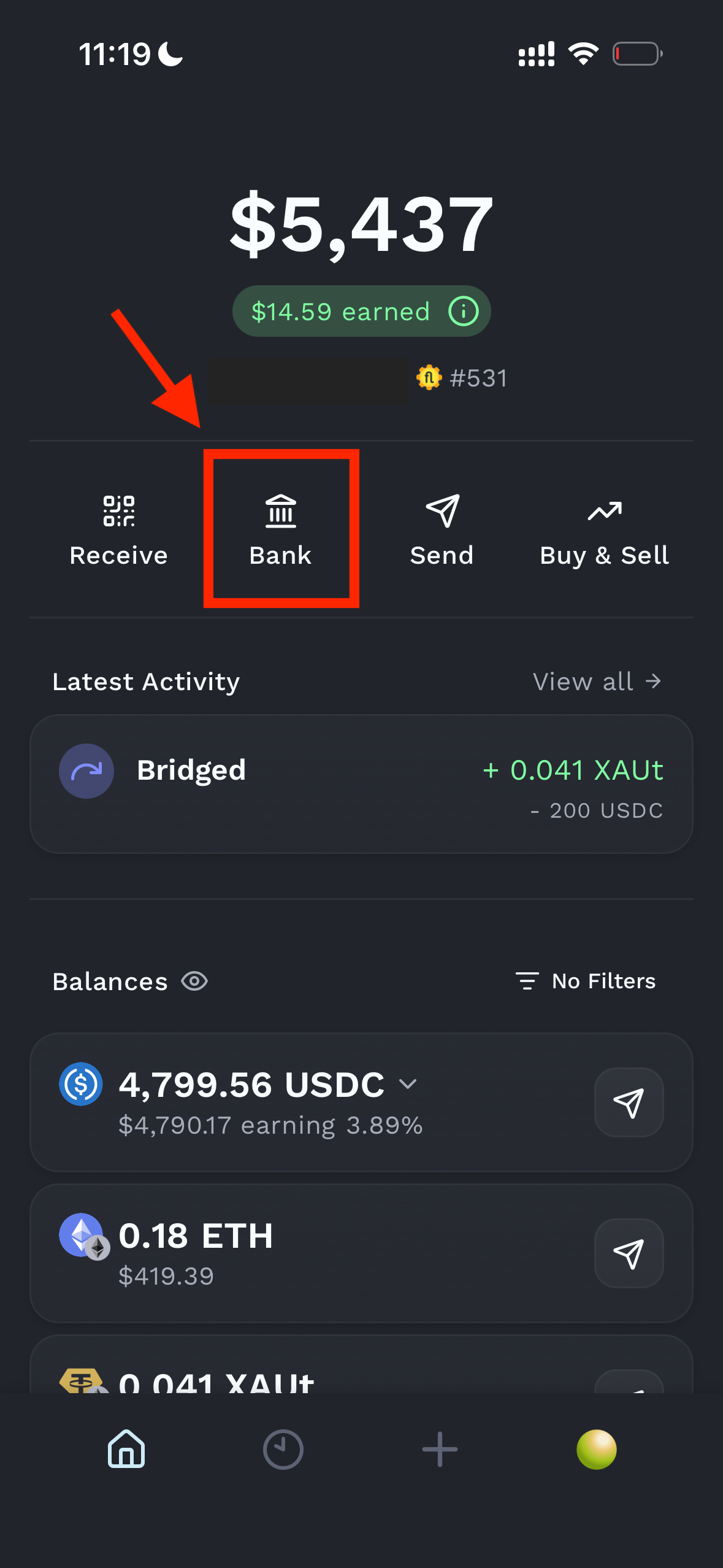
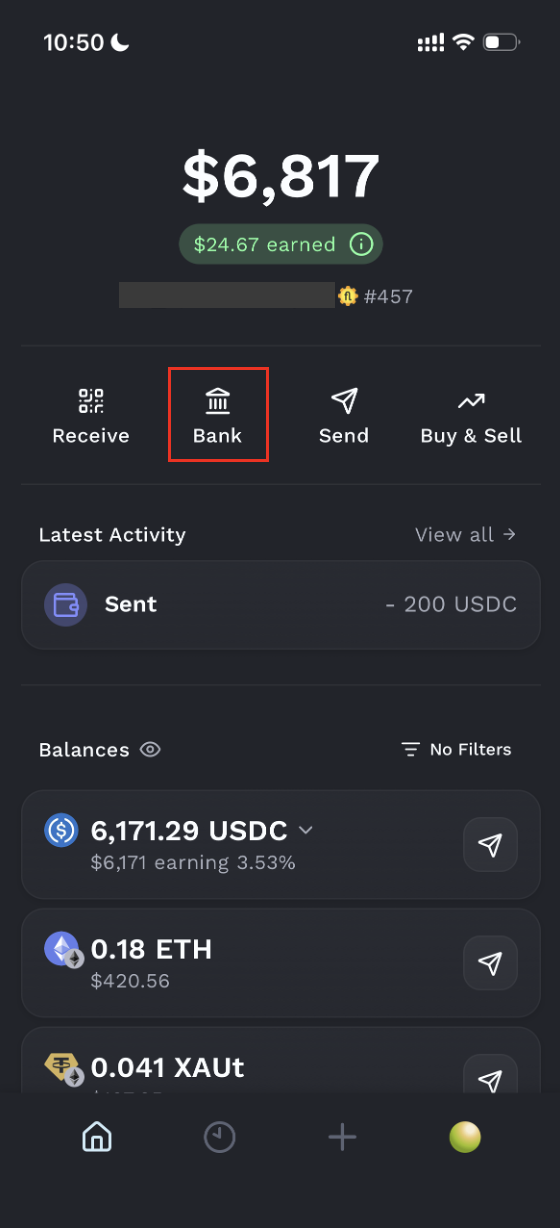
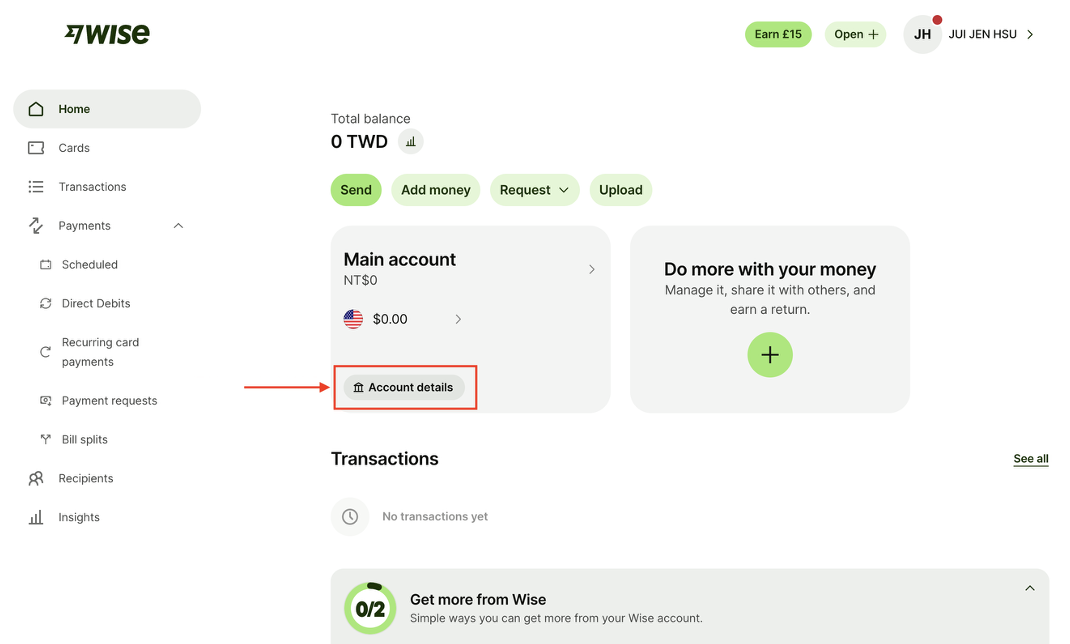
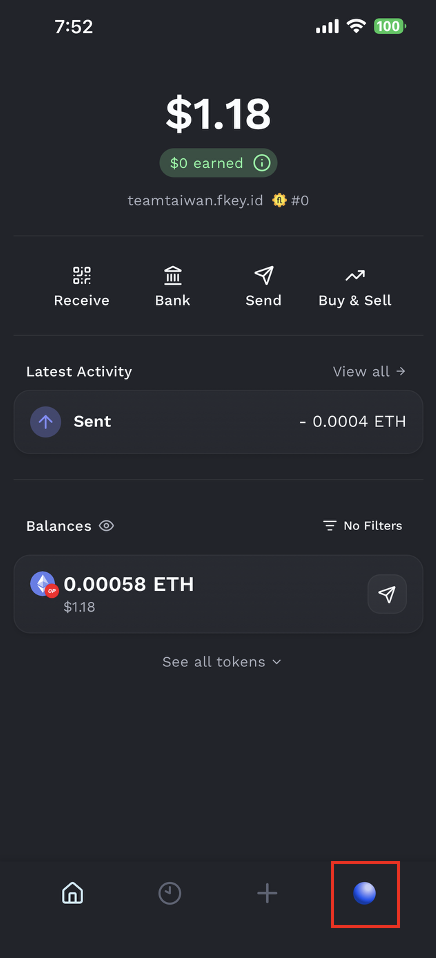
To create an account, click the *Bank* button in your dashboard. You will be guided through the KYC process, which typically takes less than 5 minutes to complete.
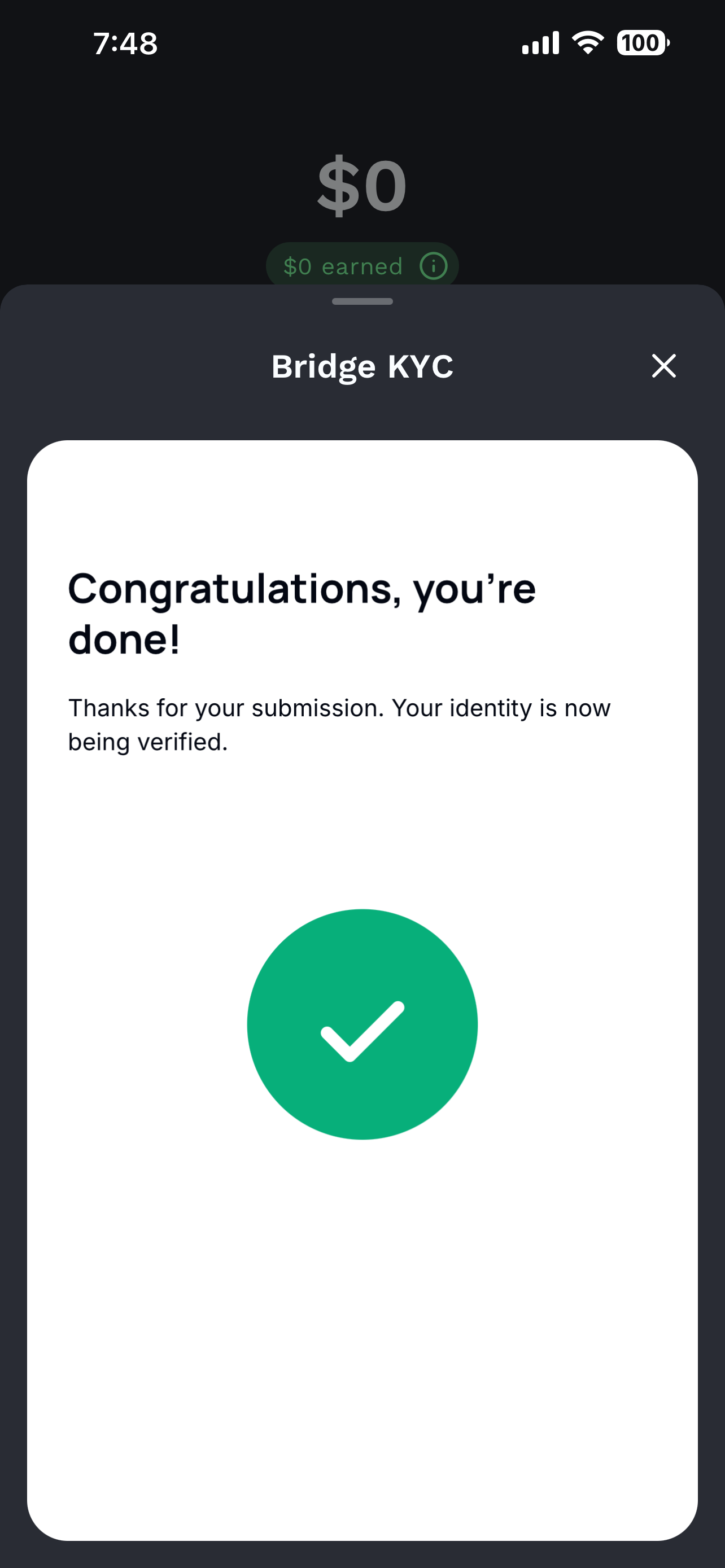
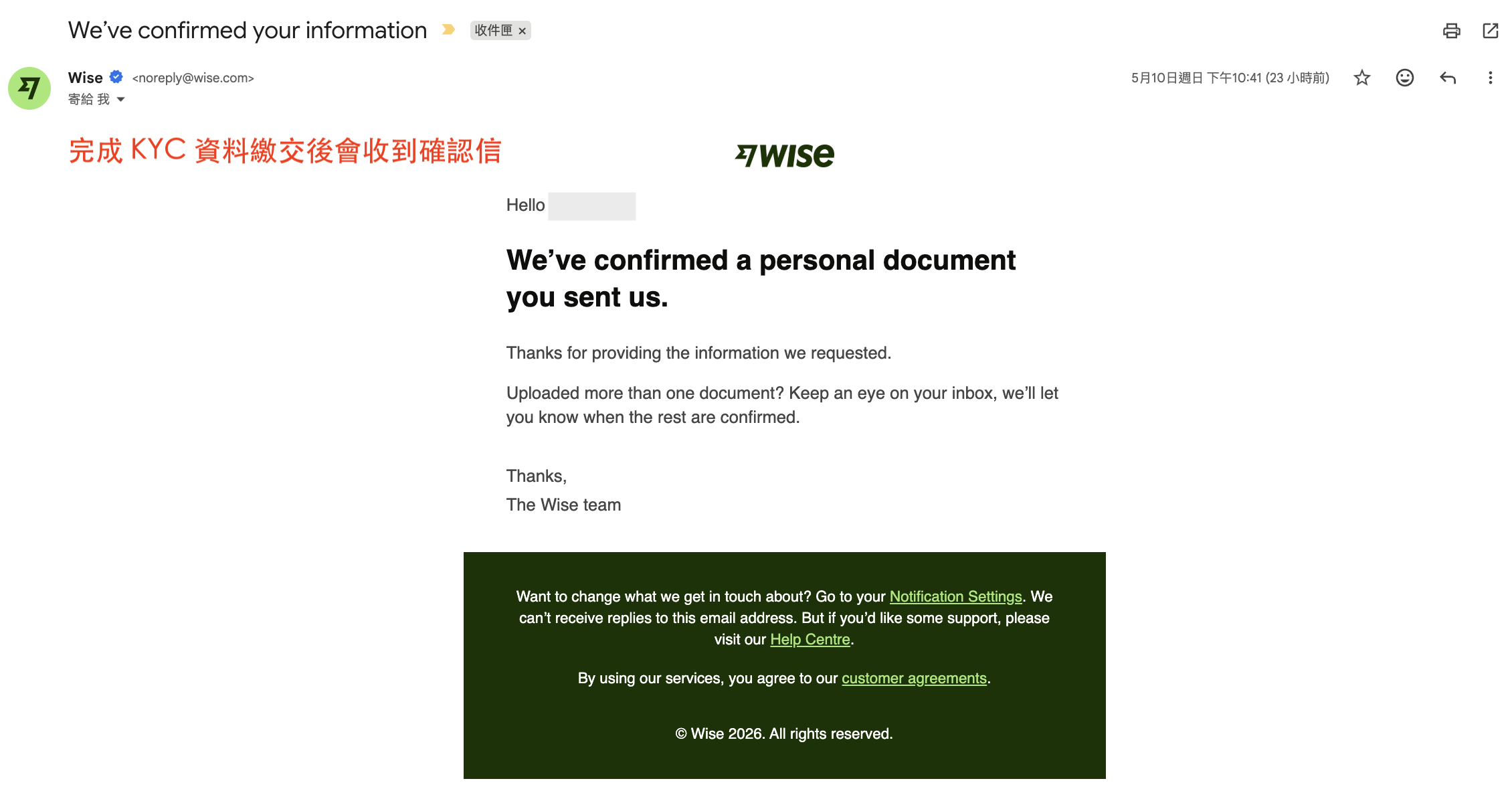
Once you have submitted all required information, your application will be reviewed. This usually takes minutes but may take longer if some of the provided data needs to be double-checked.
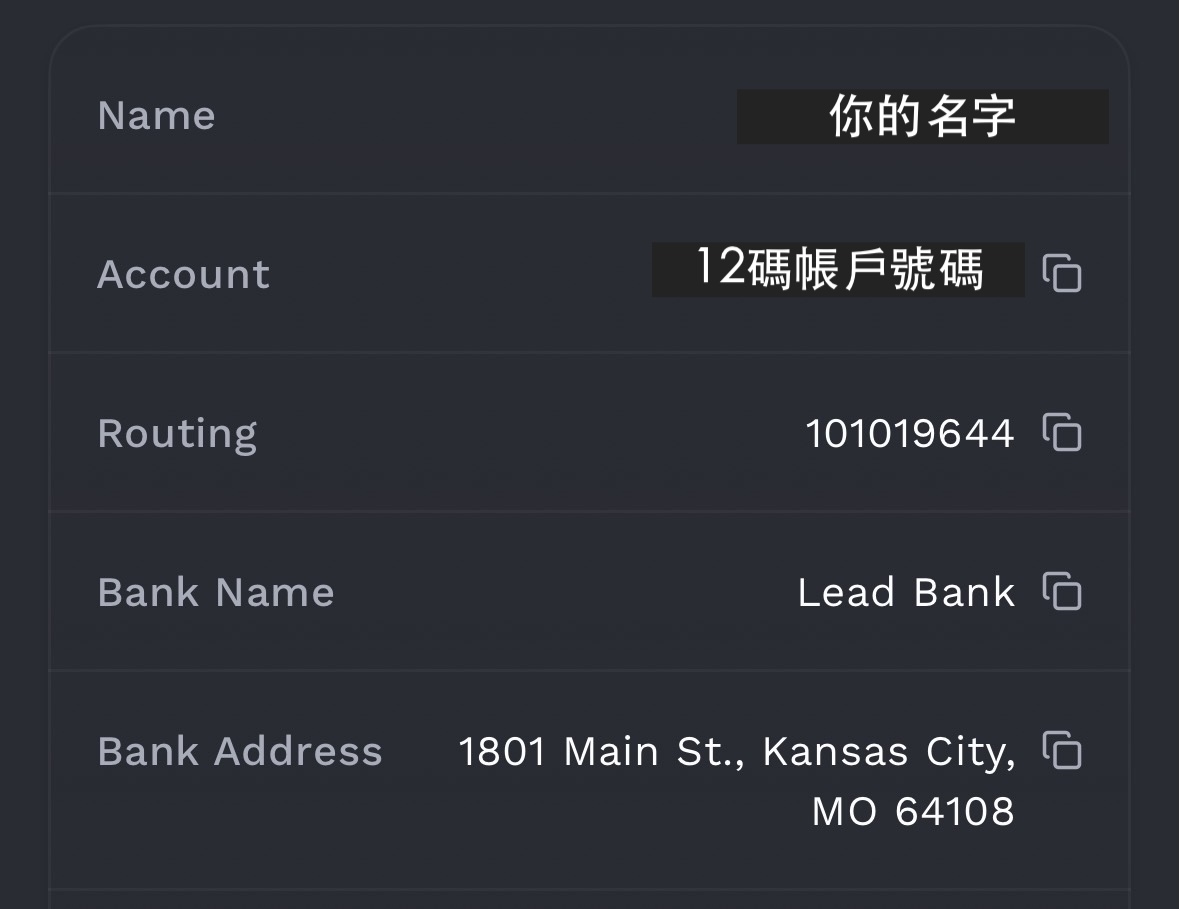
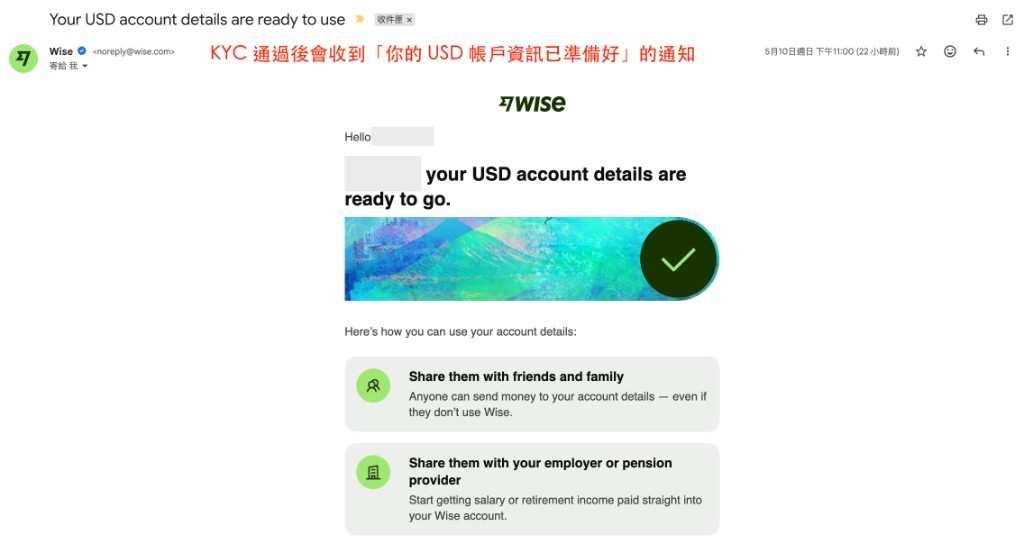
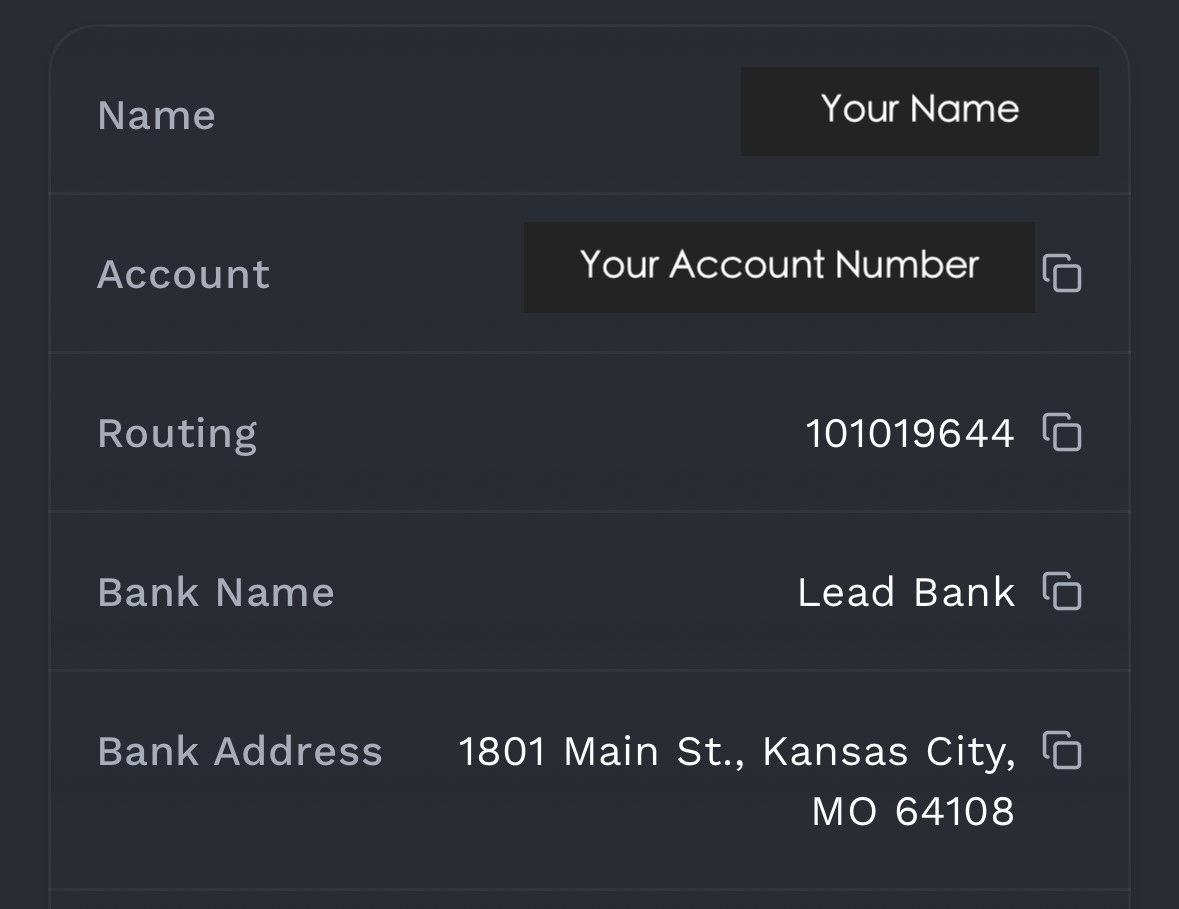
As soon as you are able to see bank details in the *Bank* section, you are ready to receive payments.
### Receiving Transfers
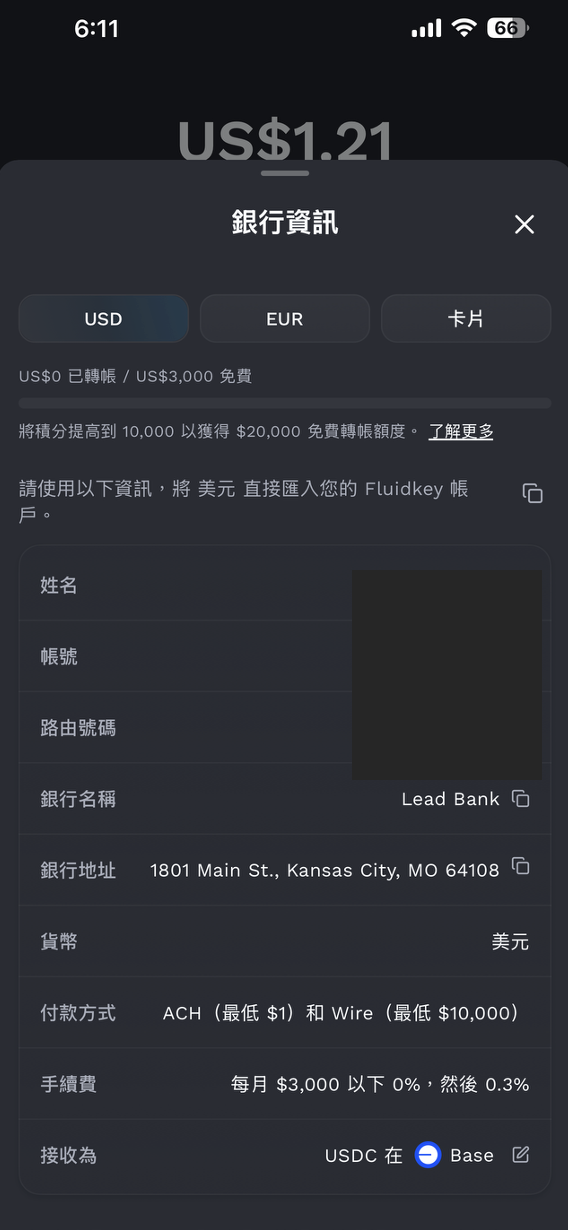
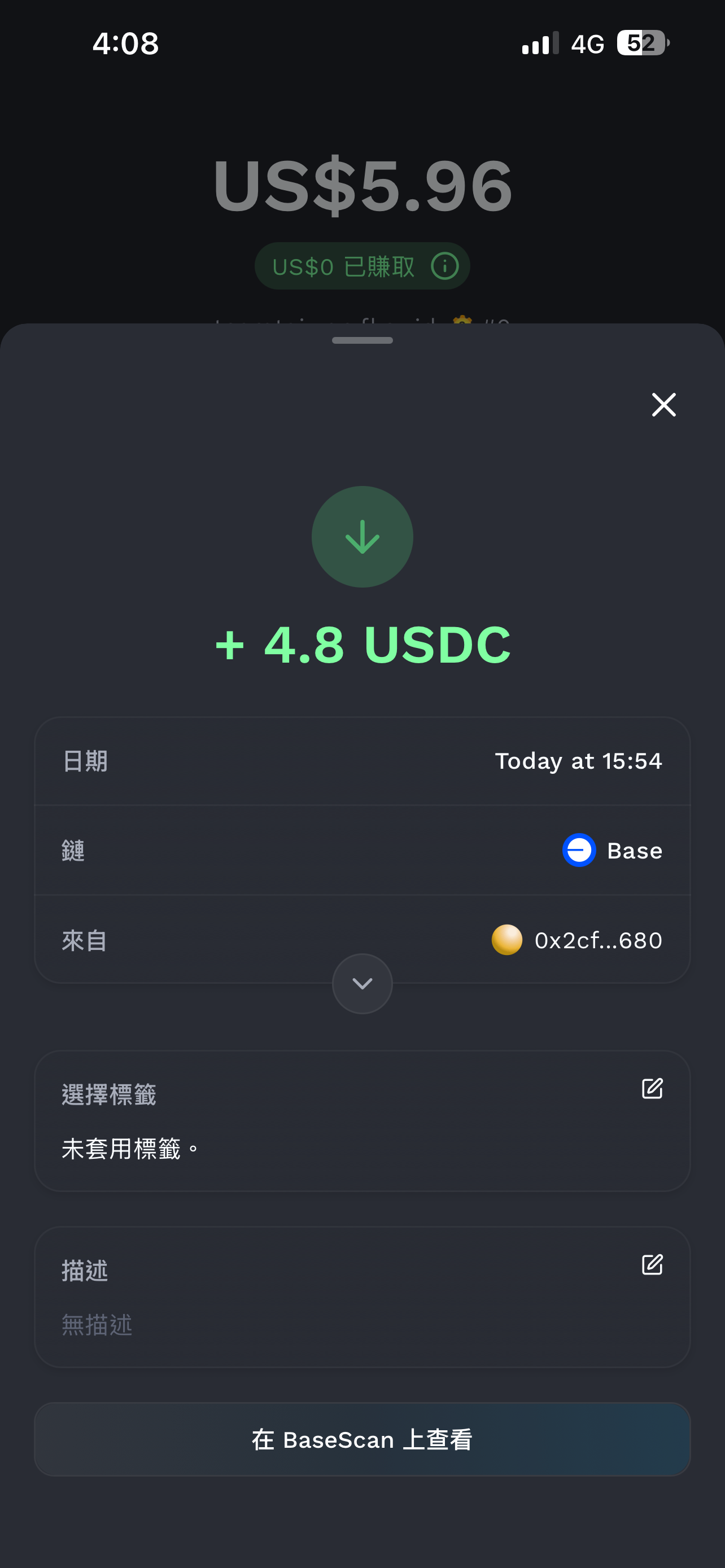
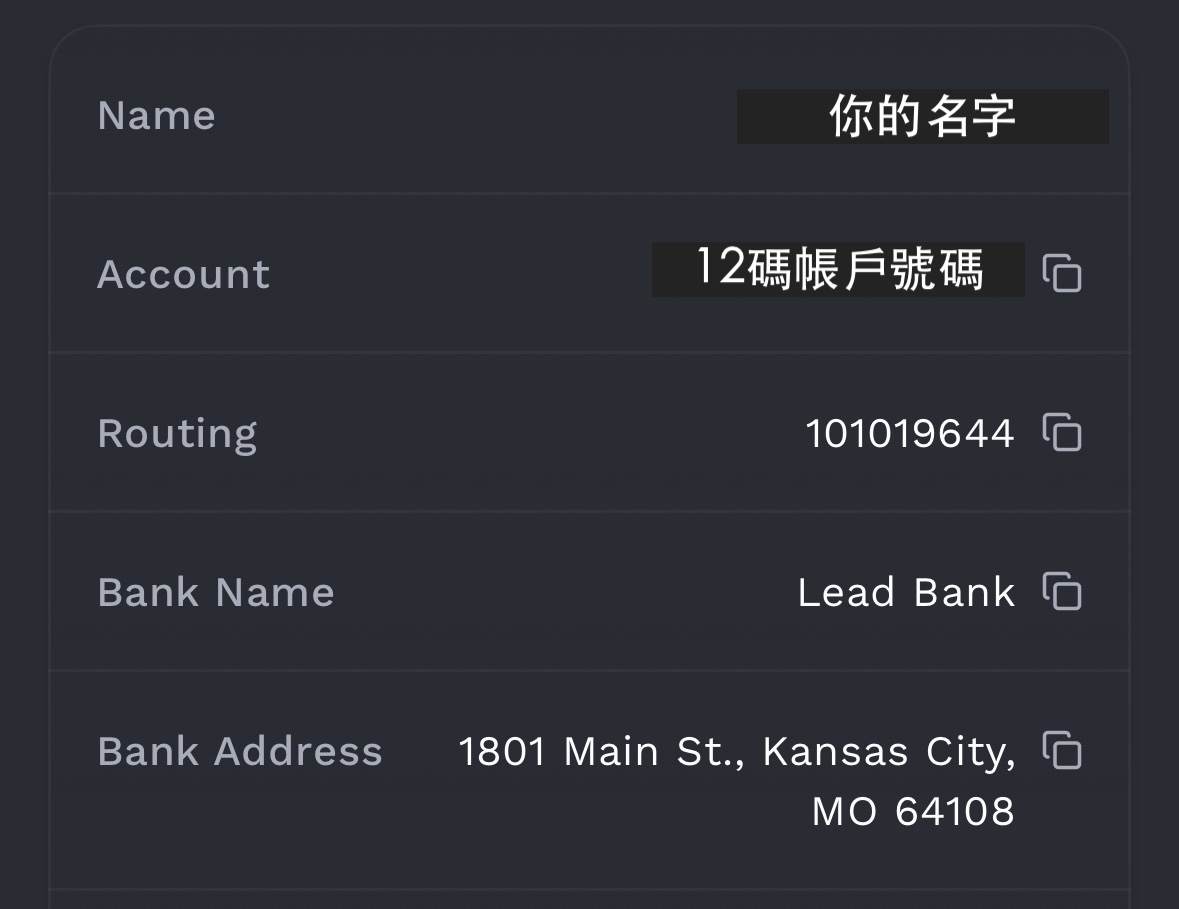
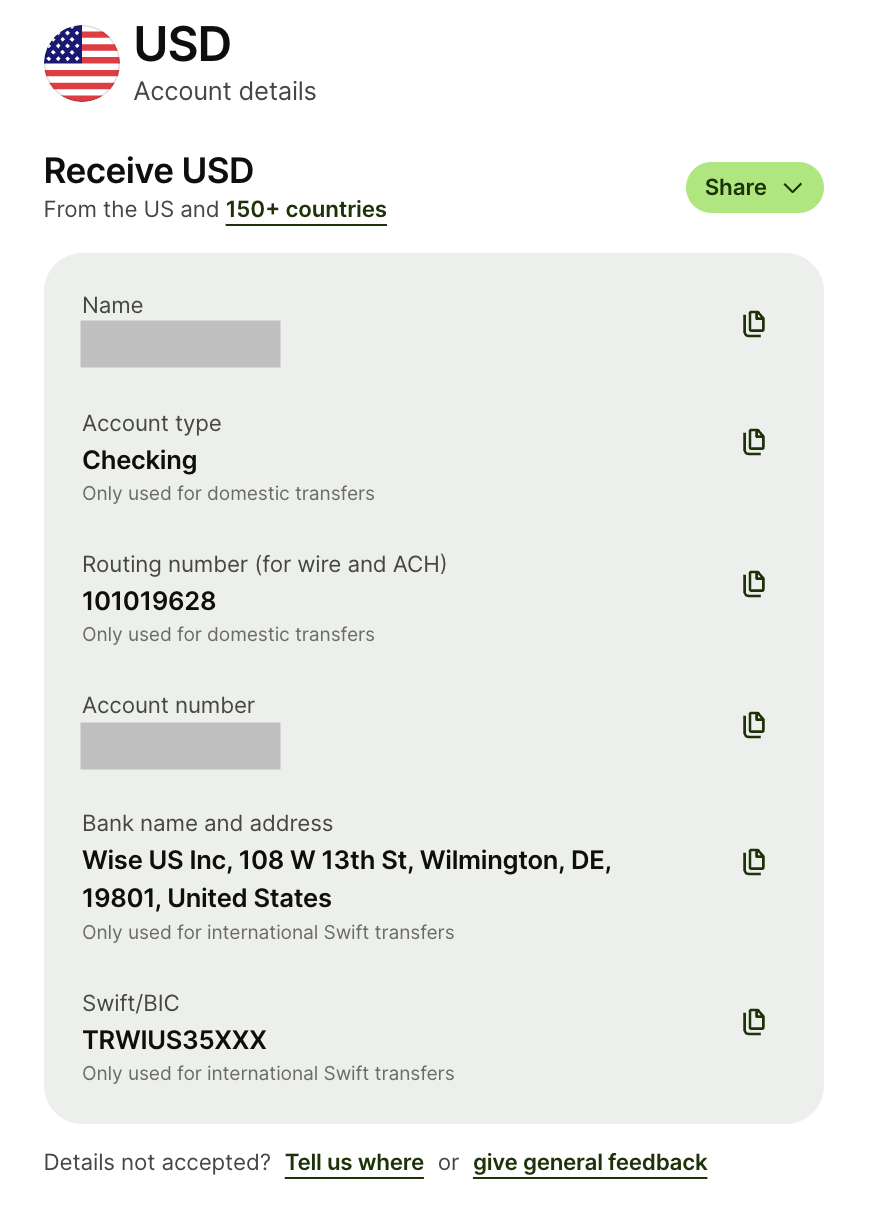
You can receive USD and Euros by sending transfers to the account details shown in the *Bank* tab. The minimum transfer amount is $1/€1 for ACH and SEPA.
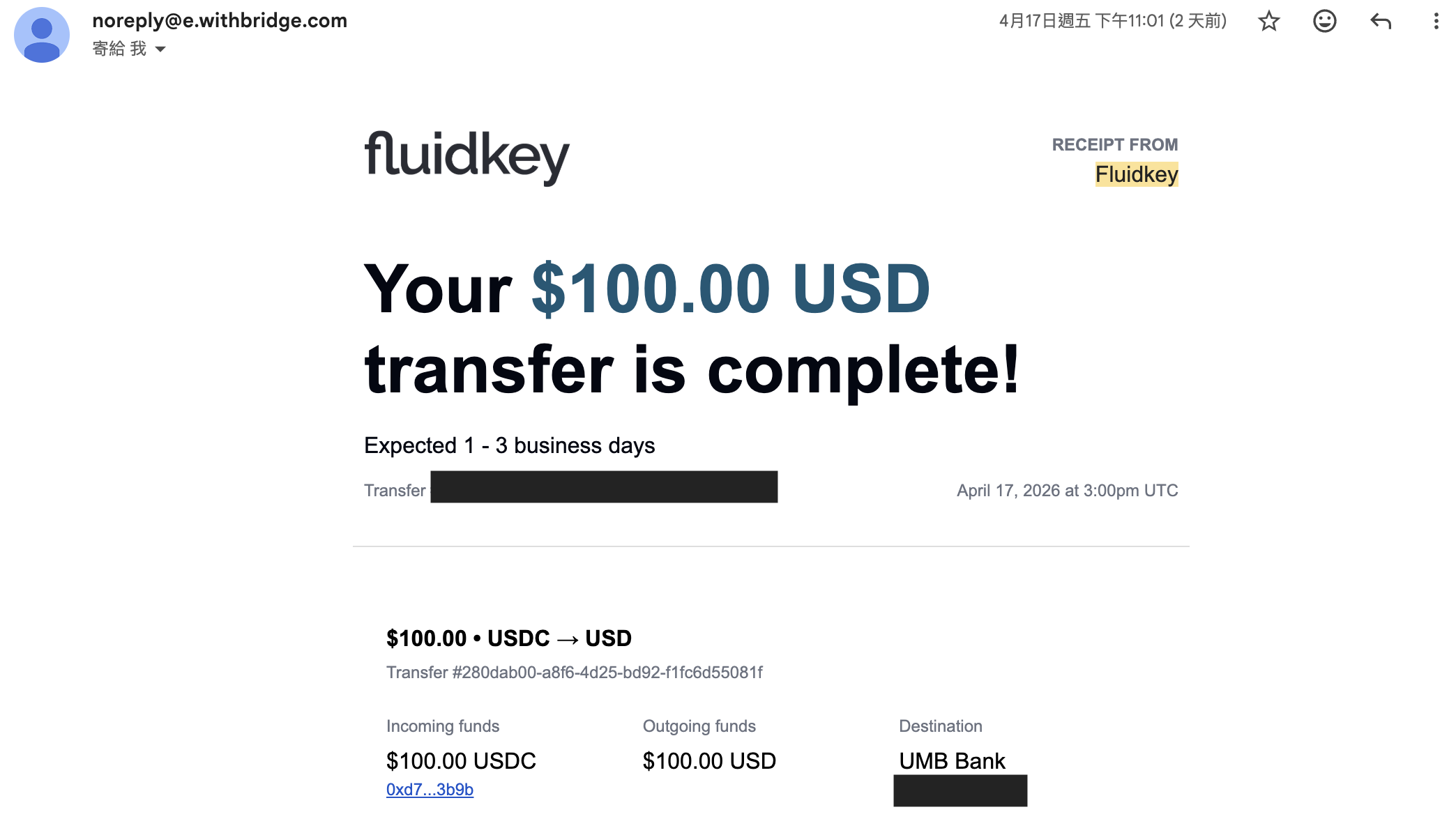
Transfers are typically credited to your account within the same day. ACH transfers may take 1–3 business days, and SWIFT transfers 1–5 business days, depending on the sending and correspondent banks.
You can switch the chain for deposit transfers by clicking the *Edit* button at the bottom of the table in the *Bank* tab.
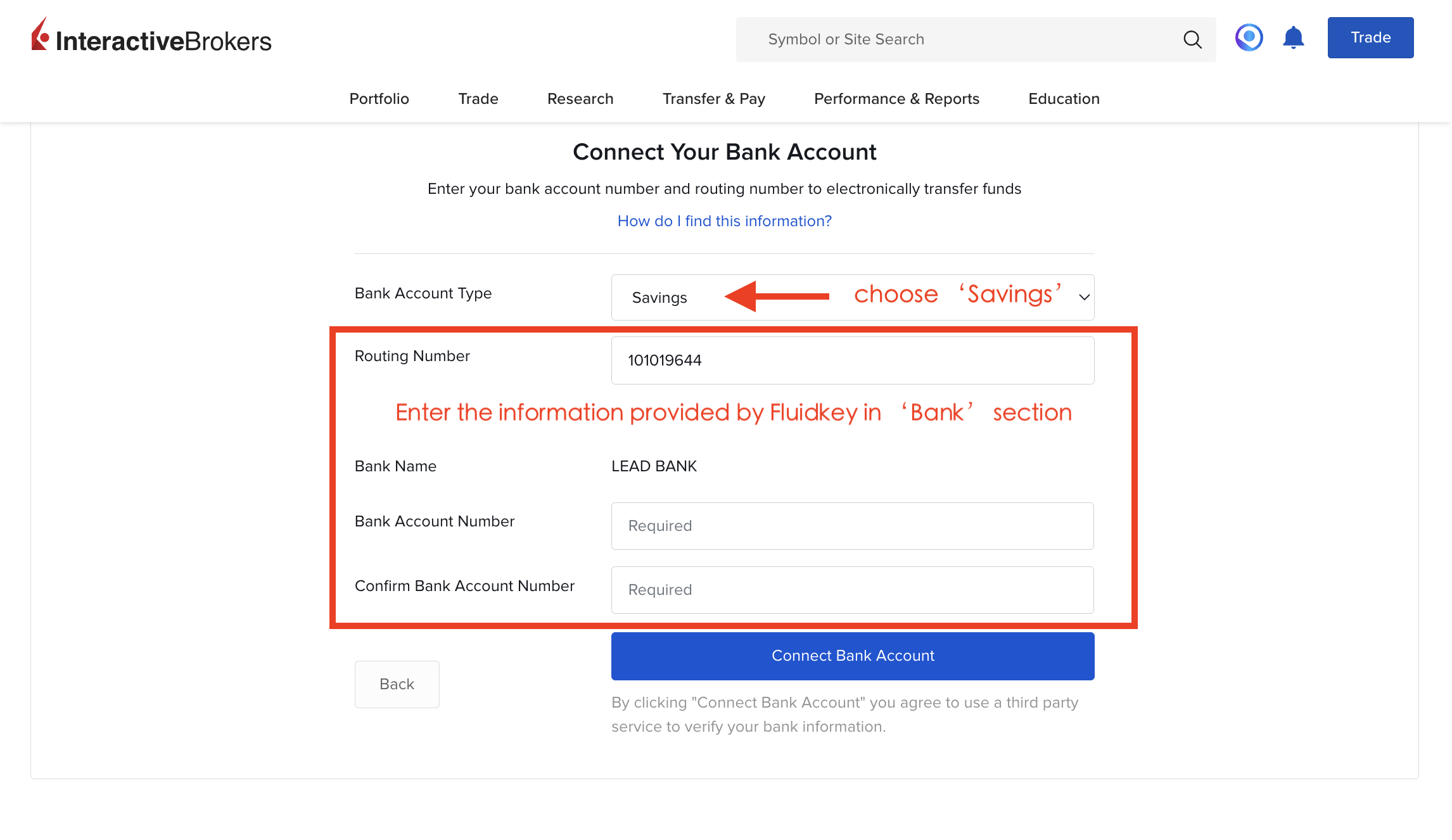
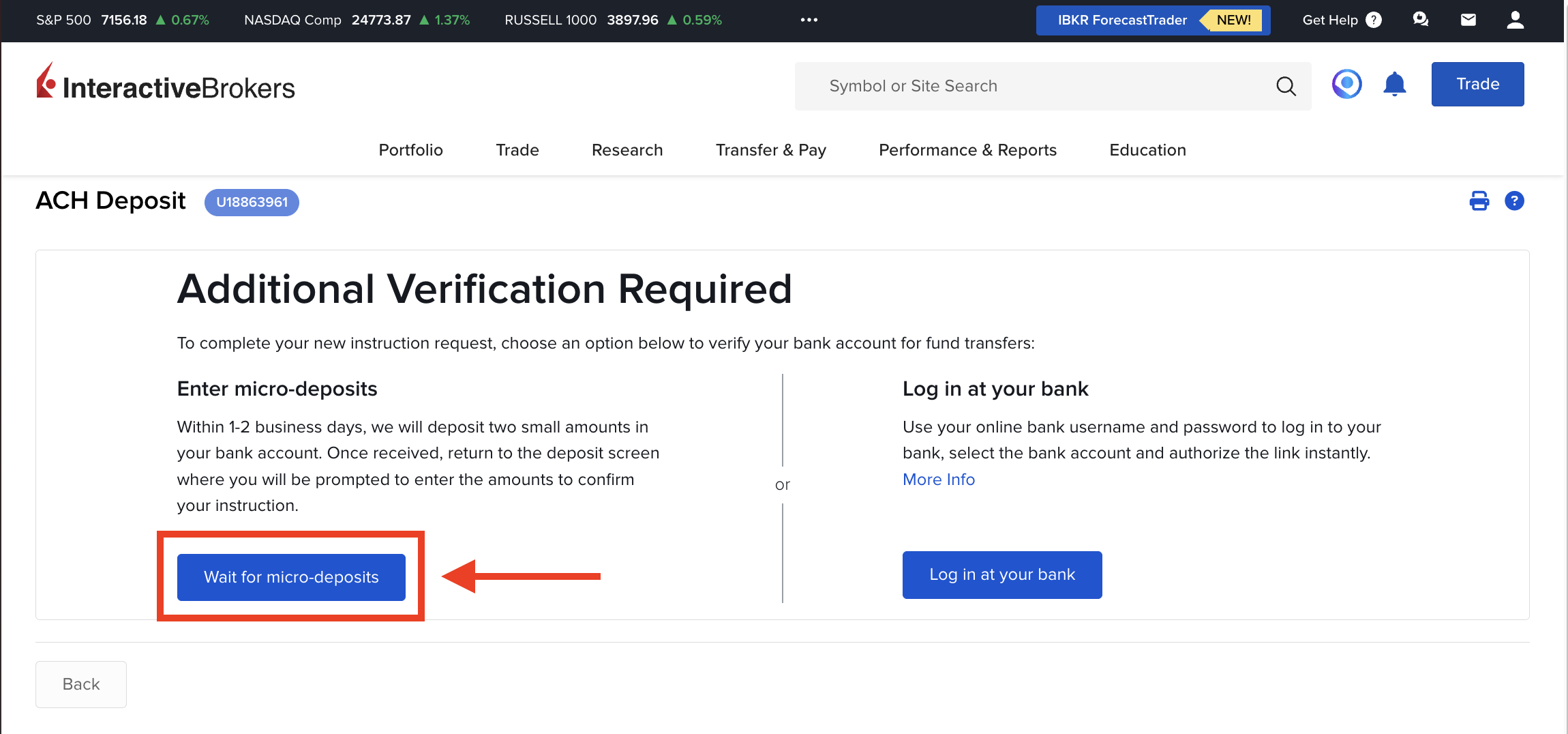
#### Verifying Your Account with Microdeposits
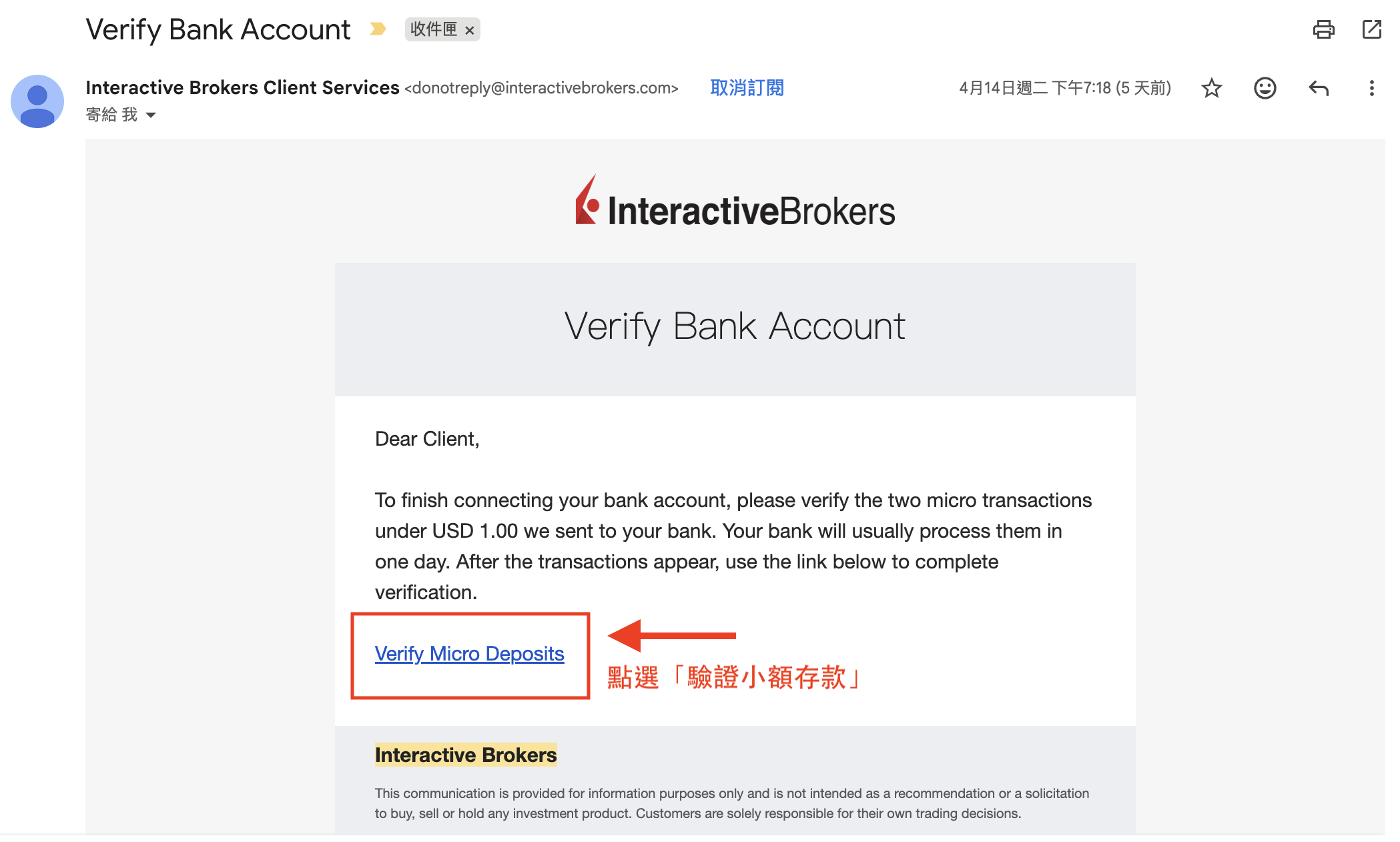
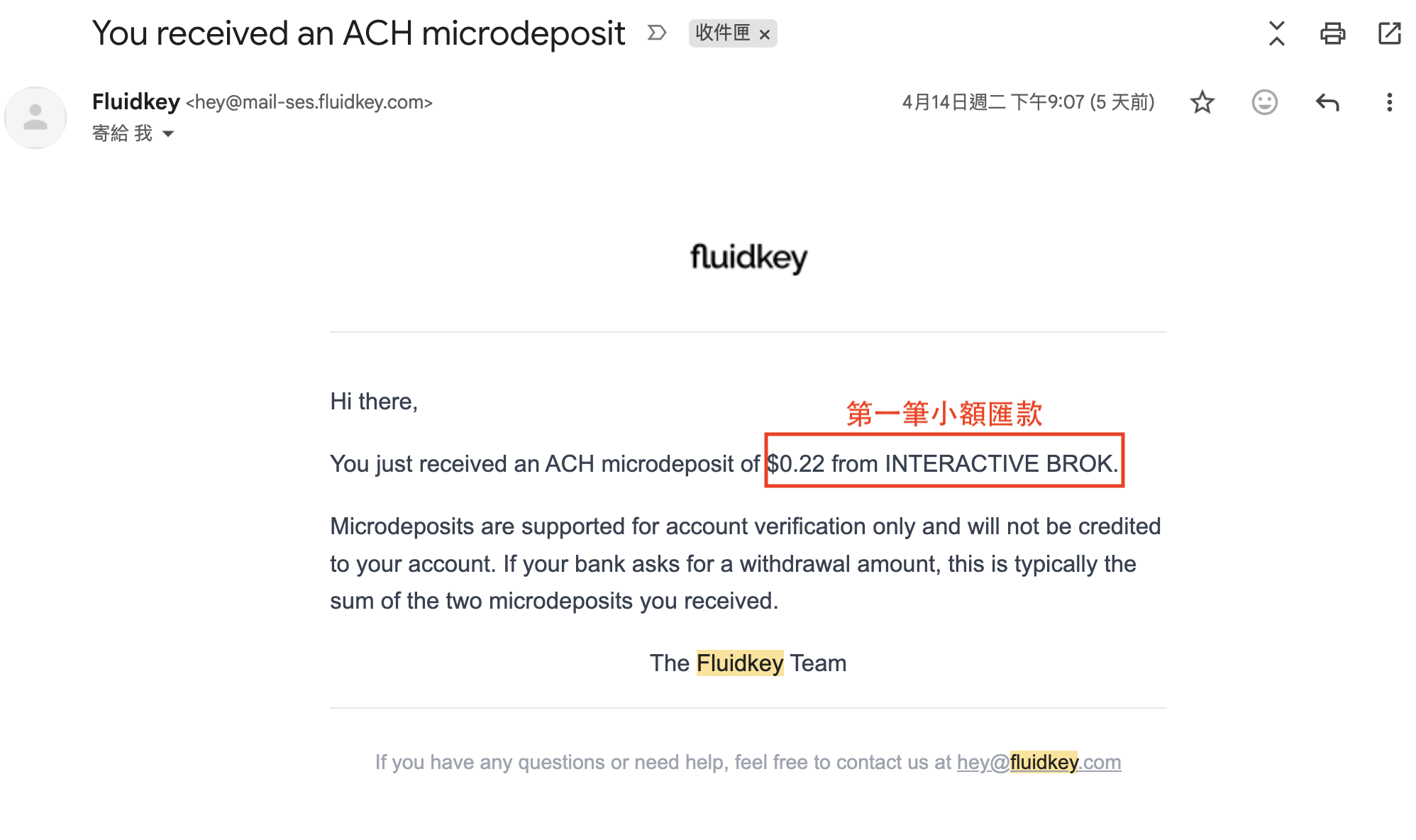
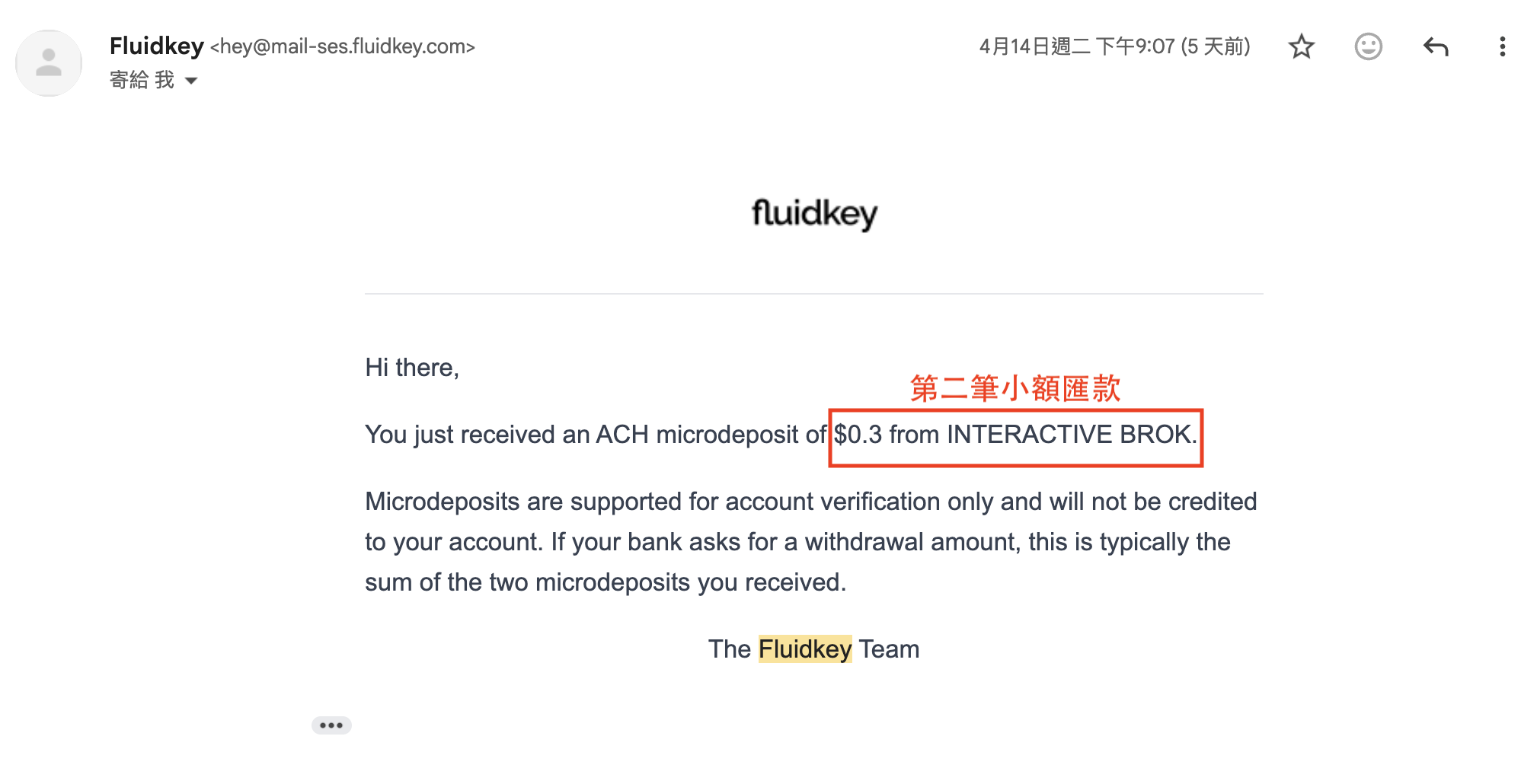
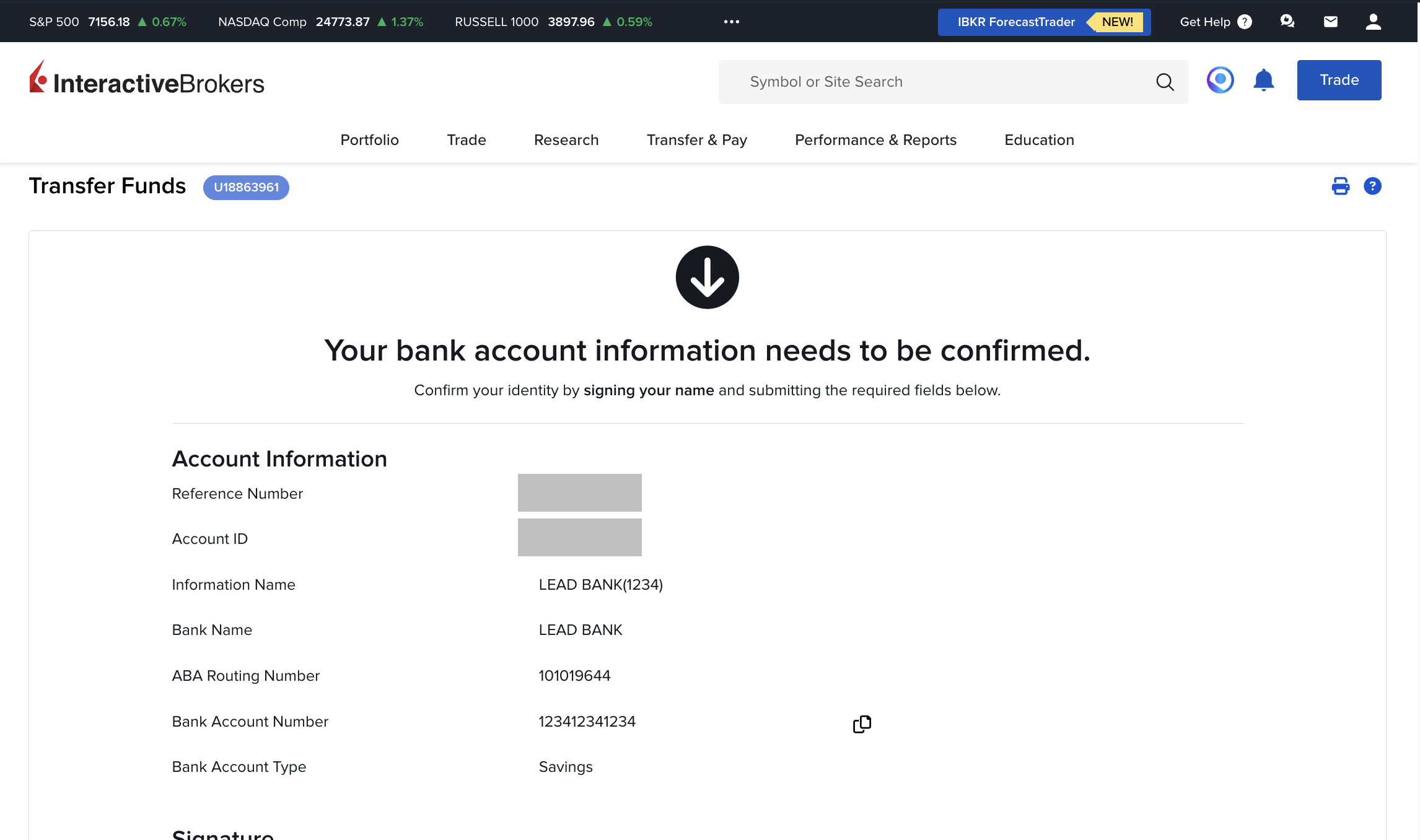
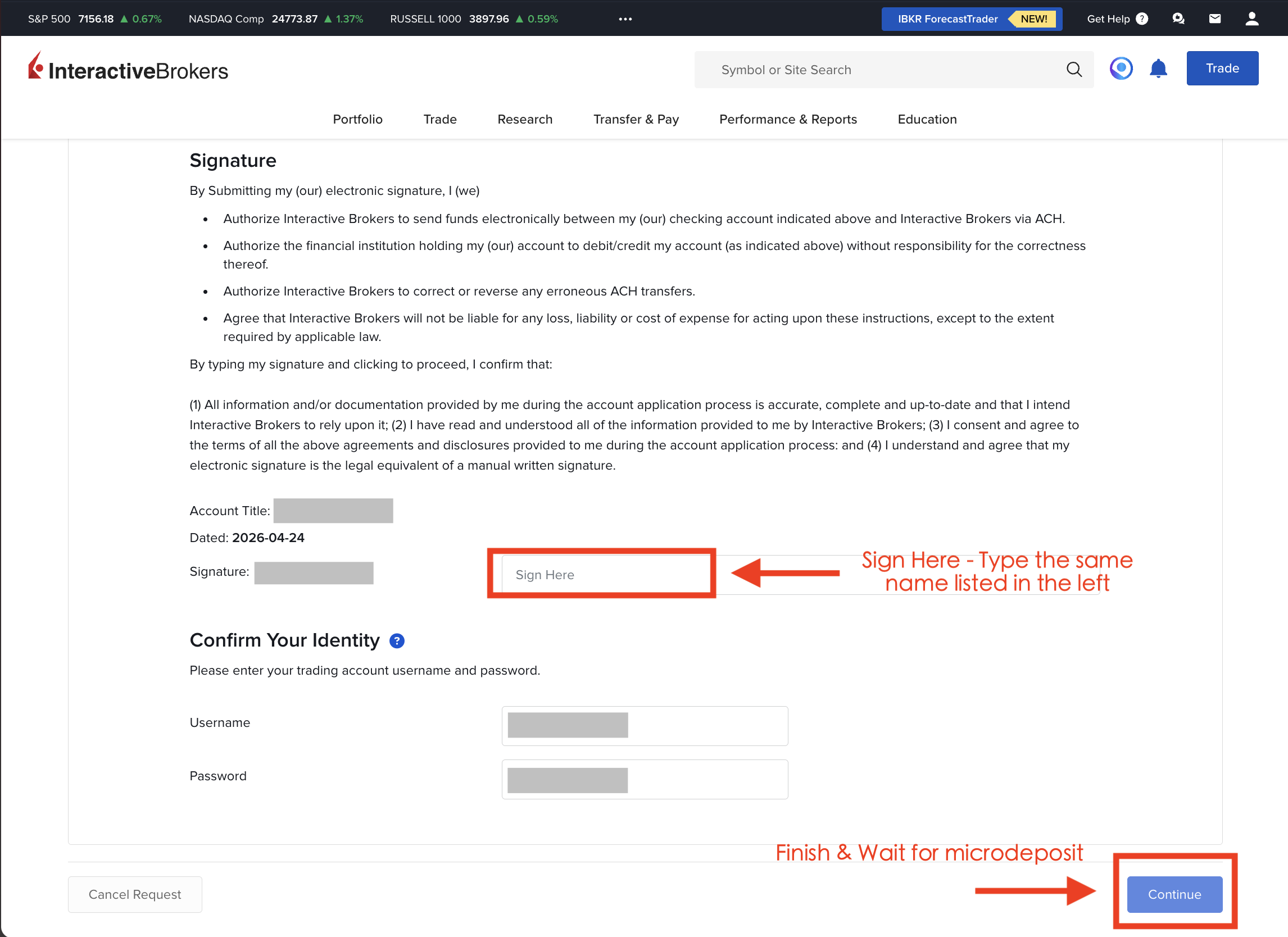
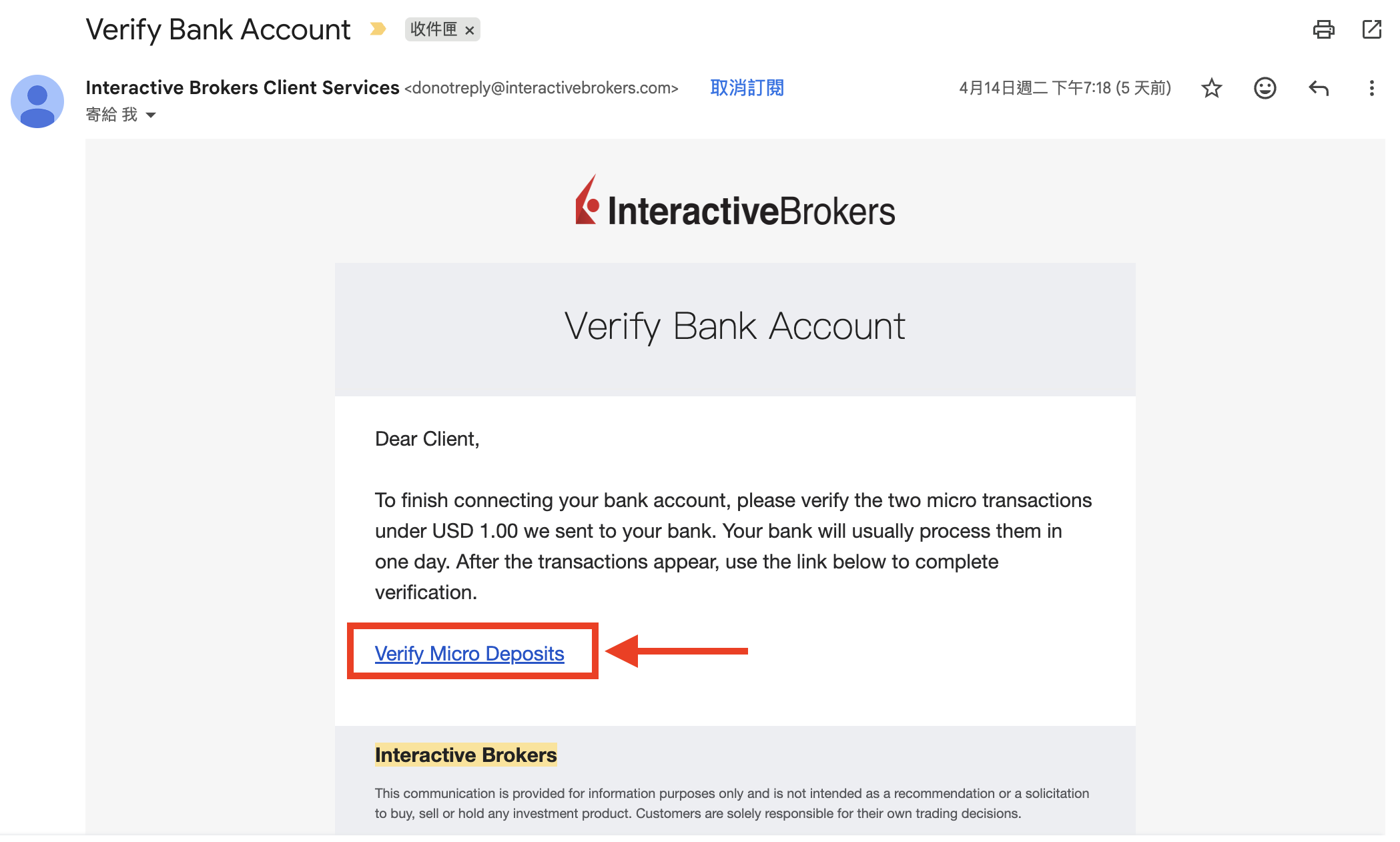
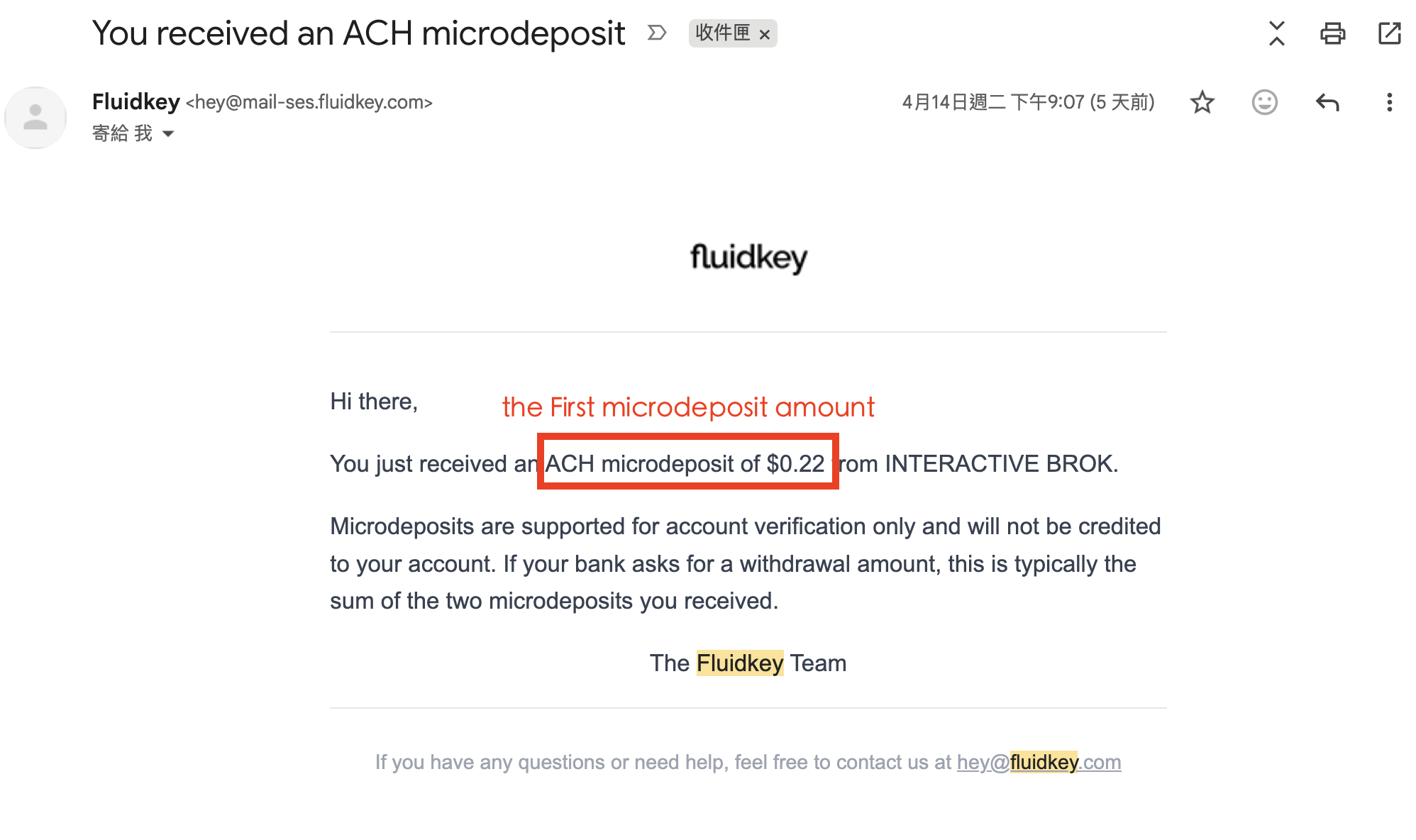
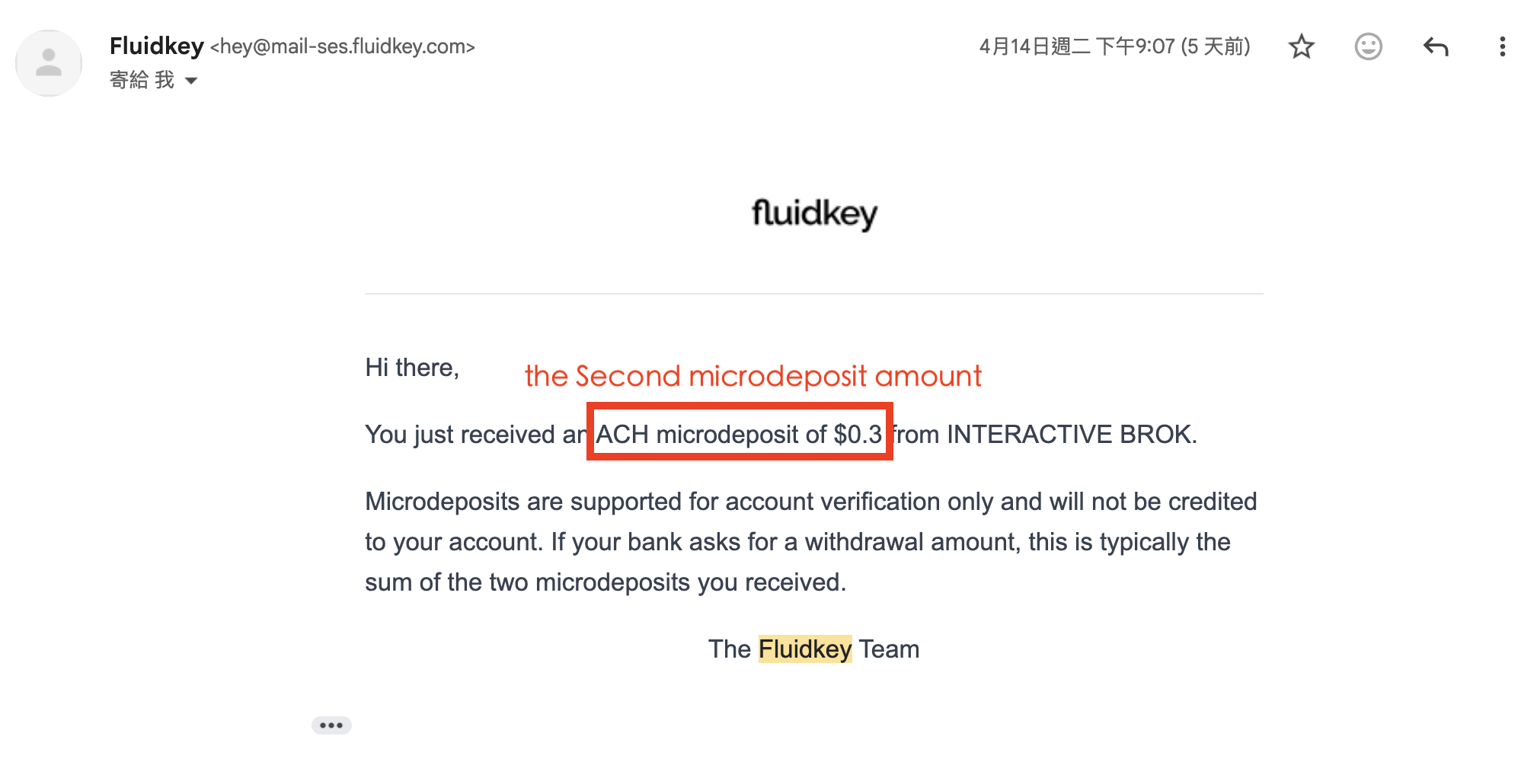
Some banks and fintech apps require you to verify ownership of your Fluidkey bank account before sending larger transfers. They do this by sending one or more small test deposits (under $1) to your account details. These microdeposits are not shown in the app; instead, you will receive an email with the deposit amounts at the address used to apply for the bank feature. Once your bank confirms the deposits, you can send transfers as usual.
#### Third-Party Transfers
Transfers from third parties are accepted within the following limits:
**USD accounts**
* Registered businesses sending from a domestic US business account
* A family member's bank account, if you share a surname
* Other individuals, up to $5,000 per transfer (US residents can only receive third-party transfers from registered businesses)
**EUR accounts**
* Registered businesses sending from a domestic business account
* A close friend or family member's bank account
### Sending Transfers
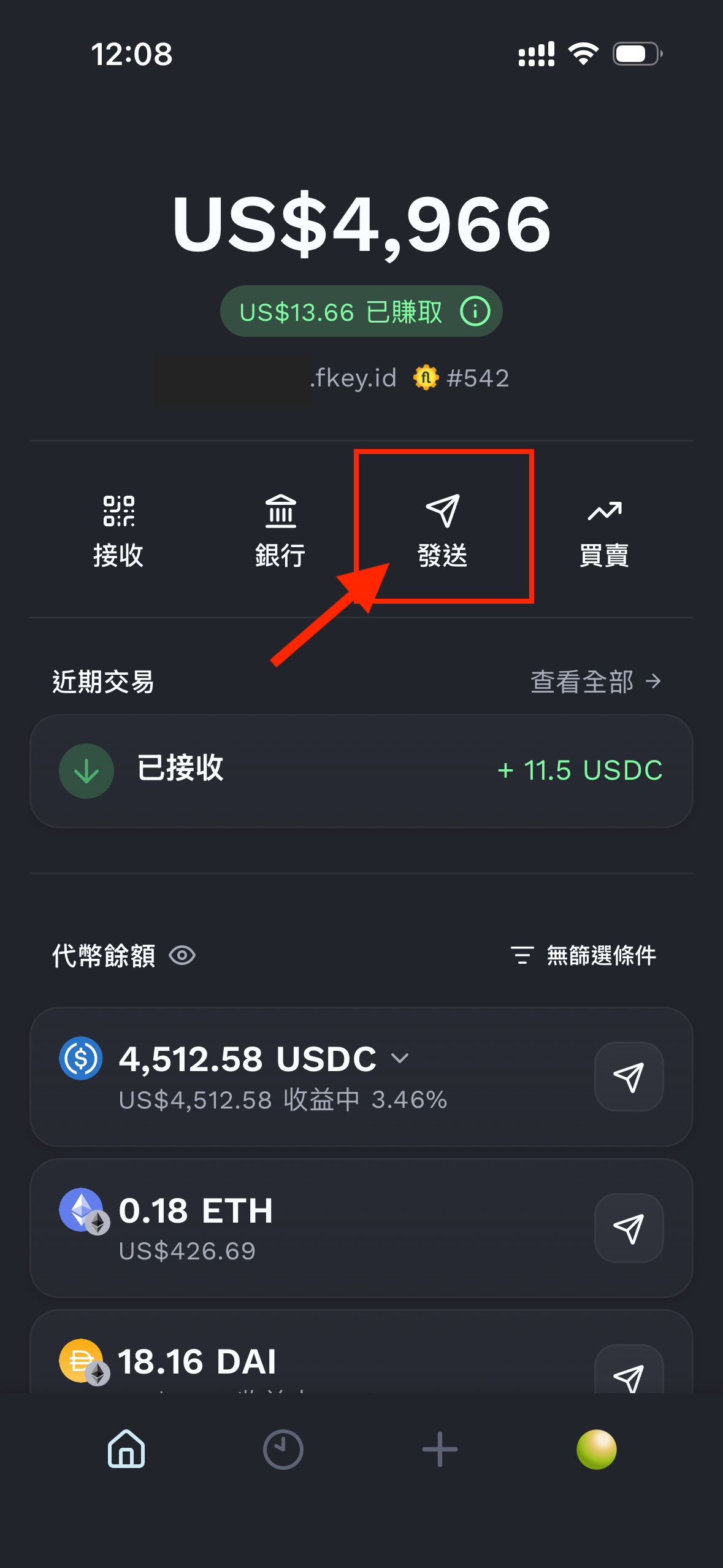
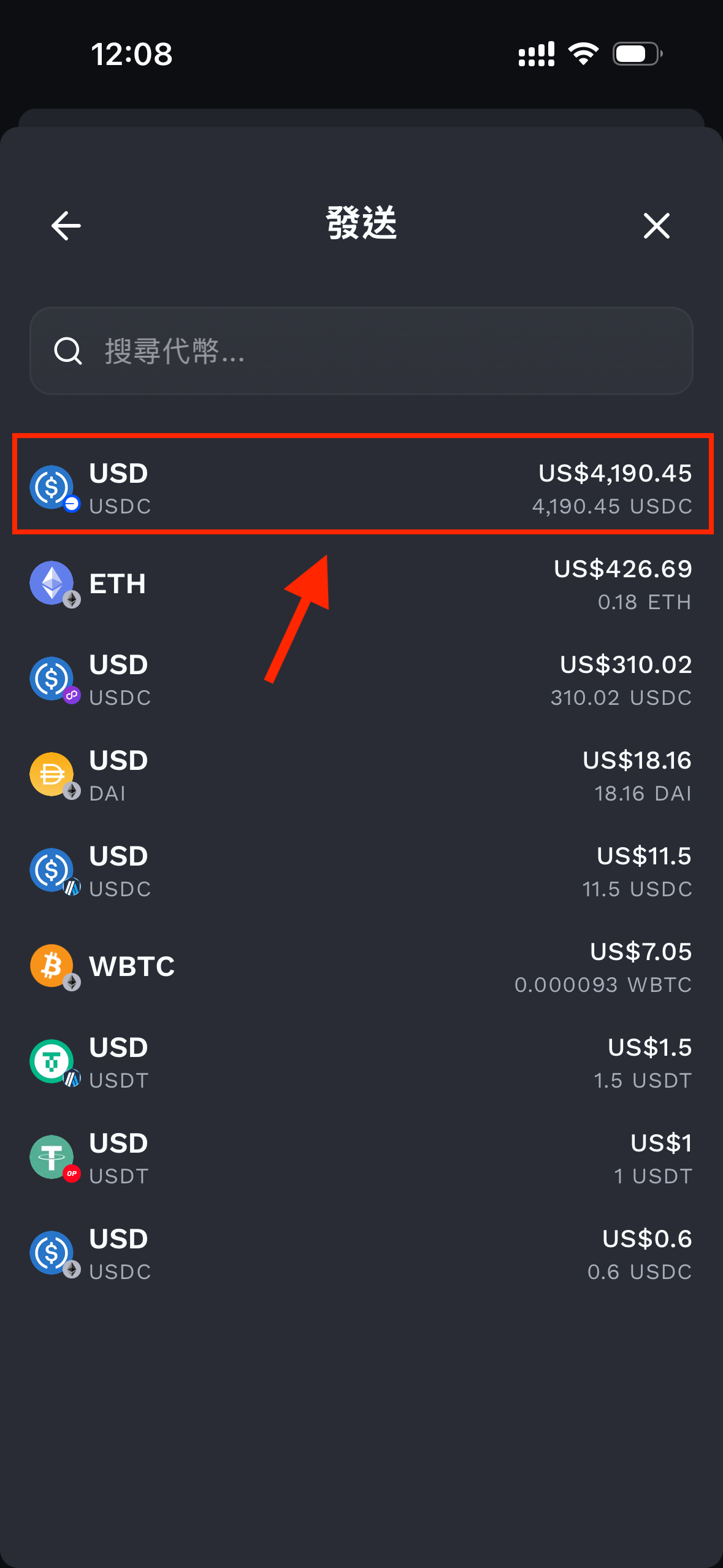
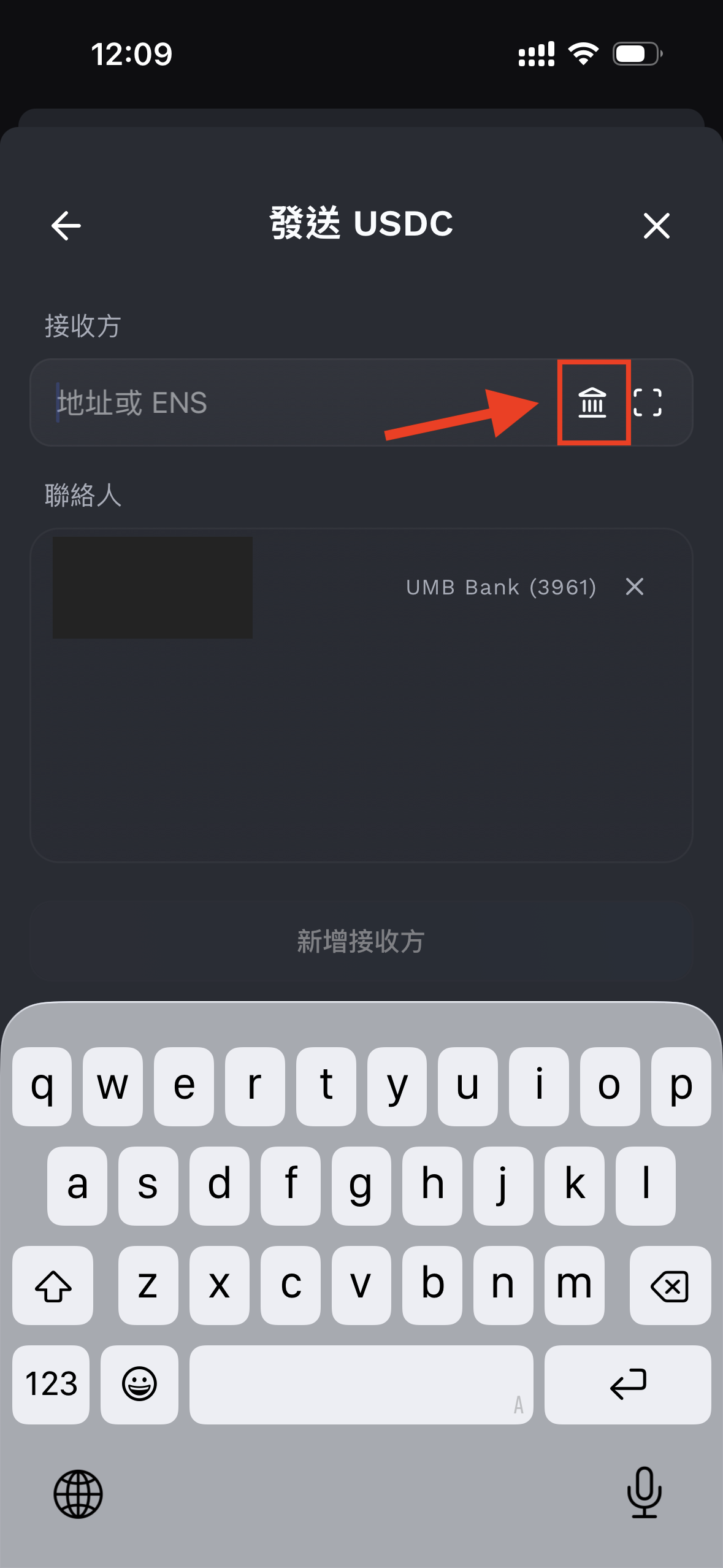
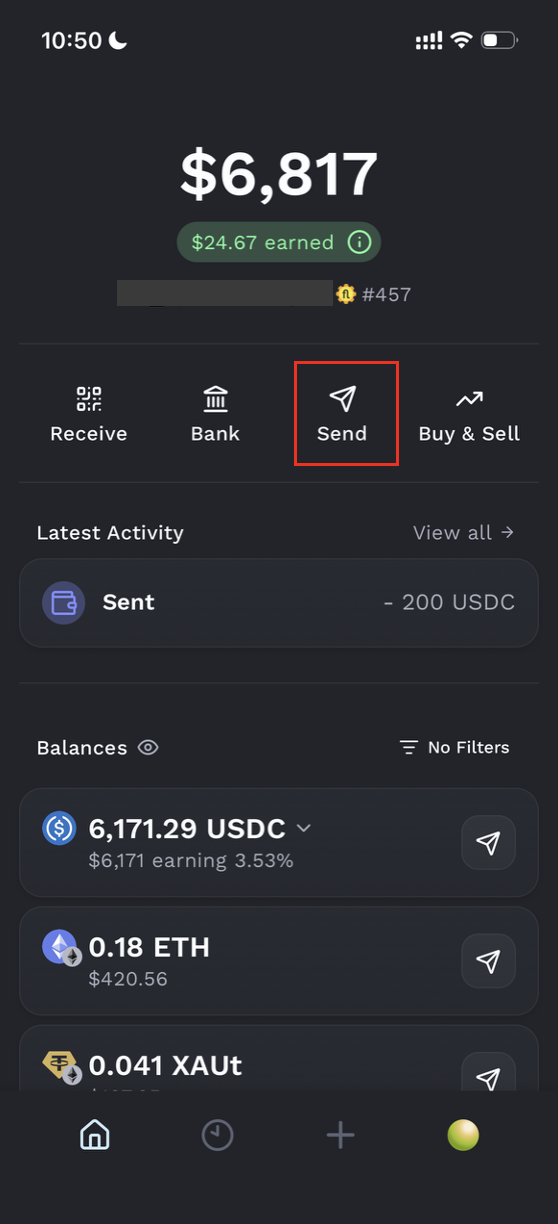
Outgoing transfers are currently available from any token on Base. We recommend using USDC to get the best exchange rate.
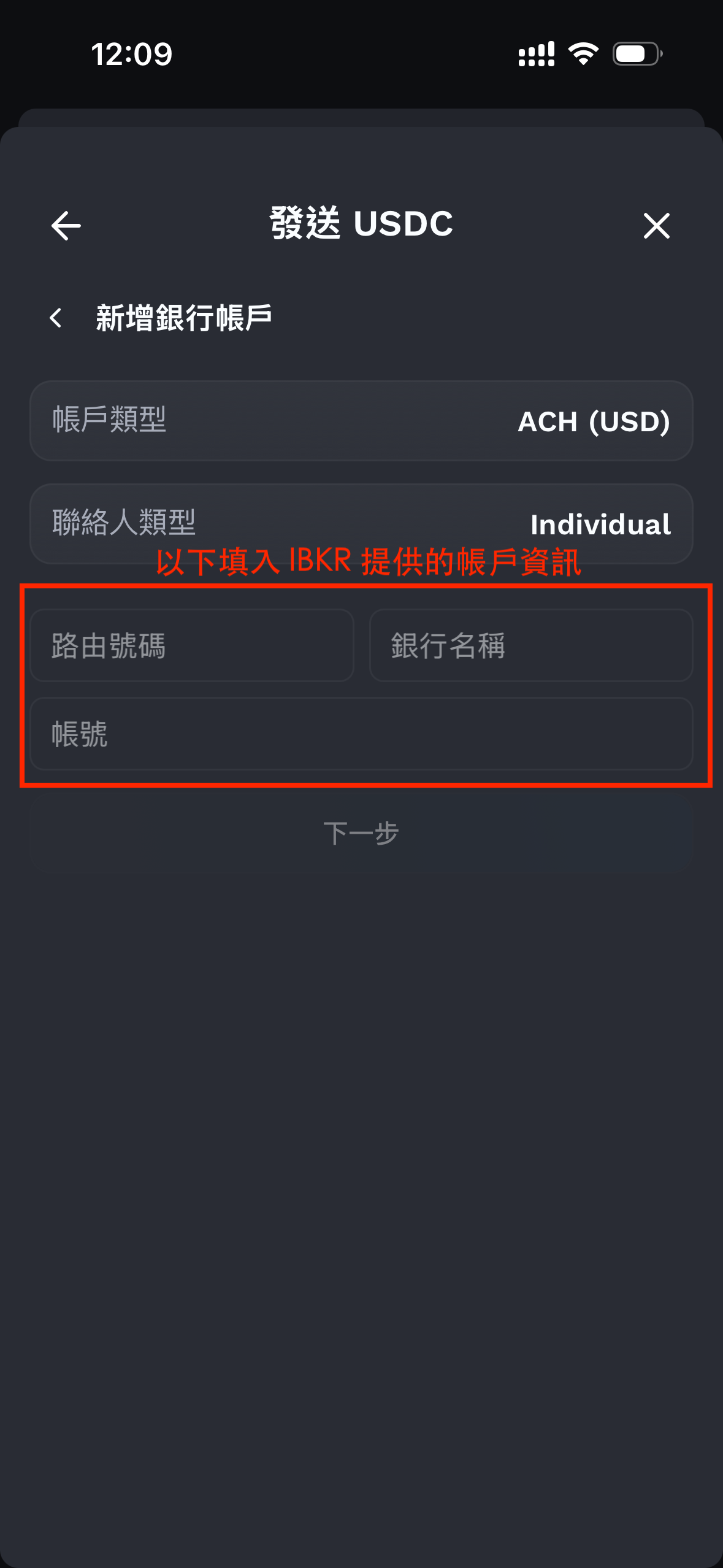
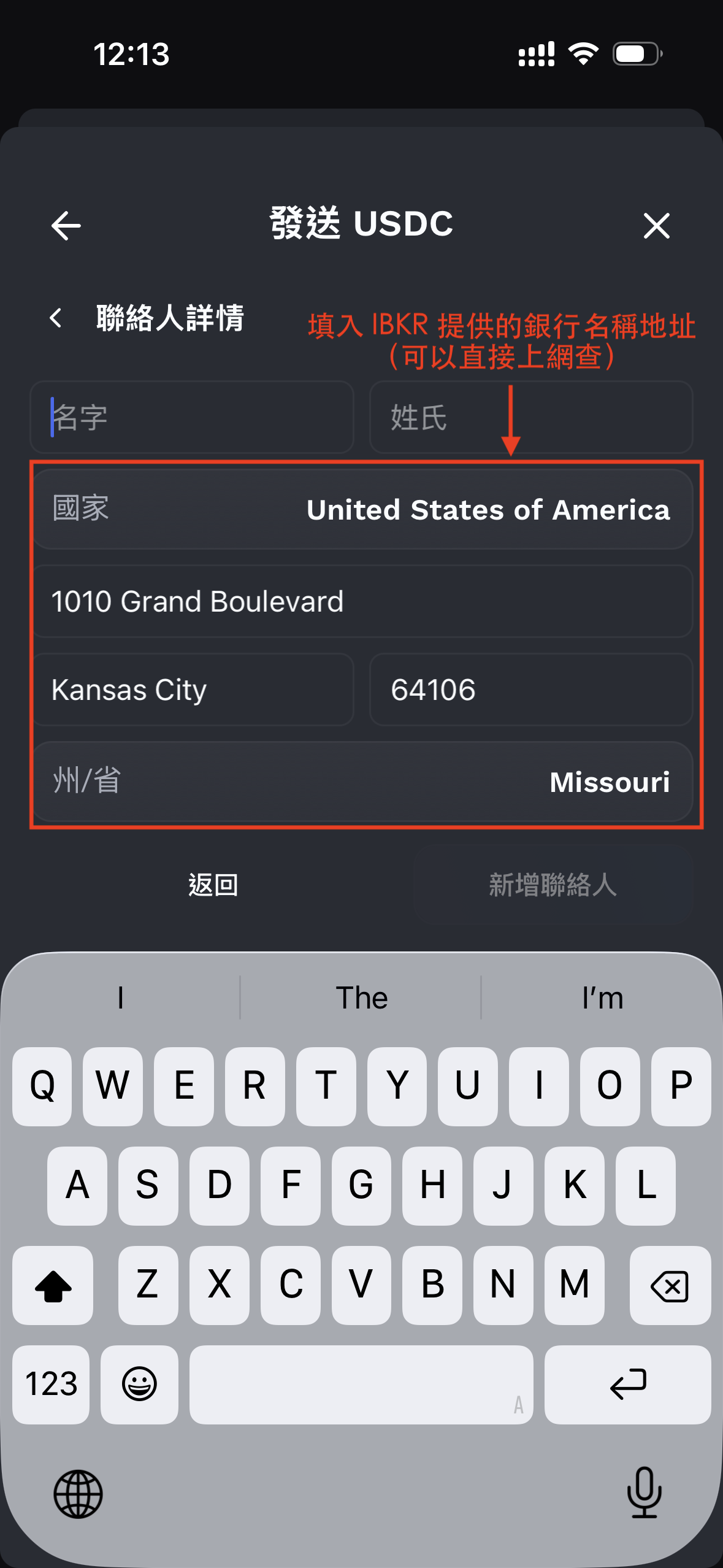
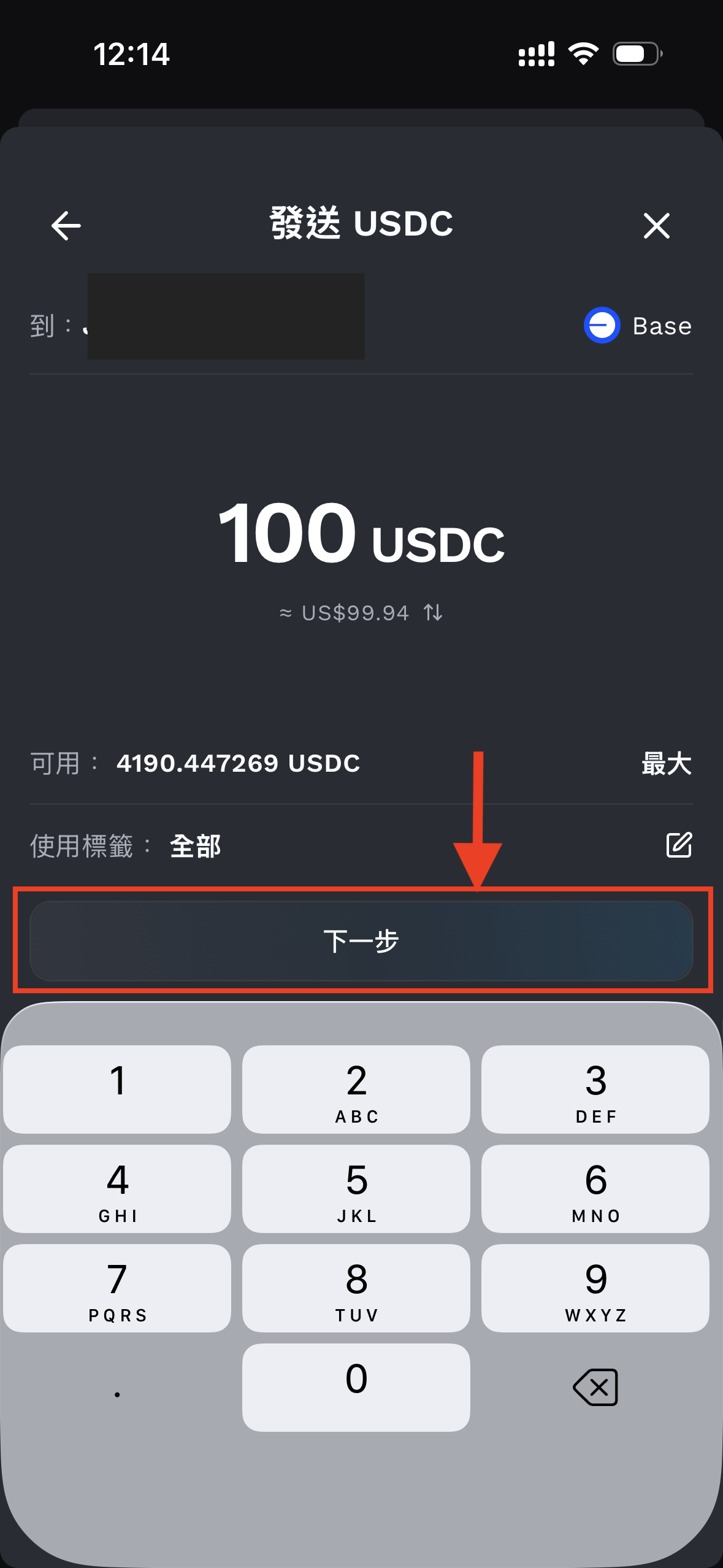
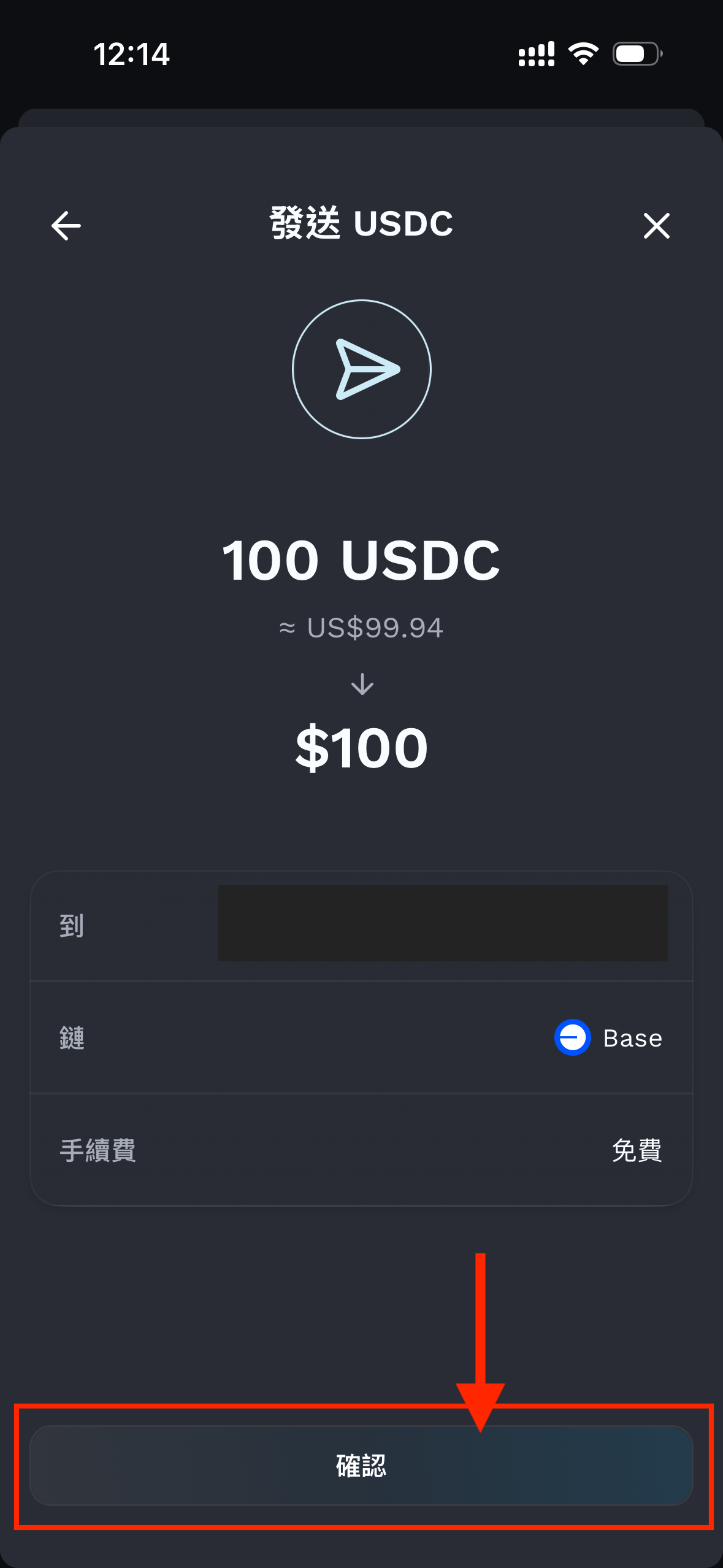
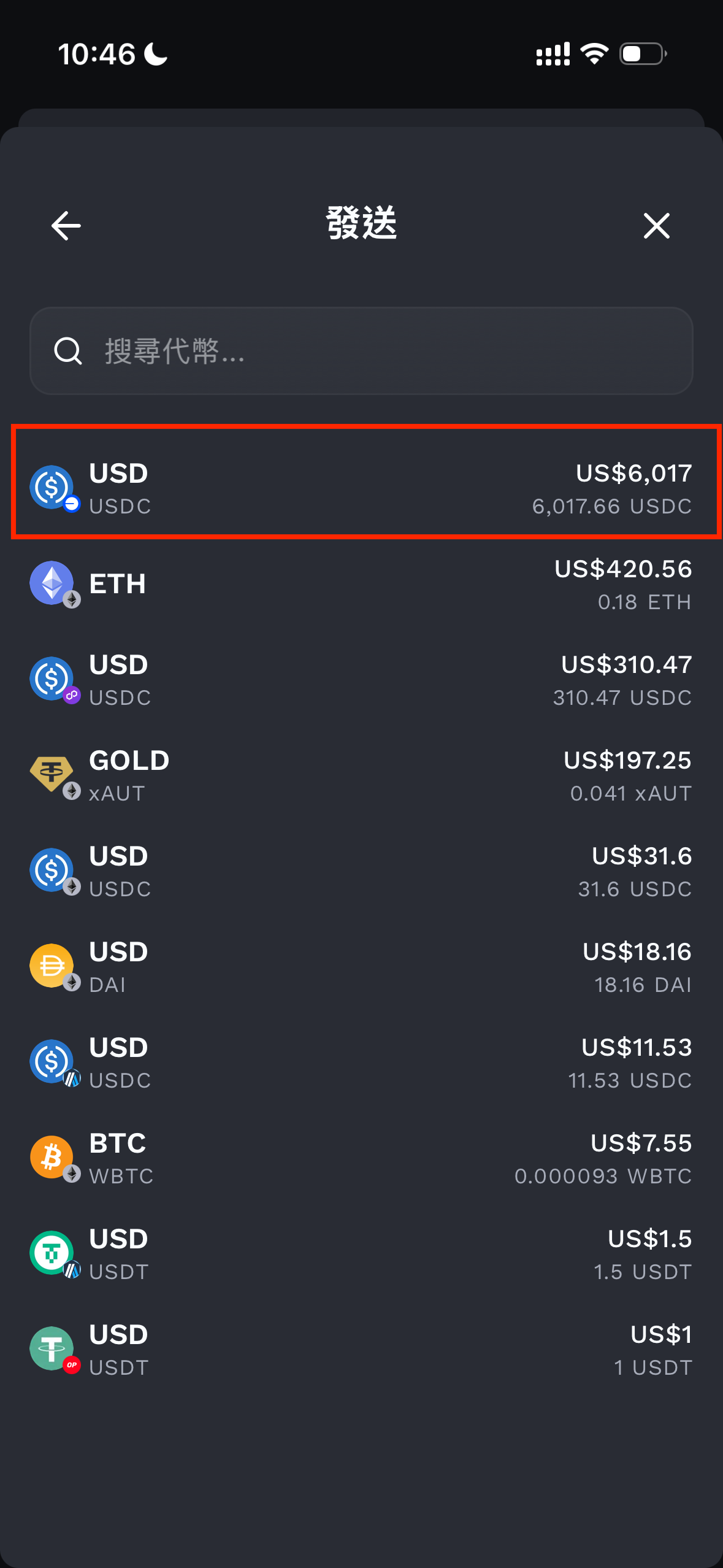
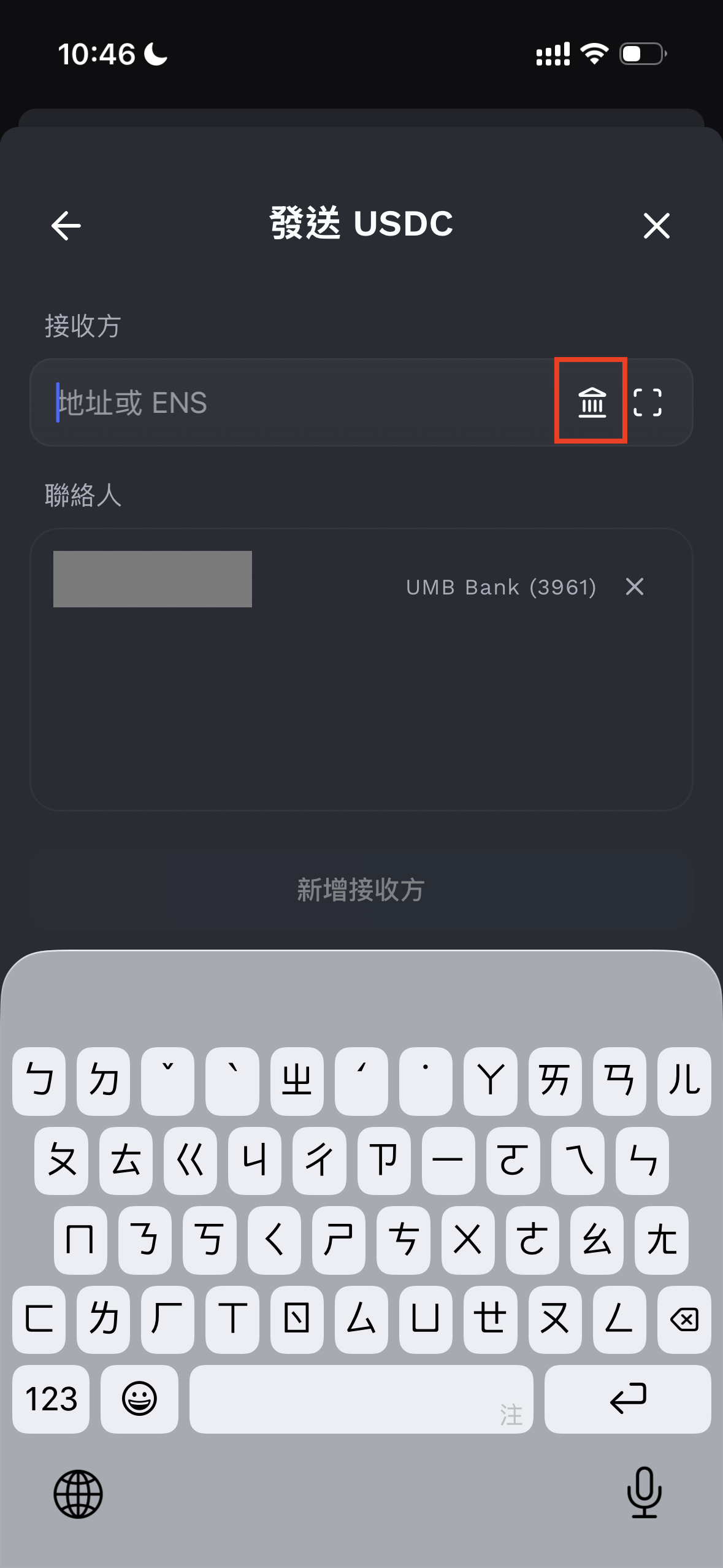
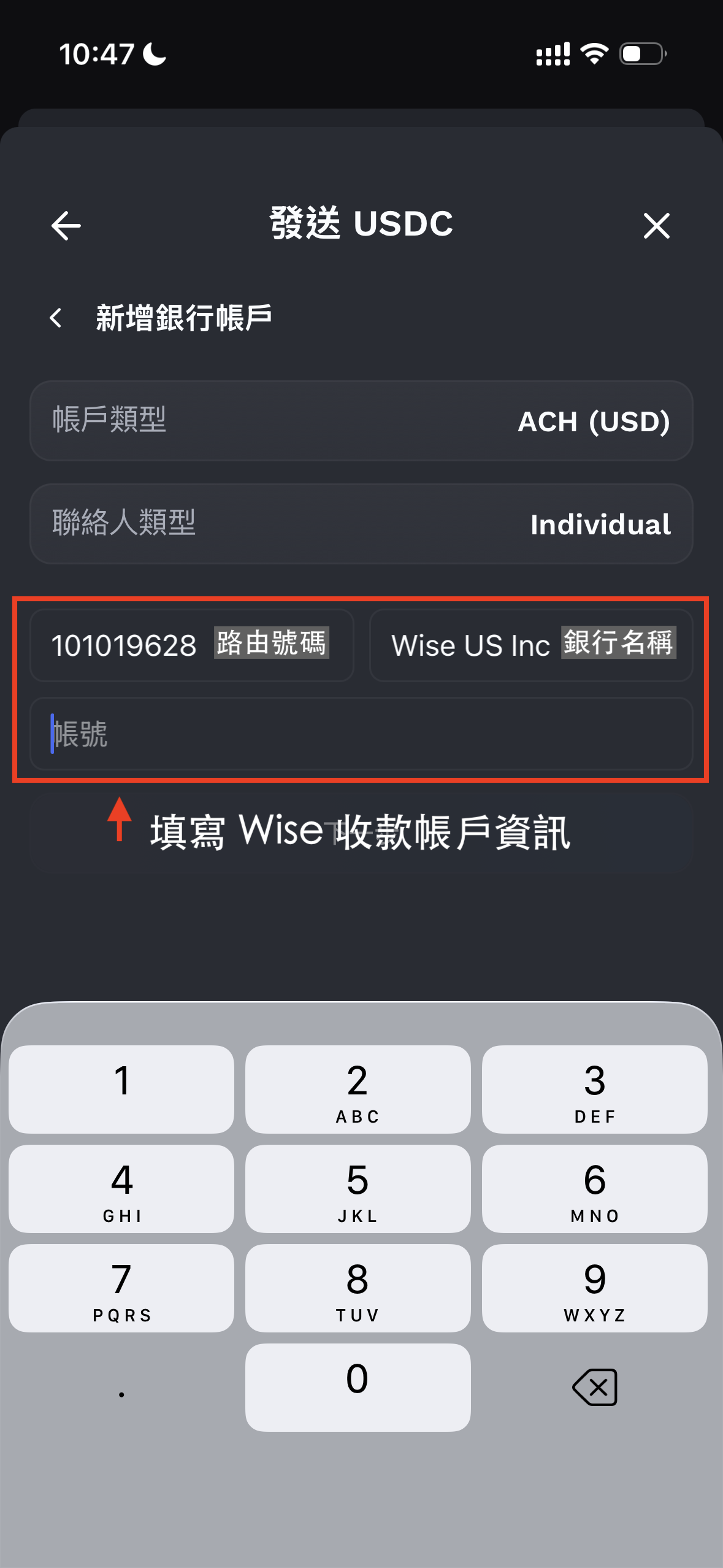
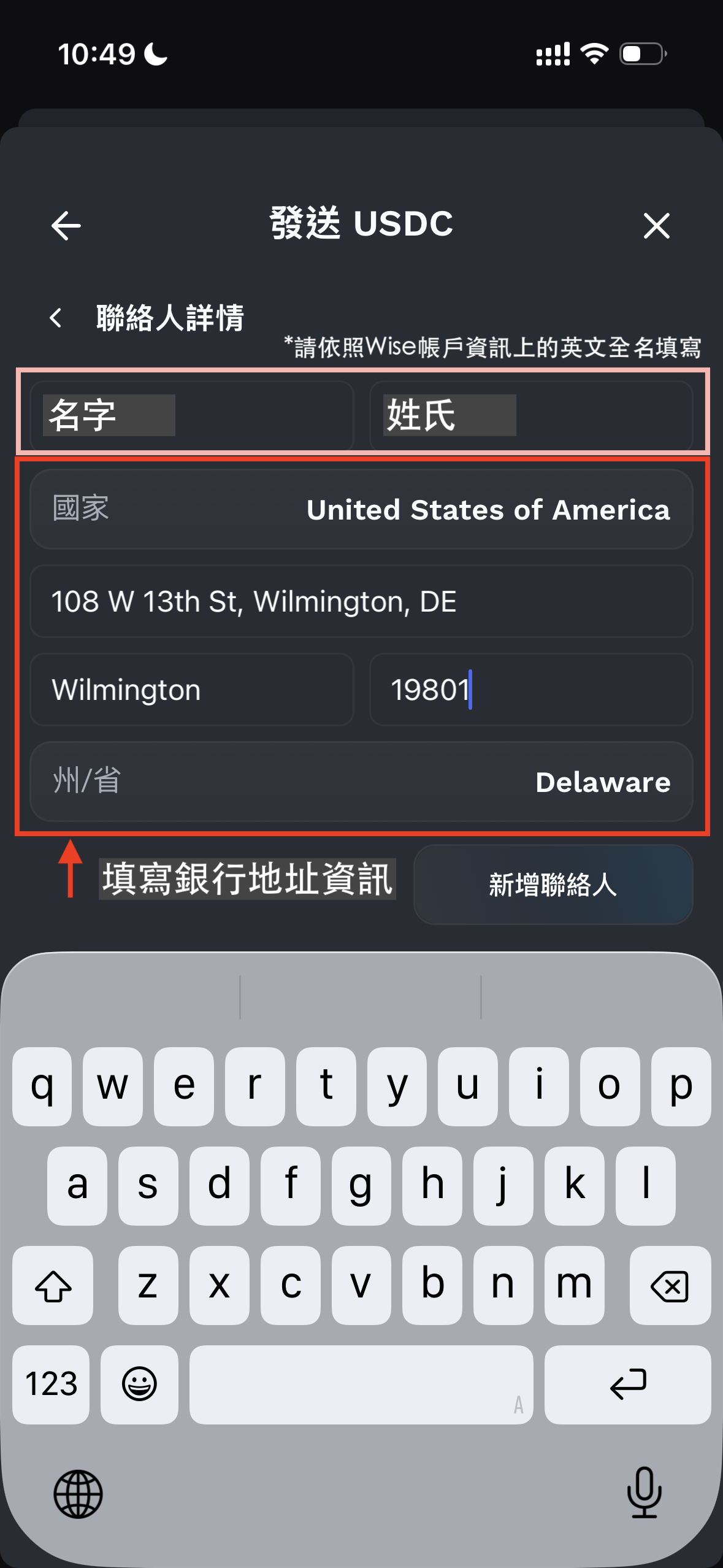
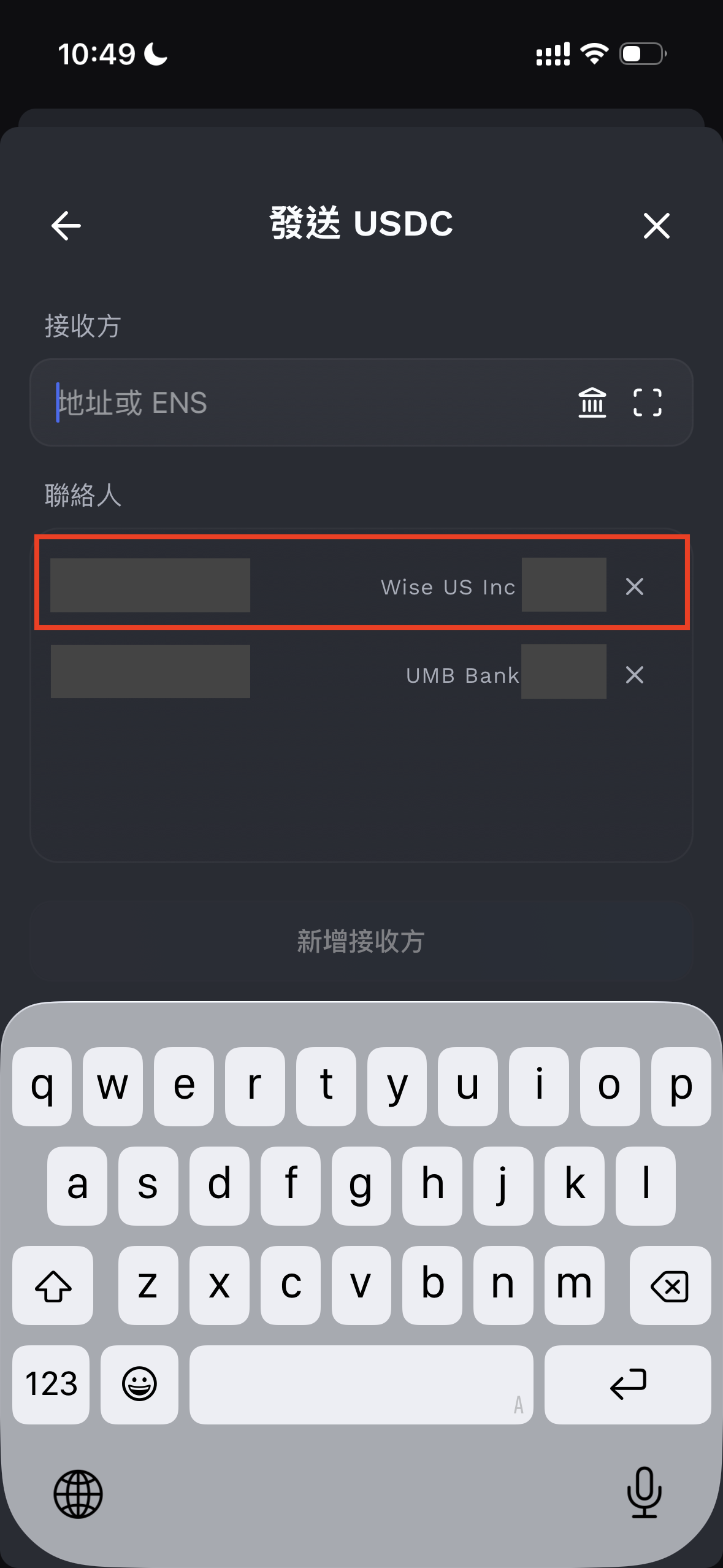
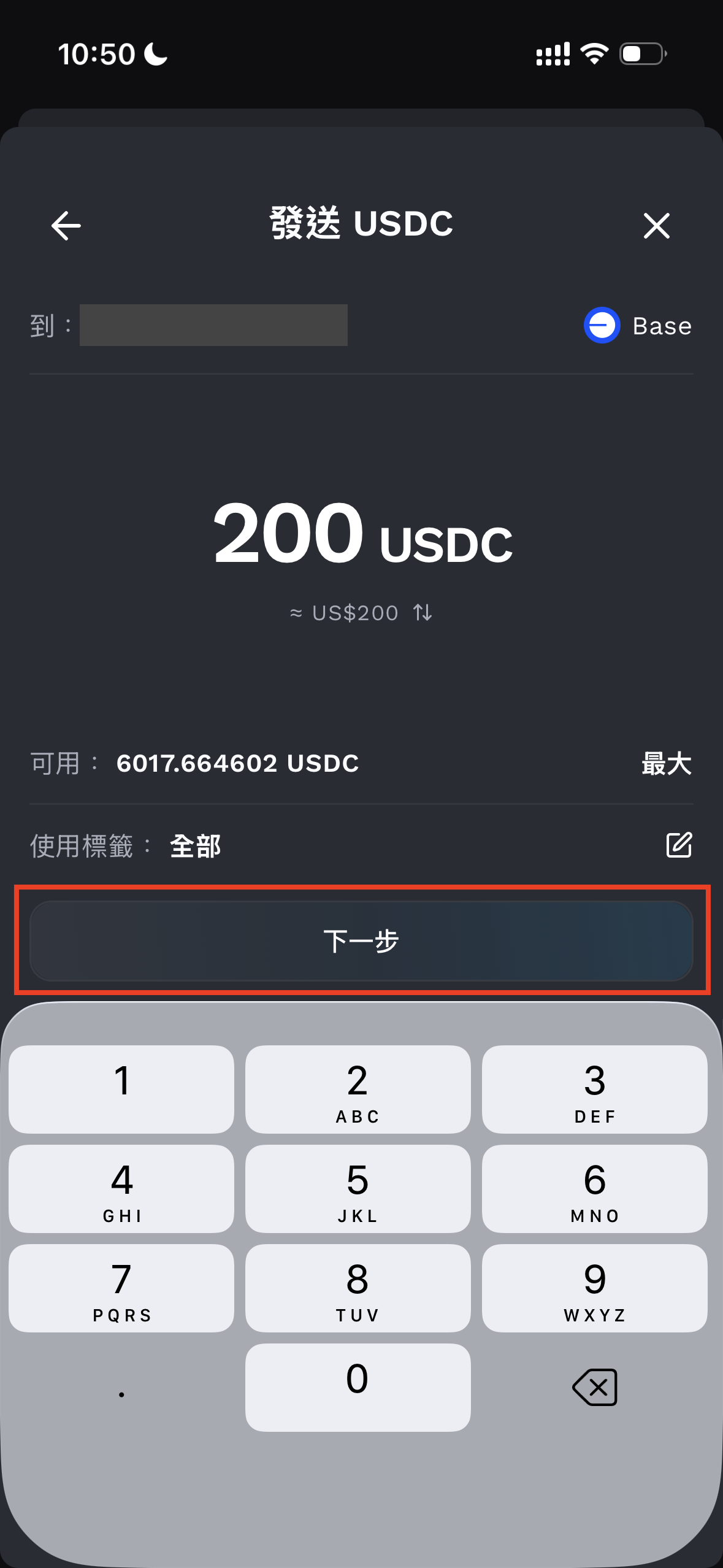
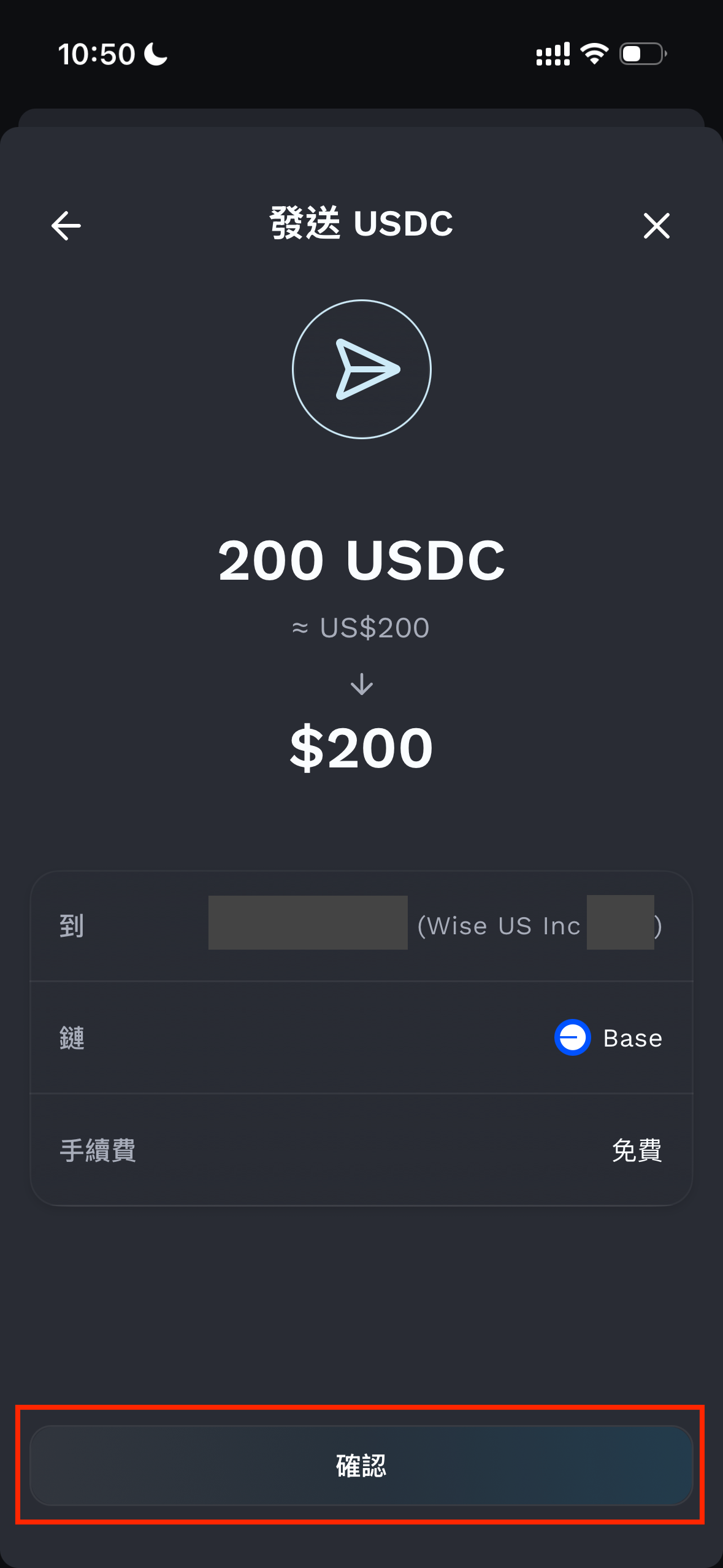
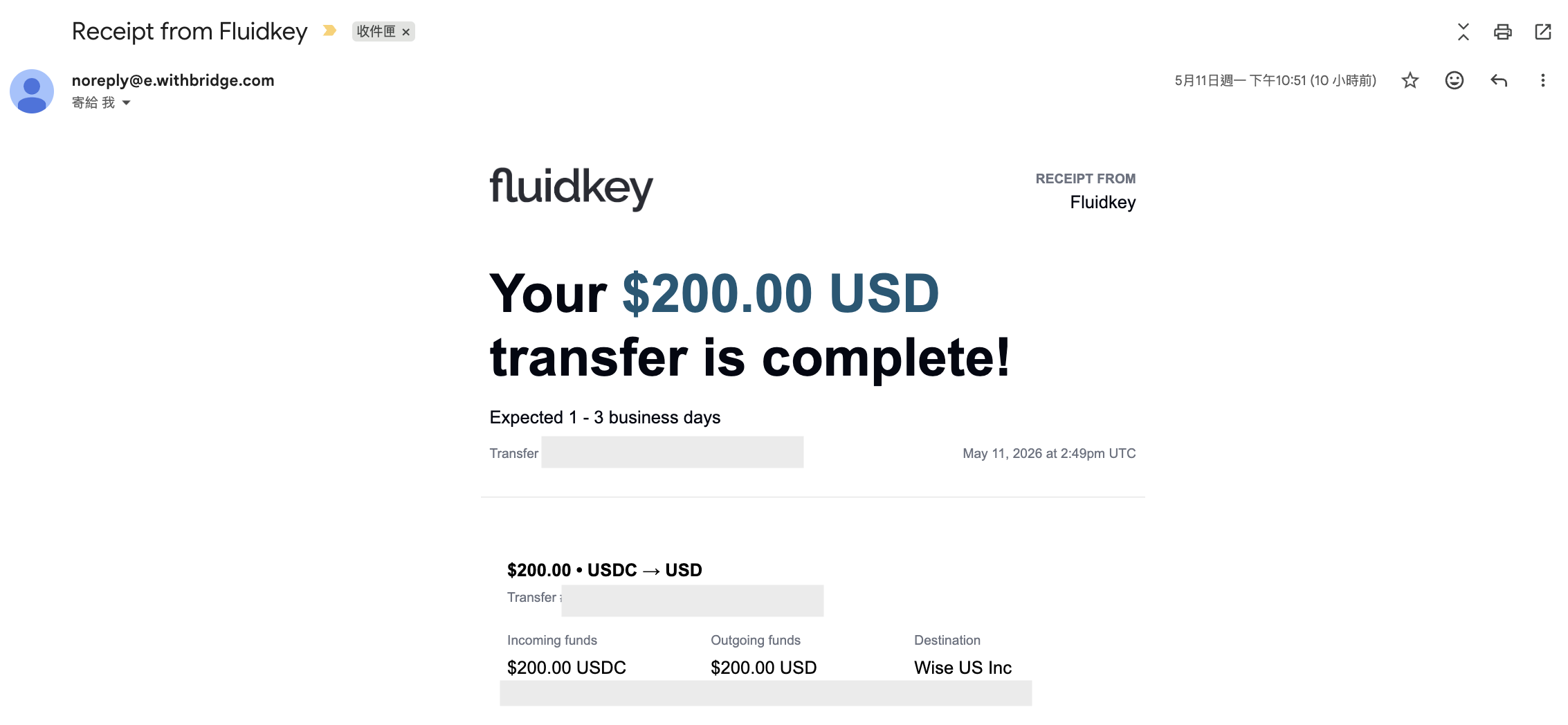
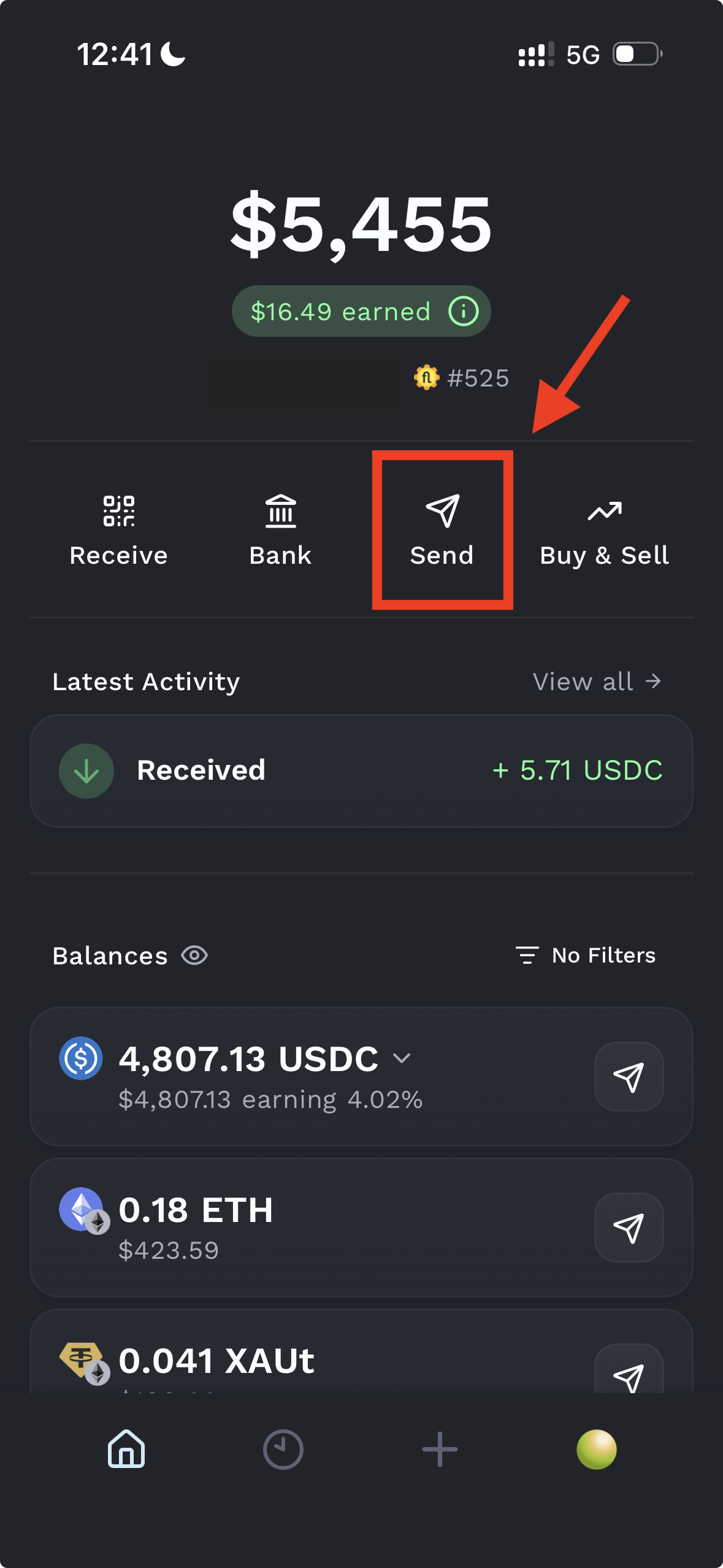
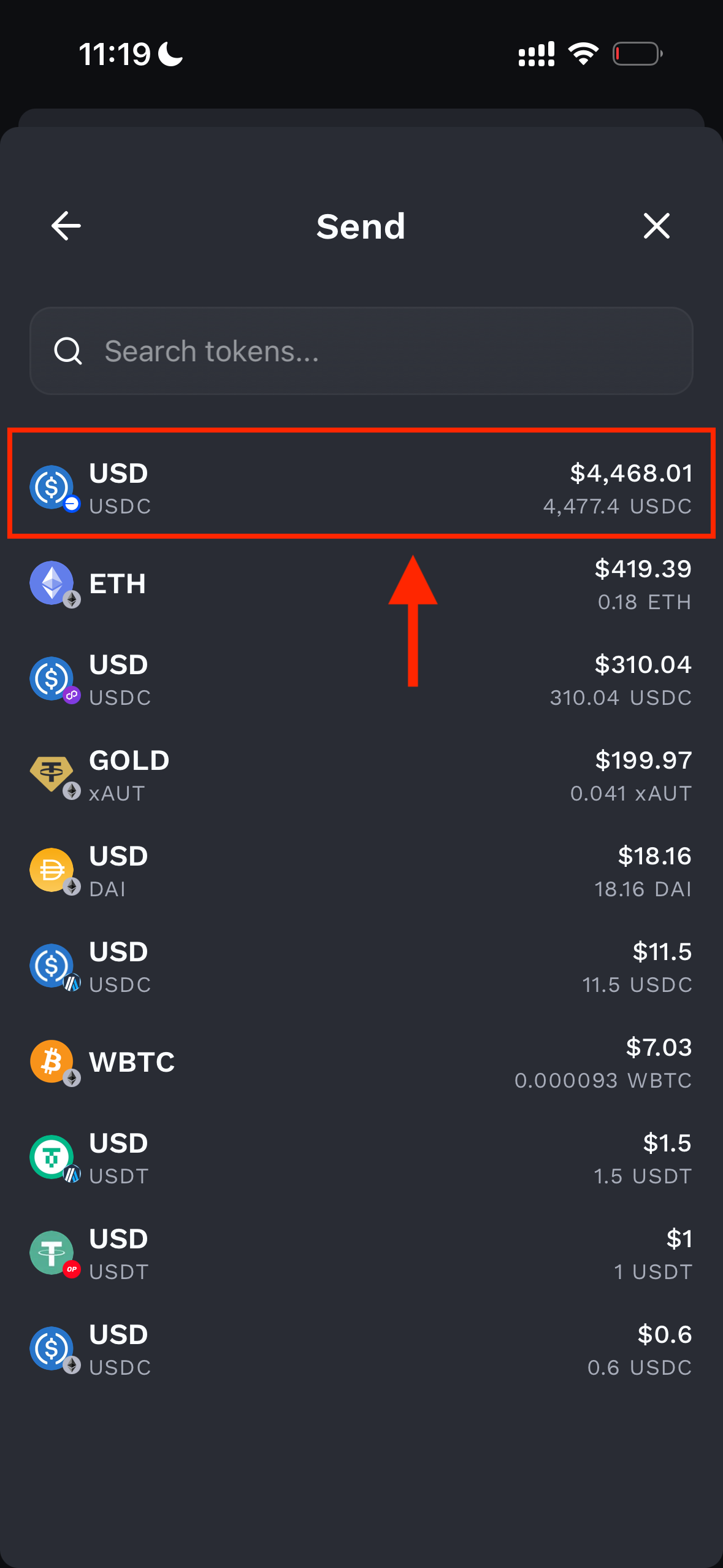
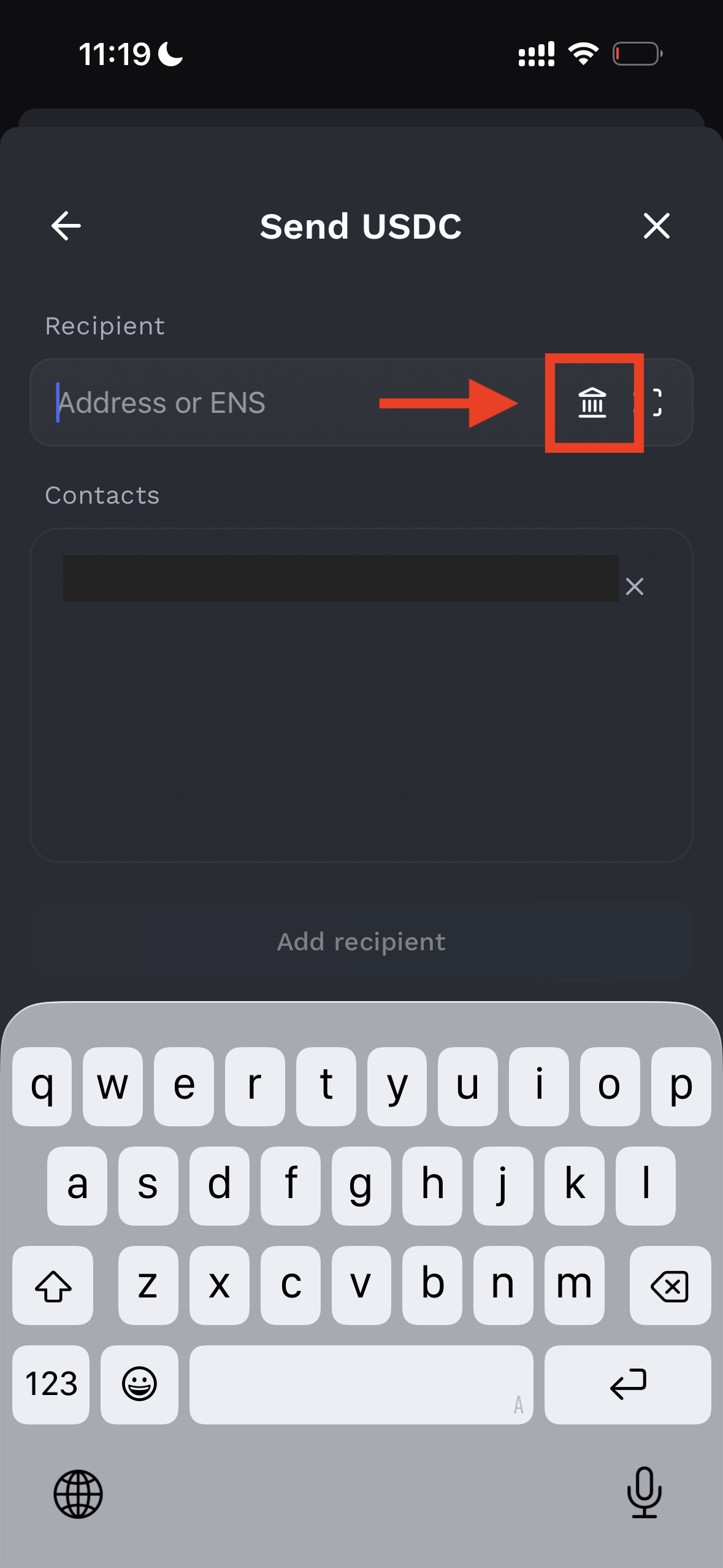
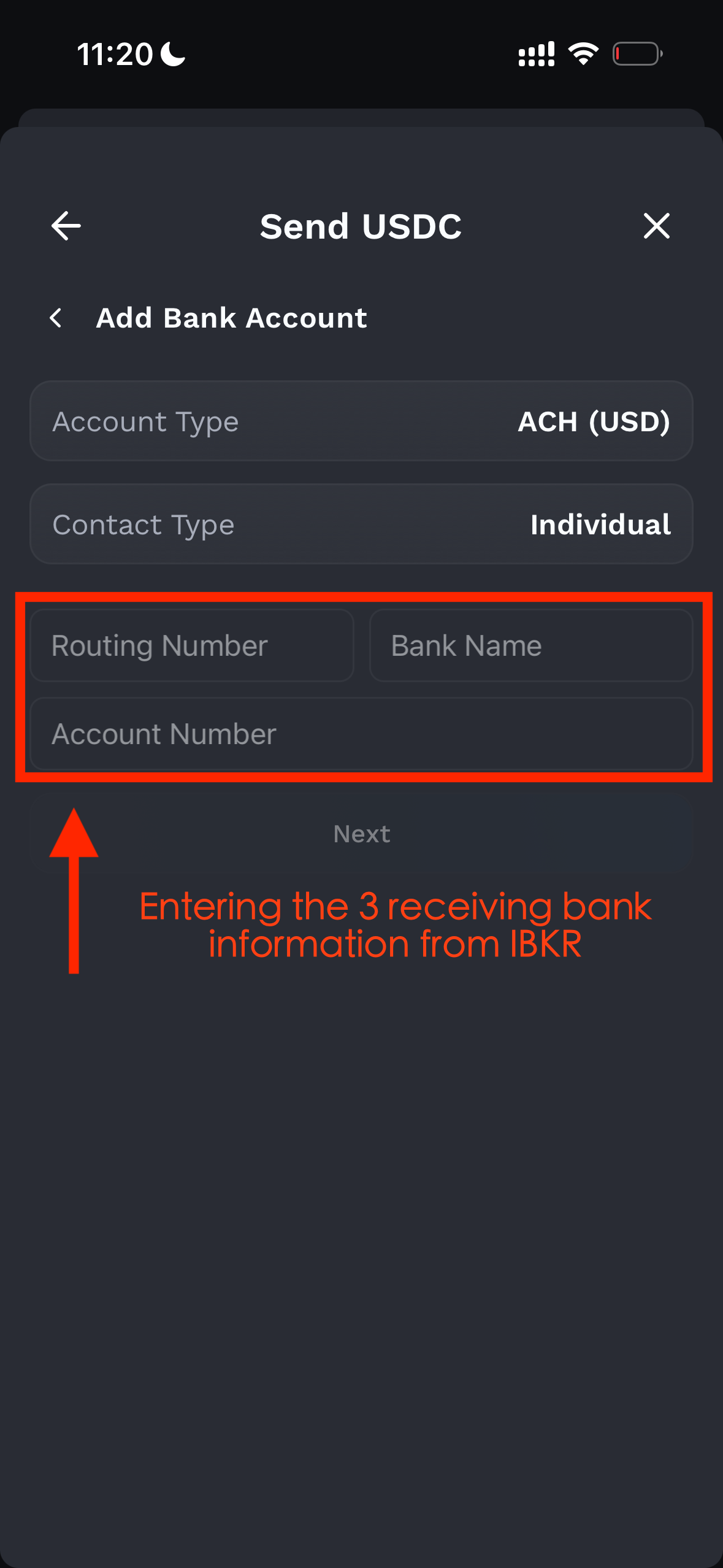
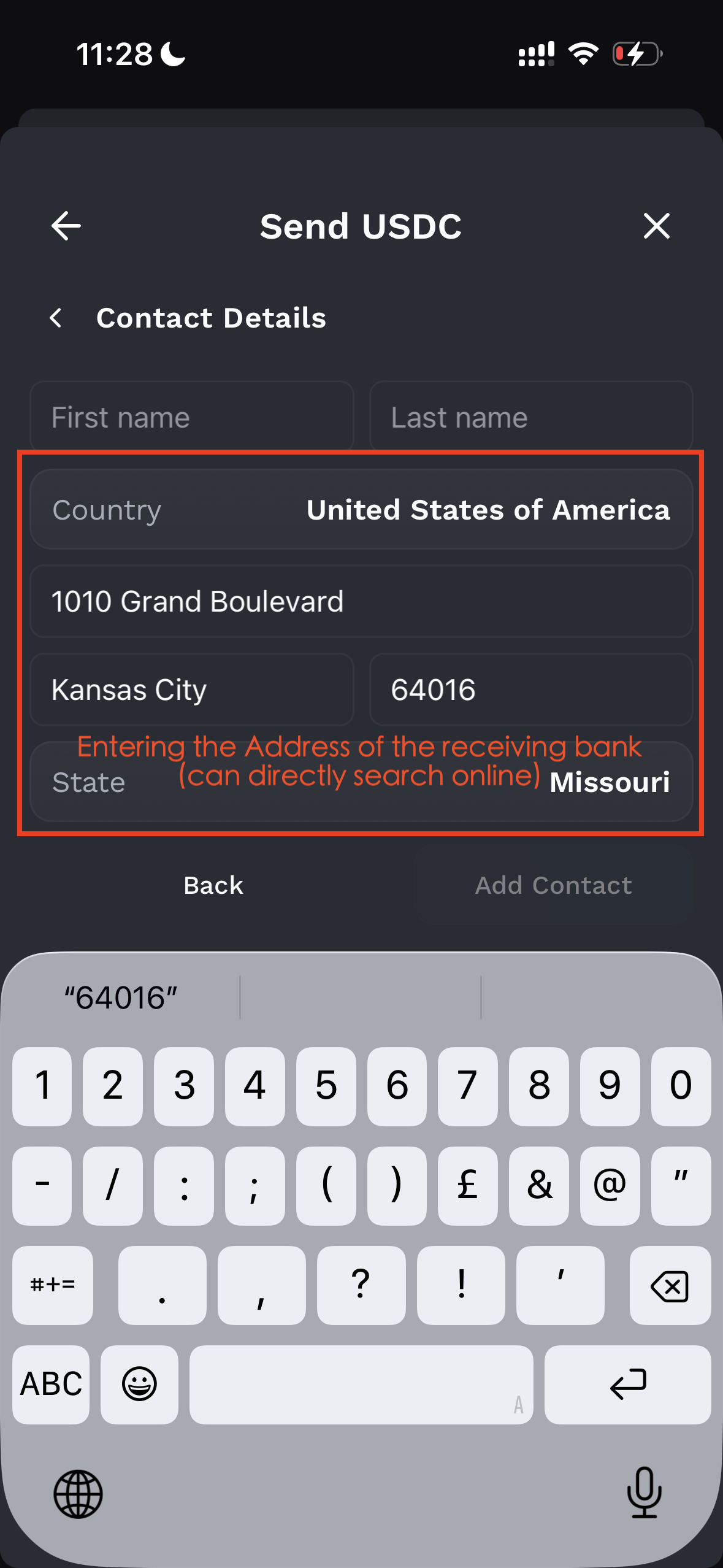
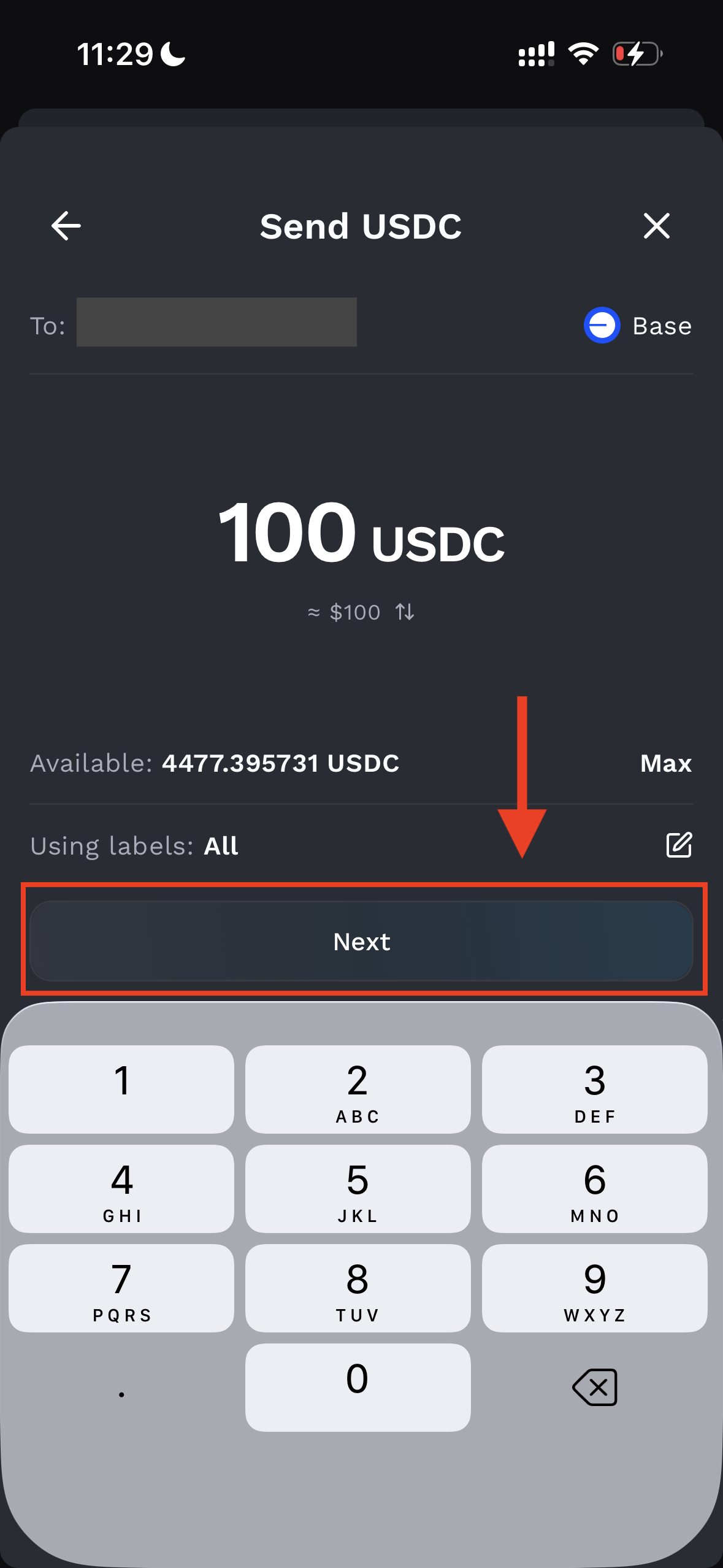
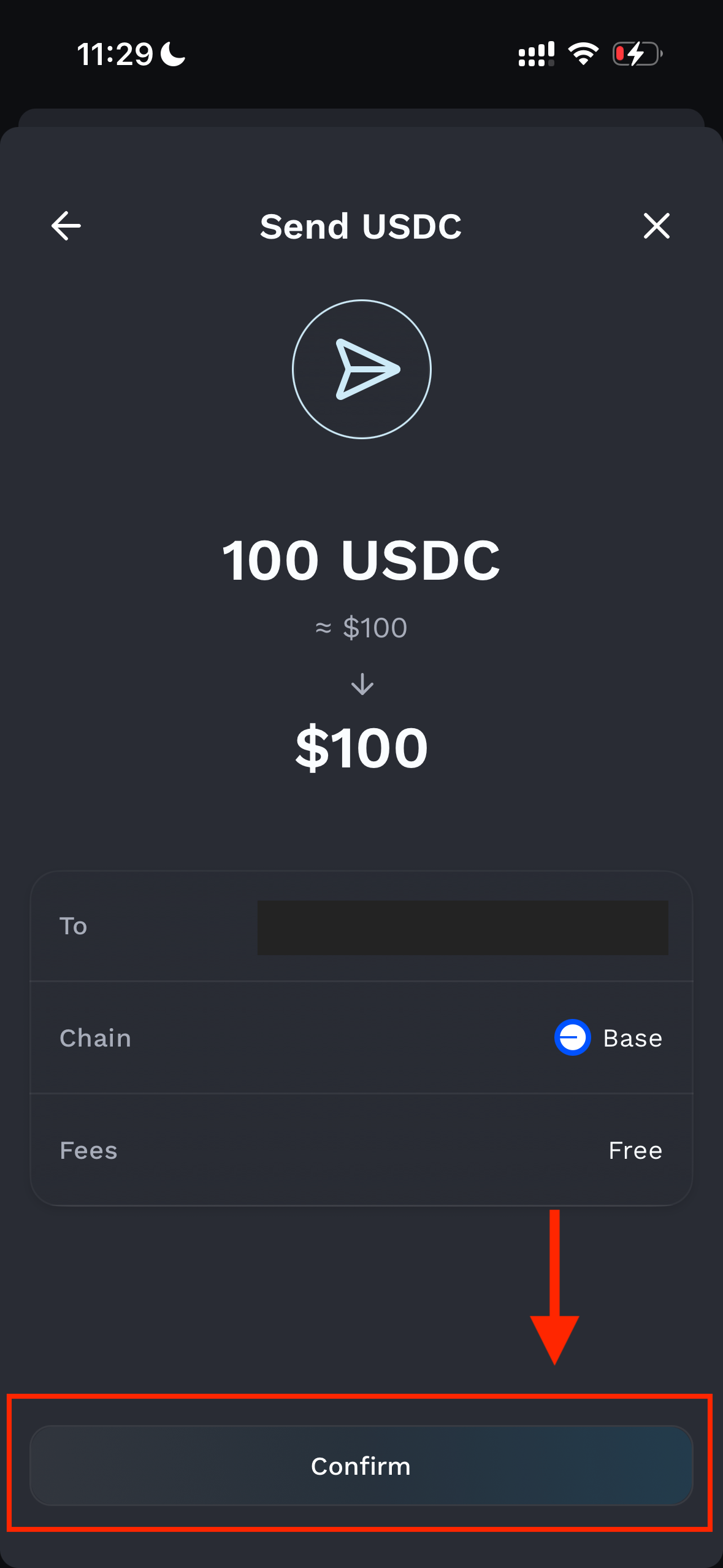
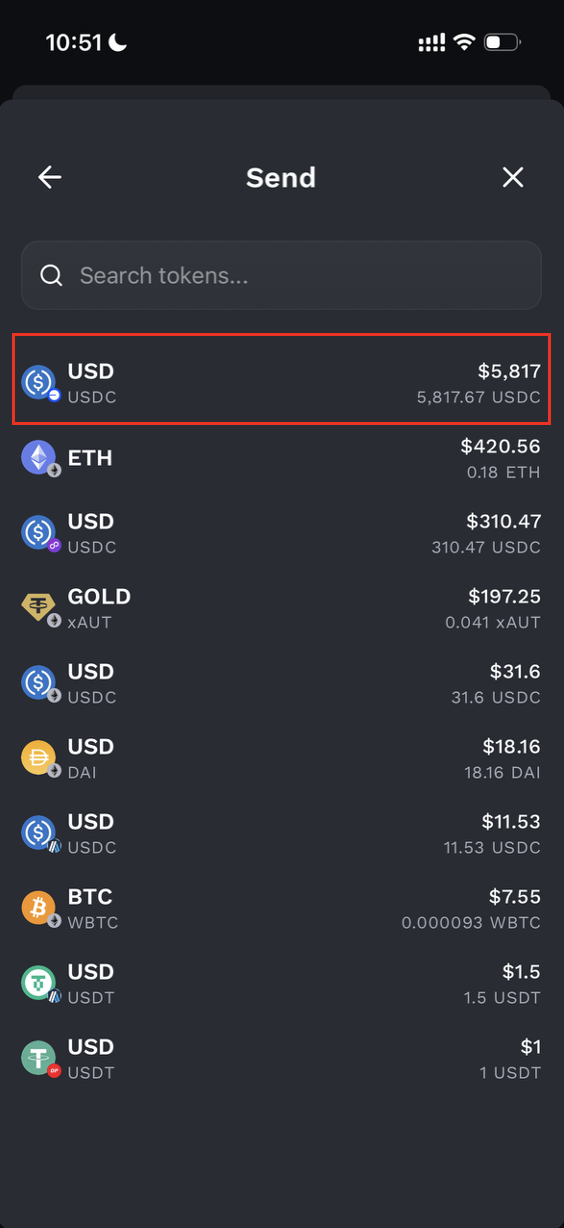
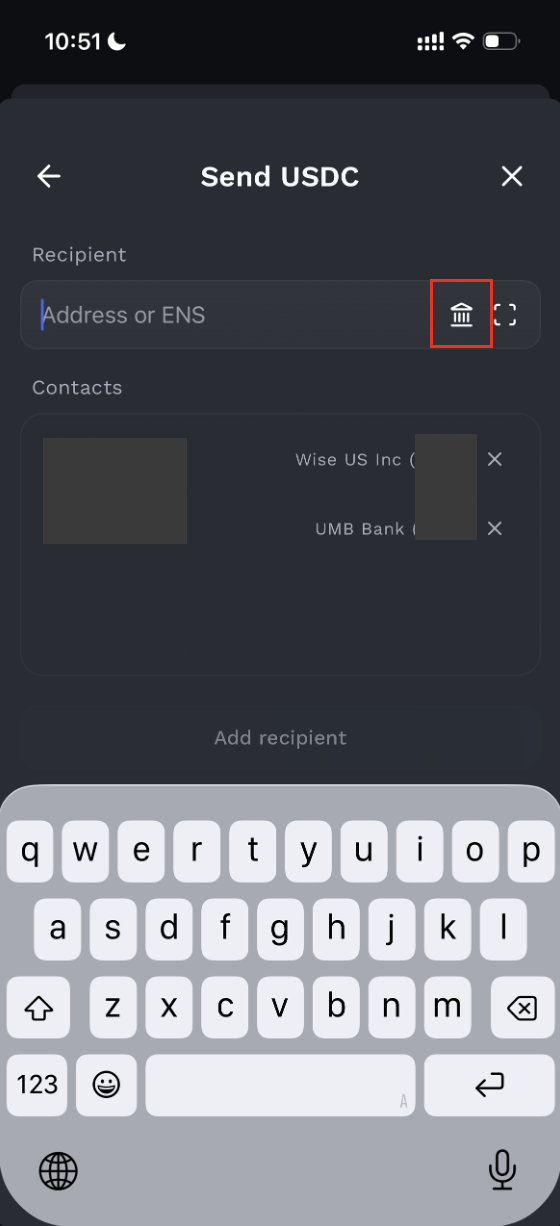
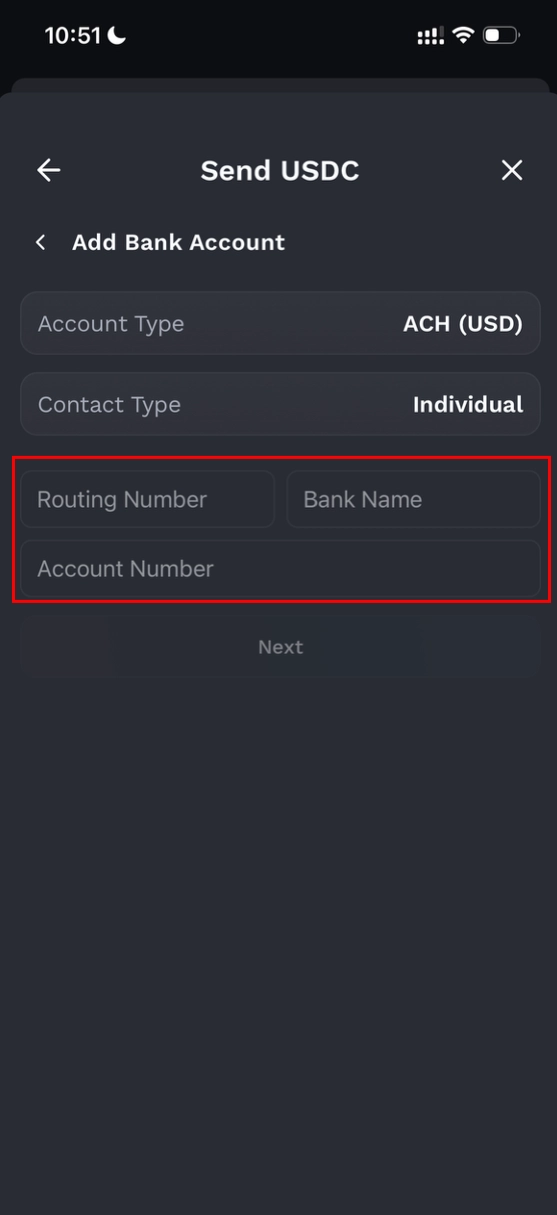
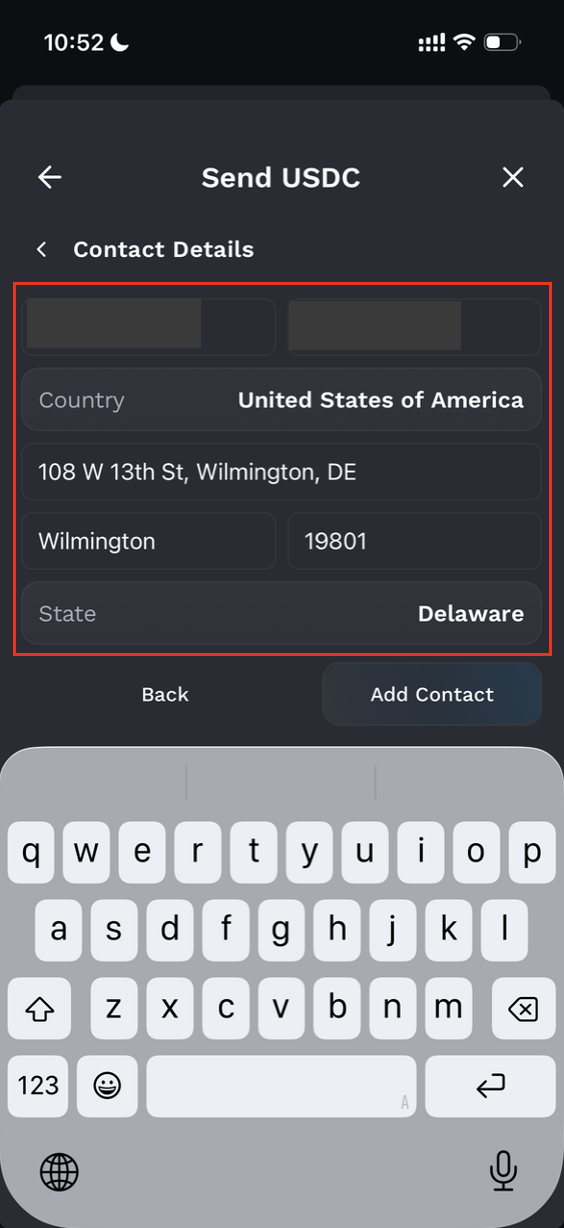
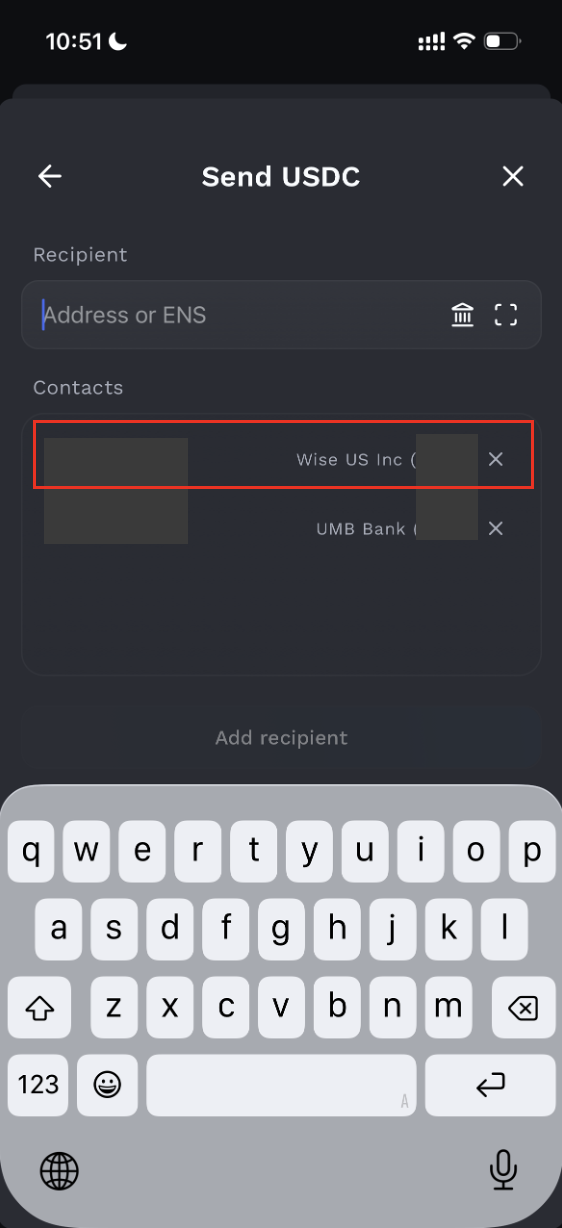
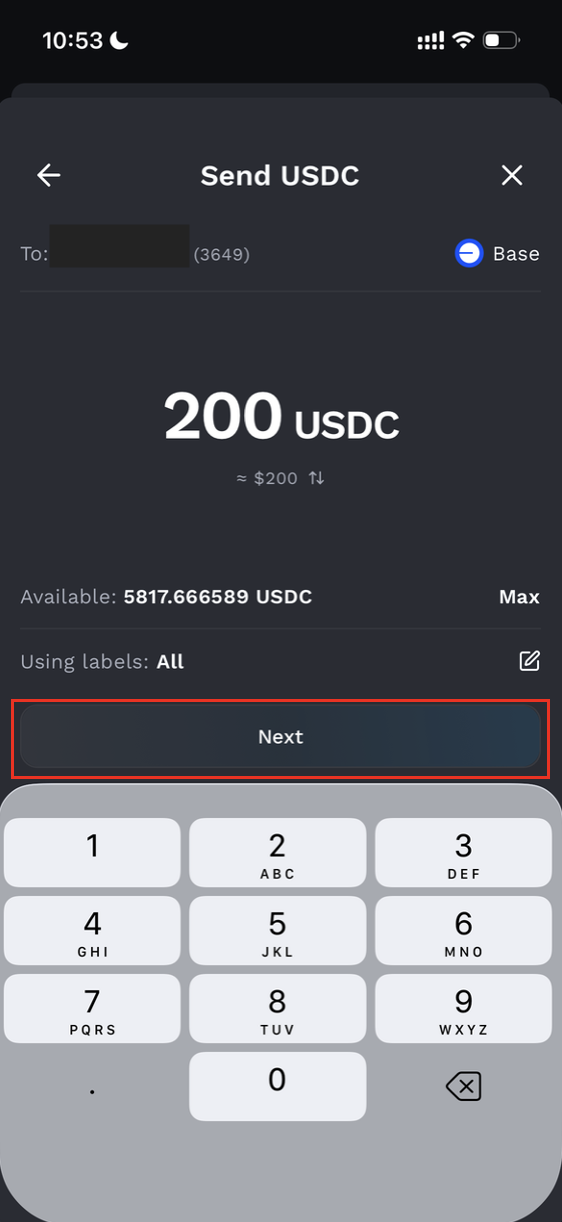
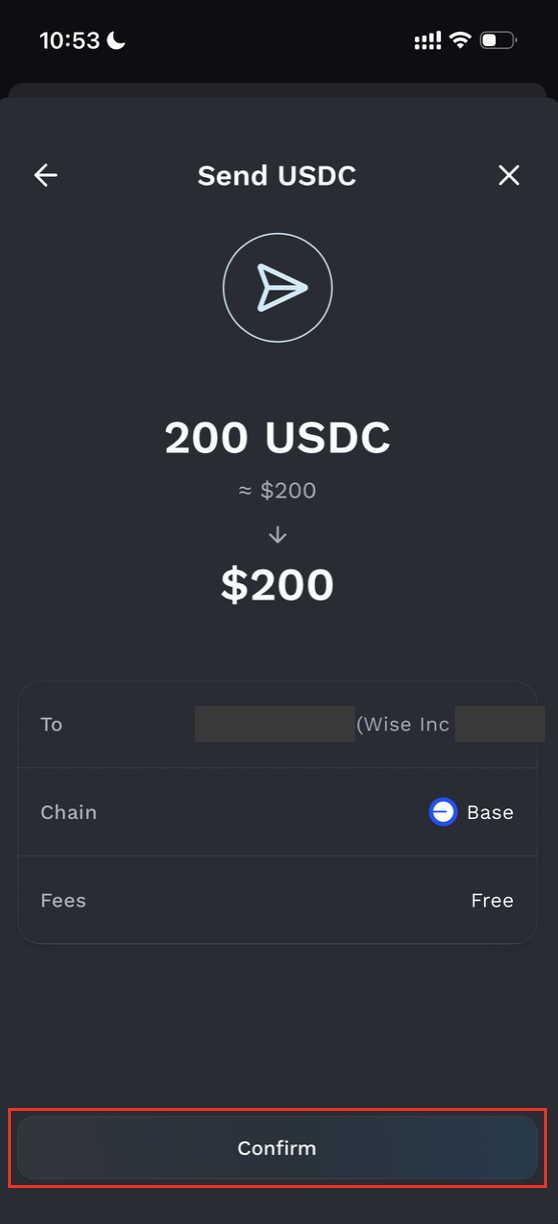
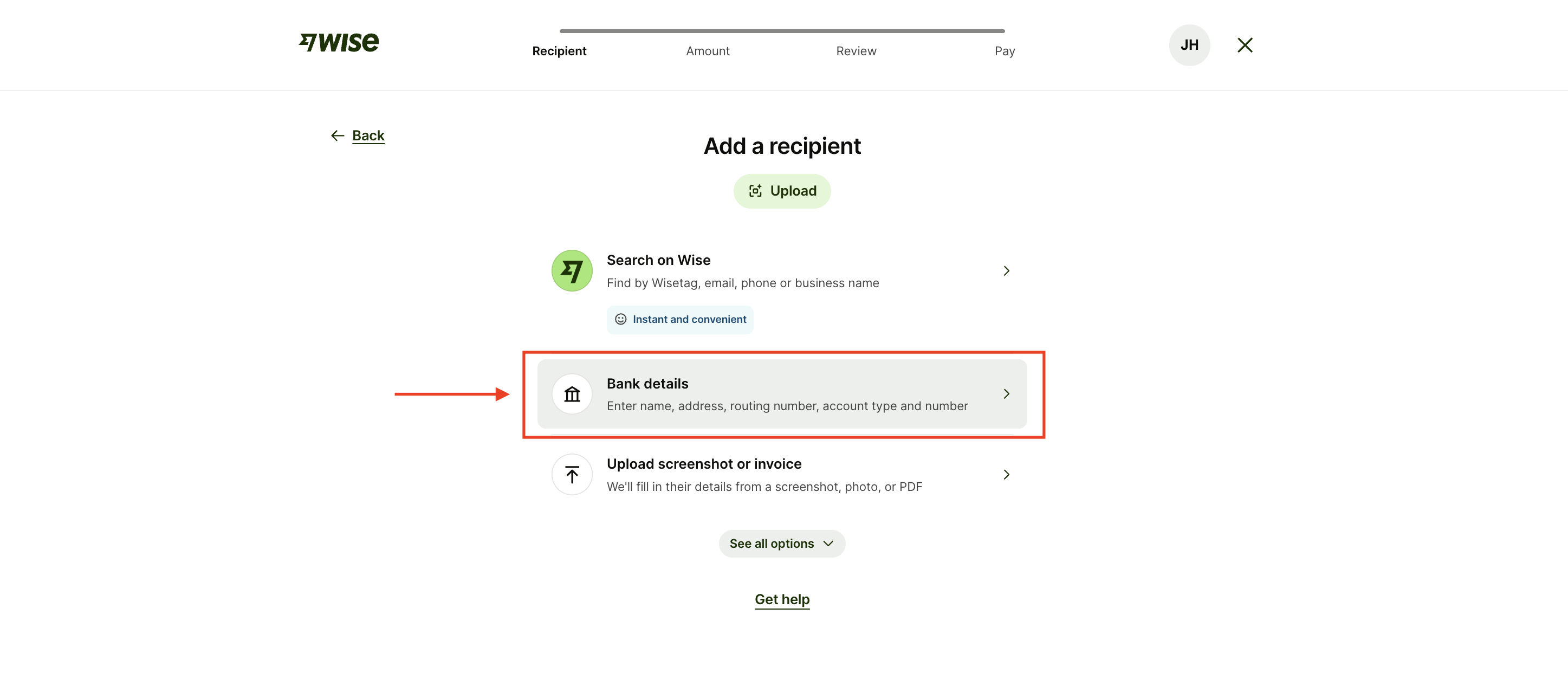
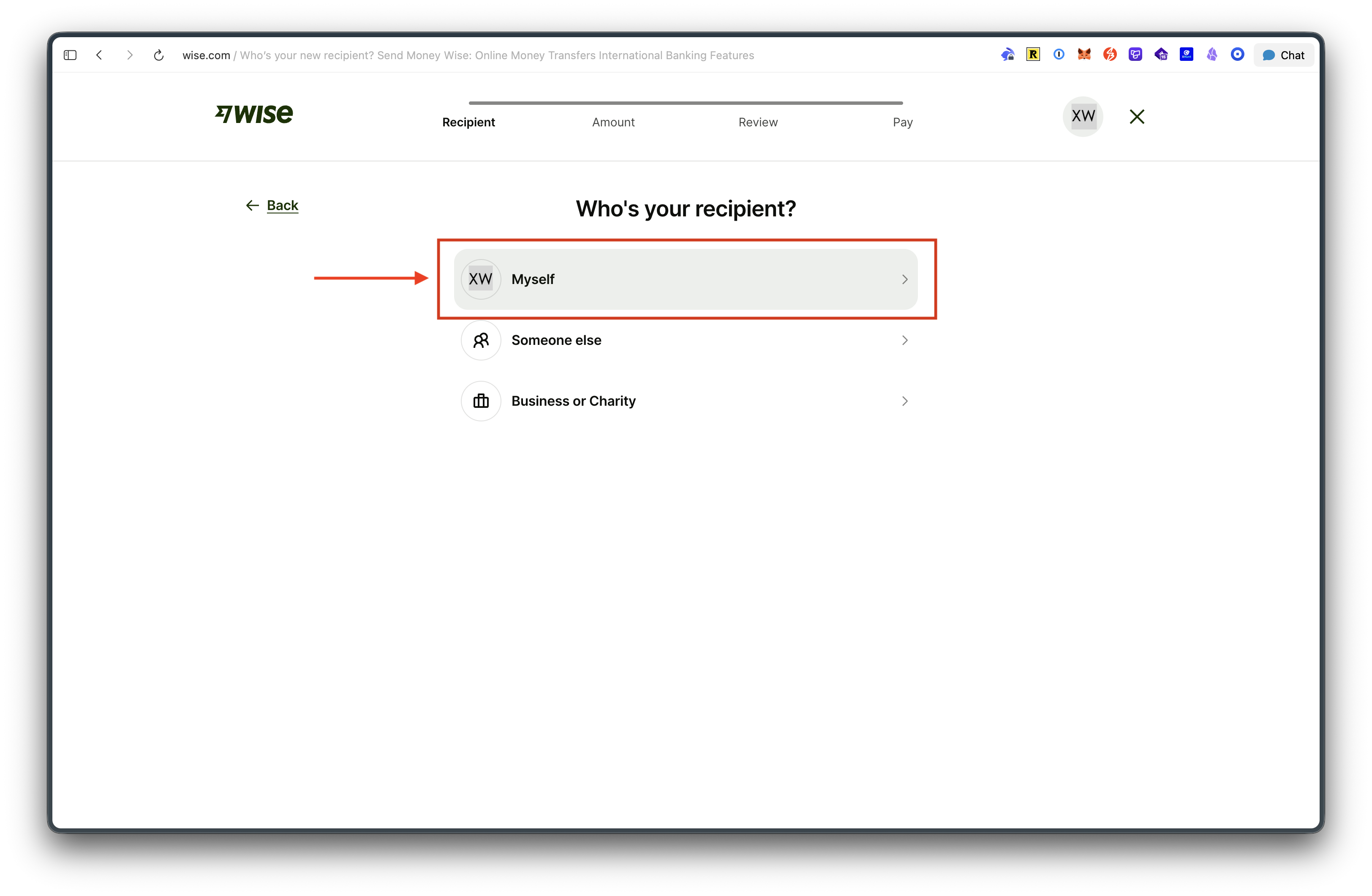
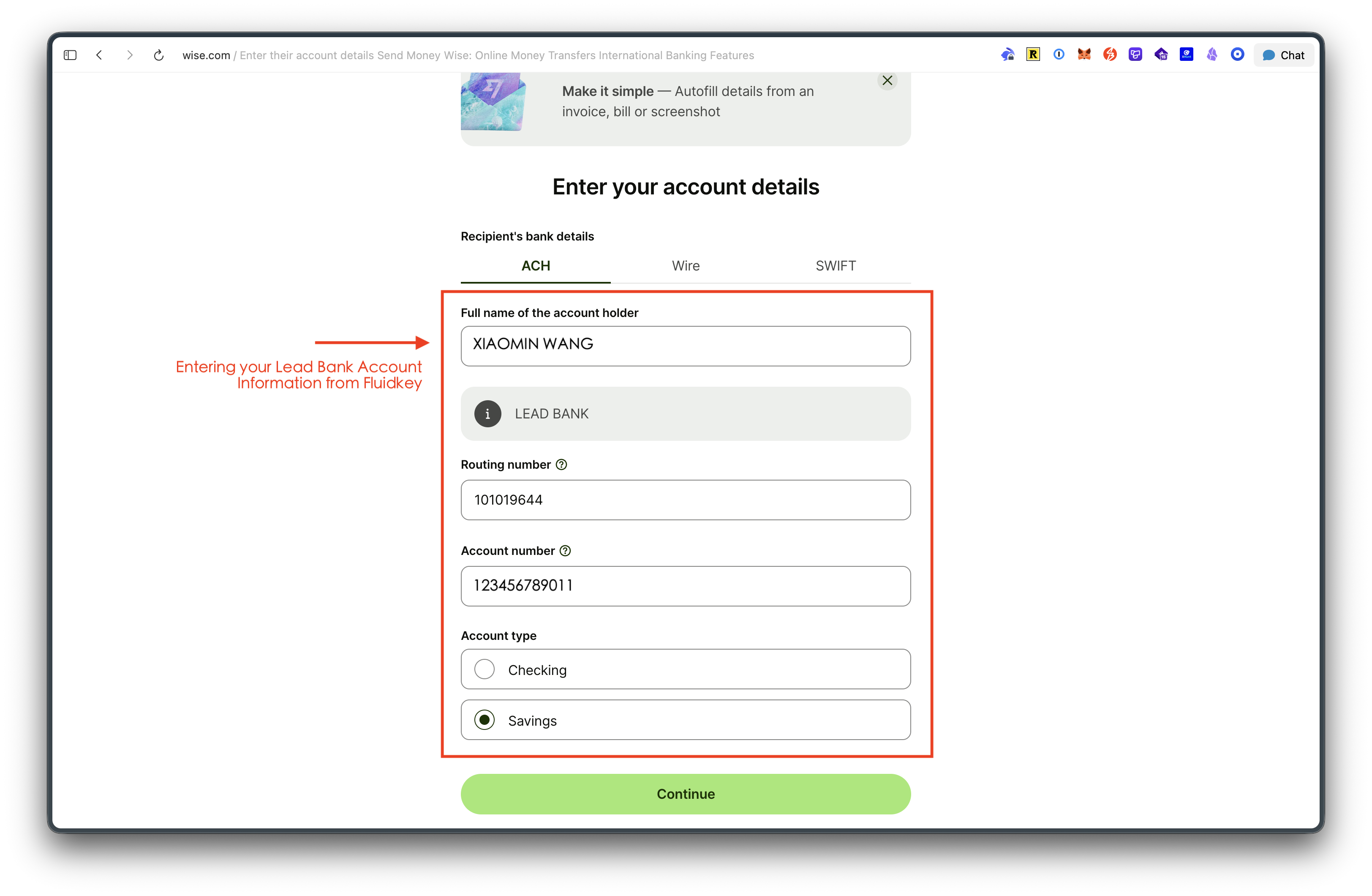
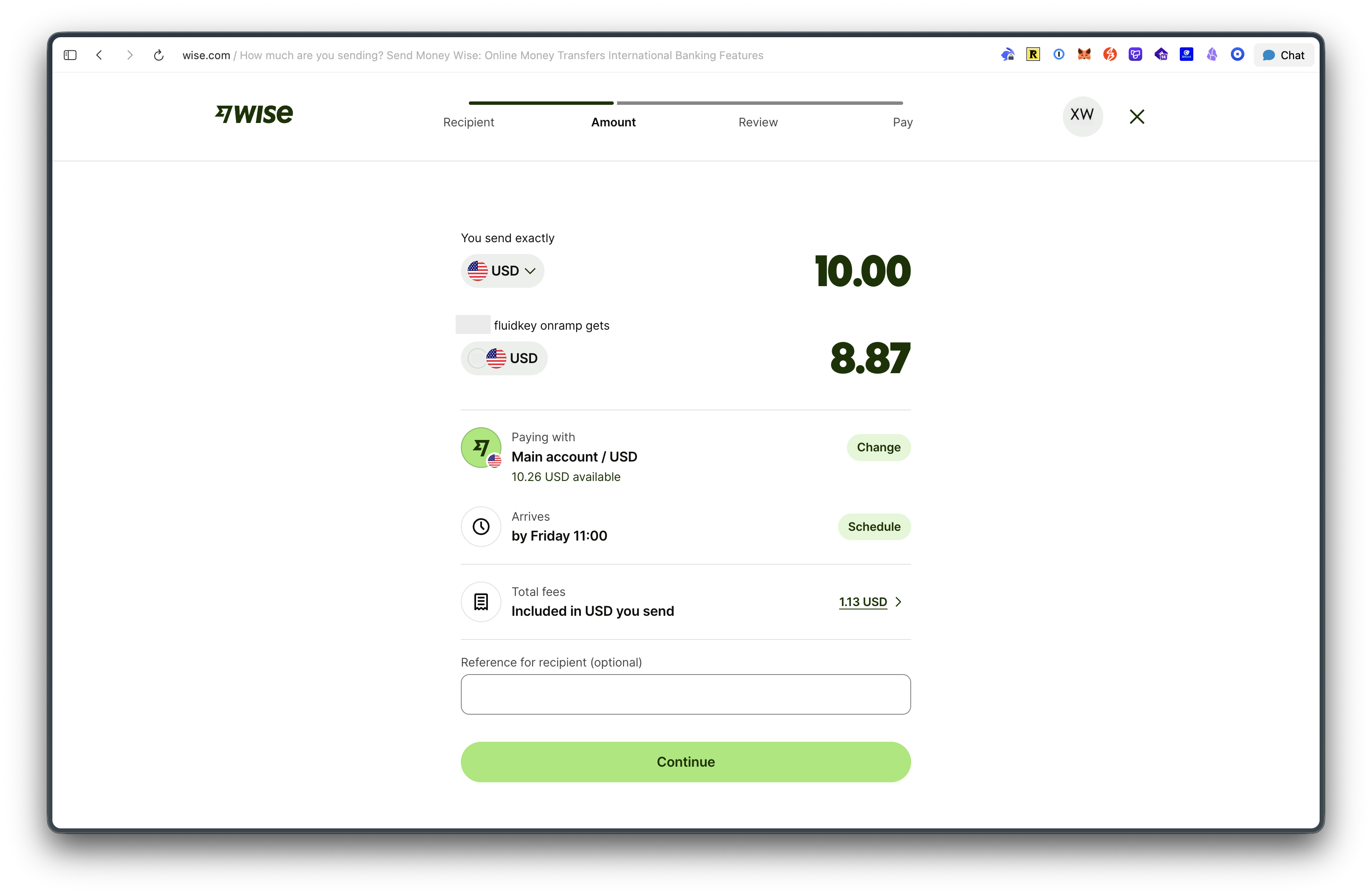
To get started, open the *Send* box with the ↗ button next to the token you want to send. In the *to* field, press the bank icon to add a bank recipient to your contacts. You can then select the recipient in the dropdown of the *to* field to proceed with the transfer.
## Auto-earn
Fluidkey auto-earn allows you to earn yield on selected tokens as soon as they are added to your account.
### Overview
To change your auto-earn settings, click the amount earned just under the total balance in your dashboard. You can choose between the following profiles:
* **Core**: This is the default profile, it deposits into a fixed set of battletested vaults from [Morpho](https://www.morpho.org/) and [Aave](https://aave.com/).
* **Disabled**: This profile disables the auto-earn feature for the account.
### Audits
The [Fluidkey Earn module](https://github.com/fluidkey/fluidkey-earn-module) has successfully undergone a security audit by [Ackee](https://ackee.xyz/). You can find the audit report [here](https://github.com/fluidkey/fluidkey-earn-module/blob/main/audits/ackee-blockchain-fluidkey-earn-module-report.pdf).
### Yield sources
The core profile uses [Morpho](https://www.morpho.org/) and [Aave](https://aave.com/) under the hood. [Morpho](https://docs.morpho.org/security-reviews/) and [Aave](https://aave.com/security) are battletested lending protocols that have been thorougly audited. For Morpho, pools curated by [Gauntlet](https://www.gauntlet.xyz/) have been selected for this feature. Gauntlet is a crypto firm that specializes in providing risk management and financial modeling for defi protocols.
More specifically, the following lending pools are currently being used for this feature:
| Name | Profile | Chain | Address | Min. Amount |
| ------------------- | ------- | -------- | ----------------------------------------------------------------------------------------------------------------------------------------------------------------------------- | ----------- |
| Gauntlet USDC Prime | Core | Base | [0xeE8F4eC5672F09119b96Ab6fB59C27E1b7e44b61](https://app.morpho.org/base/vault/0xeE8F4eC5672F09119b96Ab6fB59C27E1b7e44b61/gauntlet-usdc-prime) | $1 |
| Gauntlet EURC Core | Core | Base | [0x1c155be6bC51F2c37d472d4C2Eba7a637806e122](https://app.morpho.org/base/vault/0x1c155be6bC51F2c37d472d4C2Eba7a637806e122/gauntlet-eurc-core) | $1 |
| Gauntlet WETH Core | Core | Base | [0x6b13c060F13Af1fdB319F52315BbbF3fb1D88844](https://app.morpho.org/base/vault/0x6b13c060F13Af1fdB319F52315BbbF3fb1D88844/gauntlet-weth-core) | $1 |
| Gauntlet cbBTC Core | Core | Base | [0x6770216aC60F634483Ec073cBABC4011c94307Cb](https://app.morpho.org/base/vault/0x6770216aC60F634483Ec073cBABC4011c94307Cb/gauntlet-cbbtc-core) | $1 |
| Gauntlet USDC Prime | Core | Ethereum | [0xdd0f28e19C1780eb6396170735D45153D261490d](https://app.morpho.org/ethereum/vault/0xdd0f28e19C1780eb6396170735D45153D261490d/gauntlet-usdc-prime) | $100 |
| Gauntlet USDT Prime | Core | Ethereum | [0x8CB3649114051cA5119141a34C200D65dc0Faa73](https://app.morpho.org/ethereum/vault/0x8CB3649114051cA5119141a34C200D65dc0Faa73/gauntlet-usdt-prime) | $100 |
| Gauntlet WETH Prime | Core | Ethereum | [0x2371e134e3455e0593363cBF89d3b6cf53740618](https://app.morpho.org/ethereum/vault/0x2371e134e3455e0593363cBF89d3b6cf53740618/gauntlet-weth-prime) | $100 |
| Gauntlet cbBTC Core | Core | Ethereum | [0xF587f2e8AfF7D76618d3B6B4626621860FbD54e3](https://app.morpho.org/ethereum/vault/0xF587f2e8AfF7D76618d3B6B4626621860FbD54e3/gauntlet-cbbtc-prime) | $100 |
| Gauntlet wBTC Core | Core | Ethereum | [0x443df5eEE3196e9b2Dd77CaBd3eA76C3dee8f9b2](https://app.morpho.org/ethereum/vault/0x443df5eEE3196e9b2Dd77CaBd3eA76C3dee8f9b2/gauntlet-wbtc-core) | $100 |
| Gauntlet DAI Core | Core | Ethereum | [0x500331c9fF24D9d11aee6B07734Aa72343EA74a5](https://app.morpho.org/ethereum/vault/0x500331c9fF24D9d11aee6B07734Aa72343EA74a5/gauntlet-dai-core) | $100 |
| Gauntlet EURC Core | Core | Ethereum | [0x2ed10624315b74a78f11FAbedAa1A228c198aEfB](https://app.morpho.org/ethereum/vault/0x2ed10624315b74a78f11FAbedAa1A228c198aEfB/gauntlet-eurc-core) | $100 |
| Aave USDC | Core | Arbitrum | [0x7CFaDFD5645B50bE87d546f42699d863648251ad](https://app.aave.com/reserve-overview/?underlyingAsset=0xaf88d065e77c8cc2239327c5edb3a432268e5831\&marketName=proto_arbitrum_v3) | $1 |
| Aave USDT | Core | Arbitrum | [0xb165a74407fE1e519d6bCbDeC1Ed3202B35a4140](https://app.aave.com/reserve-overview/?underlyingAsset=0xfd086bc7cd5c481dcc9c85ebe478a1c0b69fcbb9\&marketName=proto_arbitrum_v3) | $1 |
| Aave WETH | Core | Arbitrum | [0x352F3475716261dCC991Bd5F2aF973eB3D0F5878](https://app.aave.com/reserve-overview/?underlyingAsset=0x82af49447d8a07e3bd95bd0d56f35241523fbab1\&marketName=proto_arbitrum_v3) | $1 |
| Aave DAI | Core | Arbitrum | [0xc91c5297d7E161aCC74b482aAfCc75B85cc0bfeD](https://app.aave.com/reserve-overview/?underlyingAsset=0xda10009cbd5d07dd0cecc66161fc93d7c9000da1\&marketName=proto_arbitrum_v3) | $1 |
| Aave GHO | Core | Arbitrum | [0xD9FBA68D89178e3538e708939332c79efC540179](https://app.aave.com/reserve-overview/?underlyingAsset=0x7dff72693f6a4149b17e7c6314655f6a9f7c8b33\&marketName=proto_arbitrum_v3) | $1 |
| Aave USDC | Core | Polygon | [0x2dCa80061632f3F87c9cA28364d1d0c30cD79a19](https://app.aave.com/reserve-overview/?underlyingAsset=0x3c499c542cef5e3811e1192ce70d8cc03d5c3359\&marketName=proto_polygon_v3) | $1 |
| Aave USDT | Core | Polygon | [0x87A1fdc4C726c459f597282be639a045062c0E46](https://app.aave.com/reserve-overview/?underlyingAsset=0xc2132d05d31c914a87c6611c10748aeb04b58e8f\&marketName=proto_polygon_v3) | $1 |
| Aave WETH | Core | Polygon | [0xb3D5Af0A52a35692D3FcbE37669b3B8C31dddE7D](https://app.aave.com/reserve-overview/?underlyingAsset=0x7ceb23fd6bc0add59e62ac25578270cff1b9f619\&marketName=proto_polygon_v3) | $1 |
| Aave DAI | Core | Polygon | [0x83c59636e602787A6EEbBdA2915217B416193FcB](https://app.aave.com/reserve-overview/?underlyingAsset=0x8f3cf7ad23cd3cadbd9735aff958023239c6a063\&marketName=proto_polygon_v3) | $1 |
| Aave wPOL | Core | Polygon | [0x98254592408E389D1dd2dBa318656C2C5c305b4E](https://app.aave.com/reserve-overview/?underlyingAsset=0x0d500b1d8e8ef31e21c99d1db9a6444d3adf1270\&marketName=proto_polygon_v3) | $1 |
| Aave WETH | Core | Optimism | [0x352F3475716261dCC991Bd5F2aF973eB3D0F5878](https://app.aave.com/reserve-overview/?underlyingAsset=0x4200000000000000000000000000000000000006\&marketName=proto_optimism_v3) | $1 |
| Aave USDC | Core | Optimism | [0x7CFaDFD5645B50bE87d546f42699d863648251ad](https://app.aave.com/reserve-overview/?underlyingAsset=0x0b2c639c533813f4aa9d7837caf62653d097ff85\&marketName=proto_optimism_v3) | $1 |
| Aave USDT | Core | Optimism | [0x7CFaDFD5645B50bE87d546f42699d863648251ad](https://app.aave.com/reserve-overview/?underlyingAsset=0x94b008aa00579c1307b0ef2c499ad98a8ce58e58\&marketName=proto_optimism_v3) | $1 |
| Aave DAI | Core | Optimism | [0xc91c5297d7E161aCC74b482aAfCc75B85cc0bfeD](https://app.aave.com/reserve-overview/?underlyingAsset=0xda10009cbd5d07dd0cecc66161fc93d7c9000da1\&marketName=proto_optimism_v3) | $1 |
| Aave GNO | Core | Gnosis | [0x2D737e2B0e175f05D0904C208d6C4e40da570f65](https://app.aave.com/reserve-overview/?underlyingAsset=0x9c58bacc331c9aa871afd802db6379a98e80cedb\&marketName=proto_gnosis_v3) | $1 |
| Aave wxDAI | Core | Gnosis | [0x7f0EAE87Df30C468E0680c83549D0b3DE7664D4B](https://app.aave.com/reserve-overview/?underlyingAsset=0xe91d153e0b41518a2ce8dd3d7944fa863463a97d\&marketName=proto_gnosis_v3) | $1 |
| Aave WETH | Core | Gnosis | [0xD843FB478c5aA9759FeA3f3c98D467e2F136190a](https://app.aave.com/reserve-overview/?underlyingAsset=0x6a023ccd1ff6f2045c3309768ead9e68f978f6e1\&marketName=proto_gnosis_v3) | $1 |
| Aave USDC | Core | Gnosis | [0x270bA1f35D8b87510D24F693fcCc0da02e6E4EeB](https://app.aave.com/reserve-overview/?underlyingAsset=0xddafbb505ad214d7b80b1f830fccc89b60fb7a83\&marketName=proto_gnosis_v3) | $1 |
| Aave USDC.e | Core | Gnosis | [0xf0E7eC247b918311afa054E0AEdb99d74c31b809](https://app.aave.com/reserve-overview/?underlyingAsset=0x2a22f9c3b484c3629090feed35f17ff8f88f76f0\&marketName=proto_gnosis_v3) | $1 |
As we expand this feature to more tokens and chains, the list of yield protocols and pools used will be updated in this section. We will only add protocols and pools that have been thoroughly audited and are battletested.
### How it works
When auto-earn is enabled, the stealth addresses generated for your account will have the Fluidkey Earn module enabled with the abovementioned lending pools.
This allows Fluidkey to automatically move funds on behalf of your stealth addresses into these lending pools when you receive them. For security reasons, the scope of the module is extremely limited, such that Fluidkey cannot move funds anywhere else than the pools listed above. Only amounts that are above the minimum amount listed above will be automatically moved into the lending pools.
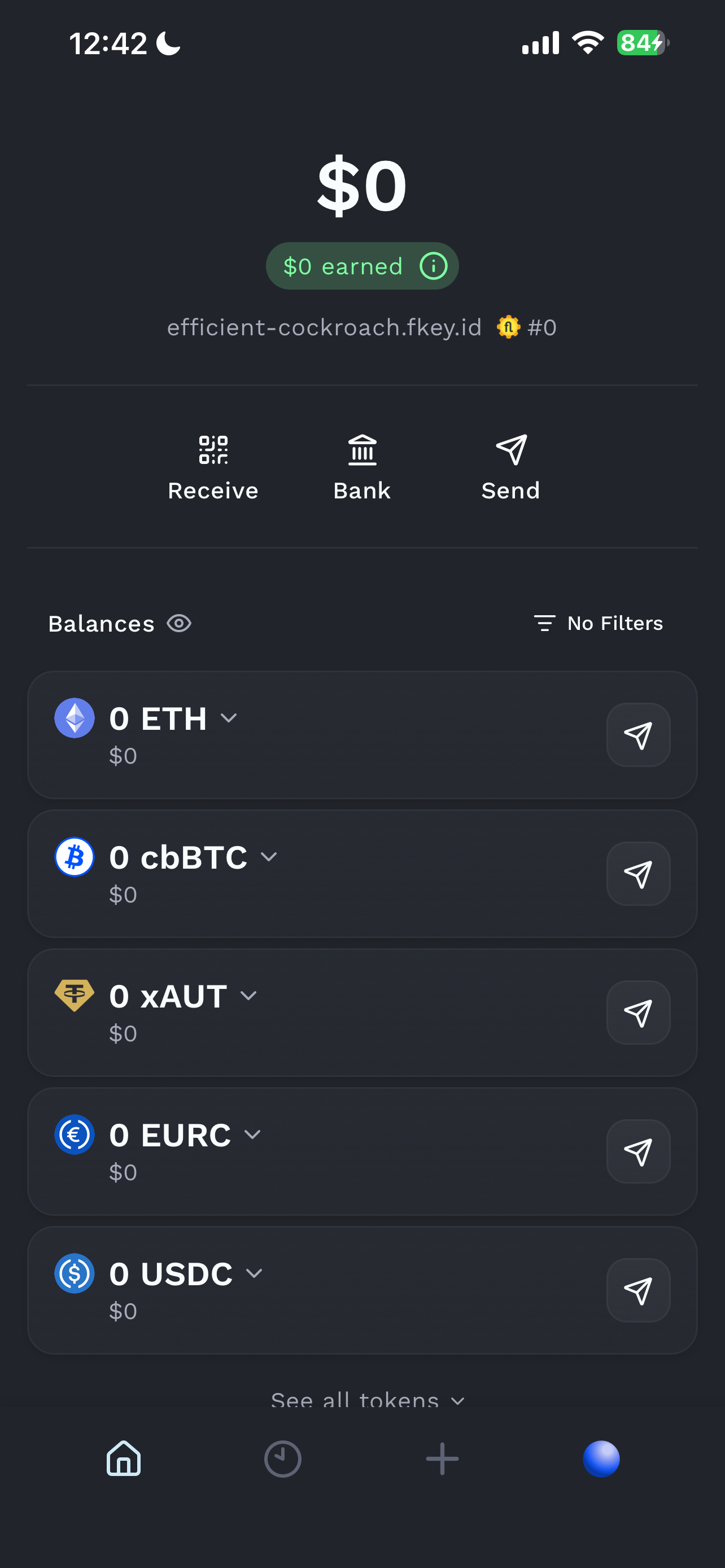
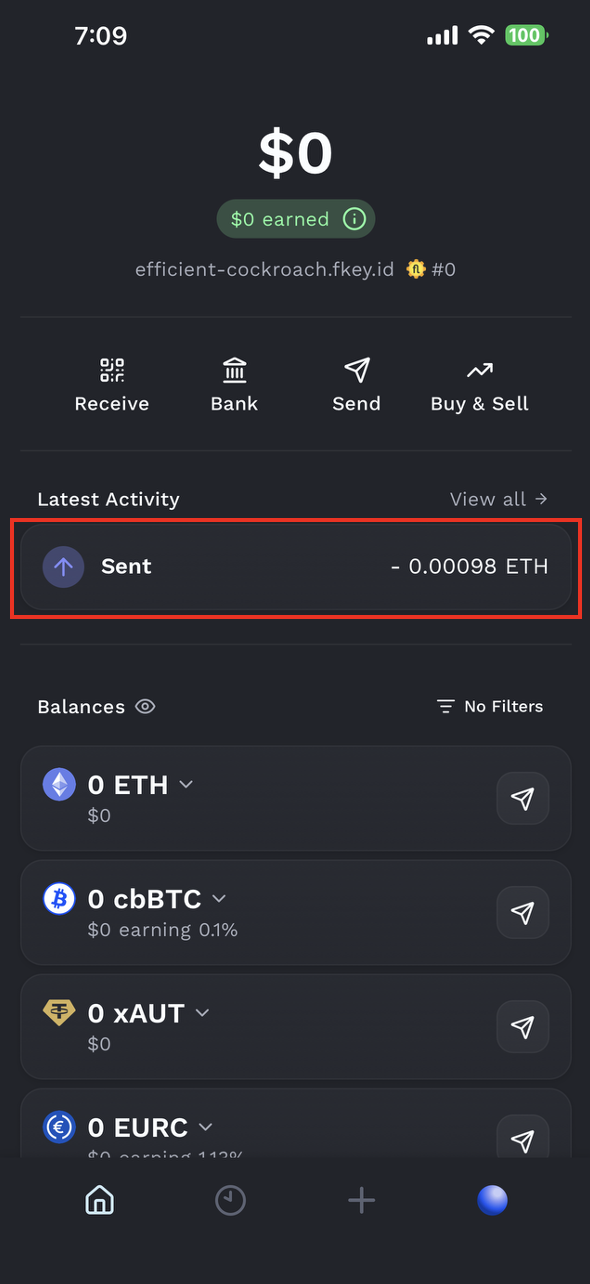
You will see the amount earned from this feature in the top right corner of the *Funds* section in your dashboard.
In order to spend funds that are currently earning yield, no extra action is required from you. For example, when you want to send USDC on Base, you can just send USDC from your balance as usual and funds will be automatically taken from the lending pool in the same transaction.
### Yield computation and Fees
The APYs and amounts shown in Auto-Earn reflect what you actually receive — the amount you see is the amount you can spend. The displayed yield is based on the lending pool's daily APY.
Fluidkey currently charges no fees on Auto-Earn. If any fees apply in the future, we'll disclose them in our documentation.
## Exporting transactions
To export your transactions, go to the top of the Activity section.
You can select the date range you want to export transactions for. Currently, the export will be downloaded as a CSV file in the [CoinTracker format](https://support.cointracker.io/hc/en-us/articles/4413071299729-How-to-Convert-Your-Transaction-History-into-CoinTracker-Compatible-CSV-Format).
We plan to add support for more formats in the future. If you have a specific format you'd like to see, please let us know at [hey@fluidkey.com](mailto\:hey@fluidkey.com).
## Integrations
### CoinTracker
Use [this link](https://www.cointracker.io/home?add_integration=fluidkey_exchange) to import your Fluidkey transactions into CoinTracker.
## Fee Structure Overview
To help you better understand Fluidkey's fees and how they are charged, we've prepared this overview. It covers the fee structures for on-chain gas fees, fiat deposits and withdrawals, Auto-Earn, and tokenized U.S. stock trading, so you can use Fluidkey's services with full confidence.
### On-Chain Transaction Fees (Gas Fee)
Sending a transaction on-chain incurs a transaction fee. Fluidkey's current fee coverage across each blockchain is as follows:
* Base / Polygon / BNB / Arbitrum / Gnosis / Optimism: 20 fee-free transactions per day, sponsored by Fluidkey.
* Ethereum Mainnet: Fees are charged at the amount displayed in the interface at the time of the transaction.
Please note that transaction fees fluctuate with on-chain congestion at the time of the transaction. The amount shown in the interface is authoritative.
For more on on-chain transfers, see: [Sending Funds](/readme/sending-funds)
### Fiat Deposits and Withdrawals
On Fluidkey, USDC and USDT are both valued 1:1 with the U.S. dollar. Once a transaction is sent, fiat conversion is completed by our banking partner, Bridge.
Fluidkey provides every user with a fee-free bank transfer allowance of $3,000 per month. Select users and [Frontier](/readme/frontier) members are entitled to a fee-free allowance of $20,000 per month. The allowance is calculated per calendar month, with withdrawals and deposits counted together. For example, a $1,500 transfer out and a $1,500 transfer in together use the full $3,000 allowance.
Amounts exceeding the monthly fee-free allowance are subject to a 0.3% fee.
Please note: if you choose to deposit or withdraw using USDT, Bridge applies an additional 0.1% fee during conversion (this fee is charged directly by Bridge, not by Fluidkey). No such fee applies when using USDC.
For more on fiat deposits and withdrawals, see: [Bank Transfers](/readme/bank)
### Auto-Earn: Free
Fluidkey's Auto-Earn feature lets you earn yield on selected tokens as soon as they are deposited into your account.
Fluidkey does not charge any fees on Auto-Earn. The APYs and amounts shown in Auto-Earn reflect what you actually receive. Should any fees apply in the future, they will be disclosed in our documentation.
For more on Auto-Earn, see: [Earn](/readme/earn)
### Tokenized U.S. Stock Trading: Free
During the promotional period, no transaction fees are charged beyond on-chain network fees. More information will follow.
## Frequently Asked Questions
What can Fluidkey be used for?
Fluidkey allows you to receive and manage funds onchain while protecting your privacy.
We've built Fluidkey to be flexible and usable as a day-to-day privacy preserving wallet. This opens up a wide range of use cases. We have listed a few below:
* Managing your personal funds
* Receiving, buying, and trading tokens
* Receiving money from friends and family
* Receiving your salary or freelance payments
* Receiving product or service payments from clients
* Receiving funding from investors
* Crowdfunding or donations
Which wallets is Fluidkey compatible with?
Fluidkey is compatible with a wide range of wallets. Here is a non-comprehensive list of some of the wallets we support:
* Metamask
* Coinbase Wallet
* Rainbow
* Dawn
* Any WalletConnect-compatible EOA or MPC wallet
You can also connect to Fluidkey with your Farcaster, Google, or email account.
Fluidkey supports connecting with a hardware wallet for additional security. Connecting with multisigs is not supported yet.
Which chains is Fluidkey available on?
Fluidkey accounts are currently available on 7 EVM chains: Ethereum, Arbitrum, Base, Polygon, Optimism, Gnosis, and BSC.
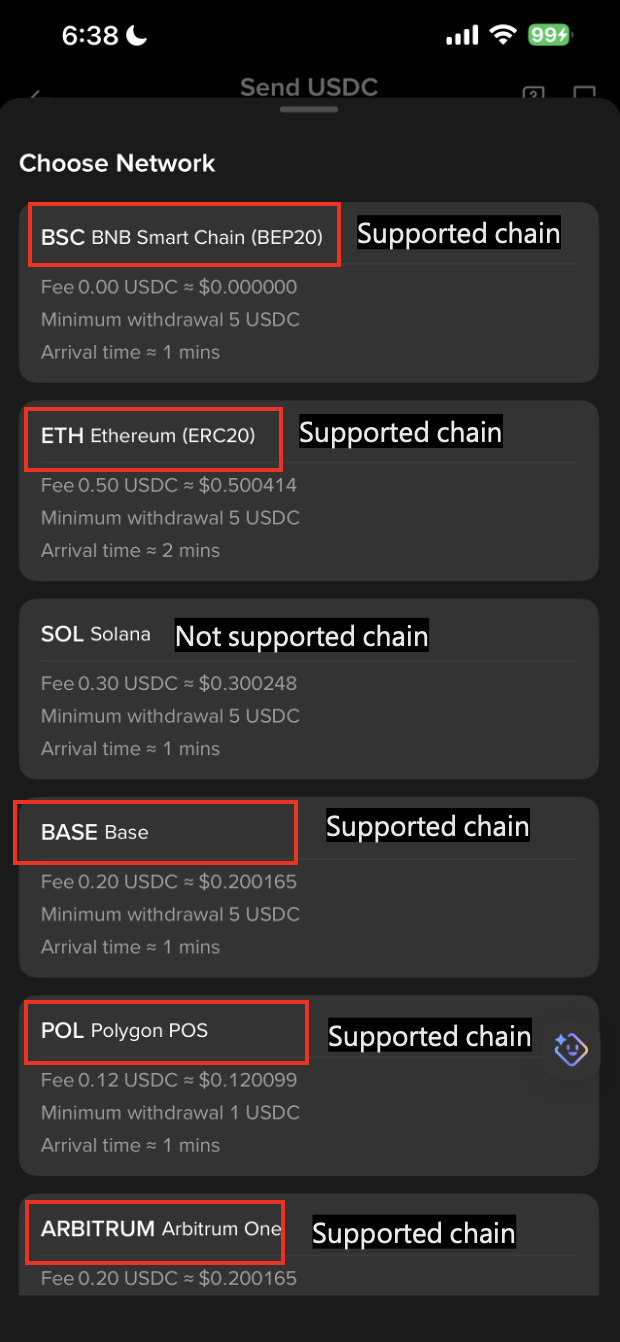
Additionally, via Near Intents integration, Fluidkey users can receive BTC, USDC, and USDT from 10 additional chains (Bitcoin, Tron, Solana, Binance, Near, Avalanche, Ton, Sui, Stellar, Monad), which are deposited as USDC on Base.
What makes Fluidkey unique in managing wallet privacy?
On a public blockchain like Ethereum, using a new address for every transaction is an effective strategy to maintain privacy. Juggling multiple addresses can however quickly become overwhelming. With Fluidkey, you have the privacy of a new address for every transaction without the headaches of managing all these addresses.
Fluidkey creates a new privacy-protecting smart account for every payment you receive thanks to the use of stealth addresses. We then bring all of these smart accounts together in a unified dashboard, giving you the experience and ease of managing a single wallet. For more details on how stealth addresses and Fluidkey work under the hood, check out *How does Fluidkey work?* below.
How does Fluidkey work?
To explain how stealth addresses and Fluidkey work, we'll follow Alice, a Fluidkey user. Fluidkey helps Alice increase privacy for both herself and anyone sending money to her. Let's see how.
##### Overview
When Alice's friend, Bob, sends money to her, outsiders only see that Bob sent money to an address that has never been used before. They can't determine the recipient or the reason for the payment. Alice can control her funds without revealing her identity.
##### Introducing Stealth Addresses
When Alice signs up to Fluidkey, the system generates *private viewing*- and *spending keys*, as well as a *stealth meta-address*.
Let's focus on the *stealth meta-address* for now. Think of this as a digital instruction manual to generate a unique, one-time use *stealth address* on Alice's behalf, without her having to do anything.
A stealth address is like an anonymous mailbox where:
* Bob can send his payment
* Only Alice can access and control the funds sent to it
* No one else can link this address back to Alice
To the external observer, a *stealth address* just looks like any other address on the blockchain.
##### Automatic Generation of Stealth Addresses
Every time Bob clicks on Alice's Fluidkey-enabled payment link, a new *stealth address* is automatically predicted, thanks to her *stealth meta-address*. When Bob sends his payment to this new address via Fluidkey, a smart account that only Alice can control but cannot be linked to Alice by an external observer is created at the predicted address.
##### Notification and Control: Viewing and Spending Keys
As mentioned earlier, Alice has two special keys:
* A *private viewing key* which allows Alice to scan the blockchain for payments meant for her. Since scanning for payments on her own is tedious, she allows Fluidkey to use this key to notify her of incoming payments in real time.
* A *private spending key* which is solely for Alice to control her funds. Fluidkey never asks for this key and can't access Alice's money.
##### Managing Multiple Payments
With many payments coming in, managing multiple stealth addresses could get complicated. Fluidkey simplifies this by displaying all of Alice's funds in a unified dashboard, making it feel like a regular crypto wallet.
##### Spending Funds
When Alice wants to send money, Fluidkey automatically checks which of her stealth addresses has the right amount. If none do, it finds the best combination of addresses to fulfill the payment. For Alice, the experience remains simple, she approves the transaction just as she would in any other wallet. For the recipient of Alice's payment the experience also stays simple, as she sees a single payment coming in.
##### Technical deep-dive
If you are interested in learning more about stealth addresses and the mathematical principles they are based on, we recommend:
* [An incomplete guide to stealth addresses](https://vitalik.eth.limo/general/2023/01/20/stealth.html) by Vitalik Buterin
* [A (Relatively Easy To Understand) Primer on Elliptic Curve Cryptography](https://blog.cloudflare.com/a-relatively-easy-to-understand-primer-on-elliptic-curve-cryptography/) by Nick Sullivan
How private is Fluidkey?
Fluidkey uses stealth addresses to protect your privacy. Stealth addresses provide *unlinkability*, meaning an external observer can't link a receiver to a payment. This provides sufficient privacy for many use cases and enables a seamless user experience.
Stealth addresses also don't mix your funds with other users' funds. This means that with Fluidkey there is no risk of mixing your funds with illicit funds.
However, stealth addresses do not break *traceability*. With stealth addresses, it is straightforward to trace back the history of transactions that led the funds to the stealth address in which they are now.
This can be an advantage, as it makes it easy for Fluidkey users to disclose the origin of their funds to trusted third parties like tax authorities or auditors.
Who can view my transactions?
With a regular wallet, anyone that has ever seen your address (e.g. by sending or receiving a payment, or by looking up your ENS) can see the entire transaction history and all assets stored at this address.
With the Fluidkey interface, only you and Fluidkey can see all transactions and assets. A new address is generated for every incoming payment.
Fluidkey needs view access in order to:
* Generate stealth accounts on your behalf when your ENS is called
* Index transactions by scanning the blockchain and displaying them in your dashboard
Here's an example of who can see what. Let's assume you receive four payments to your Fluidkey account: $10, $100, $1,000, and $10,000.
For each of these payments, the sender only knows of the address they sent the funds to at the moment of sending. E.g. the sender of the $10 payment wouldn't know about the $100, $1,000, and $10,000 payments.
An external observer would only be able to see that funds were sent to four new addresses, but wouldn't be able to link these addresses together or link them to you.
Now let's say you need to make a payment of $800 and another of $250. Fluidkey would automatically select the addresses to fulfill these payments with the goal of protecting your privacy.
For the $800 payment, this would mean sending funds out of the address containing $1,000. This means that only the sender of the $1,000 and the recipient of the $800 would be able to tie these two transactions to you.
For the $250 payment, Fluidkey would select the remaining $200 from the $800 address and $50 from the $100 address. This means that the senders of the $100 & $1,000 and the recipients of the $800 & $250 would be able to tie these four transactions to you.
None of them would be aware of the $10 and $10,000 payments and external observers would still not be able to link any of these to you.
Can I access my funds without Fluidkey?
Yes, Fluidkey is fully self-custodial, which means that only you can access your funds with your private keys and you can do so even without Fluidkey.
The [Fluidkey Stealth Account Kit](https://github.com/fluidkey/fluidkey-stealth-account-kit) is an open source library containing all of the core cryptography required to access your stealth accounts.
Multiple independent recovery interfaces have been built on top of this library, making it simple to recover funds without relying on the Fluidkey interface and without being a developer.
We have hosted one of these interfaces, [SARA](https://github.com/shahnami/sara), at [recovery.fluidkey.com](https://recovery.fluidkey.com).
Is Fluidkey audited?
[Fluidkey's offchain cryptography](https://github.com/fluidkey/fluidkey-stealth-account-kit) has been audited by [Dedaub](https://dedaub.com/) in May 2024. You can find the full audit report [here](https://dedaub.com/audits/fluidkey/fluidkey-stealth-account-kit-may-24-2024/).
Besides, the [Fluidkey Earn module](https://github.com/fluidkey/fluidkey-earn-module) has also successfully undergone a security audit by [Ackee](https://ackee.xyz/). You can find the audit report [here](https://github.com/fluidkey/fluidkey-earn-module/blob/main/audits/ackee-blockchain-fluidkey-earn-module-report.pdf).
All Fluidkey accounts are [Safe smart accounts](https://github.com/safe-global/safe-smart-account/tree/main?tab=readme-ov-file#audits-formal-verification) under the hood, which have been thoroughly audited and battletested.
How easy is it to do my taxes and accounting with Fluidkey?
With Fluidkey you can export your transactions in just a few seconds for tax and accounting purposes. You can then import the downloaded file into your preferred tool. Learn more in our guide on [exporting transactions](/readme/exporting-transactions).
## What is Fluidkey Frontier?
Fluidkey Frontier is our lifetime VIP membership, built for the users shaping the future of private, self-custodial finance with us.
Membership is by invitation. In select regions, Fluidkey also runs limited-time programs where users can qualify for lifetime Frontier status by meeting certain conditions within a set period.
Once you're Frontier, you're Frontier for life. Your status never expires, and the benefits only grow.
### Current Frontier Benefits
* Fee-free transfers up to $20,000/month (ACH / IBAN)
* Priority concierge with direct access to the Fluidkey core team, in English and Chinese
* Early access to new products and services
* Priority invitations to Fluidkey events
* Limited-edition Fluidkey swag
* More exclusive perks, with more to come
Any changes to Frontier benefits in the future will also be disclosed in the official documentation.
Welcome onboard.
## Labels
Fluidkey uses stealth addresses, generating a new address for every payment you receive to protect your privacy. For users with advanced privacy needs, we also offer labels, giving you more flexible control over how you manage addresses and payments, and deeper control over your financial privacy.
### Why use labels?
Labels let you decide which funds to use for each outgoing transaction, giving you control over your privacy. For example, you can label incoming payments as `clients`, `personal`, or `investments`, then restrict a transaction to only use funds labeled `clients`.
This means the recipient of that transaction will only see funds coming from sources labeled clients. Our algorithm also automatically calculates the most privacy preserving sending path across all transactions labeled clients.
### How to add labels
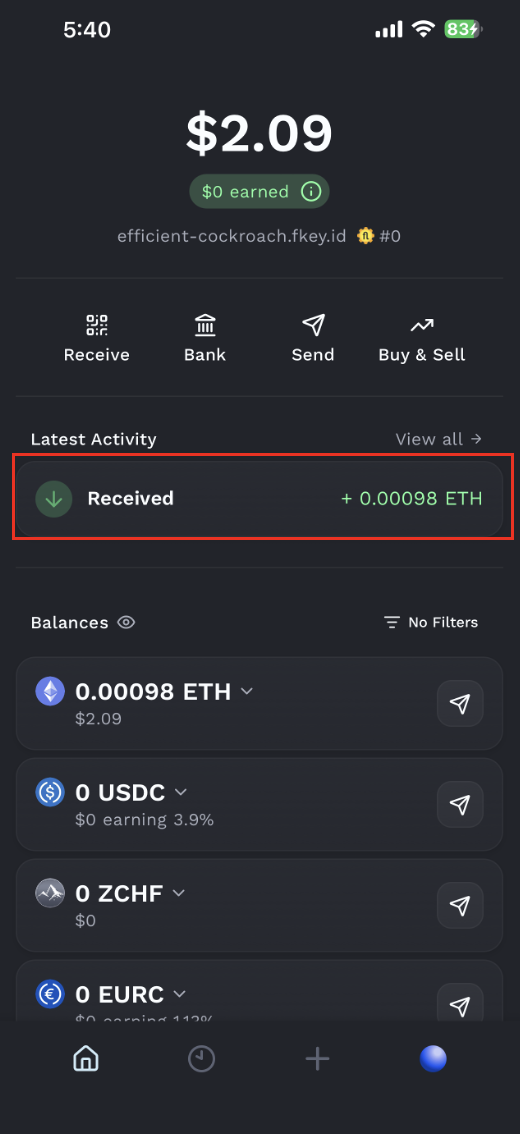
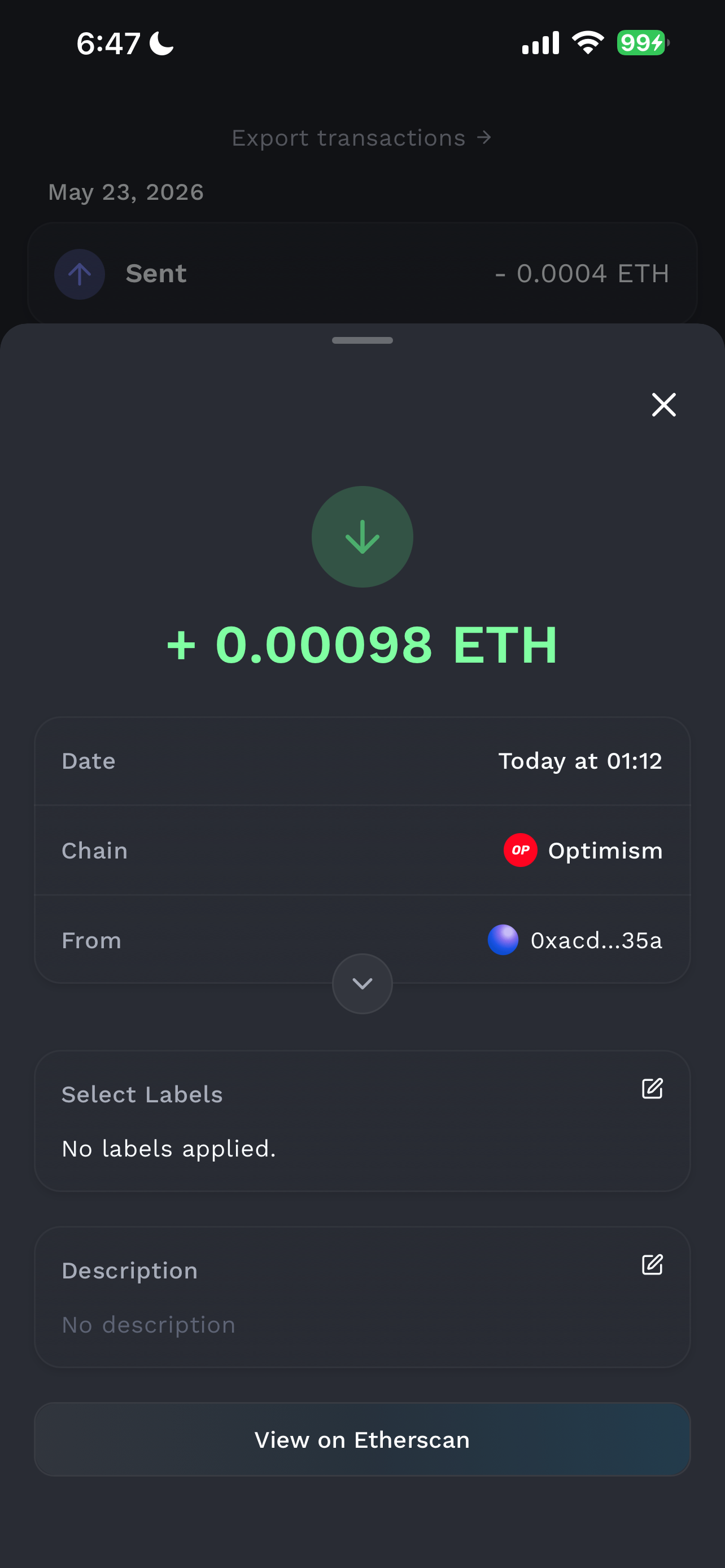
In "Latest Activity", select any incoming transaction to add a label to it. You can choose an existing label or create a new one by entering a name and selecting a color. To remove a label, simply remove it from the transaction.
Each transaction can have multiple labels, and each label can be applied to multiple transactions. Labels can mark a single payment (for example `salary-may-24`) or a group of payments (for example `salary`).
### Practical ways to use labels
**Labels apply automatically**
Once you label a transaction, future payments to the same address will automatically carry the same label. This is useful for recurring payments to fixed addresses, such as salary deposits or whitelisted exchange addresses, saving you the effort of manually labeling every time.
For example, label your company payroll transaction as `Salary` and every monthly deposit to the same address will automatically apply that label. Or label your exchange deposit address as `CEX` so future transfers from it are sorted automatically, with no manual work needed.
**Filter balances by label**
On the token balance page, you can filter by label to quickly see the balance held under a specific label. This is useful for managing multiple income sources at once, for example separating salary, investment, and client funds so you always have a clear view.
For example, filter by `Salary` to see your accumulated salary balance, filter by `Brokerage` to track your brokerage related funds, or filter by `Client A` or `Client B` to review each client's payments separately without reconciling transactions one by one.
**Send fund from a specific label**
When sending, you can choose to draw funds only from a specific label, so the outgoing transaction only exposes the group of addresses you want to reveal. This is useful when you only want a particular recipient to see one specific source of funds.
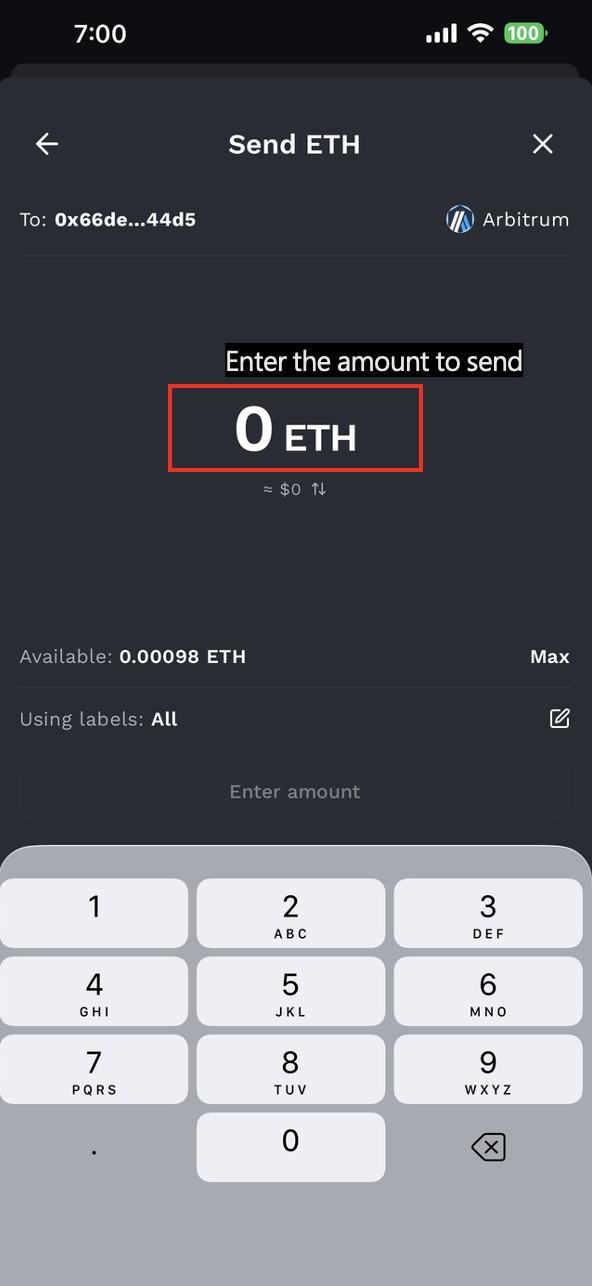
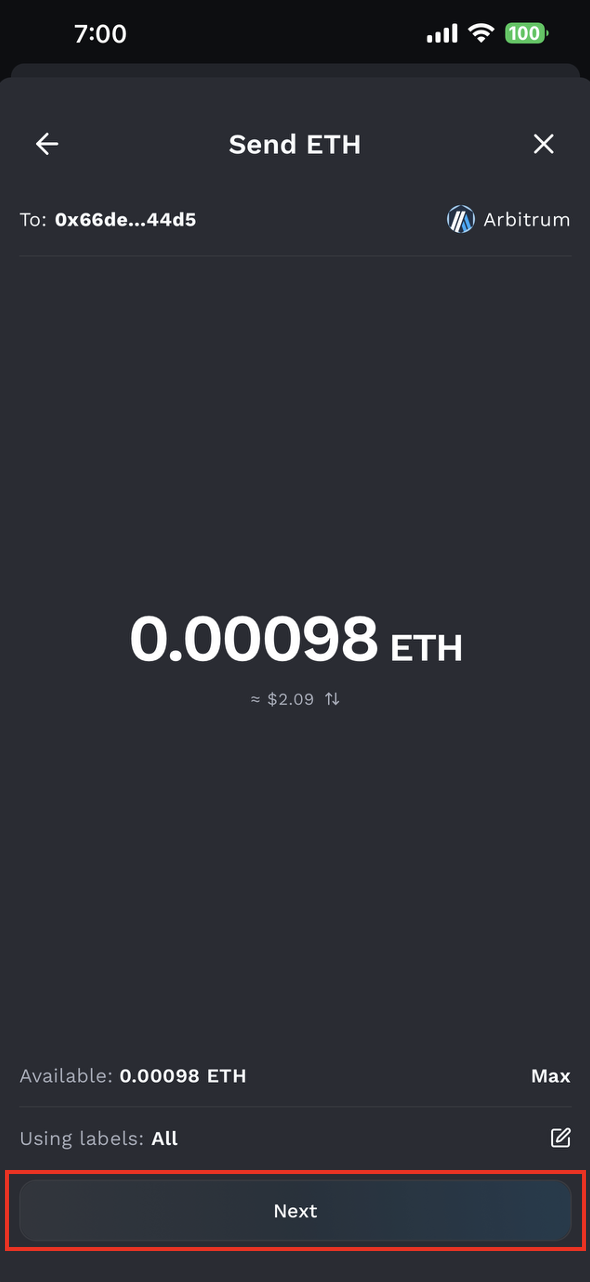
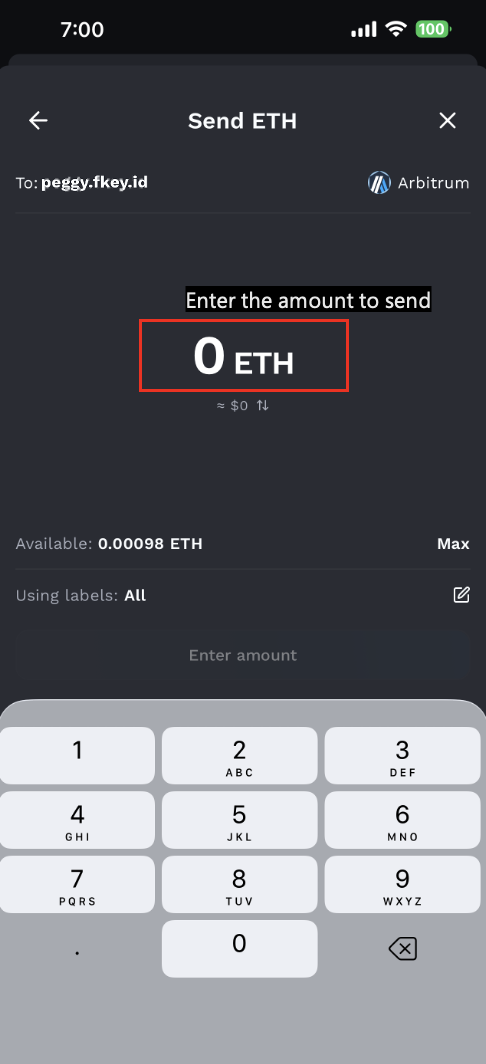
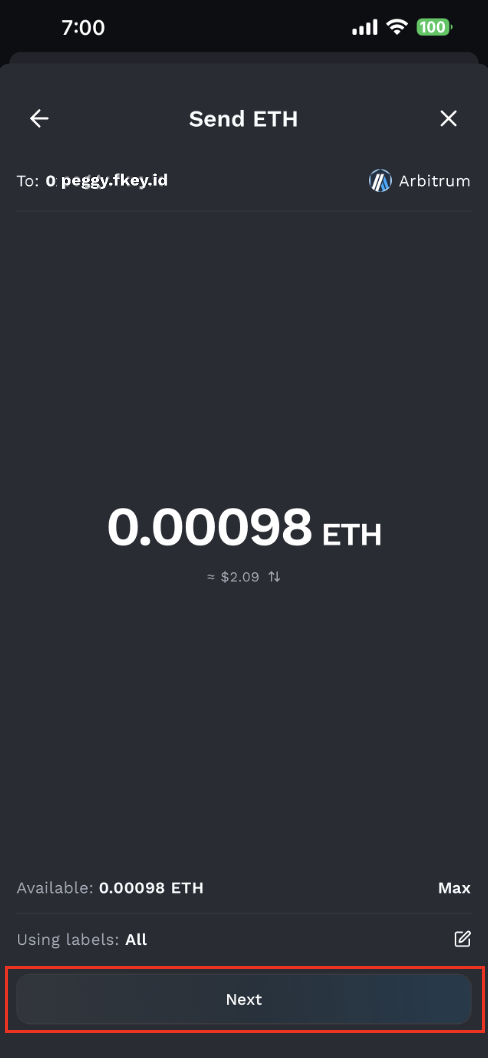
In the send window, when you enter the amount, from "Using labels" you can select the source of funds. The list only shows labels with enough balance in the token you are sending, and you can select multiple labels at once.
For example, when sending to client A, select only the `Client A` label. The recipient will only see funds from sources labeled `Client A`, with no visibility into your `Salary`, `CEX`, or `Client B` funds, and clients remain invisible to one another.
## Multi-Factor Authentication (MFA)
Fluidkey supports multi-factor authentication to protect your account from unauthorized access and to add a confirmation step before high-value transactions. When enabled, MFA is required to restore your account, before any transfer, and before exporting your keys.
### Supported Verification Methods
You can register up to three methods, one of each type:
* **Email** — a one-time code is sent to your registered email address.
* **Authenticator App (TOTP)** — a time-based code generated by an authenticator app such as Google Authenticator.
* **SMS** (Coming Soon) — a one-time code is sent to your registered phone number.
One of your registered methods is set as the **default method**. This is the method used whenever MFA verification is required. You can change the default at any time from the MFA settings.
### Enabling MFA
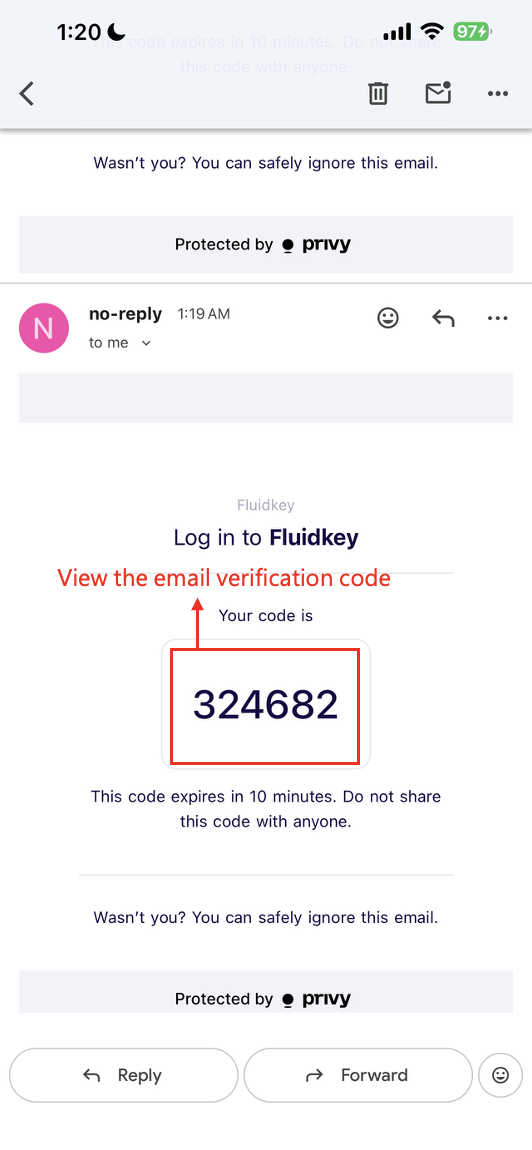
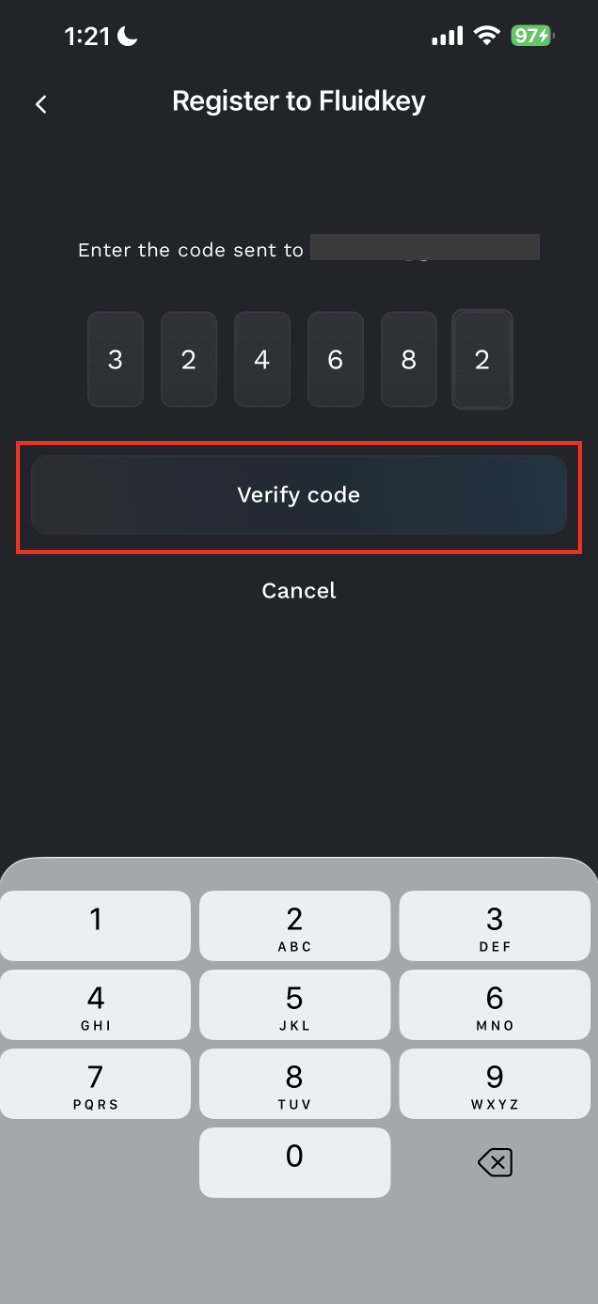
To enable MFA, open the MFA settings from your account menu. If you don't have any verification methods registered yet, you'll be guided through adding your first one. Once verified, MFA is automatically activated with that method as your default.
### Spending Limits
When MFA is enabled, you configure a **threshold** and a **timeframe** that determine when verification is required for outgoing transactions (sends, swaps, etc.).
* **Threshold** — the USD amount above which MFA is required. The minimum is $100 and the default is $2,000.
* **Timeframe** — the rolling time window over which your outgoing transaction amounts are accumulated and compared against the threshold. The available options are:
* **Daily** — rolling 24-hour window
* **Weekly** — rolling 7-day window
* **Monthly** — rolling 30-day window
#### How Rolling Windows Work
The timeframe is a **rolling window**, not a calendar-based reset. This means:
* If you select **Weekly**, the system looks at the total amount you've moved in the **last 7 days from this moment** — it does not reset every Monday.
* If you select **Daily**, it looks at the last 24 hours from now, not from midnight.
* If you select **Monthly**, it looks at the last 30 days from now.
As older transactions fall outside the window, they no longer count toward the accumulated total. For example, with a weekly window and a $2,000 threshold: if you sent $1,500 six days ago and $600 today, your rolling total is $2,100 and MFA would be required for the next transaction. Once that first $1,500 transaction is more than 7 days old, it drops out of the window and your rolling total decreases.
You can edit your threshold and timeframe at any time from the MFA settings.
### When MFA Is Required
Once enabled, MFA is enforced in the following situations:
#### Account Restore
When you restore your account on a new device or access it through the web app, you must complete an MFA challenge. Once passed, this verification is remembered on that device — you won't be asked again unless you log out or remove your account.
#### Transacting
When you confirm a transaction, the system checks whether the transaction amount exceeds your threshold. If it does, you'll be asked to complete an MFA challenge before the transaction is submitted.
#### Accessing Backups
If you attempt to export your private key or access backup options, you'll need to verify MFA first.
### Disabling MFA
To disable MFA, go to the MFA settings and toggle it off. You'll be asked to verify MFA before it gets deactivated. This prevents someone with temporary access to your device from turning off your protection.
### Tips
* **Use an authenticator app** for the most reliable experience — it works offline and doesn't depend on email or SMS delivery.
* **Register multiple methods** as a backup in case you lose access to your primary one.
* **Set a threshold that matches your usage** — too low and you'll be prompted frequently, too high and it won't protect smaller transactions.
## Receiving Funds
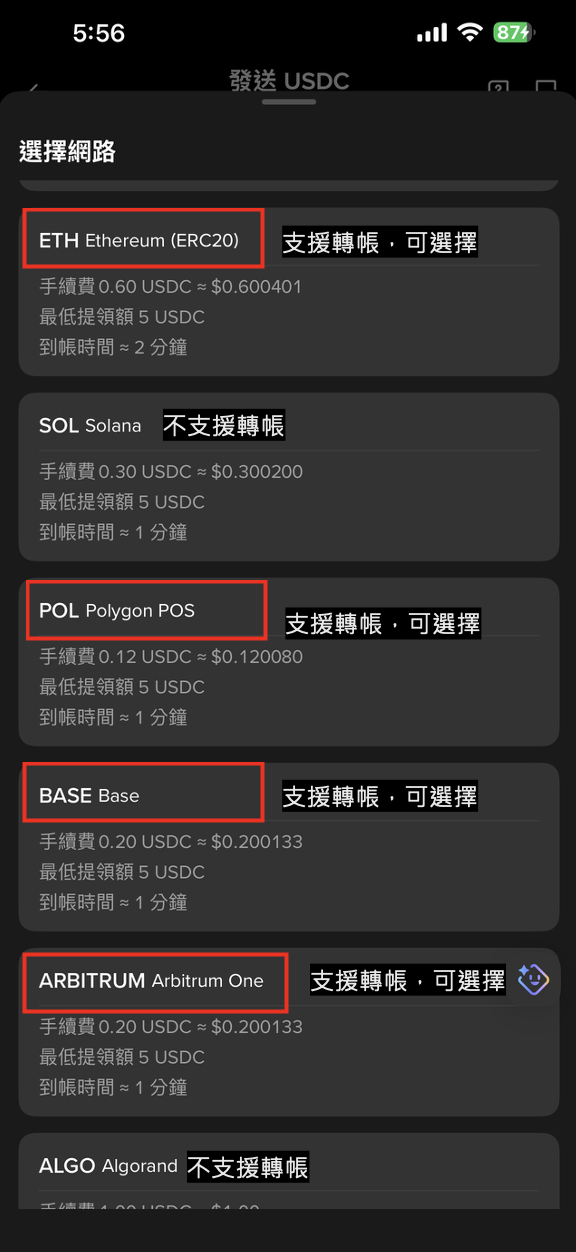
With Fluidkey, you can receive and manage ETH, USDC, and any other [ERC-20 token](https://ethereum.org/en/developers/docs/standards/tokens/erc-20/).
### How to start receiving funds
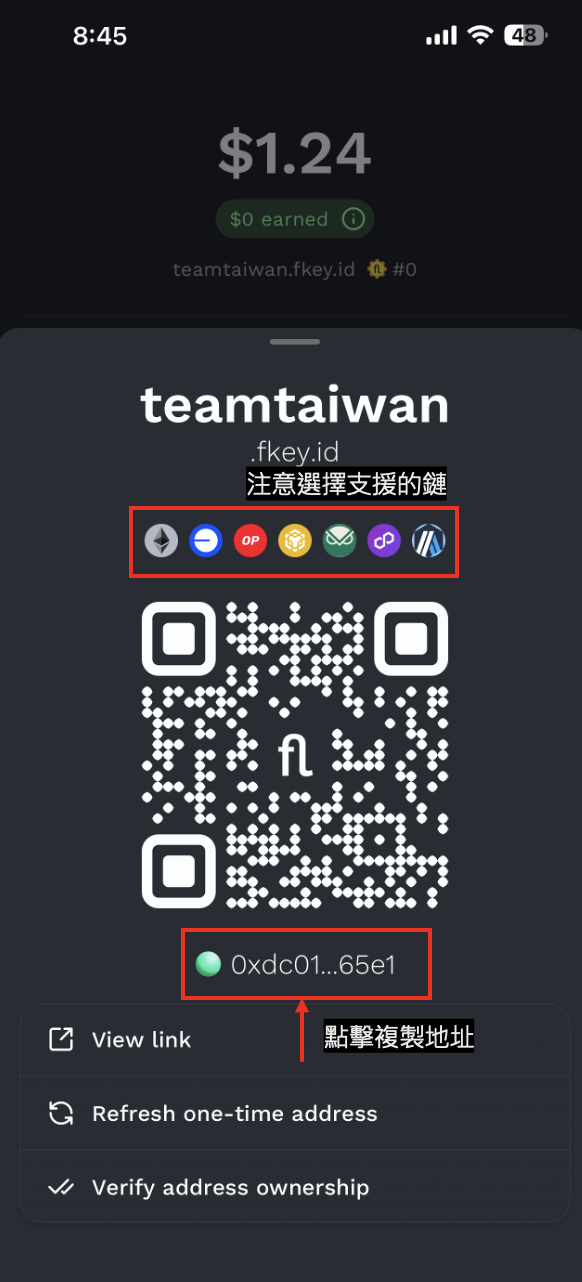
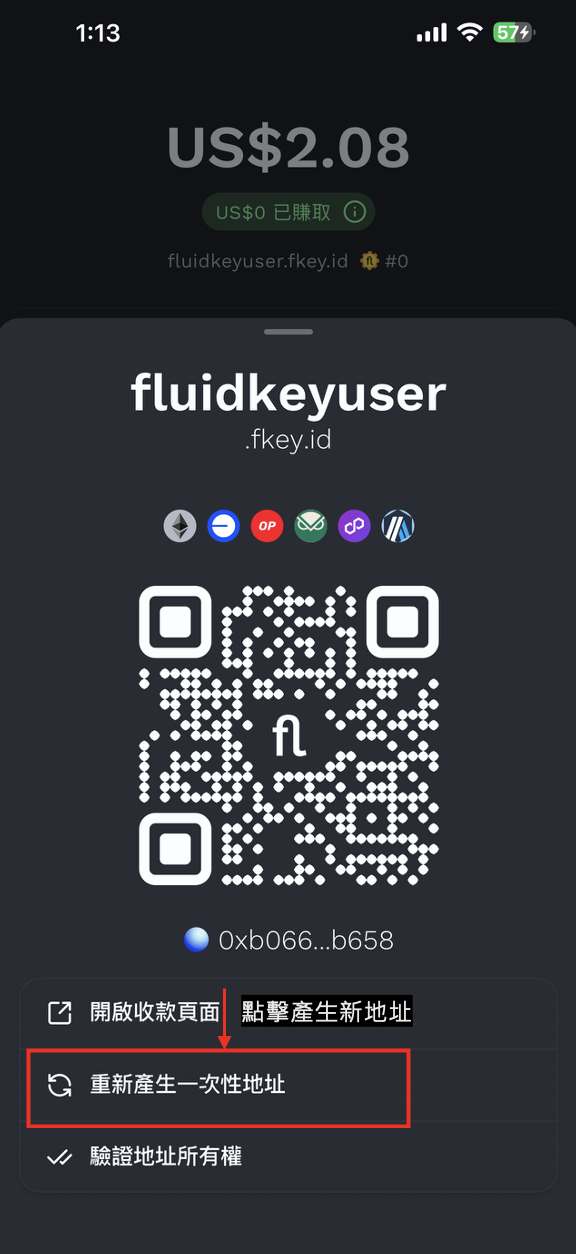
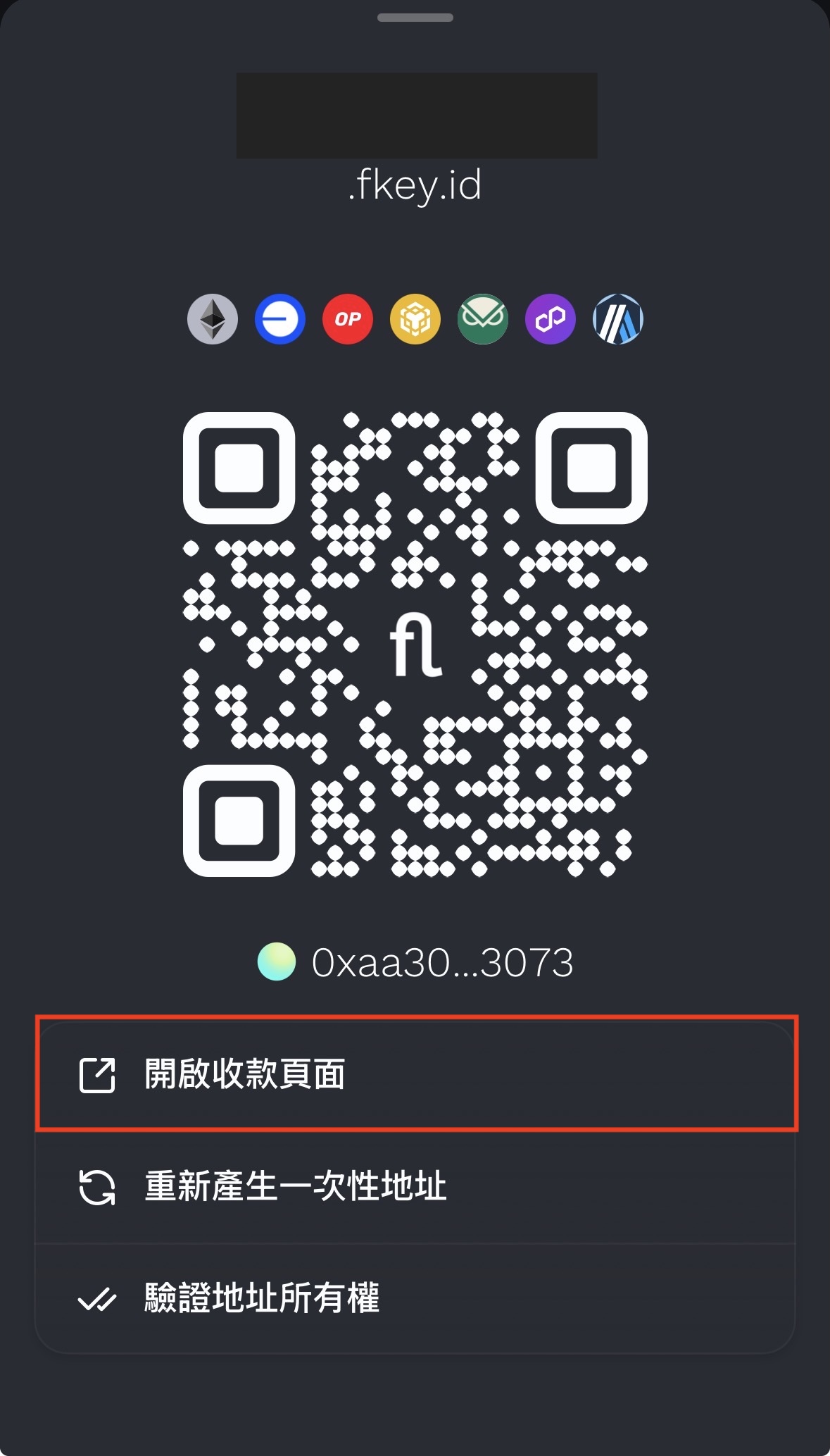
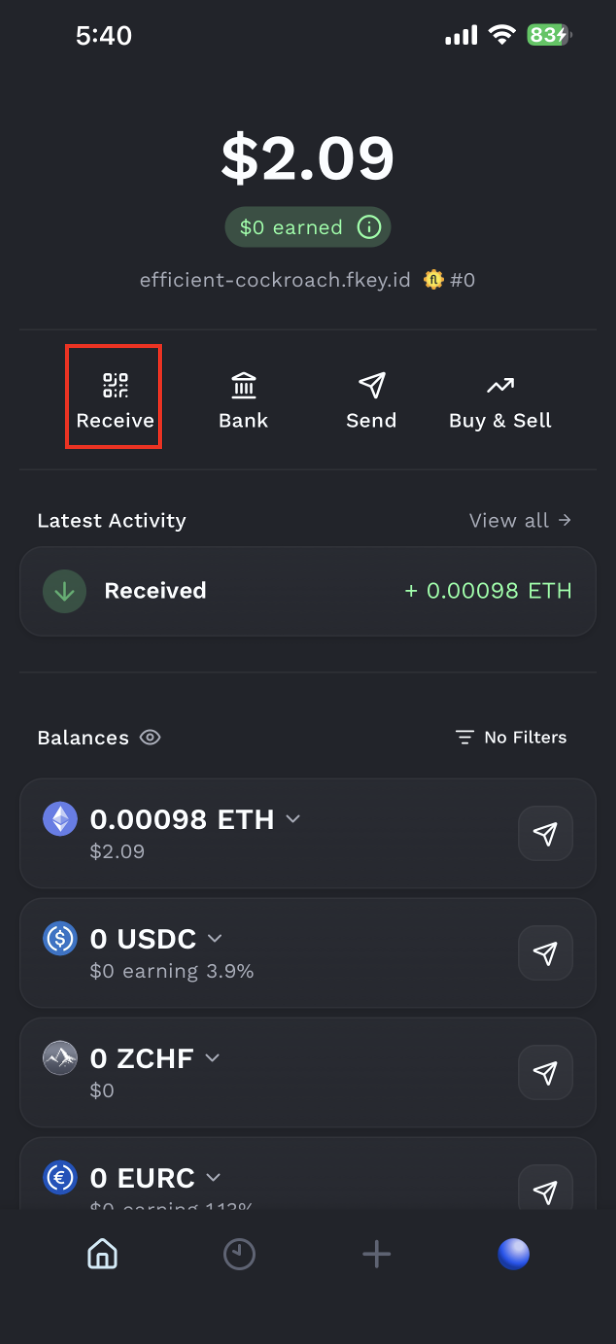
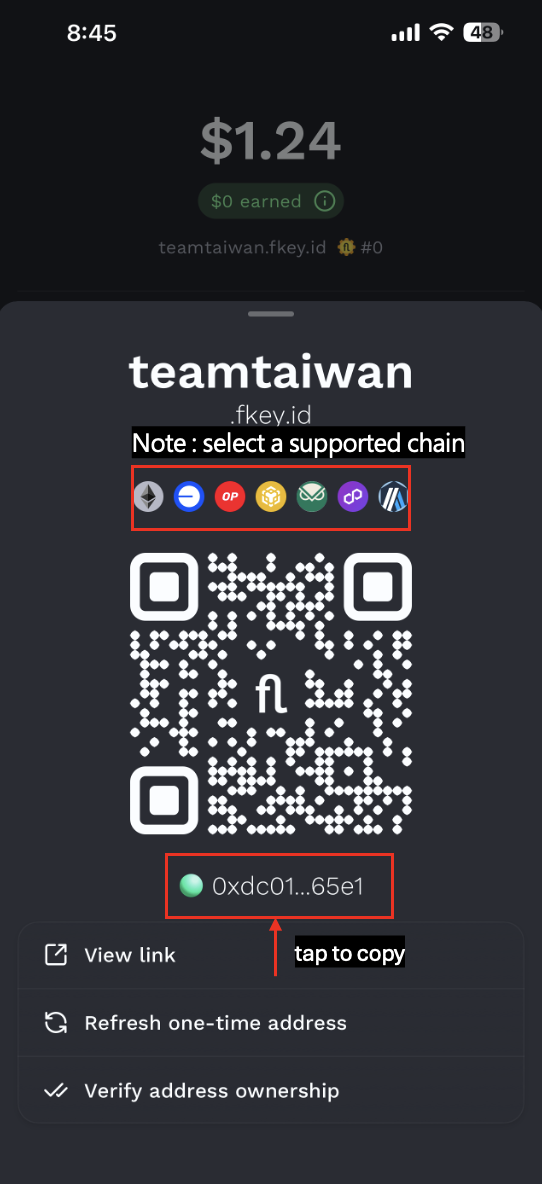
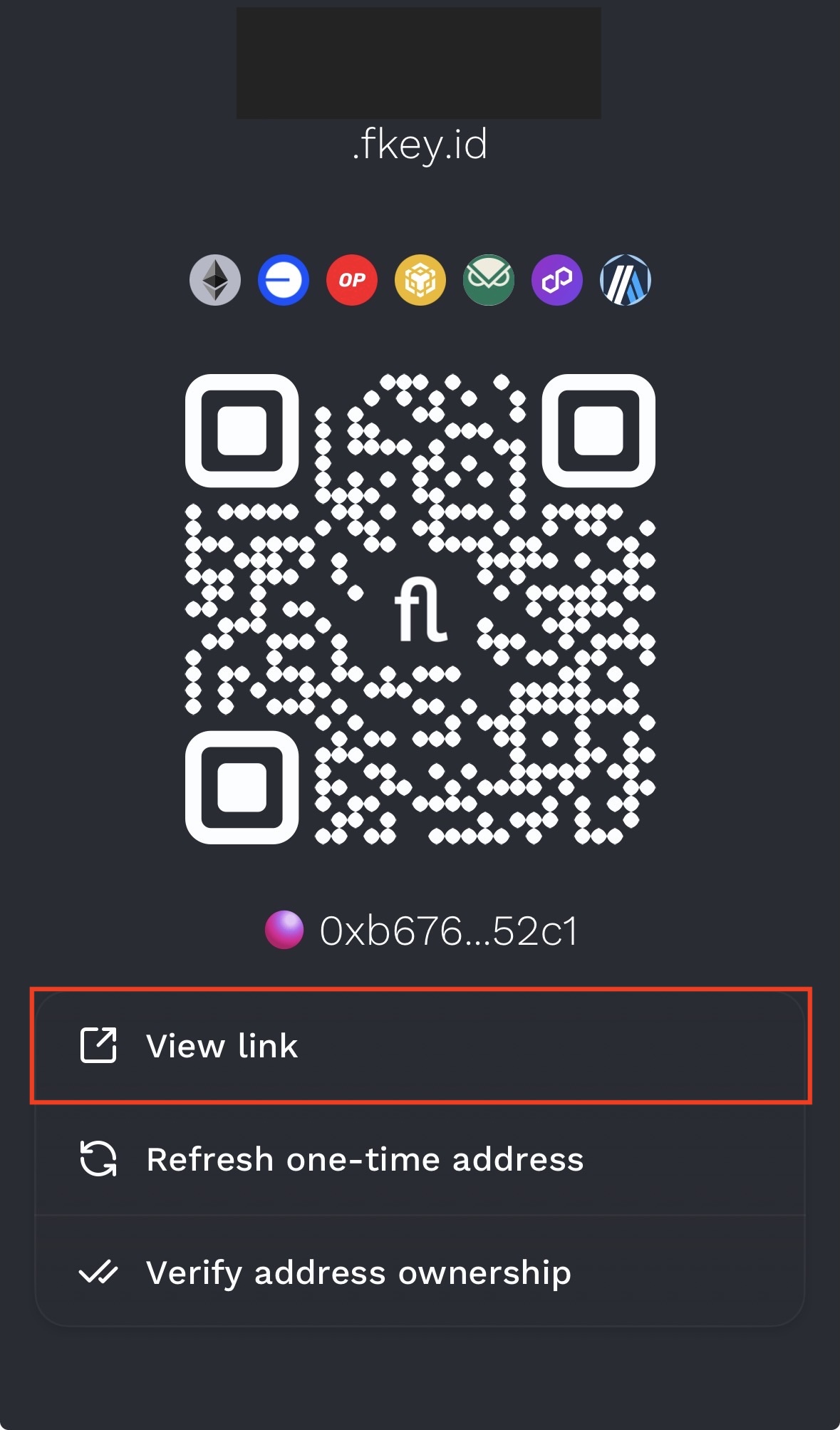
When clicking on the *Receive* button in your dashboard, you have two options to receive funds: a private ENS address and a private hex address.
#### Private ENS
##### How it works
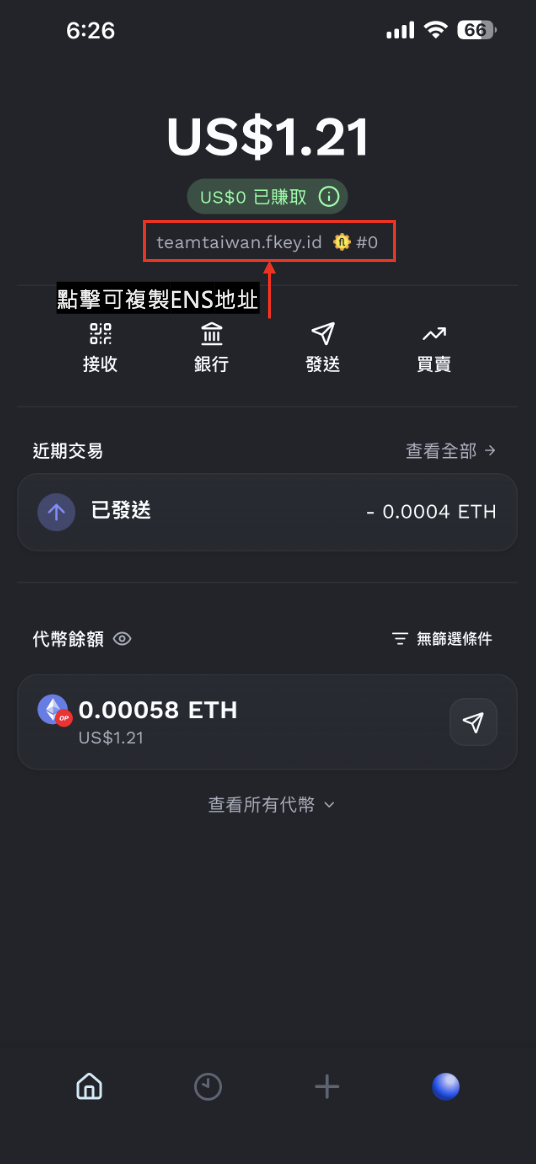
When you sign up to Fluidkey, you automatically get assigned two [ENS](https://ens.domains/) addresses.
An ENS is a human-readable address you can use to receive funds. This ENS can be pasted into the `to` or the `address` field of a compatible wallet to send payments to your Fluidkey account. Every time your ENS is queryied, it resolves a new empty Fluidkey address to the wallet. This way you can receive funds without compromising your privacy.
The ENS ends with `fkey.id` and can also be used as a shareable **web link** to a page that gives senders two simple options to transfer funds to your Fluidkey account:
* Sending funds directly to a stealth address of yours
* Sending funds via Near Intents using the button at the bottom of the payment page, which allows users to transfer BTC, USDC, and USDT from 10 additional chains (Bitcoin, Tron, Solana, Binance, Near, Avalanche, Ton, Sui, Stellar, Monad). These transfers are deposited as USDC on Base. As with other Fluidkey payments, every transfer via Near Intents deposits funds to a new address for privacy.
Your username can also be used as an ENS address with `fkey.eth`, this may be compatible with more wallets and can be pasted into the `to` or `address` fields to send payments to your Fluidkey account.
:::info
Not all wallets are compatible with ENS addresses across chains.
:::
##### Edit your ENS
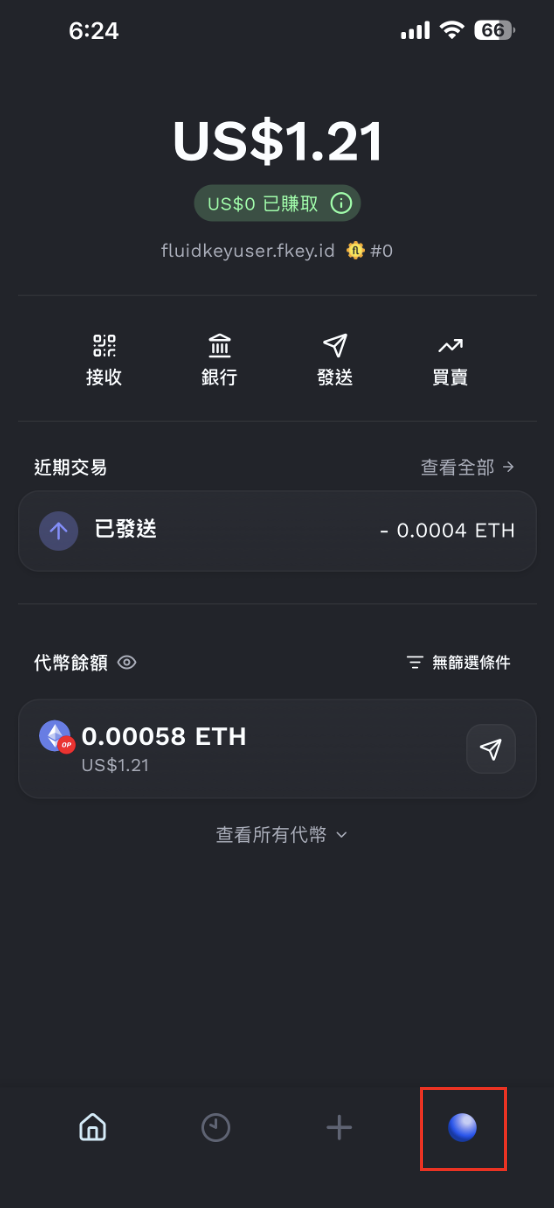
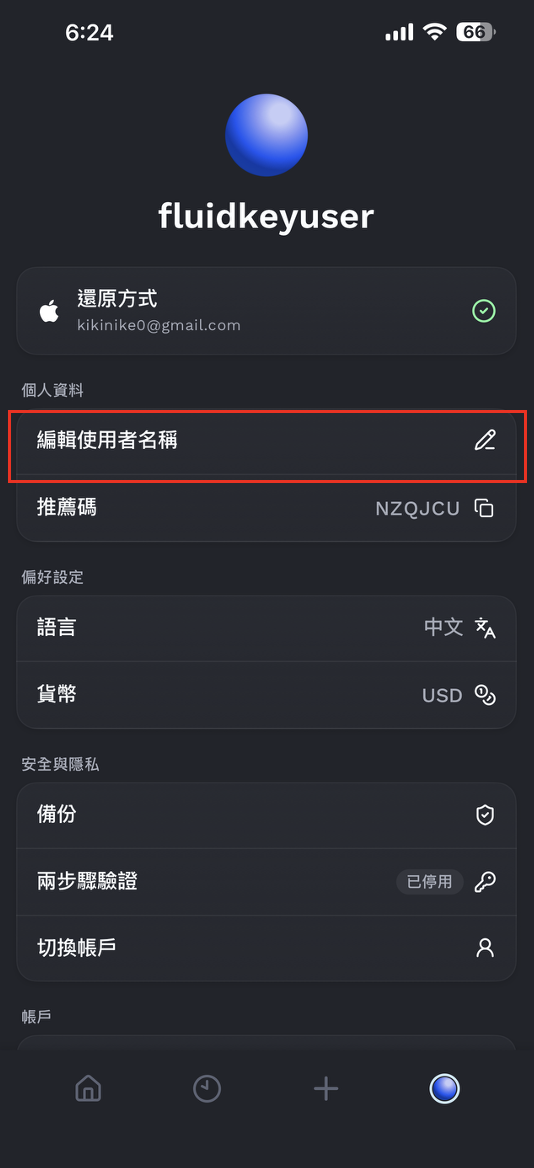
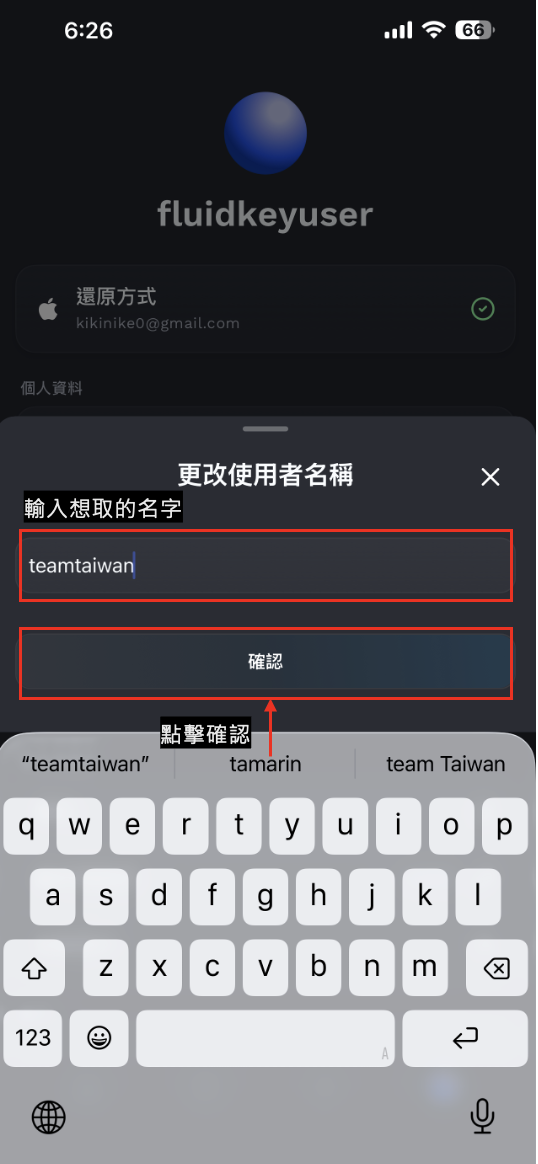
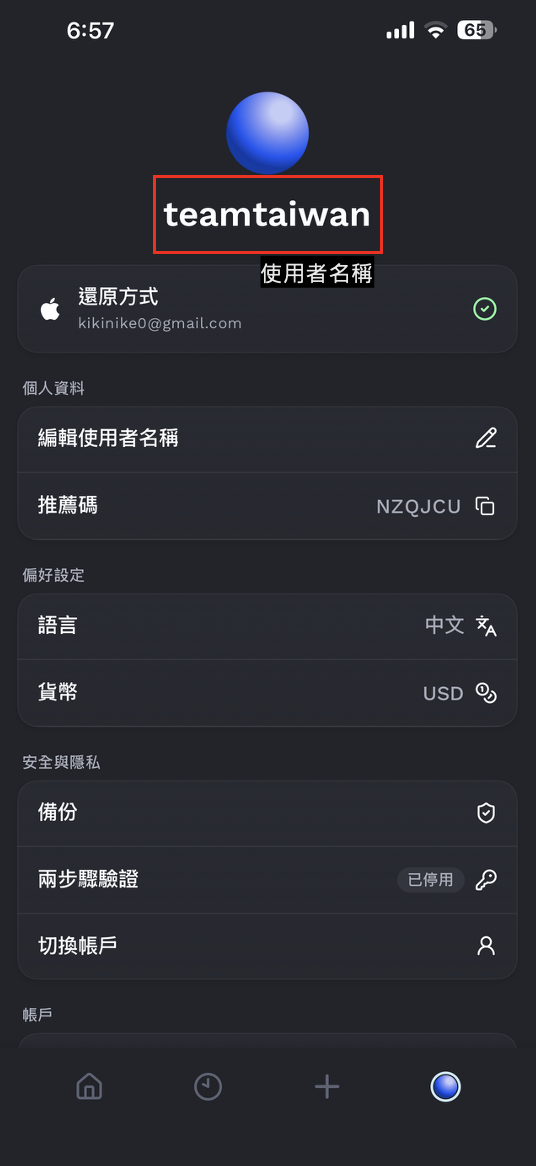
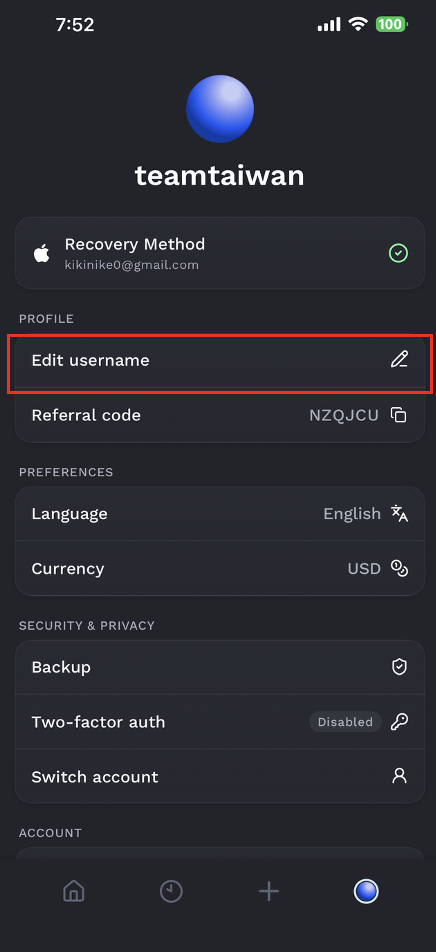
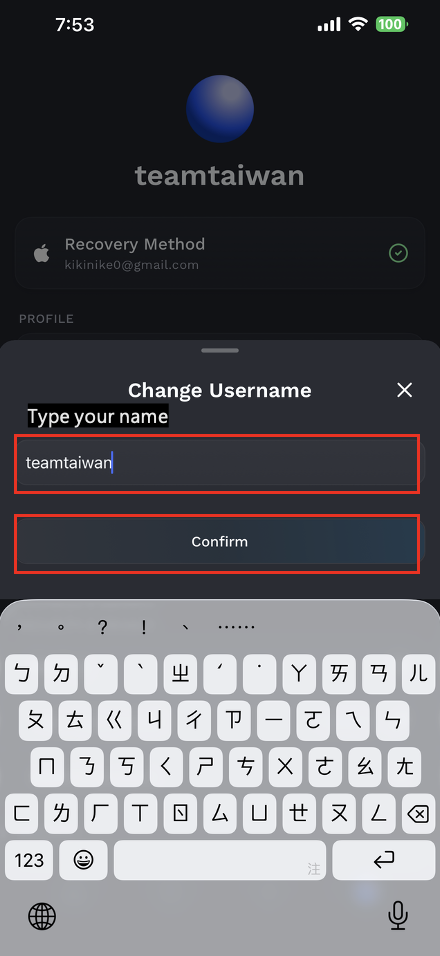
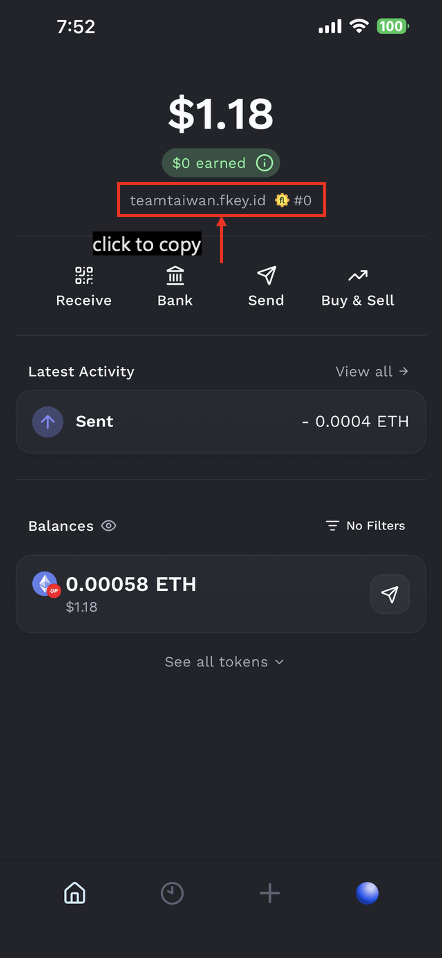
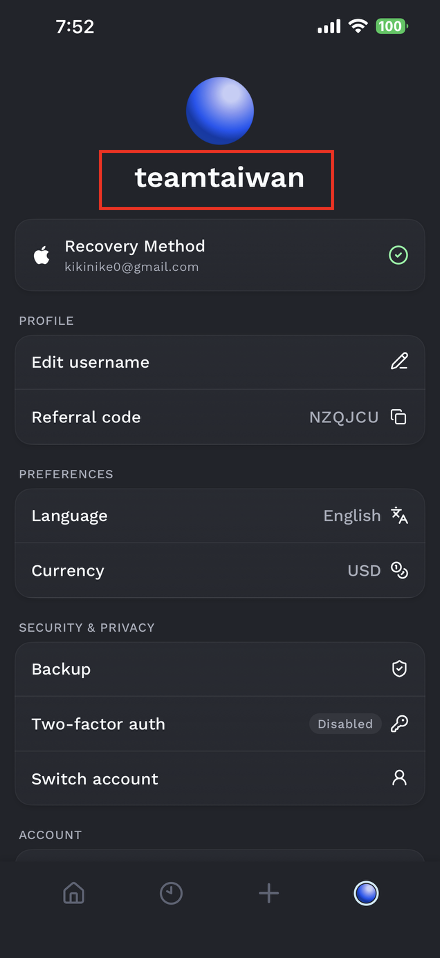
You can easily customize the username linked to your ENS: just go to the *Account* section and click on *Edit username*.
#### Private addresses
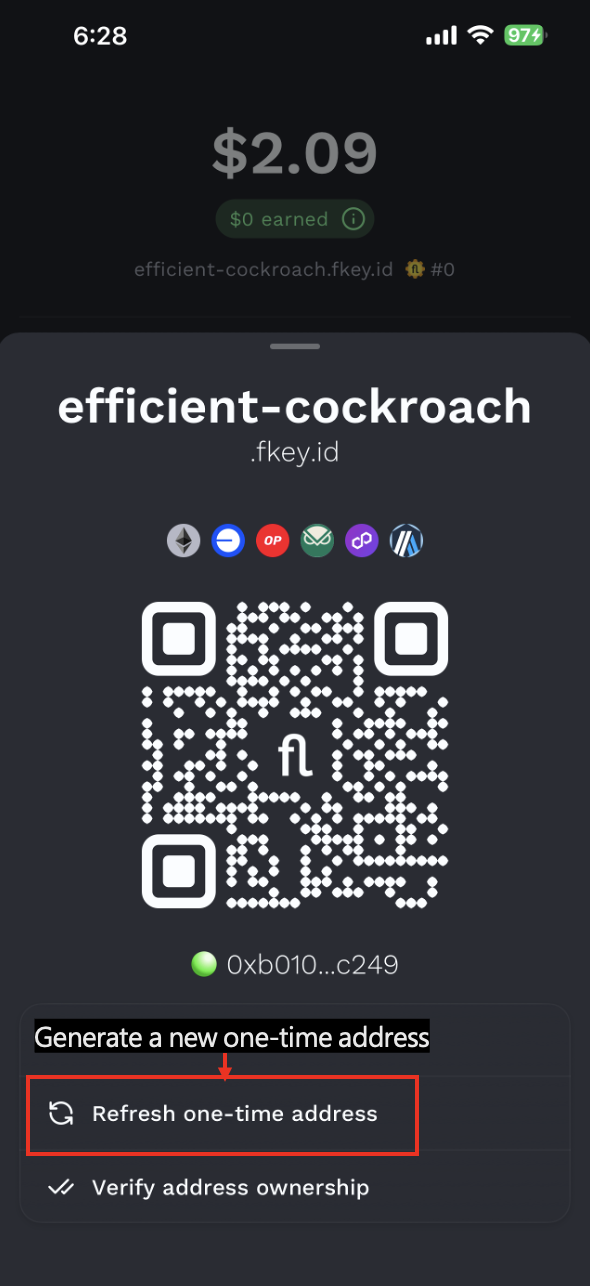
In the *Receive* section, you will also see a hexadecimal Ethereum address and a QR code. This address is also a Fluidkey address only you control. You can use it as another option to receive funds.
Every time you press the *Refresh one-time address* button, a new hex address is generated.
:::warning
We recommend using such a hex address only for one transfer in order to protect your privacy.
:::
***
### Receiving funds on Fluidkey vs other wallets
#### Other wallets
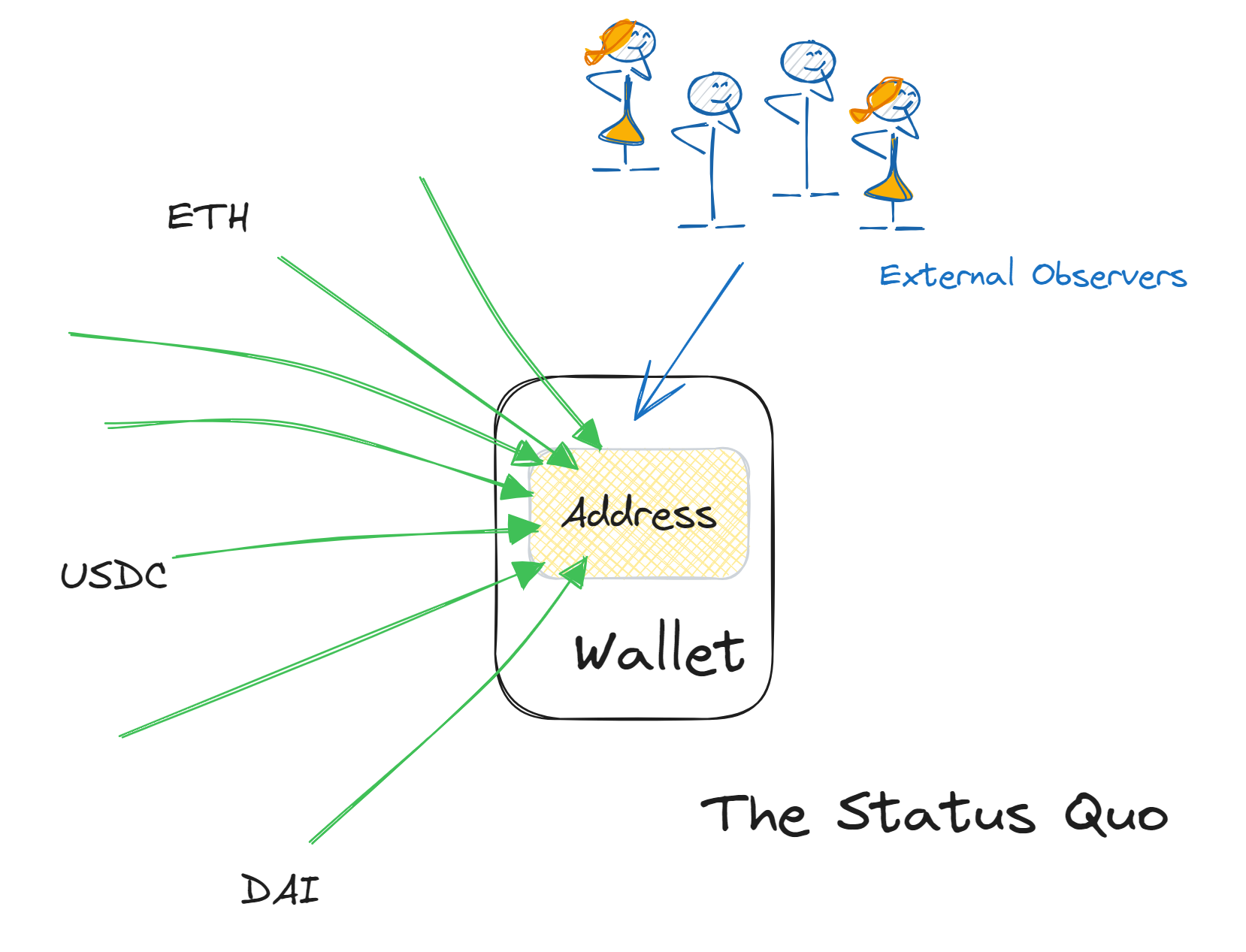
*The status quo*
With most wallets, you have one or few addresses, making it easy for external observers to track your transaction history and assets.
#### Fluidkey
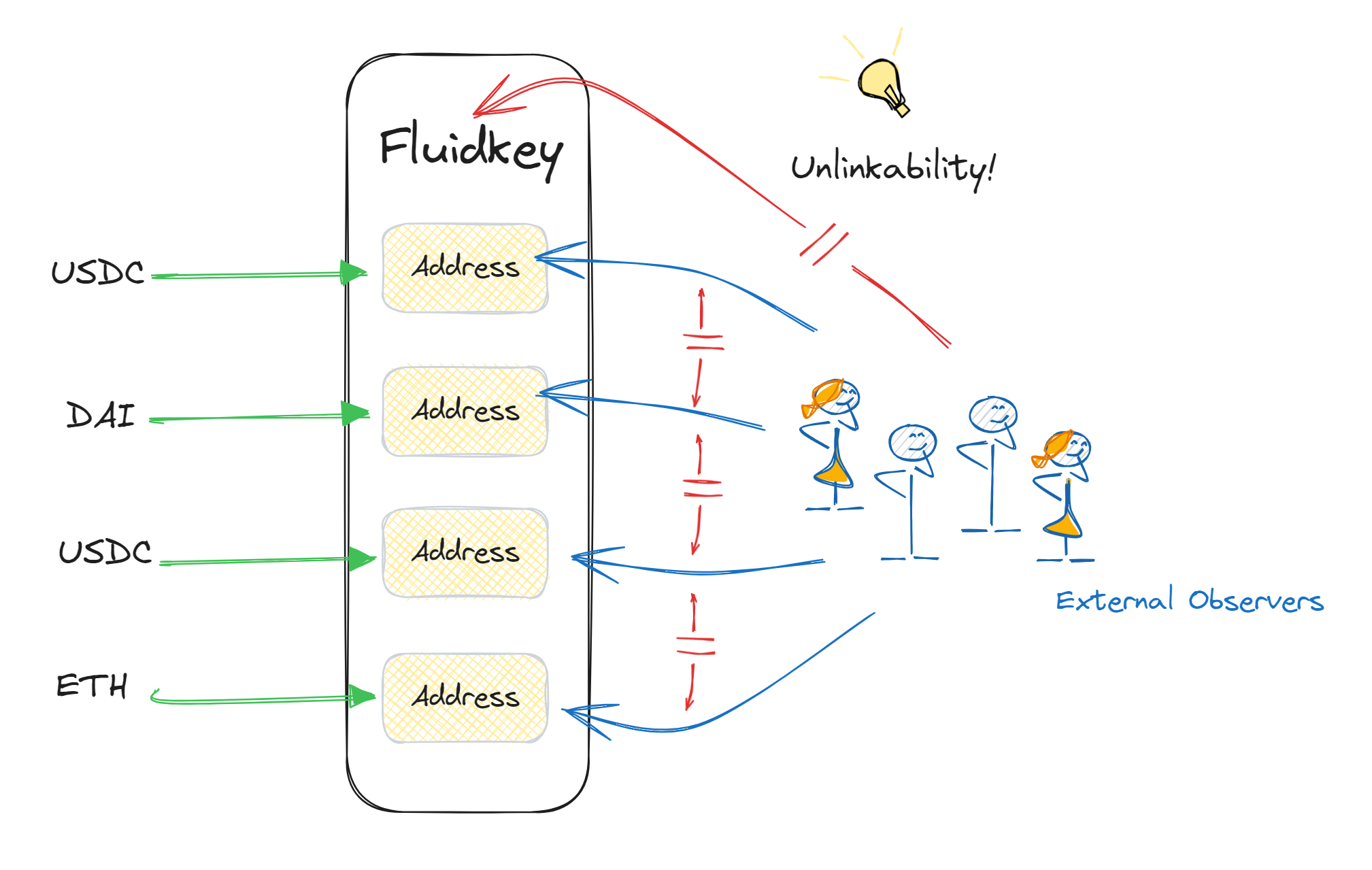
*Fluidkey ensures new funds received are not linked to your existing assets and onchain history*
With Fluidkey, a new address that only you can control (i.e. self-custodial) is used to receive funds for every transfer.
This protects your privacy, as external observers cannot connect these addresses and cannot link them to your main address.
## Recovery
:::warning
Moving funds out of a stealth address without using the Fluidkey UI may lead to loss of functionality within the Fluidkey UI. Only use this interface to verify addresses, test the recovery process with a test account, or as a last resort to recover funds.
:::
### How to recover your funds
This video shows you how to recover your funds using the [SARA](https://github.com/shahnami/sara) interface, you can find the interface at [recovery.fluidkey.com](https://recovery.fluidkey.com).
### Useful links
* The core cryptography library used to build the recovery interface is open source and available on [GitHub](https://github.com/fluidkey/fluidkey-stealth-account-kit).
* The recovery interface is open source and available on [GitHub](https://github.com/shahnami/sara).
* The recovery interface is hosted at [recovery.fluidkey.com](https://recovery.fluidkey.com).
## Fluidkey Score
[Read the announcement here](https://www.fluidkey.com/blog/fluidkey-score)
### Key information
| | |
| ------------------- | --------------------------------------------------------------------------------------------------------------------- |
| Chain | Base |
| Contract address | [0x894c663757f6953544548EFA1aebc0846AC08bEa](https://basescan.org/address/0x894c663757f6953544548EFA1aebc0846AC08bEa) |
| Distributor address | [0x83Da511603C650bF3c7FF8d02FC6423AF455535F](https://basescan.org/address/0x83Da511603C650bF3c7FF8d02FC6423AF455535F) |
The Fluidkey Score is a non-transferable ERC-20 token on Base. The distributor is a Fluidkey controlled address that is allocating scores to users.
### How your score is computed
We compute a user's score based on genuine activity on Fluidkey. Some of the key factors taken into account are:
* a user's total balance
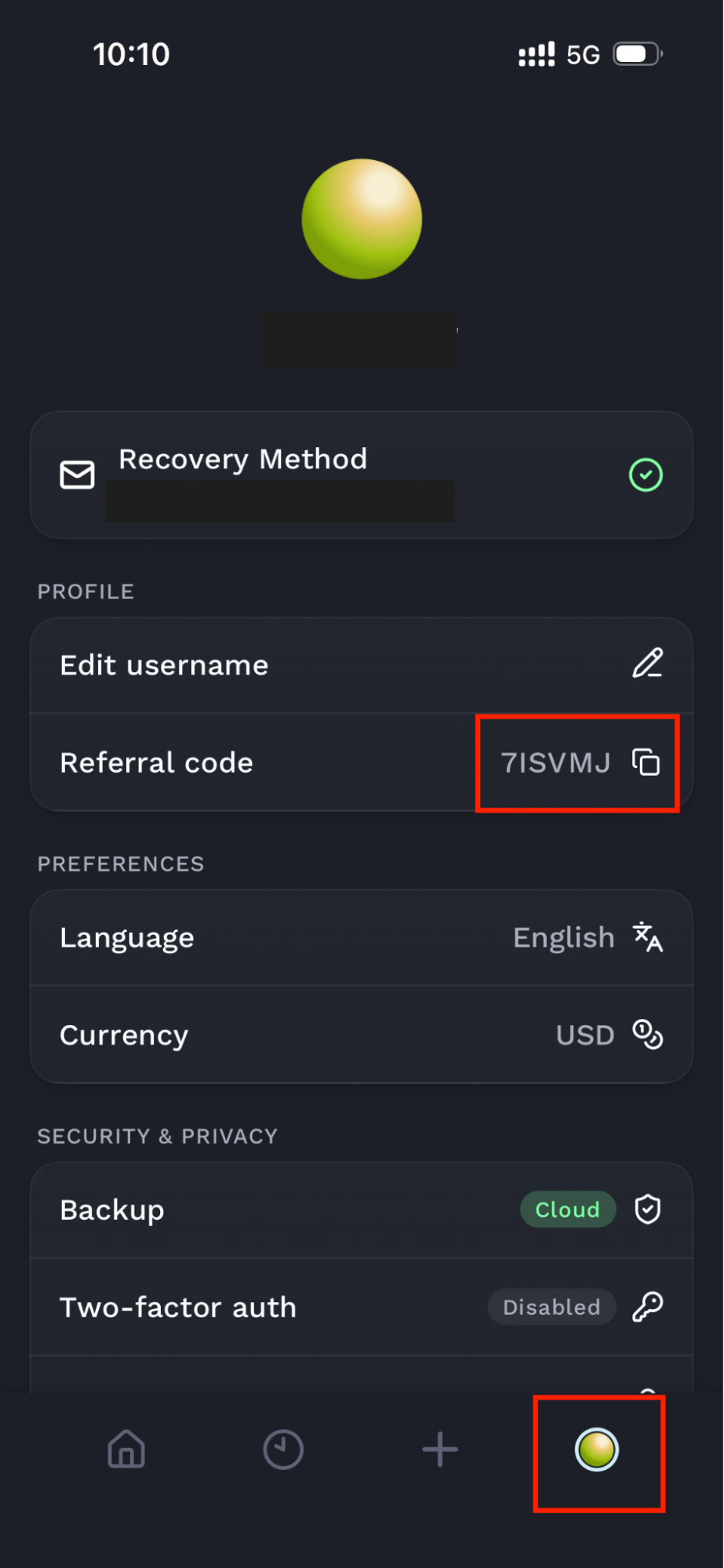
* the balance of users referred by the user (based on the referral link in settings)
* a user's balance that is earning yield with our [auto-earn feature](/readme/earn)
We do not disclose the exact formula used to avoid having users game the system.
### How to claim your score
In the Fluidkey interface, you will find a Fluidkey Score section under the Funds section. To claim your score, simply click the Claim button.
In the same section you will also find your all-time and weekly ranking on the leaderboard.
### What your score can be used for
Your score unlocks exclusive benefits inside of Fluidkey.
Additionally, your score is composable with any other crypto protocol by being allocated to you onchain as an ERC-20 token. Like a credit score, it is a way for users to prove they are valuable Fluidkey users to any third party. In turn, these third parties may use this data to give exclusive access and benefits to holders of a high Fluidkey score.
## Sending Funds
### How to start sending funds
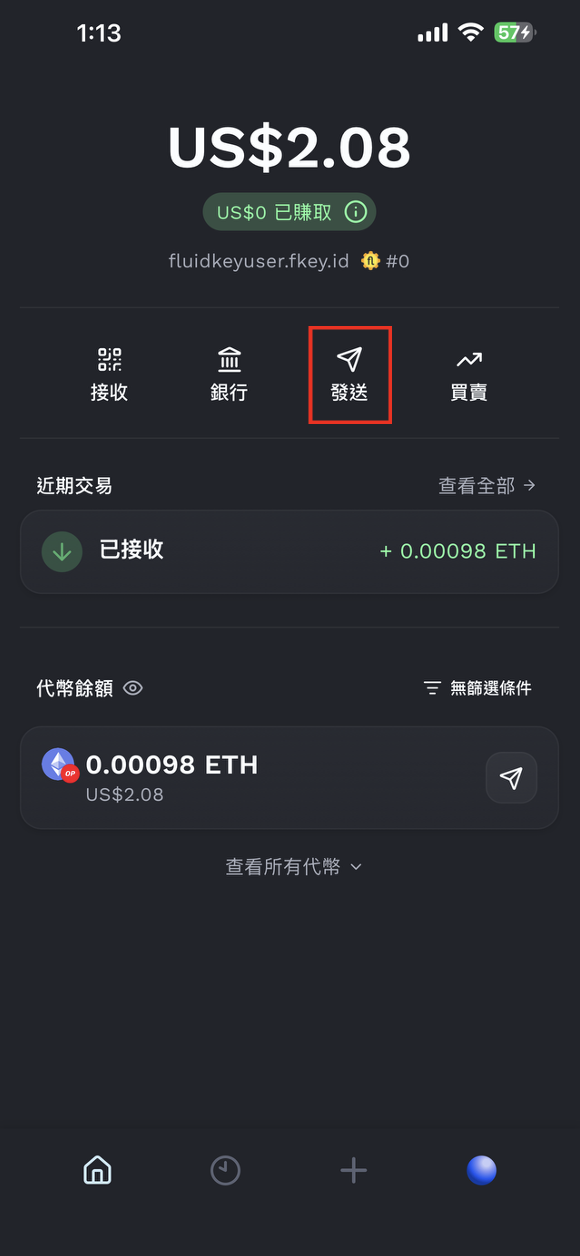
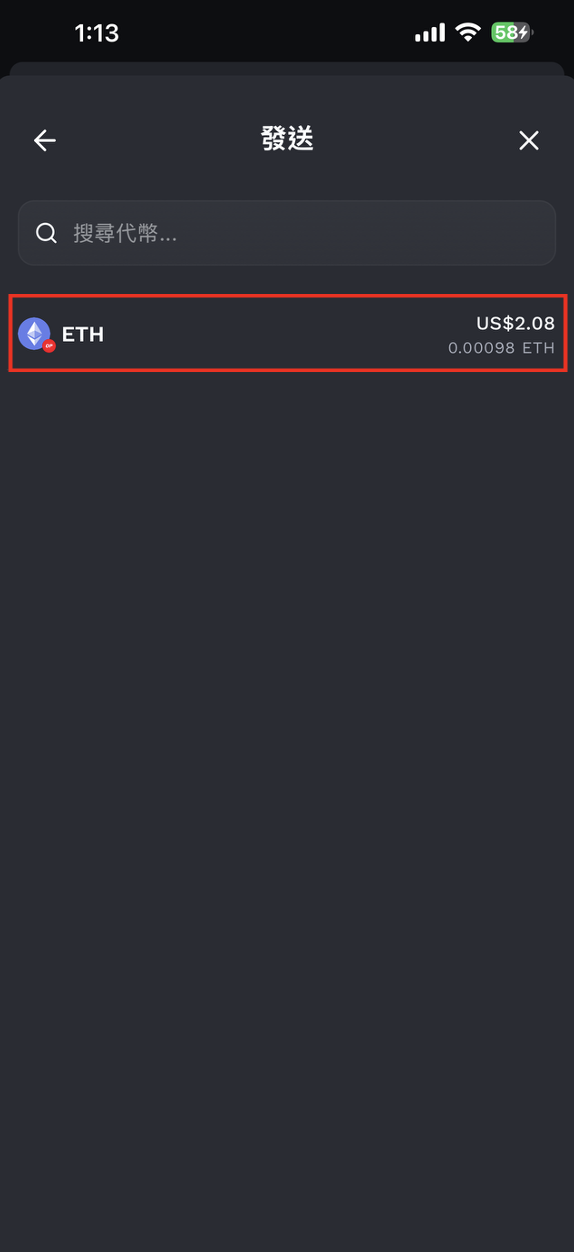
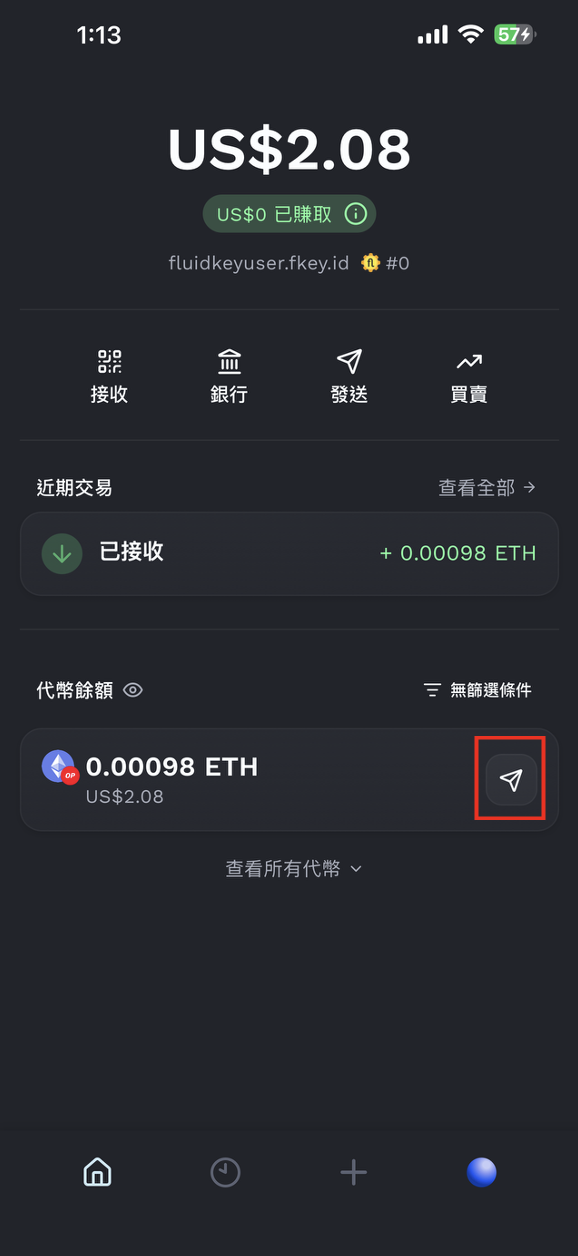
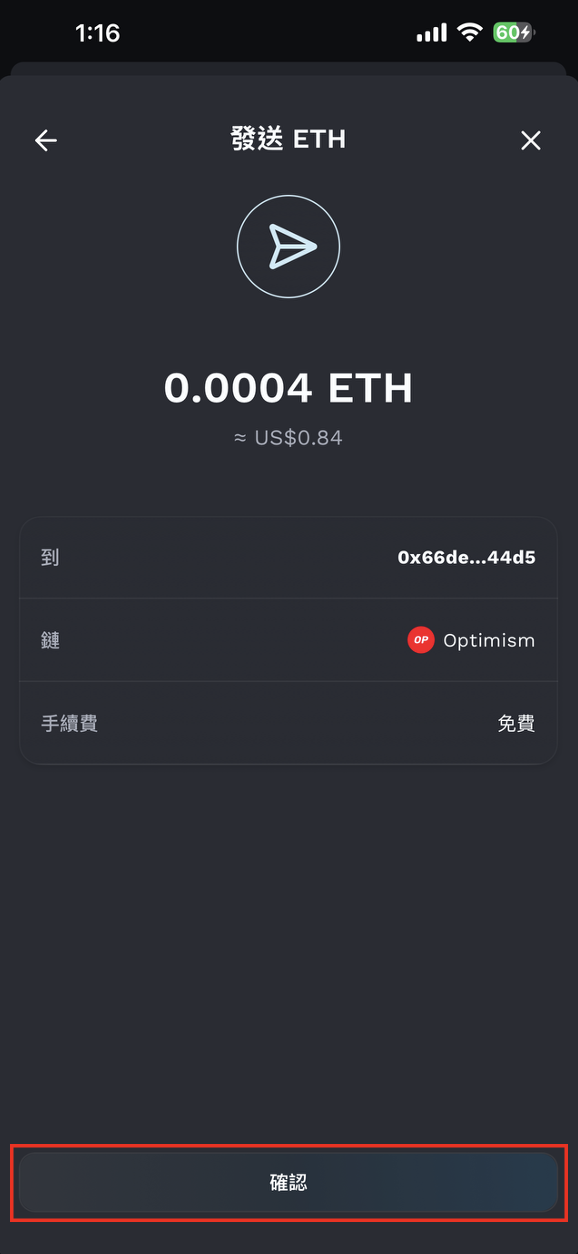
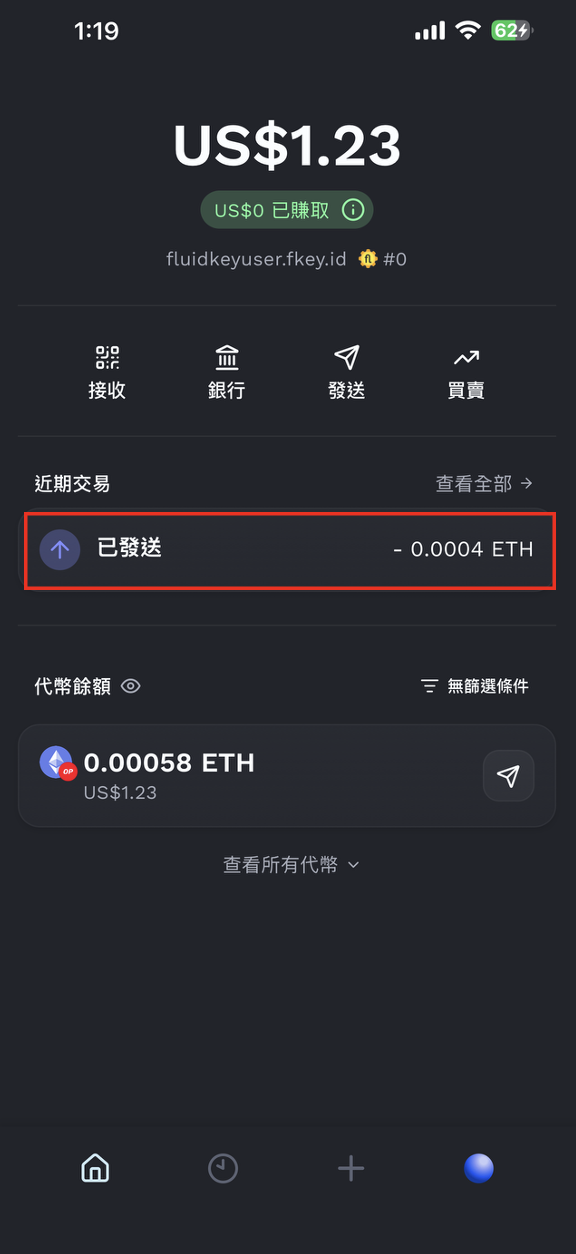
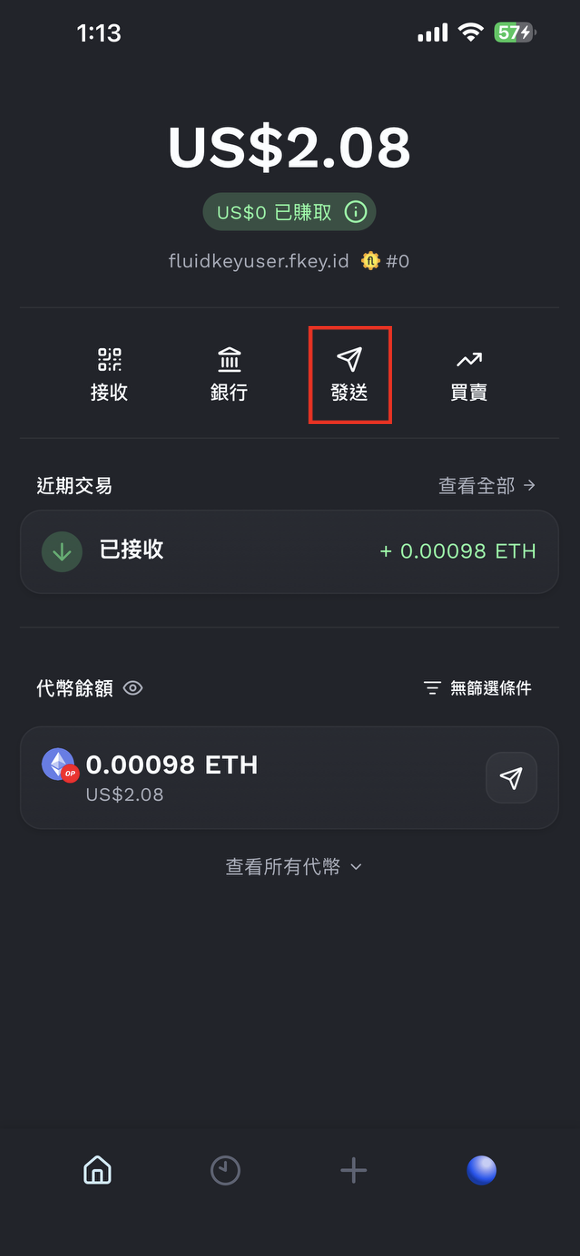
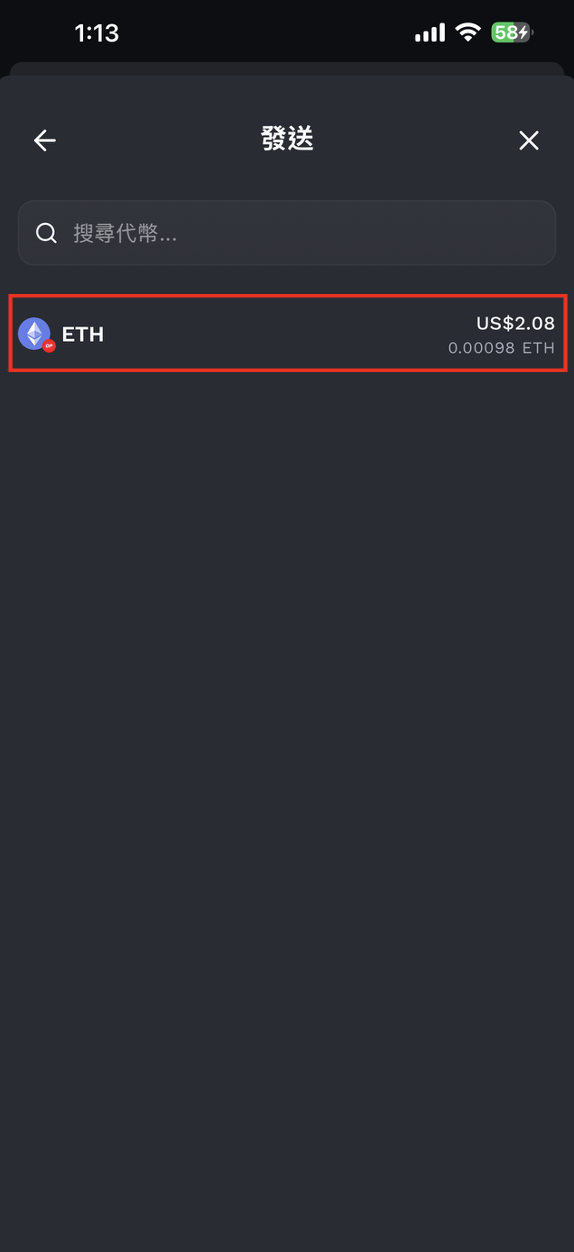
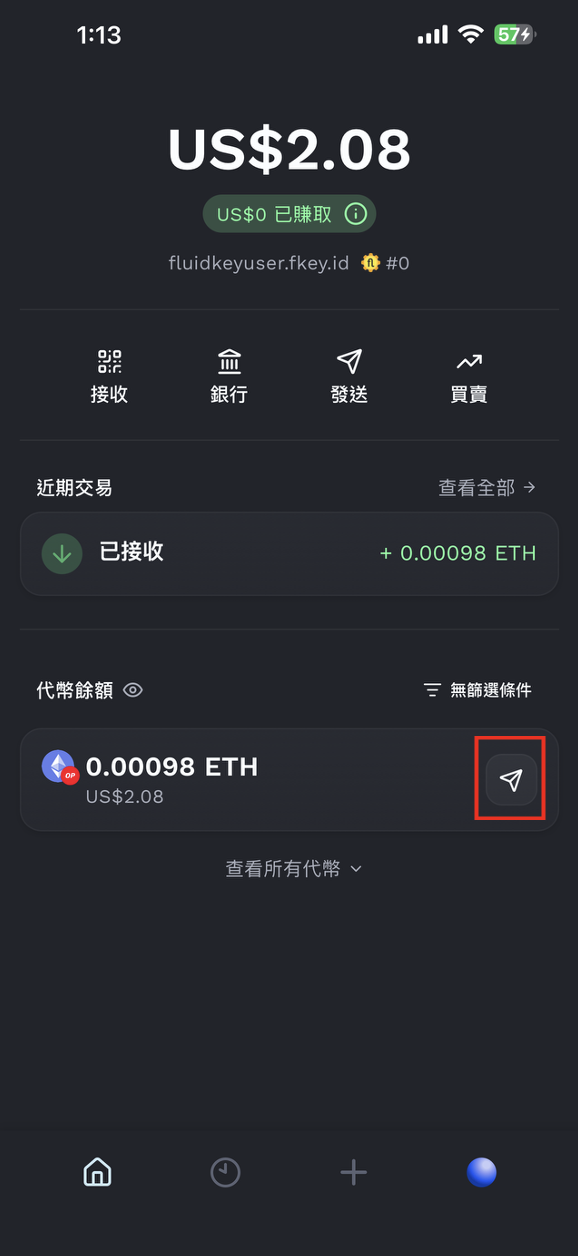
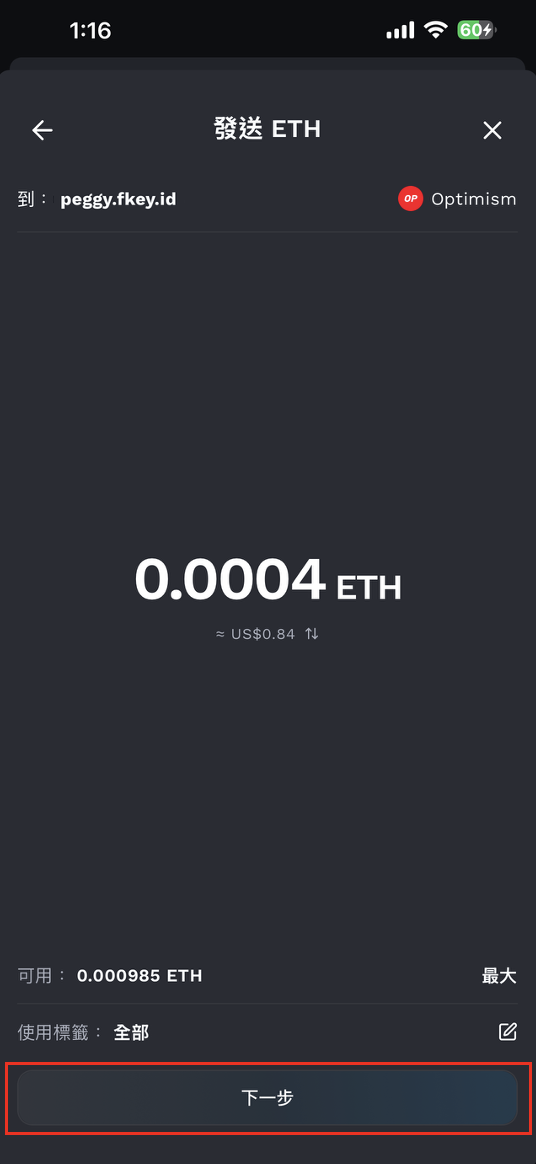
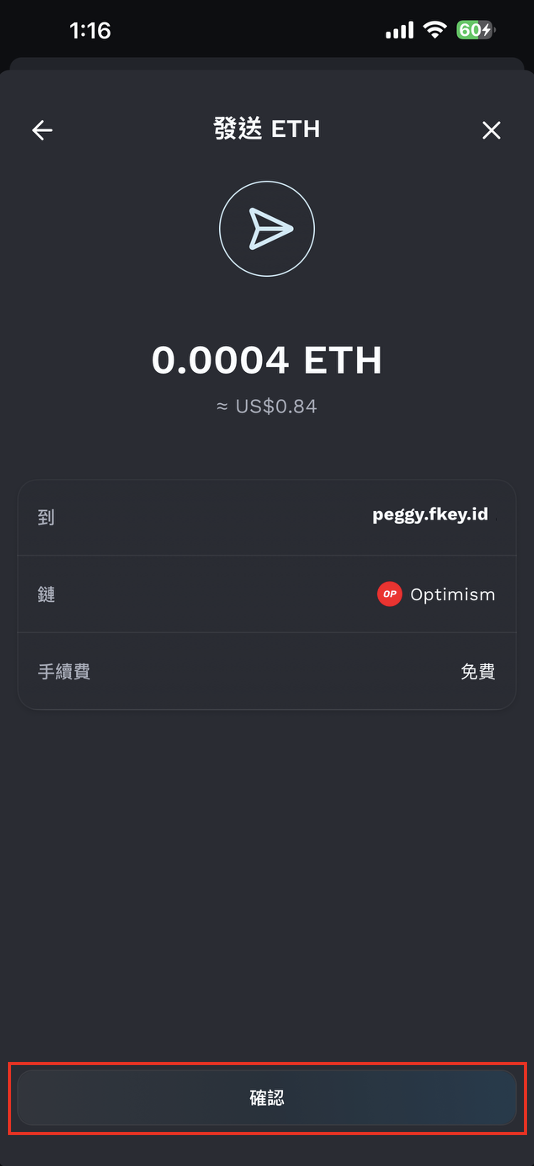
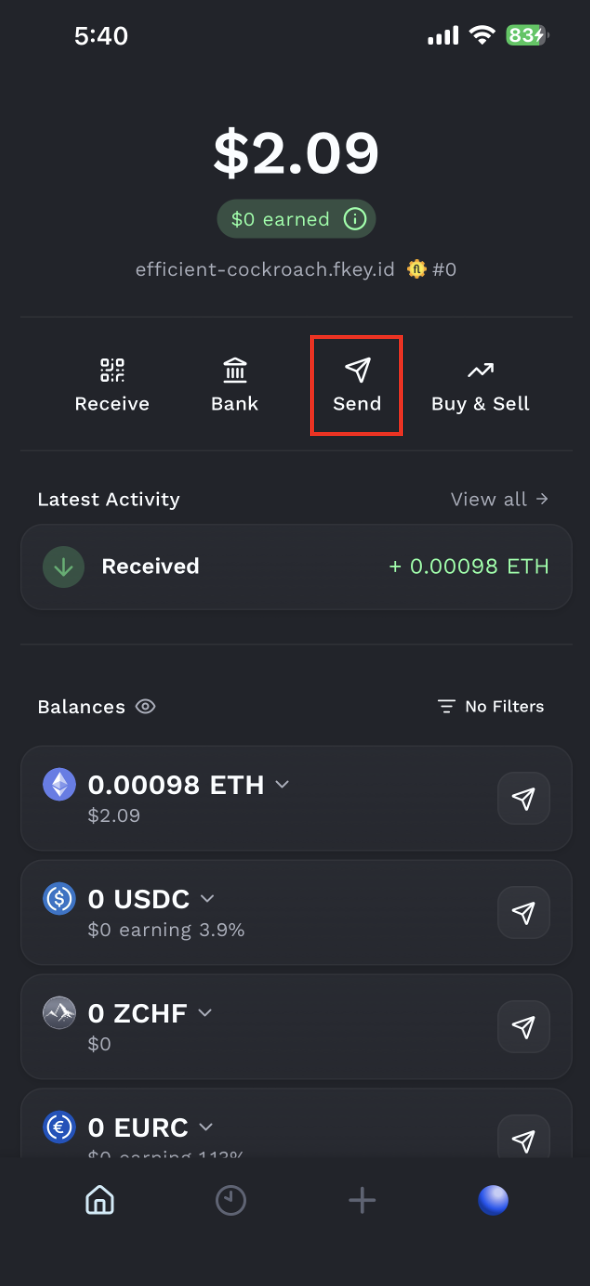
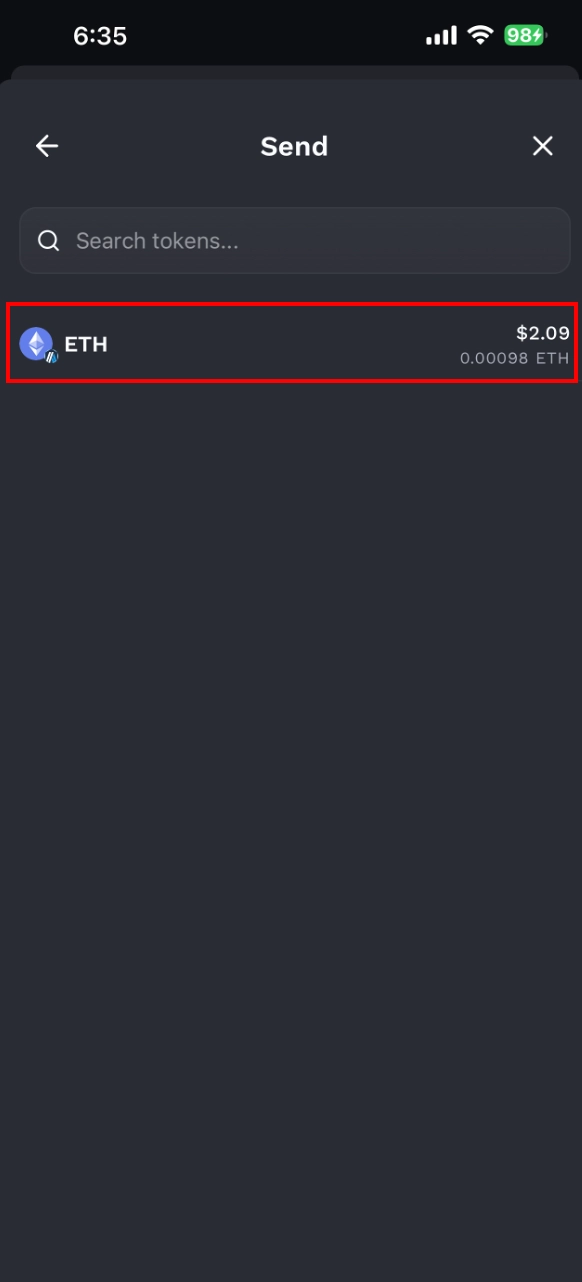
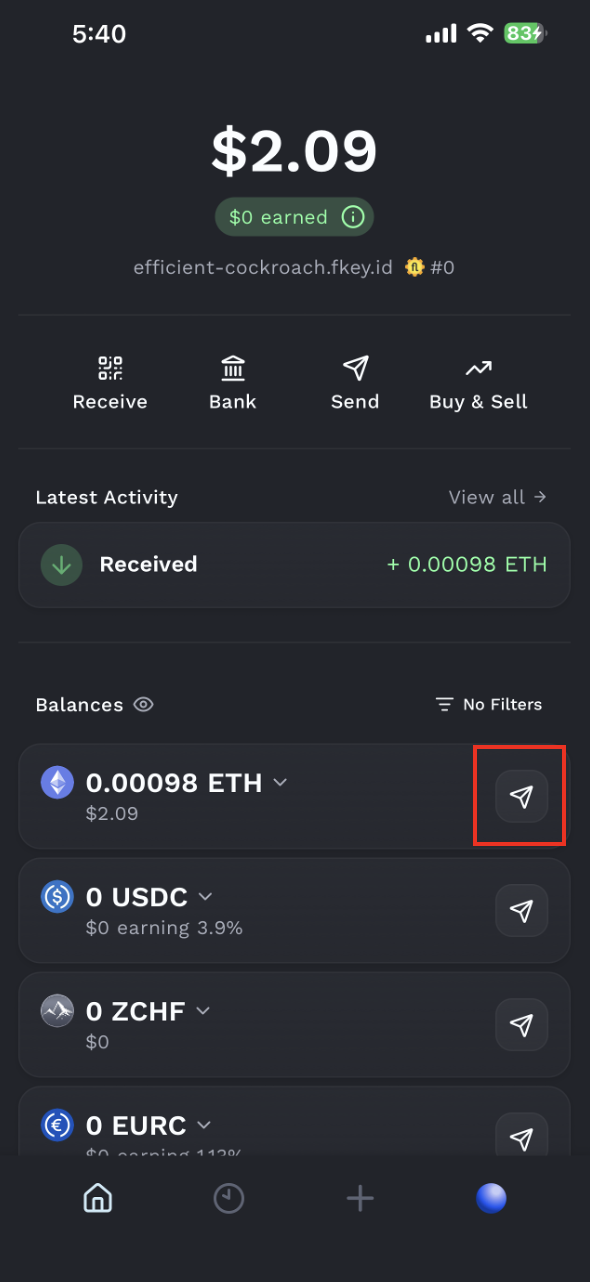
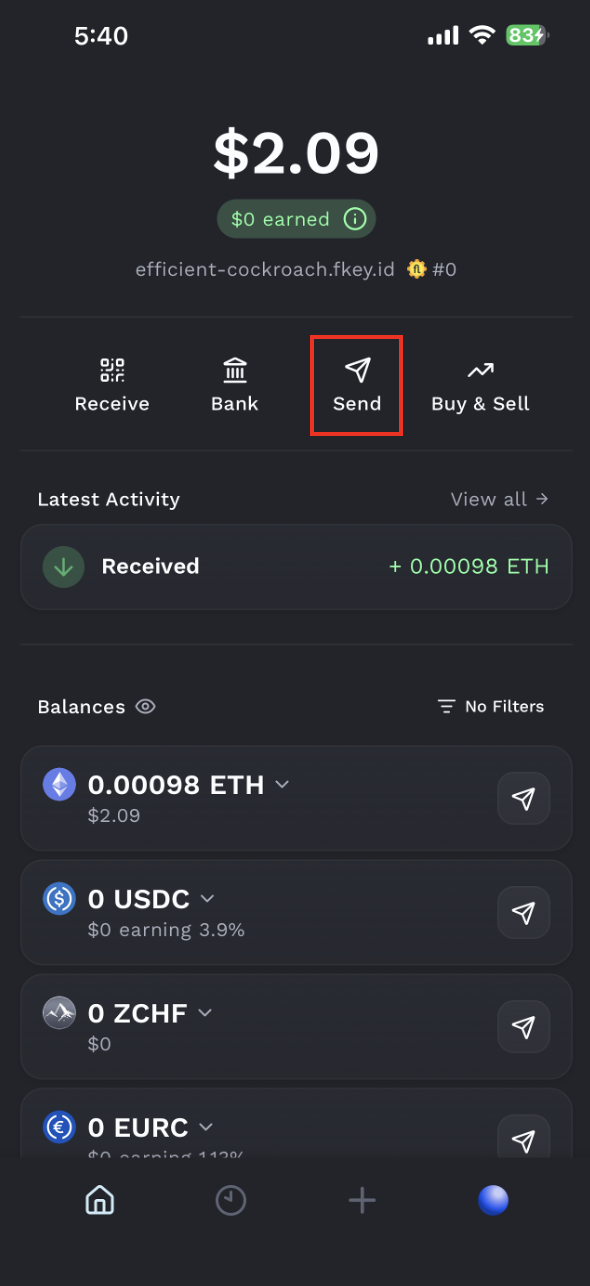
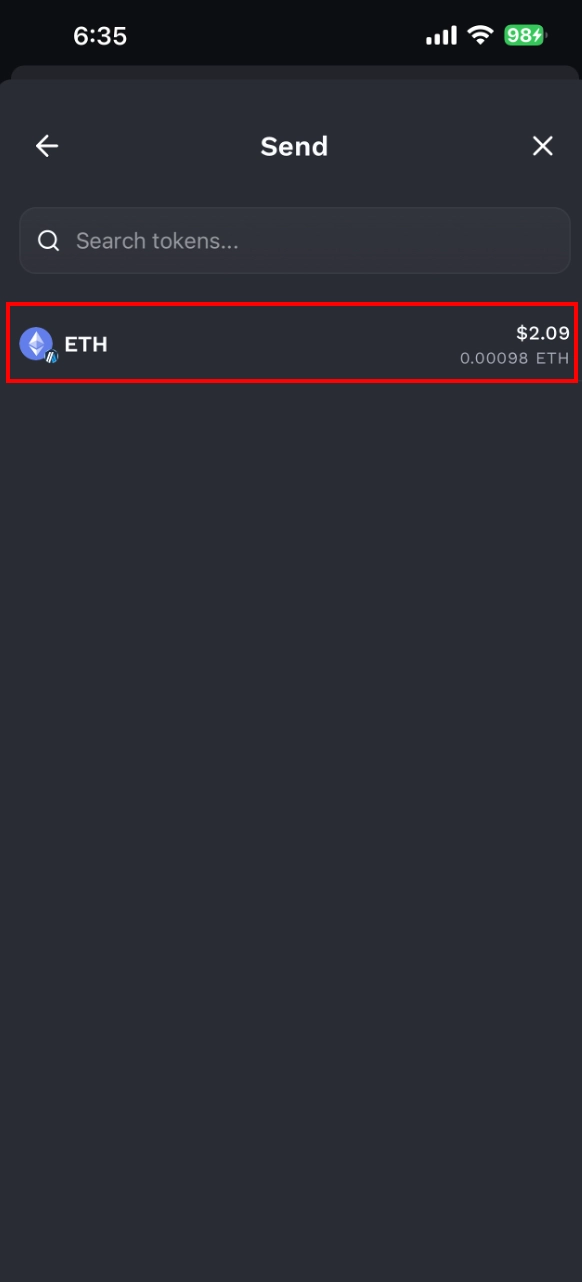
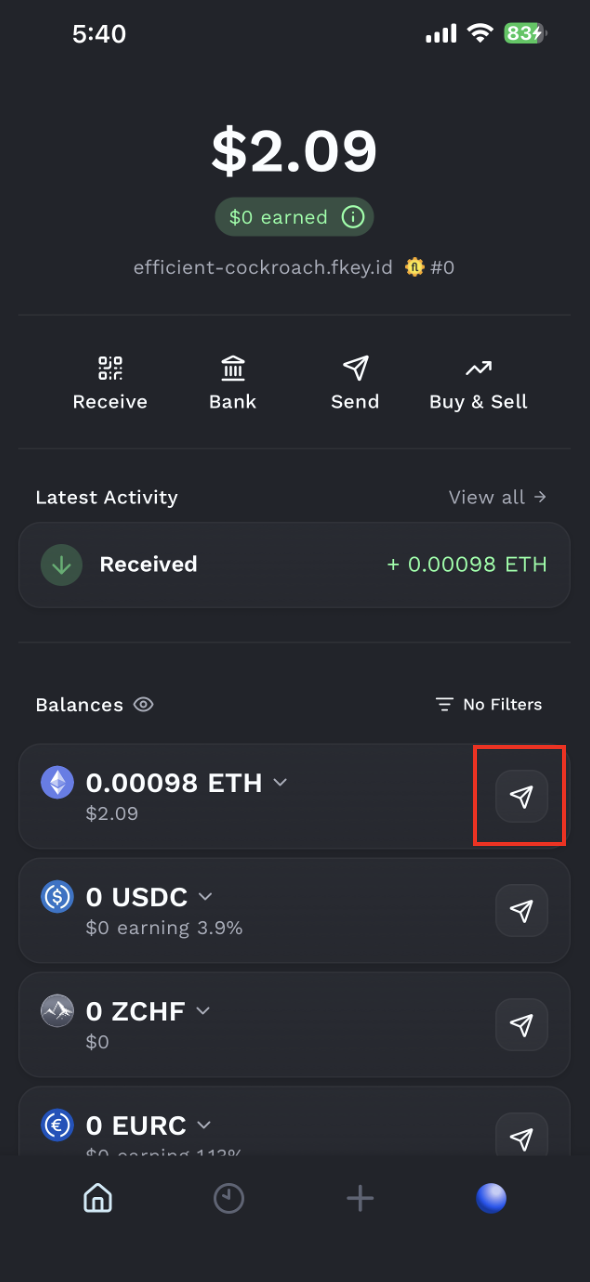
You can send funds from any of your available tokens by pressing the ↗ arrow next to the balance of your choice.
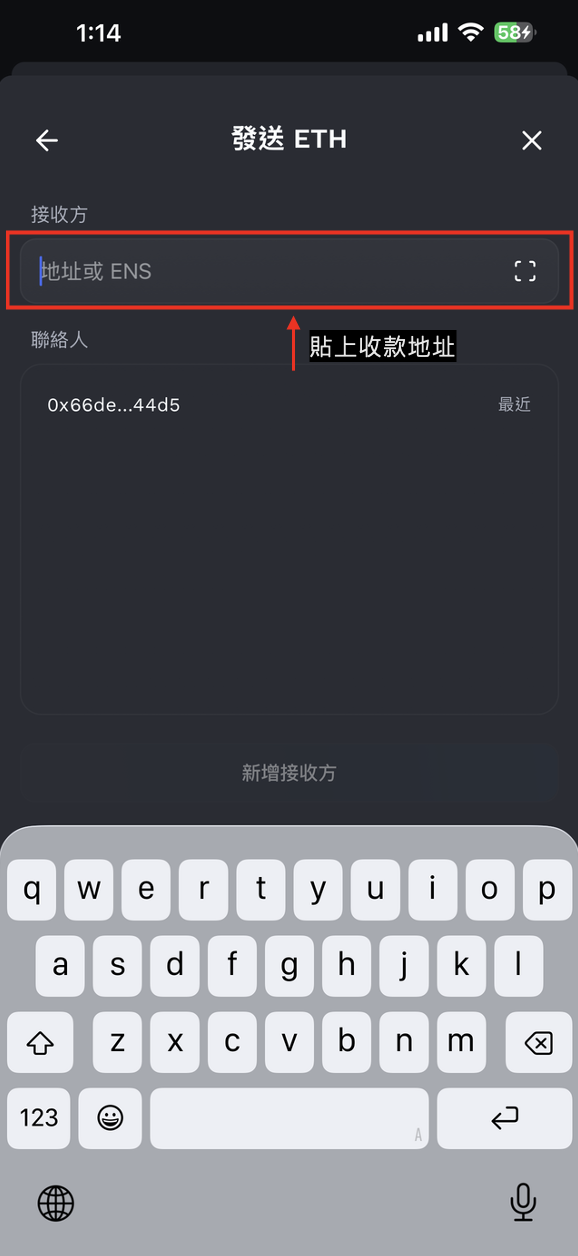
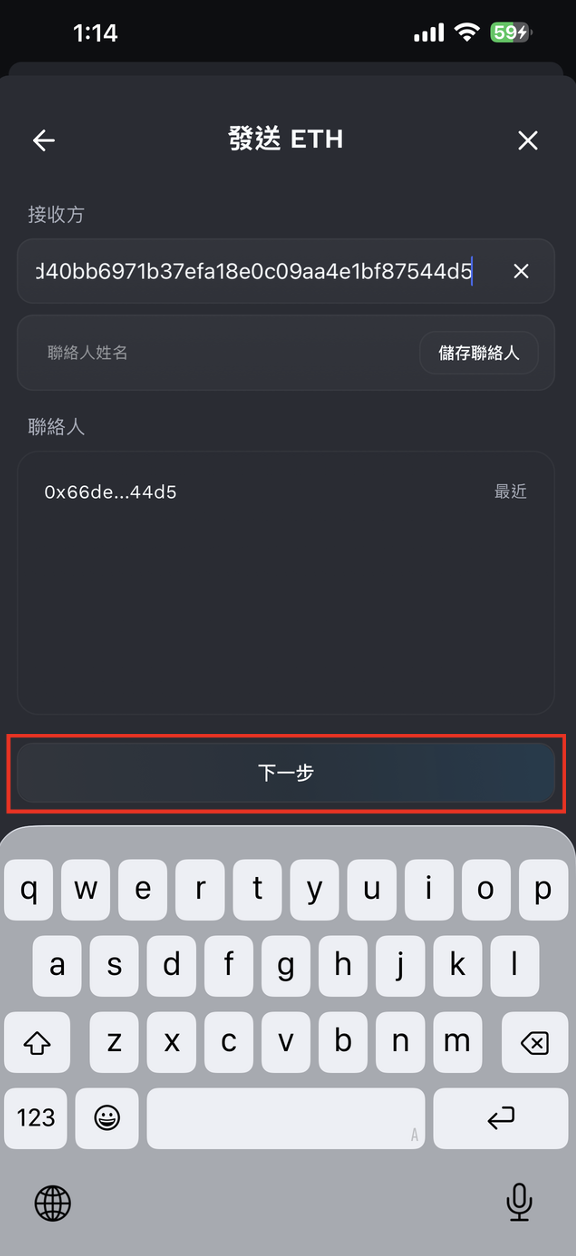
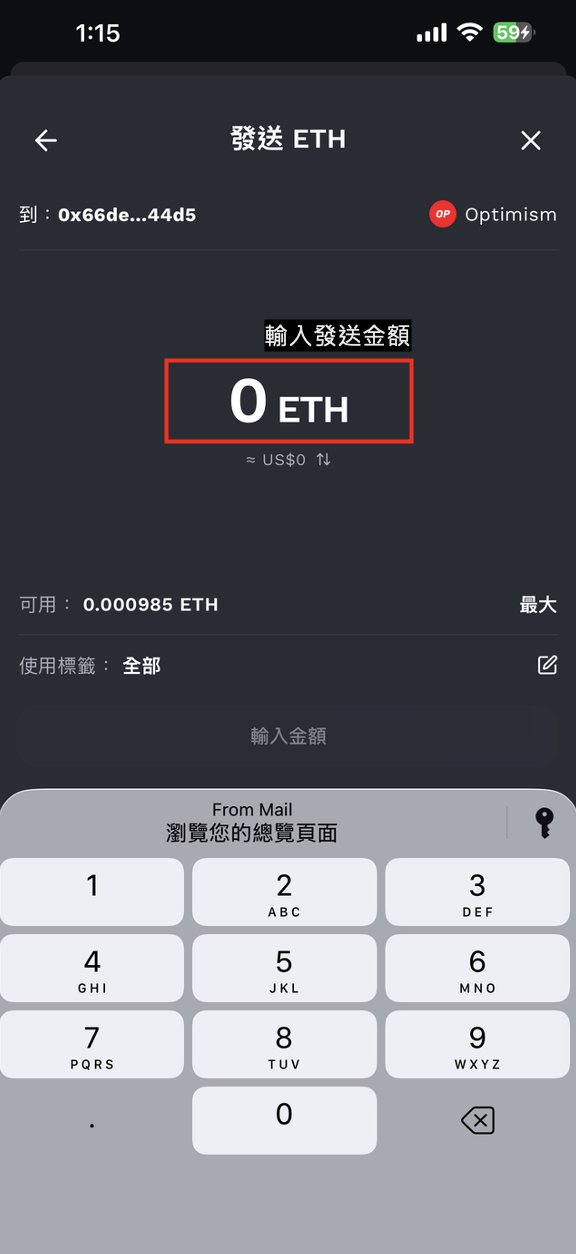
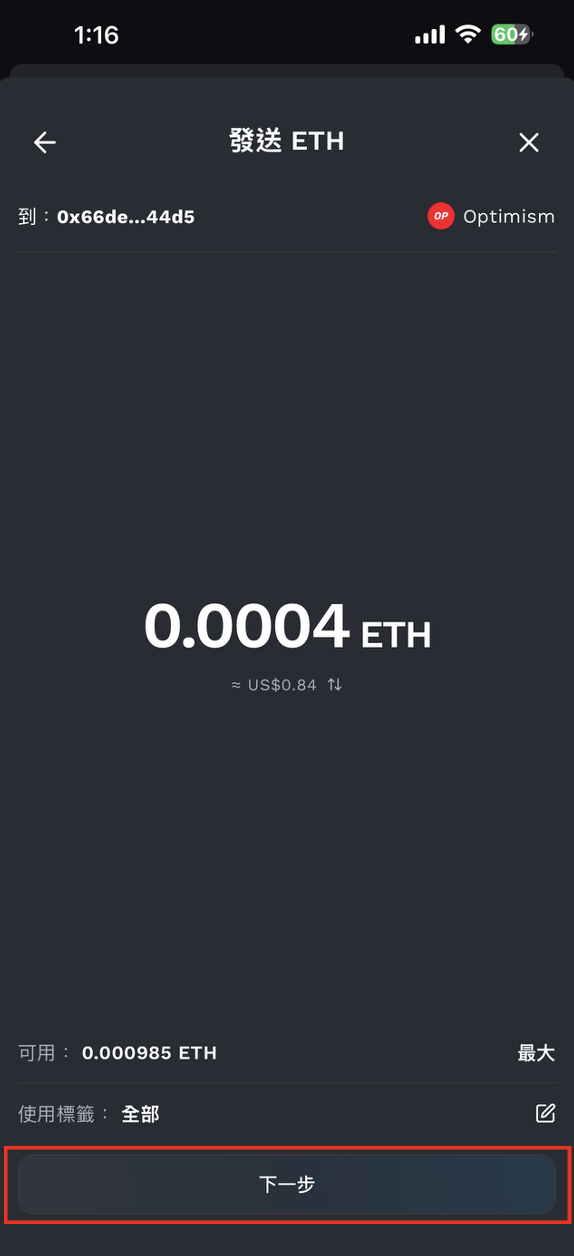
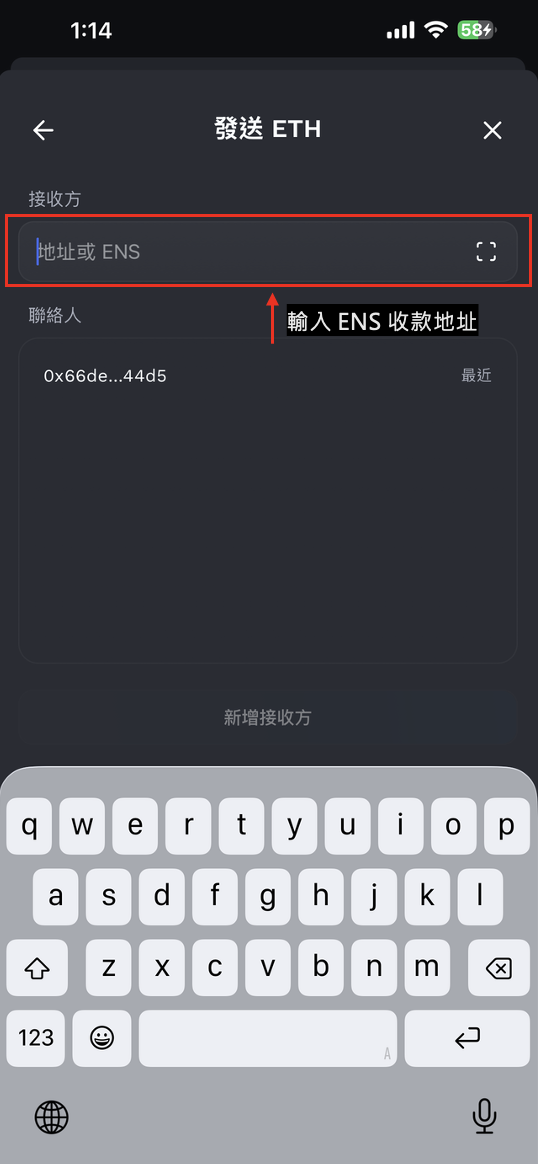
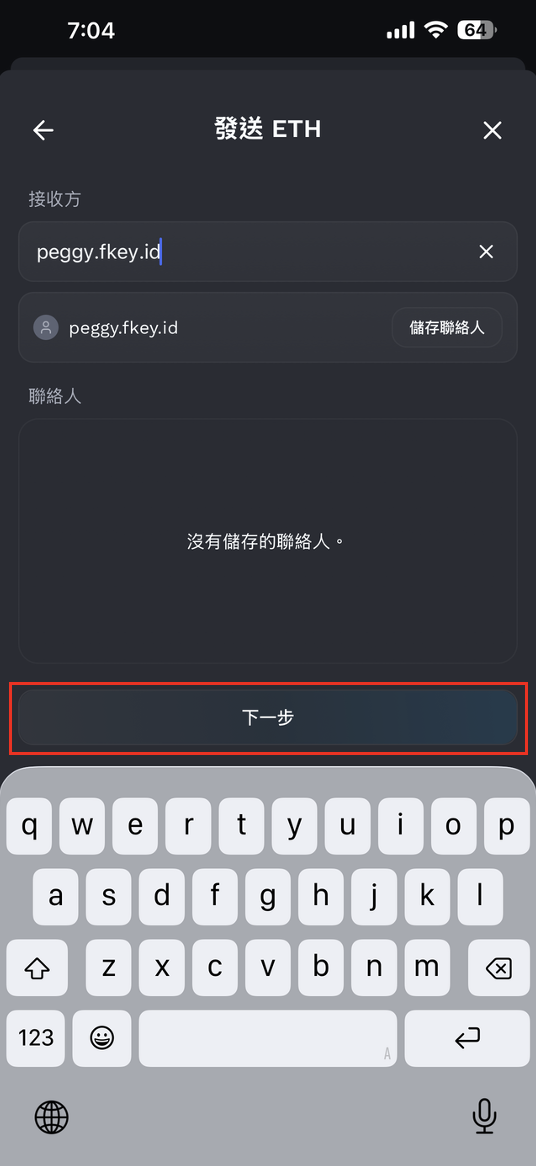
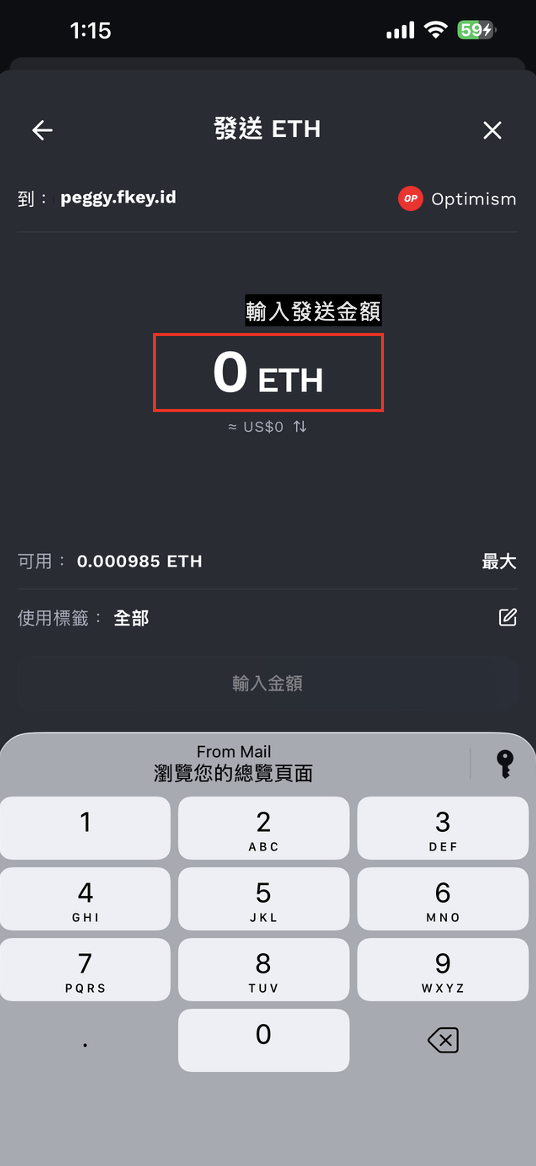
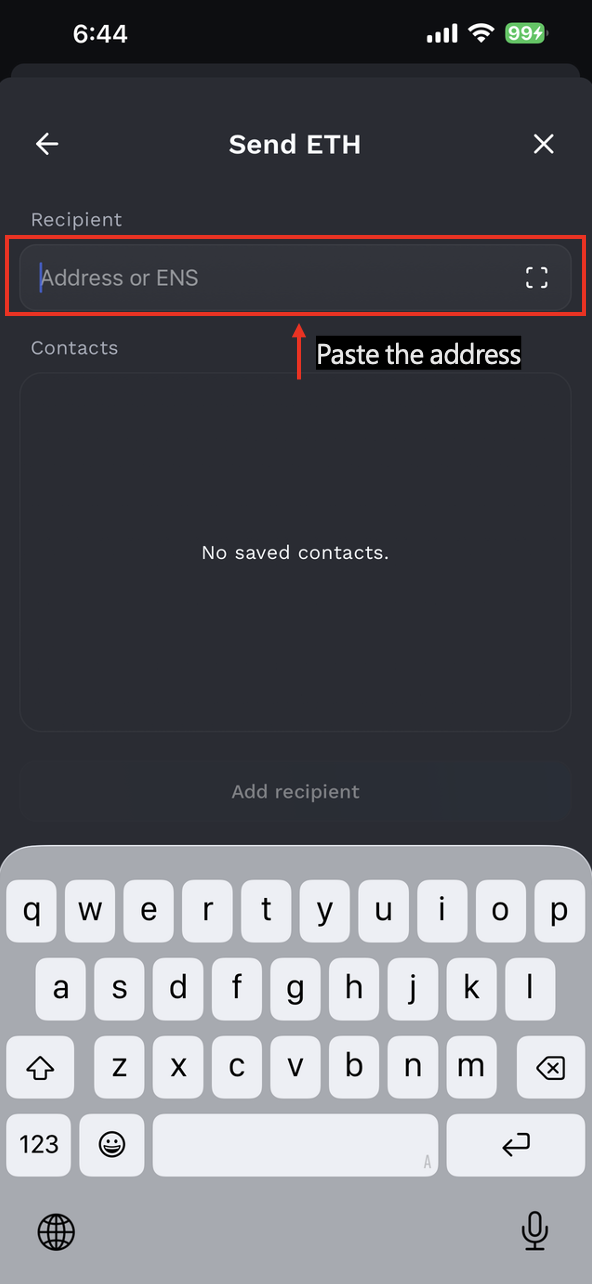
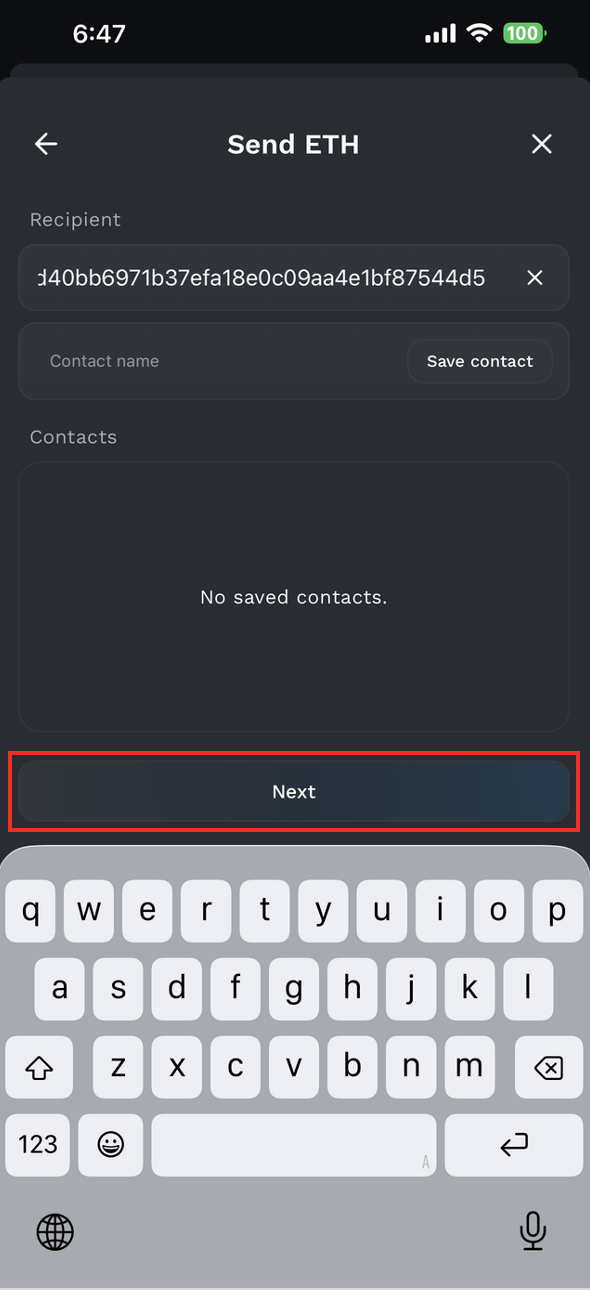
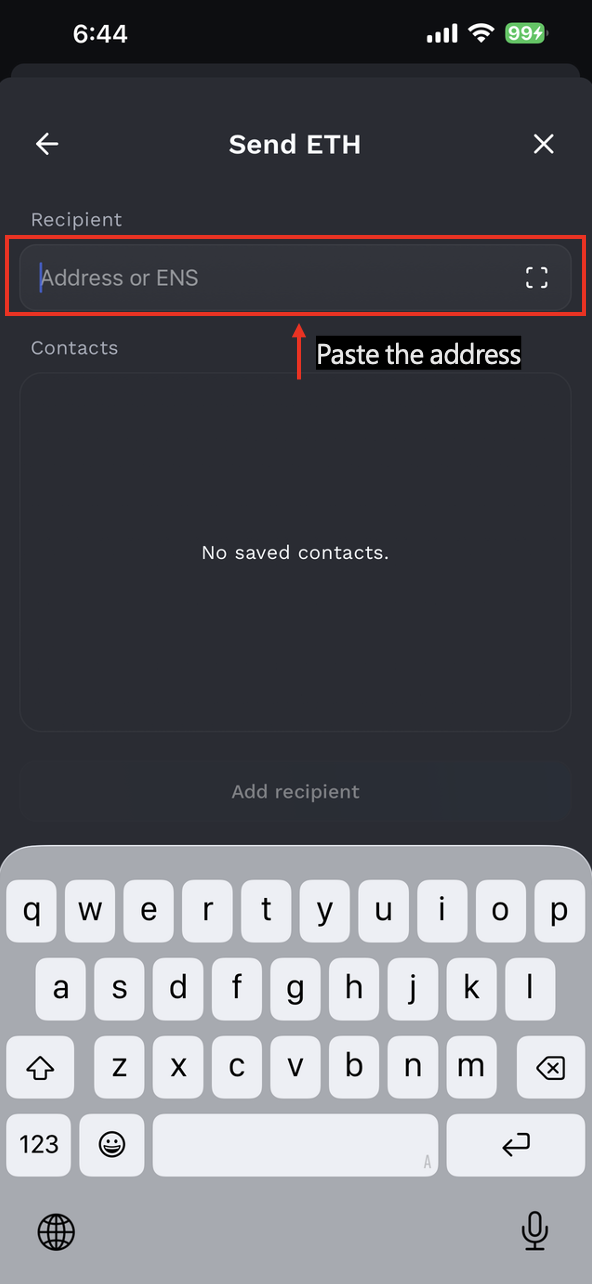
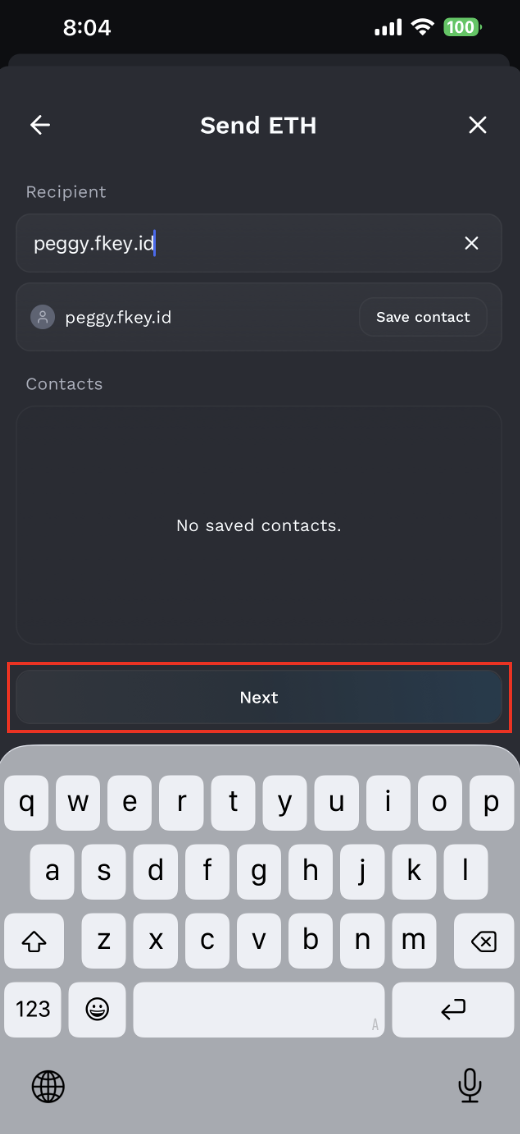
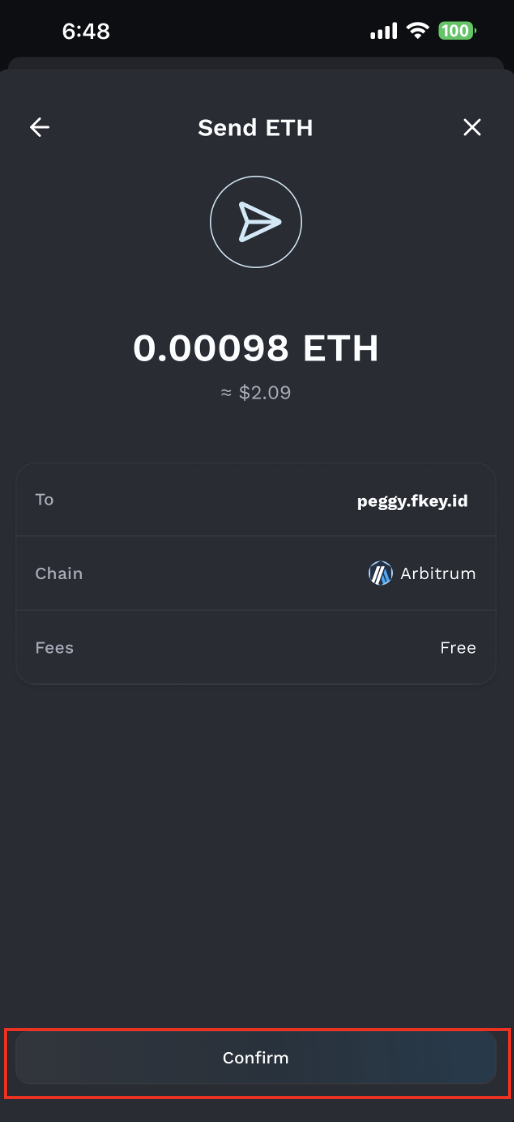
Fill in the amount you wish to send and the address of the recipient, which can be a standard Ethereum hex address or an ENS address. Fluidkey will then compute the best path to send these funds, by automatically selecting one or a few stealth accounts which have balances that are close to the amount you wish to send.
:::warning
Blockchain transactions are irreversible, so make sure you are sending the right amount of funds to the right address.
:::
### Swaps & Bridging
You can also swap and bridge assets inside of Fluidkey. The *Swap* button in the dashboard allows you to access swaps. Fluidkey uses [Bungee](https://bungee.exchange/) and [Socket](https://socket.tech/) to find the best path to swap and bridge assets.
### Best practices to preserve your privacy
You can use the Fluidkey [Labels](/readme/labels) feature to control which specific funds are used for outgoing transactions.
In order to preserve the unlinkability of your Fluidkey funds, avoid sending payments directly to addresses that are clearly tied to you. We recommend keeping funds inside of Fluidkey and sending funds to addresses that are not linked to your identity, such as wallets of third parties or exchanges.
If you do end up sending funds to addresses that are clearly tied to you, Fluidkey still gives the benefit of moving money from an account that, to an external observer, could be controlled by a third party or yourself. We plan to add options making it easier to send funds to your own wallets with stronger privacy in the future.
### Transaction fees
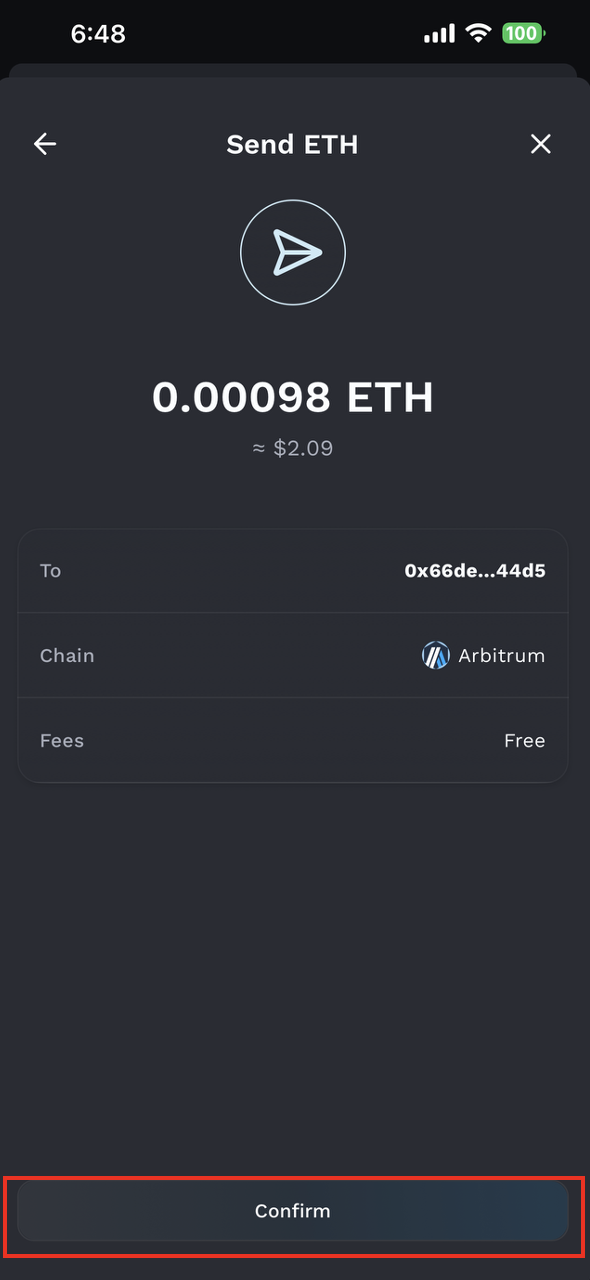
There are no gas fees for 20 transactions per user per day, available on all chains except Ethereum mainnet.
Where a transaction incurs a [gas fee](https://info.etherscan.com/what-is-gas-fee/) (for example on Ethereum mainnet), fees can be paid in ETH, USDC, DAI, USDT, MATIC, wETH, rETH, wstETH, EURC, and EURe. [Labels](/readme/labels) also apply to the addresses your fees are taken from, which allows you to have granular control over which funds are used to pay for fees.
### Contacts
When sending funds, you can add the address or ENS you are sending to. This will allow you to easily retrieve the address for future transfers.
## Tokenized Stocks
The tokenized stocks shown in Fluidkey are issued by [Ondo Global Markets](https://docs.ondo.finance/ondo-global-markets/overview). Fluidkey is a non-custodial interface: it does not issue, custody, or back these assets, and is not a broker. Ondo is the issuer, and your tokens stay in your own account at all times.
Each token tracks the total return of a publicly traded stock or ETF, including price movements, dividends, and corporate actions. There are 400+ assets available, with more added over time.
Under the hood, an Ondo tokenized stock is a structured note issued by Ondo Global Markets (BVI) Limited, a bankruptcy-remote special purpose vehicle. Each token is backed 1:1 (plus a buffer) by the corresponding security held at a regulated custodial broker-dealer. Onchain, it is a standard token (ERC-20 on Ethereum, BEP-20 on BNB Smart Chain), named with the ticker plus an "on" suffix, e.g. AAPLon. Because you hold a note rather than the share itself, you do not receive shareholder voting or information rights. For the full structure, see [Ondo's documentation](https://docs.ondo.finance/ondo-global-markets/legal-and-regulatory).
### Eligibility
Ondo tokenized stocks are not available to everyone. US persons, and persons in certain restricted jurisdictions, are prohibited from buying, holding, or redeeming them. In some regions, including the EEA, UK, and Switzerland, they are offered only to qualified or professional investors.
Before trading, check whether you are eligible on [Ondo's eligibility page](https://docs.ondo.finance/ondo-global-markets/eligibility).
### How it works
Tokenized stocks are traded on BNB Smart Chain through [Bungee](https://bungee.exchange), an exchange aggregator. When you place an order, Bungee scans available liquidity sources and routes your trade for the best execution price.
During market hours, liquidity is provided just-in-time: rather than relying on fixed liquidity pools, orders can be filled directly through Ondo's minting and redemption of the underlying tokenized stock. This gives your trade liquidity and slippage comparable to a traditional exchange, even for less-traded tickers, with the price tracking the underlying closely.
### Dividends and corporate actions
Ondo tokenized stocks are total-return trackers, so you participate in the same economics as a direct holder. When the underlying company pays a dividend, it is automatically reinvested net of applicable withholding taxes. Other corporate actions, such as stock splits, are handled in the same way.
For details, see [Ondo's corporate actions documentation](https://docs.ondo.finance/ondo-global-markets/corporate-actions).
### Market hours
Tokenized stocks can be bought and sold 24 hours a day, 5 days a week, because the tokens track US-listed securities and follow US market hours. Trading is closed on weekends and US market holidays. Trading may be paused briefly between trading sessions, around corporate actions such as ex-dividend dates, or if certain platform risk limits are reached.
You can check the current status of any asset at [status.ondo.finance](https://status.ondo.finance). More on trading hours is available in [Ondo's documentation](https://docs.ondo.finance/ondo-global-markets/overview).
### Fees
Ondo charges no minting or redemption fees. Fluidkey does not apply any fees either. There may however be a market spread and slippage on the decentralized exchange, which can sometimes lead to a slight difference in prices between the confirmation screen and the actual trade.
### Important notes
Tokenized stocks carry risks that differ from holding shares through a traditional broker, including issuer and custodian risk, smart contract risk, and regulatory risk. They are not equivalent to direct share ownership and confer no shareholder rights.
Nothing in Fluidkey or this page is investment or tax advice. The tax treatment of tokenized stocks depends on your jurisdiction and personal situation — consult your own advisor. For the issuer's full disclosures, see [Ondo's important notes](https://docs.ondo.finance/ondo-global-markets/important-notes) and [secondary market restrictions](https://docs.ondo.finance/ondo-global-markets/secondary-market-restrictions).
## How to Complete KYC on Fluidkey
### Overview of Fluidkey’s Banking Features
Fluidkey integrates Bridge’s banking infrastructure, allowing users to access traditional financial services directly within the app without switching between multiple platforms. Through this integration, you can open a bank account under your own name, receive USD or EUR directly, and send funds to external bank accounts via ACH or IBAN.
All of these actions take place within Fluidkey’s self-custodial structure, meaning you remain in control of your funds.
To enable these features, you will need to complete KYC (Know Your Customer) identity verification to meet financial compliance requirements.
### Step 1: Start Bridge KYC
Go to the Fluidkey homepage and tap “Bank”. The system will then guide you to start identity verification.
***
### Step 2: Fill In Your Basic Information
Follow the system instructions and fill in the following information step by step:
* Full legal name in English
* Date of birth
* Phone number
* National ID number
* Residential address in English
> ⚠️ Please make sure to enter your full English name and residential address exactly as shown on your passport. If you enter the information in Chinese, you will not be able to proceed to the next step.
***
### Step 3: Upload Your Identity Document
After completing the basic information, the system will ask you to upload a valid identity document.
Supported document types include:
* Passport
* National ID card
* Driver’s license
* Residence permit
When taking or uploading a photo of your document, make sure the entire document is visible, the text is clear and readable, and there is no glare or blur. This will help ensure the verification process goes smoothly.
***
### Step 4: Complete Face Verification
After uploading your document, the system will start the facial verification process. During verification, please make sure to:
* Keep your face clearly visible
* Avoid wearing hats, sunglasses, or masks
* Follow the on-screen instructions, such as turning your head left or right, to complete the verification
Once all verification steps are completed, your KYC will be complete!
***
### Step 5: Confirm That Banking Features Are Enabled
After completing all verification steps, please wait a few minutes. When your dedicated receiving account information appears in the **Bank** section, it means the banking feature has been successfully activated. This usually takes around 5 minutes.
Users in some regions may be required to complete an additional video verification step. If prompted, please follow the on-screen instructions to complete the process.
***
### Banking Feature Overview
#### Deposits and Withdrawals
Once activated, you can use your dedicated account information to receive USD or EUR transfers. In your Fluidkey account, USDC is treated as equivalent to USD at a 1:1 ratio.
Incoming funds are converted by default into **USDC on Base** and deposited into your Fluidkey account with privacy protection.
You can also adjust the target chain and cryptocurrency for incoming funds using the **“Receive as”** option below your banking information. Please note that different receiving options may involve different fees, so we recommend checking the fee details before making a selection.
#### Transfer Limits
Each user receives **US$3,000 in free transfer volume per month**, covering both deposits and withdrawals. You can continue using the service after exceeding this limit, with only a **0.3% fee** applied to the excess amount.
***
#### About Bridge and Persona
#### Bridge
Fluidkey’s banking features are powered by **Bridge**. Bridge is a compliant stablecoin infrastructure provider focused on connecting traditional finance with blockchain-based money movement, allowing users to move between fiat and crypto in a regulated and compliant way.
In 2024, Bridge was acquired by **Stripe**, a globally recognized payments company, further strengthening its position in compliant payment infrastructure.
For USD-related services, Bridge works with **Lead Bank** as its U.S. banking partner, opening accounts under the user’s own name.
#### Persona
The KYC verification process is handled by **Persona**, Bridge’s identity verification partner.
Persona is an identity verification platform widely used across fintech and Web3 industries. It helps companies complete compliant user identity checks, including document verification and facial recognition.
The identity documents and facial verification data you submit during the KYC process are processed and managed by Persona.
***
## How to Create a Fluidkey Account
Fluidkey uses a self-custody mechanism, which means users hold the private keys to their account funds themselves. We provide the application and user interface, but we cannot directly access or move your funds.
For this reason, it is very important to choose a secure, stable login method that you will still be able to use in the future when creating your account. As long as you keep access to your login method and account backup, you will be able to regain access to your Fluidkey account even if you change phones later.
The following guide explains how to create an account using the mobile Fluidkey App. This article uses Email login as the example.
***
### Step 1: Download and Open the Fluidkey App
First, download the Fluidkey App from the App Store or Google Play, depending on your phone’s operating system.
iPhone users can go to the App Store:
[https://apps.apple.com/tw/app/fluidkey/id6746163651](https://apps.apple.com/tw/app/fluidkey/id6746163651)
Android users can go to Google Play:
[https://play.google.com/store/apps/details?id=com.fluidkey](https://play.google.com/store/apps/details?id=com.fluidkey)
After opening the download page, make sure the app name is **Fluidkey**, then tap download and open it after installation is complete.
***
### Step 2: Create an Account with Email
When you open the App for the first time, you will see Fluidkey’s login or account creation screen. Tap create a new account. Fluidkey’s Email login service is provided by Privy. Privy helps generate an embedded wallet, allowing you to log in to Fluidkey with your Email without having to manage complex wallet operations from the beginning.
***
### Step 3: Verify Your Email and Mobile PIN Code
Wait for 5 to 10 seconds, then tap the Email verification code. If it does not appear, you can check your inbox for the verification code.
After verification is successful, enter your mobile PIN code. Once the verification is complete, you will be taken to the Fluidkey homepage.
### Step 4: Change to Your Preferred Language
If you are not used to using the English interface, you can change the language.
***
Please make sure you download the official Fluidkey App. Do not enter your Email, verification code, wallet information, or any account details through unknown links.
This article is only a usage guide for the mobile Fluidkey account creation process. It does not constitute financial, investment, legal, or tax advice. The actual screens, login methods, and feature names may vary depending on the App version and device system.
## Deposit and Withdraw Cryptocurrency with Fluidkey
With Fluidkey, you can receive, manage, and send ETH, USDC, and any other ERC-20 token. Unlike regular wallets, Fluidkey generates a new address for each incoming payment even when using ENS, helping reduce the possibility of different on-chain activities being linked together by outside observers.
This article will guide you step by step through how to deposit cryptocurrency into Fluidkey and how to withdraw cryptocurrency from Fluidkey to another wallet or exchange.
### 1. Deposit Cryptocurrency into Fluidkey
#### Step 1: Copy Your Address
After logging in to Fluidkey, return to the homepage and tap “Receive”.
After entering the receive page, tap to copy your address. Please note that Fluidkey currently only supports the BSC, Ethereum, Base, Optimism, Gnosis, Polygon, and Arbitrum networks.
#### Step 2: Start a Transfer from Your Wallet or Exchange
Go back to the wallet or exchange you want to send funds from. Select **“Send,” “Withdraw,”** then enter the receiving information provided by Fluidkey.
Please make sure the receiving information matches the following details:
1. **Receiving address:** Paste the address copied from Fluidkey
2. **Token:** Select the asset you want to deposit, such as ETH, USDC
3. **Network:** Select a network that is supported by Fluidkey and matches the asset you are sending.
Before submitting the transfer, carefully check that the receiving address, token, network, and amount are all correct. If the address or network is incorrect, your assets may not arrive successfully and may not be recoverable.
⚠️ Note: If you want to deposit funds from a network other than the 7 suported chains mentioned above, please refer to the additional instructions at the bottom of this article.
#### Step 3: Confirm That the Funds Have Arrived
After sending the transaction, patiently wait for the on-chain transaction to be confirmed. The actual arrival time will depend on the blockchain network and current network congestion.
Once the transaction is complete, you can return to the Fluidkey homepage to view the transfer information.
#### Step 4 (Advanced Privacy Feature): Generate a New Address for Your Next Deposit
When you need to receive another payment, go back to the **Receive** page and tap **“Generate new one-time address”** to get a new receiving address. You can also reopen the app, and Fluidkey will generate a new address automatically. This helps prevent multiple payments from being sent to the same address, reducing the chance that different on-chain transactions can be linked together.
Please note that once an address is generated, it belongs to you permanently, and you are free to continue receiving funds at a previously generated address. If you are unsure whether an address belongs to you, you can verify its ownership via "Receive → Verify Address Ownership.
### 2. Withdraw Cryptocurrency from Fluidkey
#### Step 1: Select the Token You Want to Withdraw
Open the Fluidkey homepage, tap “Send”, then select the token you want to withdraw.
You can also tap the arrow next to the token balance to start a transfer directly from that token.
The gas fee rules vary by network:
* **Base / BSC / Optimism / Gnosis / Polygon / Arbitrum:** 20 free transactions per day
* **Ethereum:** Requires an additional gas fee
If you'd like to bridge across chains first and then send crypto on a different chain to another address, you can do this all in one step via the "Buy/Sell" → "Advanced" → "Show Advanced Options" → "Swap To" function on the home page.
#### Step 2: Enter the Receiving Address
After entering the send page, enter the recipient’s address in the receiving address field. Fluidkey supports standard Ethereum hexadecimal addresses and also supports ENS addresses. You can enter a regular address starting with 0x , or enter the ENS provided by the recipient.
#### Step 3: Enter the Withdrawal Amount
Next, enter the amount you want to send.
Fluidkey will automatically calculate the best transfer route and send funds from one or more stealth accounts with balances close to the target amount, in order to minimize the simultaneous exposure of multiple on-chain addresses.
Before submitting, carefully confirm that the receiving address, token being sent, transfer network, and amount are correct.
⚠️ Note: Fluidkey uses a Safe smart contract account architecture. Please double-check, for the chain and token you've selected, whether the recipient supports deposits from smart contract accounts. Once a transaction is submitted on-chain, it generally cannot be cancelled or reversed. If this is your first time sending to a specific address, it is recommended testing with a small amount first, and confirming it arrives successfully before sending a larger amount.
#### Step 4: Confirm the Transaction Status
Gas fee rules vary by network. Aside from Ethereum, each of the other six supported chains includes 20 gas-free transactions per day. Transactions on the Ethereum mainnet require an additional gas fee.
The exact gas fee is subject to the information displayed in the Fluidkey interface.
## Additional Guide: Cross-Chain Crypto Deposits to Fluidkey
In addition to depositing assets from EVM networks supported by Fluidkey, you can also use the cross-chain deposit feature to transfer crypto from other blockchains into Fluidkey. The funds will be automatically bridged through Near Intents and displayed in your Fluidkey balance.
Currently supported source chains include:
Near, Zcash, Bitcoin, Solana, Tron, Binance (BNB), Avalanche, Ton, Sui, Stellar, and Monad
### Step 1: Go to Your ENS Payment Page
On the homepage, tap **"Receive"** and select **"Open Payment Page"**. Alternatively, you can open your payment page directly by entering your Fluidkey ENS address in a browser:
`yourname.fkey.id`
Once on the page, scroll down and tap **"Send from Bitcoin, Solana, Tron, and more →"**.
### Step 2: Select the Source Chain and Token
After clicking the button, a cross-chain deposit window will appear. Select the chain you want to send funds from, then choose the corresponding token.
For example, if you want to deposit USDC from Near, select **Near** as the source chain, choose **USDC** as the deposit asset, and enter the amount you want to deposit.
### Step 3: Send Funds from Your Wallet or Exchange
The system will generate a deposit address. Go to your external wallet or exchange and send the corresponding amount to that address. Make sure the chain, token, and amount match exactly what you selected in the previous step — any mismatch may result in the transaction failing to process.
> ⚠️ Please note that the actual amount sent must not differ significantly from the amount entered, and must not fall below the minimum shown on the page, otherwise the transaction may not be processed.
>
> Before proceeding, double-check the source chain, token, amount, and deposit address, and be mindful of any network fees and the final amount that will be received.
>
> If you have any questions, please reach out via the **"Support"** in the App, the Fluidkey team will get back to you as soon as possible.
### Step 4: Wait for the Funds to Arrive
Once the transaction is sent, your funds will be automatically bridged via **Near Intents** and converted to USDC before being credited to your Fluidkey balance. In most cases, funds will appear within a few minutes, though it may take up to **20 minutes** in some cases.
Once received, the funds will automatically appear in your Fluidkey balance — no manual bridging or additional steps required.
## How to Fund and Withdraw Your IBKR Account Using Fluidkey with No Fees
In your Fluidkey account, USDC is treated as USD on a 1:1 basis, which you can use to on-ramp or off-ramp USD between your Fluidkey balance and an external bank account.
Once you complete KYC, Fluidkey provides an embedded ACH account, powered by [Noah](https://noah.com) with SSB Bank as the U.S. banking partner. The account is held in your own name, so you can use it to deposit to and withdraw from brokerage accounts such as IBKR.
Every user is entitled to $3,000 in free transfers per month, covering both on-ramp and off-ramp activity. Beyond that limit, you can still send and receive funds with a 0.3% fee applied.
This article walks you through how to deposit funds into your IBKR account using Fluidkey. If you'd like to learn about the withdrawal flow instead, please refer to: *How to withdraw money from IBKR to Fluidkey with no fee*.
## How to Fund Your IBKR with Fluidkey
### Step 1: Link Your Bank Account in IBKR
After completing registration, IBKR will first prompt you to link a bank account.\
At this step, you need to enter your **Routing Number** and **Account Number**.
Go to the **Bank** section on the Fluidkey homepage, where you can find the required account details.\
*(Note: The full name on your SSB Bank account must exactly match the name on your IBKR account.)*
### Step 2: Complete IBKR's Additional Verification
After submitting your account details, IBKR requires additional verification.\
Choose the first option: **Wait for micro-deposits**.
After confirming and submitting all details, you will receive two small deposits (under $1) within a few days for verification. Timing can vary by user, so please be patient.
### Step 3: Verify the Micro Deposits
A few days later, IBKR will email you to confirm that the two micro deposits were sent.
A few hours later, Fluidkey will receive those deposits and notify you by email.
Go back to the IBKR email, click **Verify Micro Deposits**, and enter the two deposit amounts in order to complete account verification and link your account successfully.
*(Note: Every user receives different deposit amounts. Do not enter the amounts shown in the example images.)*
### Step 4: Deposit Funds into IBKR
Once account verification is complete and your bank account is linked, follow these steps in IBKR to deposit funds: choose **Deposit**.
Select the first option: **Deposit Funds**.
Important: select **Use a New Deposit Method**.
*(Note: Do not choose **Linked Bank Accounts**. The reason is explained below.)*
Find the second option, **Initiate a Direct ACH Transfer from Your Bank**, then click **Get Instructions**.
In the **Confirm the Country/Region of Your Bank** pop-up, choose **Yes** to confirm (Fluidkey's banking partner, SSB Bank, is located in the United States).
Use the instruction details shown there, then return to Fluidkey and initiate an ACH bank transfer.
### Step 5: Send USDC from Fluidkey
Open Fluidkey, tap **Send**, then select **USDC**.
*(Note: You can also send other tokens. We will automatically convert before payout, and the full flow remains one-click for you. USDC currently supports a 1:1 withdrawal rate. If you send via Base, no gas fee is required.)*
In the address field, tap the **Bank** icon on the right, choose **ACH (USD)** and **Individual**, then enter the Routing Number, bank name, and account number based on IBKR instructions.
Click **Next**.
Enter your **First Name** and **Last Name**; they must exactly match the name on your IBKR account.
For **Country**, select **USA**. For **Address**, search online for **UMB Bank, IBKR, Address**. In one example account, you can use:
Address: 1010 Grand Boulevard\
City: Kansas City\
Zip Code: 64106\
State/Province: Missouri (MO)
*(Note: Some users may be mapped to a different receiving bank. Always verify the bank name and address online before entering.)*
Enter the amount to send, click **Next**, then **Confirm**.
After sending successfully, you will receive a confirmation email from Fluidkey.\
*(ACH transfers usually take 1-3 business days, so please be patient.)*
A few days later, once the funds are credited, you'll receive an IBKR **Deposit Activity Update** email, confirming the deposit is complete.\
*(In this test run, it took three full days. Processing time can vary by transaction.)*
### Important Reminder: Do Not Do This
Fluidkey does not support **fund pull** from your bank account. Fluidkey is a self-custodial wallet; we only withdraw to your SSB Bank account via Noah when you send funds. Likewise, when funds arrive in your SSB Bank account, they are immediately deposited back into your Fluidkey wallet via Noah.
That means your SSB Bank account effectively does not keep a standing balance. If you accidentally select the first option in the **Deposit** section, **Link Your Bank Account**, and follow that flow, the transfer will fail (because IBKR cannot pull funds from the account), and your account status may also be affected.
## How to Withdraw from IBKR to Fluidkey
Withdrawing funds from IBKR (Interactive Brokers) to Fluidkey is quick and straightforward. Follow the steps below to get started.
Note: Make sure you have already linked your Fluidkey account (SSB Bank) in IBKR. If not, please add it under your account settings before proceeding.
### Steps
**Step 1:** Log in to IBKR and select "Withdraw" on the homepage.
**Step 2:** From the list of linked accounts, select your Fluidkey (SSB Bank) account.
**Step 3:** Enter the withdrawal amount and fill in the required details, then click "Create Withdrawal".
**Step 4:** A confirmation page will appear — review the amount and account information carefully. Once everything looks correct, click "Confirm Withdrawal" to complete your request.
**Finish:** After submitting, funds typically arrive within 1–3 business days, depending on processing times.
## How to Deposit and Withdraw USD with Fluidkey and Wise
In your Fluidkey account, USDC is treated as US dollars (USD) at a 1:1 ratio. You can use this balance to on-ramp or off-ramp USD between Fluidkey and external bank accounts.
Once you complete KYC in the "Bank" section of the app, Fluidkey provides you with a dedicated ACH account — powered by [Noah](https://noah.com), with Lead Bank as the US banking partner. Since the account is opened in your own name, it can be used to deposit funds into — or withdraw funds from — international money transfer services such as Wise.
Each user receives a free transfer allowance of USD 3,000 per month, covering both on-ramp and off-ramp transactions. Once this limit is exceeded, transfers can continue at a flat 0.3% fee. Below, we'll walk through how to deposit USD into your Wise account via Fluidkey and how to withdraw it back; from there, you can also use Wise's SWIFT feature to further transfer funds to your local bank account.
### Section 1 — Depositing into Wise via Fluidkey
#### Step 1 — Get Your Wise USD Account Receiving Details
In Wise, tap "Account Details" to retrieve your ACH receiving information.
#### Step 2 — Initiate the Transfer from Fluidkey
Return to the Fluidkey home screen and tap "Send."
Select USDC, then tap the small bank icon to the right of the recipient address field.
#### Step 3 — Fill In the Account Details
Enter the information using the receiving details provided by Wise, and tick "Add Contact" to save this account as a reusable contact for future transfers.
#### Step 4 — Select the Saved Contact and Enter the Amount
Tap the contact you just saved (Wise), enter the transfer amount, and tap "Next."
Sending USDC on the Base chain incurs no on-chain gas fees, and there is no transaction fee as well within your USD 3,000 monthly allowance.
Once the transfer is complete, you'll receive a receipt from Fluidkey — then simply wait 1–3 business days for the ACH transfer to clear!
### Section 2 — How to Withdraw USD from Wise to Fluidkey
#### Step 1 — Start a Transfer in Wise
On the home screen, tap "Send," choose "USD" as the transfer currency, and select "Enter bank details manually" when adding the recipient.
#### Step 2 — Set Up the Recipient
For the recipient, choose "Myself," select "ACH," and then fill in the receiving account details.
Please go to the **"Bank"** section on the Fluidkey homepage, where you'll find the required account details. *(Note: The full name on your SSB Bank account must match exactly the name on your Wise account.)*
#### Step 3 — Enter the Transfer Amount
After filling in the recipient bank details, enter the amount you'd like to send and the system will show the fees you need to pay.
Choose "USD" from your account balance as the payment method, then select a transfer reason — you can fill this in based on your personal needs.
After confirming the transfer details are correct, enter your password to confirm the transfer.
ACH transfers typically take 1–3 business days to arrive.
In addition to sending money from Wise back to Fluidkey via ACH, you can also use the global SWIFT network to transfer USD to any SWIFT-supported local bank account worldwide.
### Attachment: How to Set Up a Wise USD Account
If you're new to Wise, you can first sign up using your preferred method, then follow the instructions below to set up your "USD account." Once that's done, you'll be able to transfer money directly from Fluidkey to Wise.
To open a USD account and obtain USD receiving details, every new user must first deposit USD 20 before they can begin KYC and start using the account. The following tutorial is tailored for Taiwanese users — please evaluate the exact options and steps based on your own situation.
#### Step 1 — Add USD as a Currency
Follow Wise's prompts on the "Home" page, choose "Add a currency to your account," and select "USD" in the subsequent steps.
#### Step 2 — Complete the First USD 20 Deposit
Click "Account Details." You'll be asked which currency you'd like to receive — choose "USD."
Every user must deposit at least USD 20 when first setting up their USD account. Tap "Change" next to the payment method to select your preferred deposit option for this initial transfer.
Entering an amount below USD 20 will trigger an error message.
We recommend choosing the fastest-clearing option: Debit Card (with a USD 0.25 fee) or Credit Card (with a USD 1.31 fee).
:::warning
Do NOT choose "Pay via Linked Bank Account (ACH)" at this step.
This is because the next screen will redirect you to log in with a US phone number along with your Lead Bank online banking credentials. However, since the Lead Bank service is built on top of your Fluidkey account, we don't provide users with full Lead Bank online banking login or operational access — so you won't be able to proceed at this step.
:::
If you choose Credit Card as your payment method, you can complete the transaction just like any standard credit card payment — enter your card number, expiration date, and CVV to finalize the deposit. Since the system detects that the card issuer is not a US-based bank, Wise will notify you that your issuer may charge an additional foreign transaction fee.
#### Step 3 — Confirm Your Tax Obligations
After the deposit is complete, Wise will ask about your tax obligations and then guide you through the identity verification (KYC) process.
If you are a tax resident living in Taiwan and only hold Taiwanese citizenship, you can follow the steps shown below. If you hold additional foreign nationalities, please fill in the form truthfully based on your personal status.
#### Step 4 — Complete Identity Verification (KYC)
If you happen to have your passport on hand, you can scan the QR code with your phone and start the process right away. Alternatively, we recommend having Wise send the verification link to your email so you can complete the process later.
Once you receive the verification email, click "Start verifying my ID."
:::note
Although Wise offers multiple ID options for verification, in our testing, only **passports** are accepted — uploading a Taiwanese national ID card will return an "unable to recognize file" error.
:::
The rest of the KYC flow follows the standard process, so we won't go into detail here. Once complete, you'll receive a confirmation email from Wise. In our testing, the KYC approval email arrived within about 20 minutes. Processing time varies between users, but Wise is generally quite efficient.
#### Step 5 — Confirm Account Usage, Complete the Deposit, and Get Your USD Receiving Details
After KYC is complete, return to the main page. Wise will ask about how you plan to use your account so it can confirm and process your first deposit. You can respond based on your expected usage — just answer honestly.
Finally, you'll see your USD 20 successfully deposited, and clicking "View Account Details" again will reveal your full USD receiving information!
***
**Disclaimer**
The content of this article is provided solely for the purpose of sharing technical and product information, and does not constitute investment, financial, tax, or legal advice. Cross-border fund transfers are subject to the financial regulations, foreign exchange controls, and tax reporting requirements of the relevant jurisdictions. Users are responsible for verifying the applicable rules based on their own location and circumstances, and for bearing any associated risks. Any operations described herein are for illustrative purposes only; please evaluate carefully and consult a qualified professional before use where appropriate.
## Send with ENS: Making Crypto Transfers Simpler
**What is ENS?**
ENS (Ethereum Name Service) is a decentralized domain name system built on the Ethereum blockchain. It works similarly to the internet’s DNS (Domain Name System): it turns long, hard-to-read wallet addresses into human-readable names.
A typical wallet address usually looks like this:
`0xabcd………1234`
With ENS, using Fluidkey as an example, you can map an address to a shorter and easier-to-remember name, such as:
`username.fkey.id`
or
`username.fkey.eth`
ENS domains are stored on the Ethereum blockchain and do not rely on any centralized institution. No one can unilaterally change or revoke your domain ownership. When a wallet that supports ENS looks up a domain, the system automatically resolves it to the corresponding receiving address, so you do not need to manually copy and paste the full 0x address.
#### Important Notes About ENS Transfers
ENS transfers require both wallets to support ENS resolution. Wallets that currently support ENS include **Fluidkey, MetaMask, Rainbow**, and others.
**If the recipient’s wallet does not support ENS**, you will not be able to initiate a transfer by entering an ENS domain directly. In that case, you will still need to ask the recipient for their full 0x wallet address.
In other words, the convenience of ENS depends on whether both the sender’s and recipient’s wallets support this feature.
#### Chains Supported by Fluidkey
When sending funds through Fluidkey using ENS, **the following seven native chains are currently supported**:
* Ethereum (ETH)
* Arbitrum (ARB)
* Optimism (OP)
* Base
* Polygon
* Gnosis
* BNB Smart Chain (BSC)
Please make sure your transfer is made on one of the supported chains above. Otherwise, the funds may not arrive correctly.
### How to Send with ENS: Step-by-Step Guide
#### Step 1: Set Your Username
Tap the icon in the bottom-right corner to enter your profile page. Select **“Edit username,”** enter the username you want to use, and save it.
Once the username is set, your ENS address will become active automatically.
***
### Step 2: Confirm Your ENS Address
Go back to the home page to view your ENS address. The format will be:
`username.fkey.id`
You can tap the address to copy it directly and share it with the sender.
***
### Step 3: Select the Token You Want to Send
Open the Fluidkey home page and tap **“Send.”** Then, select the token you want to send.
You can also tap the arrow next to a token balance to start a transfer directly from that token.
***
### Step 4: Enter the Recipient’s ENS Address
In the receiving address field, enter the recipient’s ENS domain.
If the recipient is also a Fluidkey user, you only need to know their username to identify their ENS address.
For example, if your friend’s username is `peggy`, their ENS address will be:
`peggy.fkey.id`
***
### Step 5: Enter the Transfer Amount
Enter the amount you want to send. Fluidkey will automatically calculate the best transfer route and send funds from one or more private accounts with balances closest to the target amount.
If needed, Fluidkey may also help process token swaps or cross-chain routing.
**Before submitting the transaction, make sure to carefully review the following information:**
* Receiving address
* Token being sent
* Transfer network
* Transfer amount
⚠️ Once an on-chain transaction is submitted, it usually cannot be canceled or recovered. If this is your first time sending funds to a specific address, we recommend sending a small test amount first. After confirming that it arrives successfully, you can proceed with a larger transfer.
***
### Step 6: Confirm the Gas Fee and Transaction Status
Each Fluidkey user receives **20 free gas fee transactions per day** on supported chains other than the Ethereum mainnet.
Relevant fee information will be displayed before the transaction is submitted. Please review the details before completing the transfer.
***
### How Fluidkey ENS Protects Your Privacy
When someone sends funds to your Fluidkey ENS address, Fluidkey resolves the domain into a new receiving address each time it is queried.
This means that although the sender uses the same ENS domain every time, each payment is actually sent to a different address.
This design helps protect the recipient’s privacy by preventing multiple transactions from being concentrated in the same address. It also reduces the risk of having your on-chain transaction history linked and tracked.
***
## Guides
This section collects practical tutorials to help you complete setup and funding flows step by step.
* [How to Fund Your IBKR Account with Fluidkey](/guides/how-to-fund-ibkr-with-fluidkey)
* [How to Create a Fluidkey Account](/guides/how-to-create-fluidkey-account)
* [How to Complete KYC on Fluidkey](/guides/how-to-complete-kyc-on-fluidkey)
* [Send with ENS: Making Crypto Transfers Simpler](/guides/how-to-send-with-ens)
* [Deposit and Withdraw Cryptocurrency with Fluidkey](/guides/how-to-deposit-withdraw-crypto-with-fluidkey)