
How to Fund and Withdraw Your IBKR Account Using Fluidkey with No Fees
In your Fluidkey account, USDC is treated as USD on a 1:1 basis, which you can use to on-ramp or off-ramp USD between your Fluidkey balance and an external bank account.
Once you complete KYC, Fluidkey provides an embedded ACH account, powered by Noah with SSB Bank as the U.S. banking partner. The account is held in your own name, so you can use it to deposit to and withdraw from brokerage accounts such as IBKR.
Every user is entitled to $3,000 in free transfers per month, covering both on-ramp and off-ramp activity. Beyond that limit, you can still send and receive funds with a 0.3% fee applied.
This article walks you through how to deposit funds into your IBKR account using Fluidkey. If you'd like to learn about the withdrawal flow instead, please refer to: How to withdraw money from IBKR to Fluidkey with no fee.
How to Fund Your IBKR with Fluidkey
Step 1: Deposit Funds into IBKR
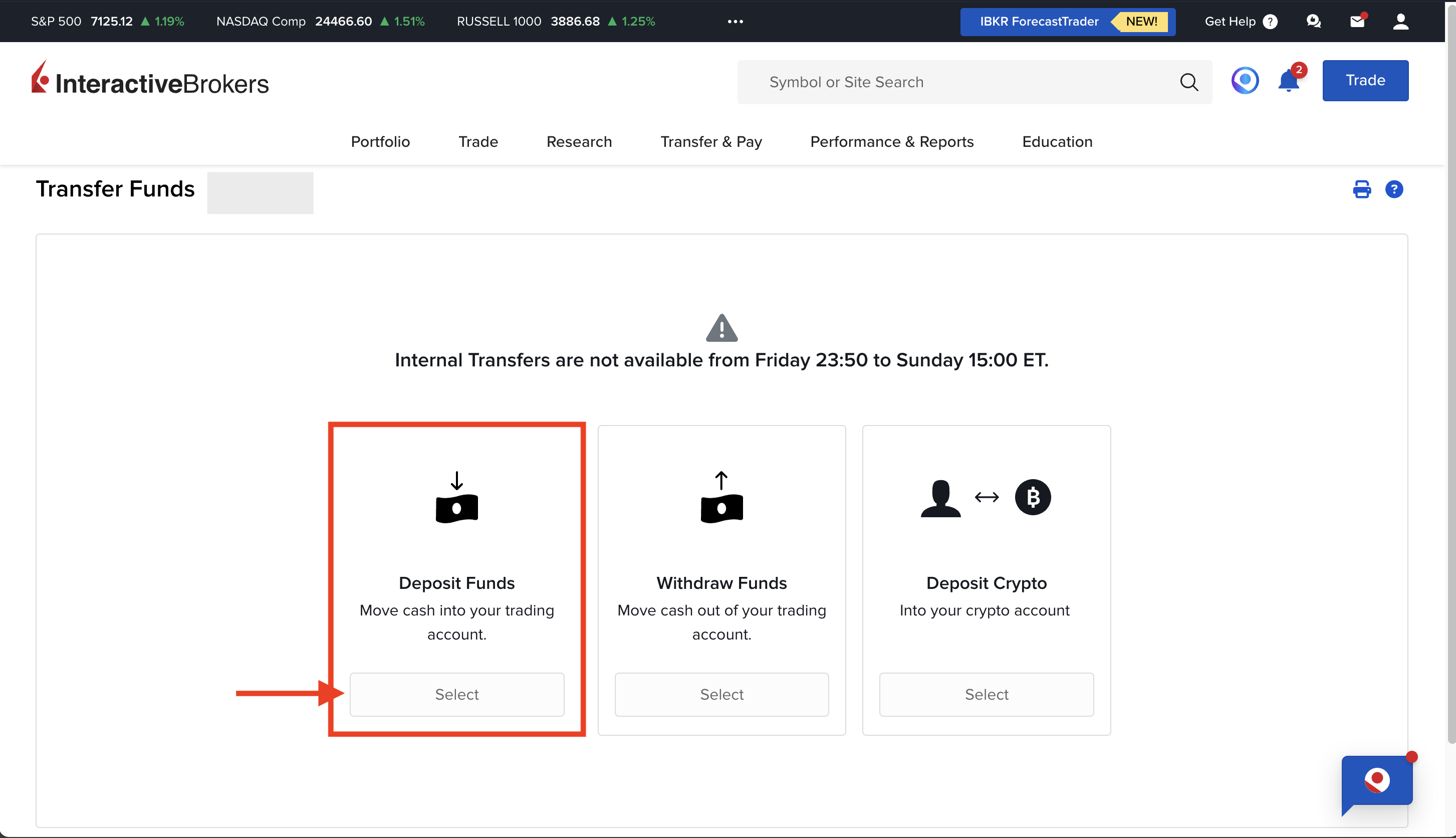
Once account verification is complete and your bank account is linked, follow these steps in IBKR to deposit funds: choose Deposit.
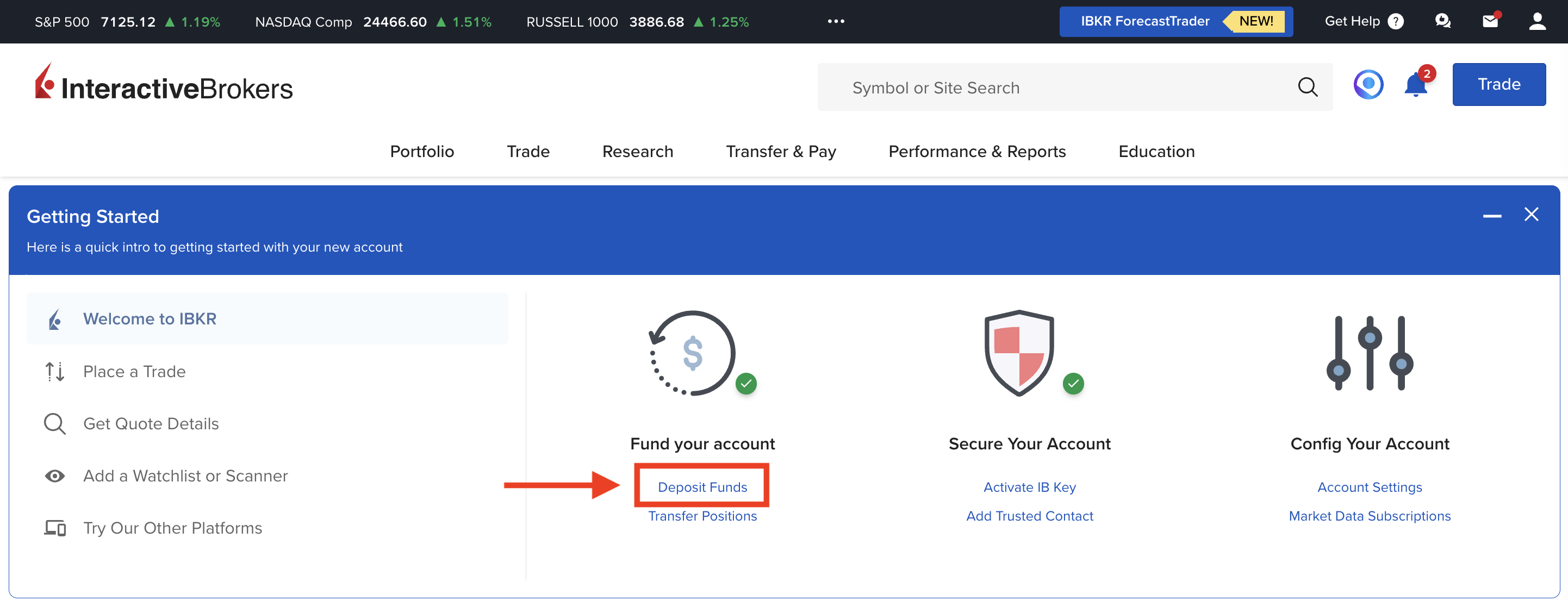
Select the first option: Deposit Funds.
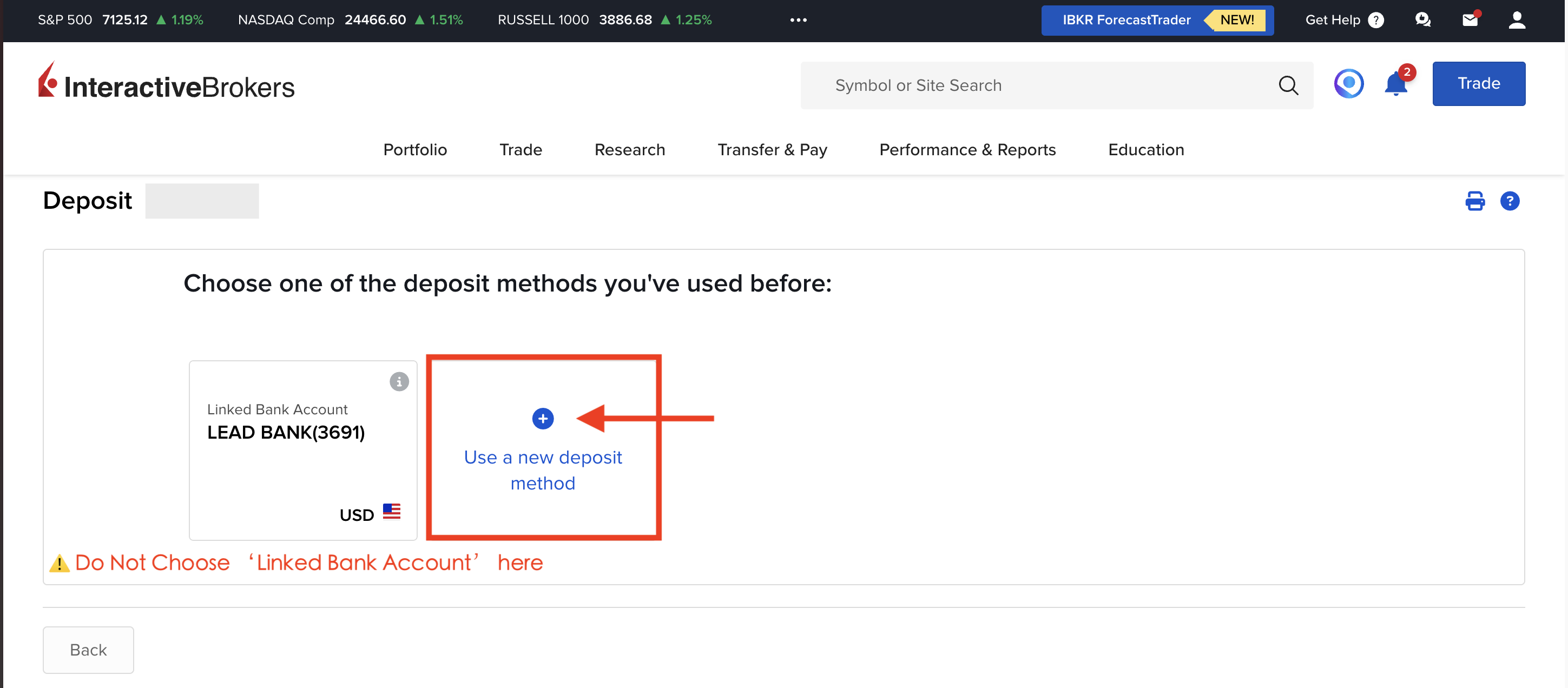
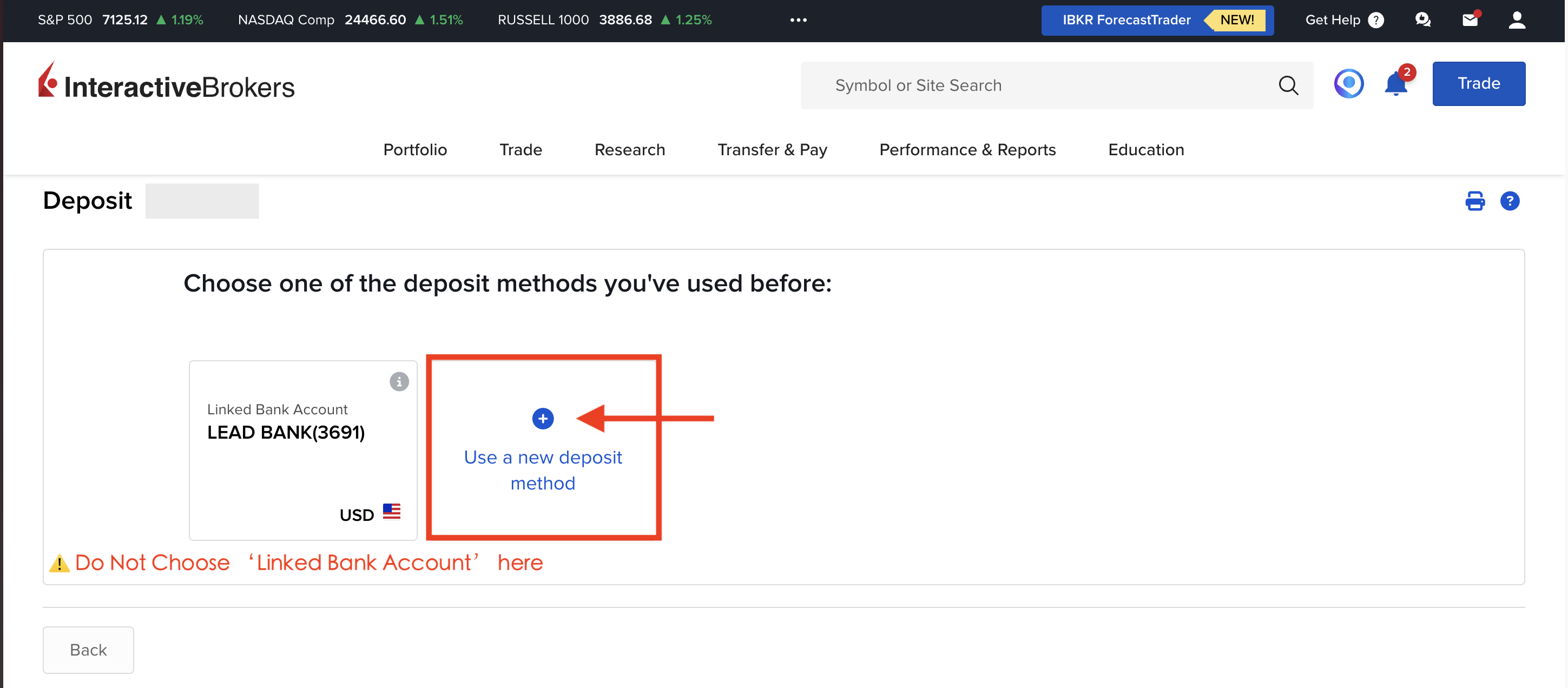
Important: select Use a New Deposit Method.
(Note: Do not choose Linked Bank Accounts. The reason is explained below.)
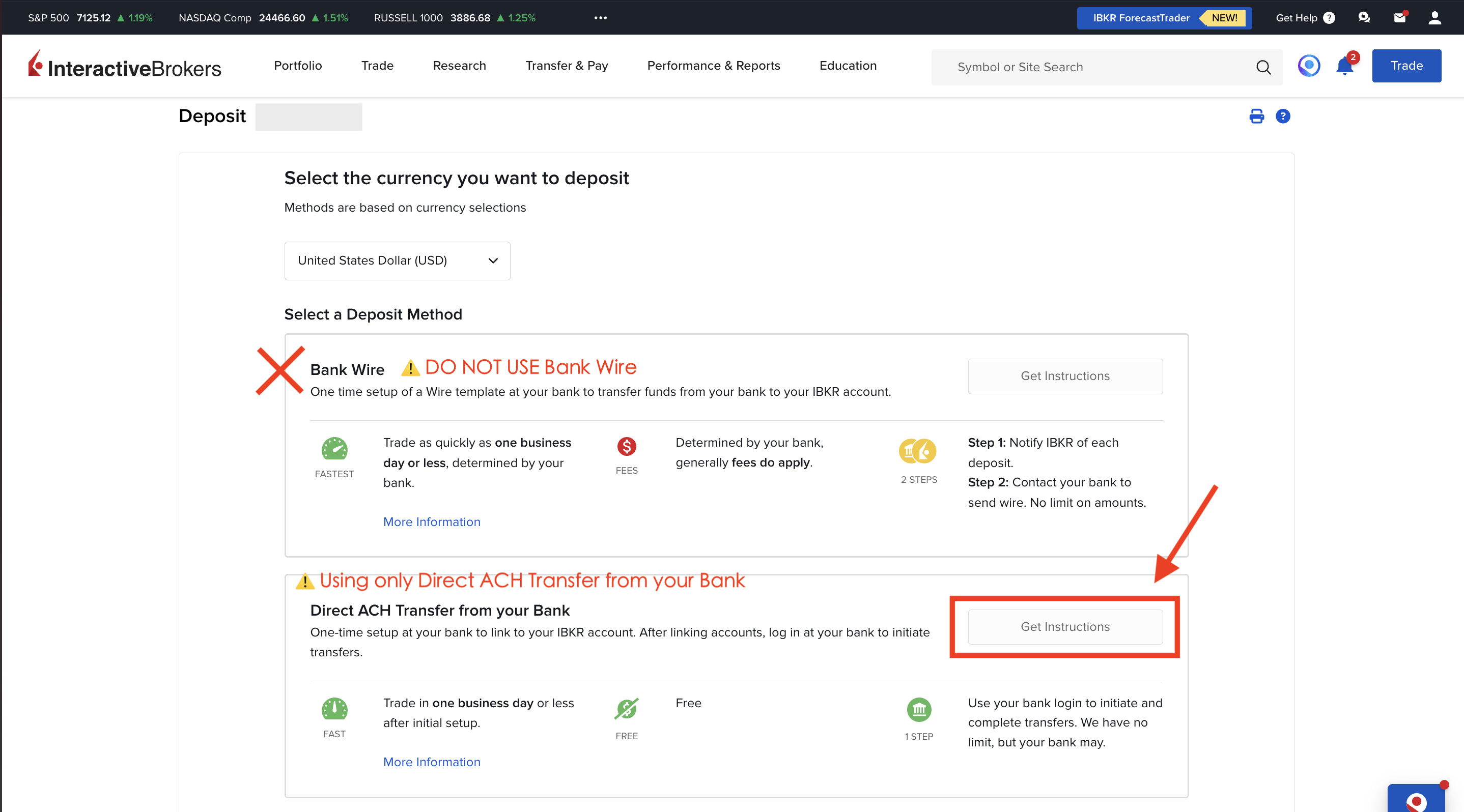
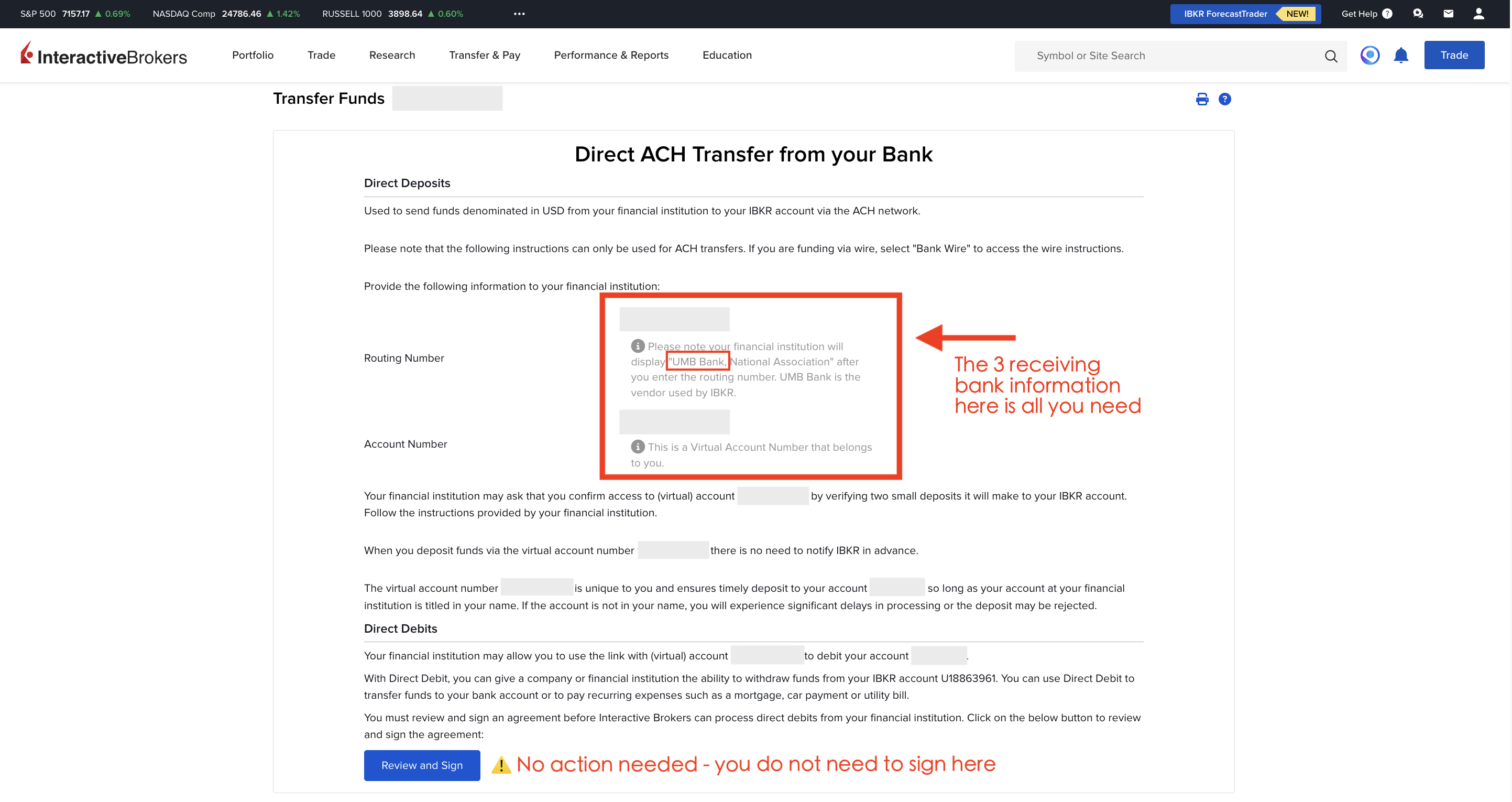
Find the second option, Initiate a Direct ACH Transfer from Your Bank, then click Get Instructions.
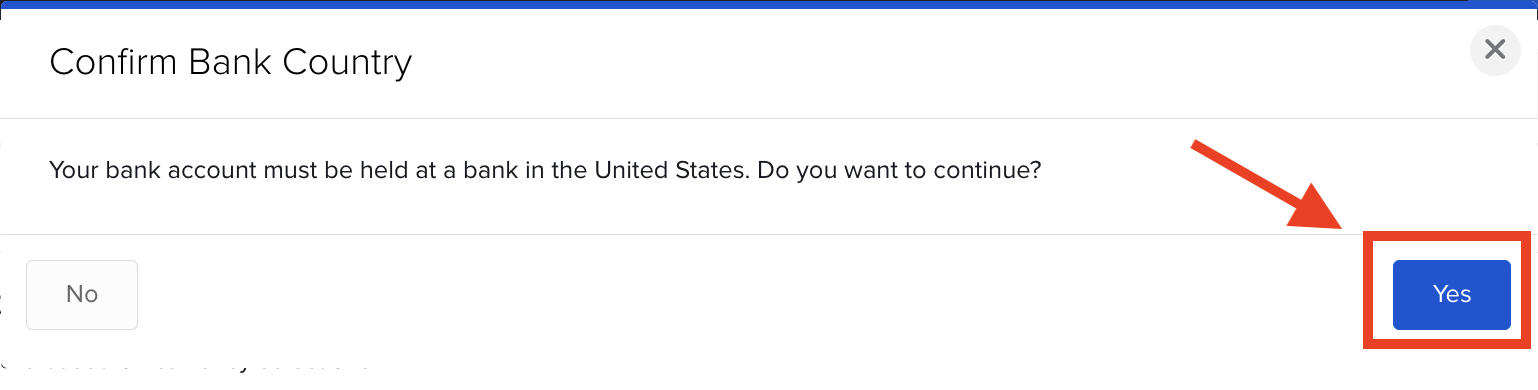
In the Confirm the Country/Region of Your Bank pop-up, choose Yes to confirm (Fluidkey's banking partner, SSB Bank, is located in the United States).
Use the instruction details shown there, then return to Fluidkey and initiate an ACH bank transfer.
Step 2: Send USDC from Fluidkey
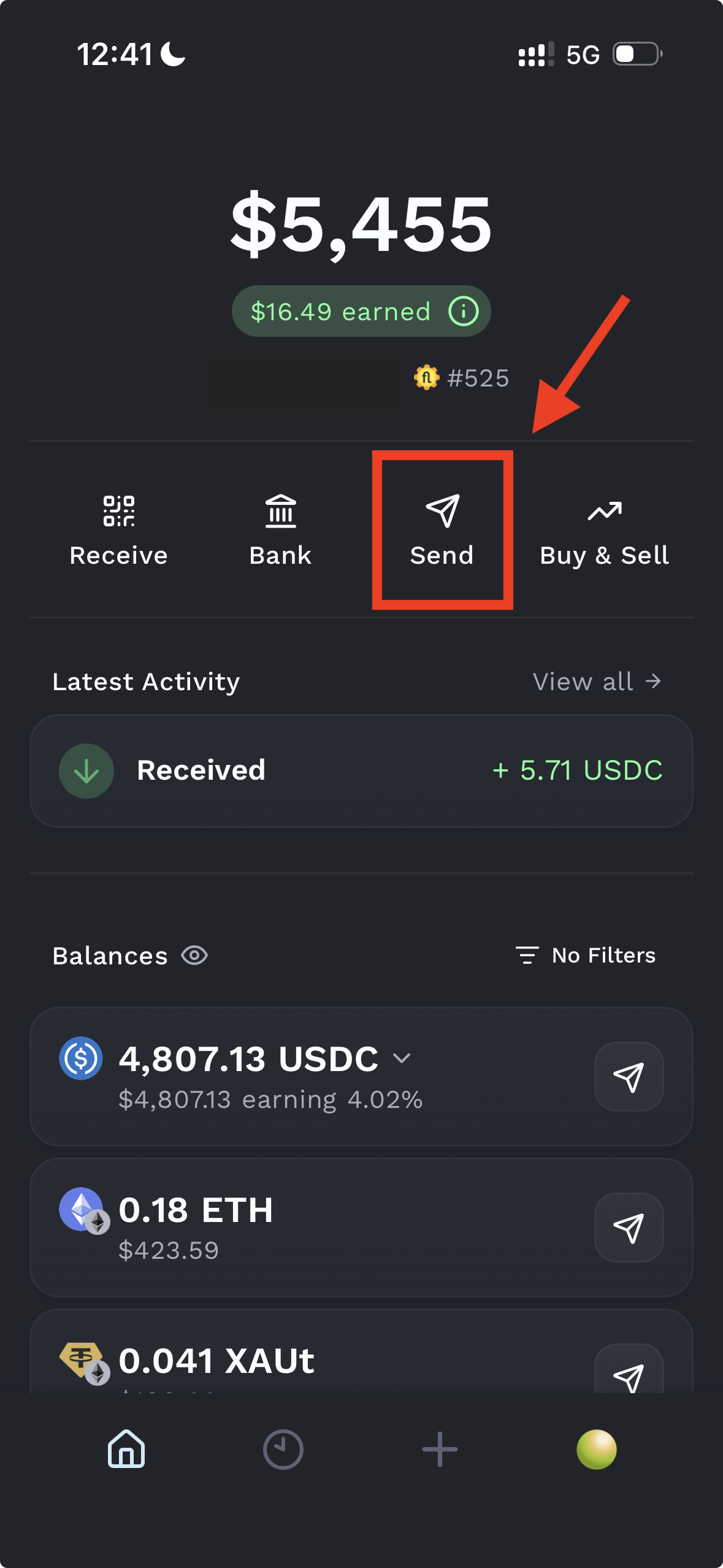
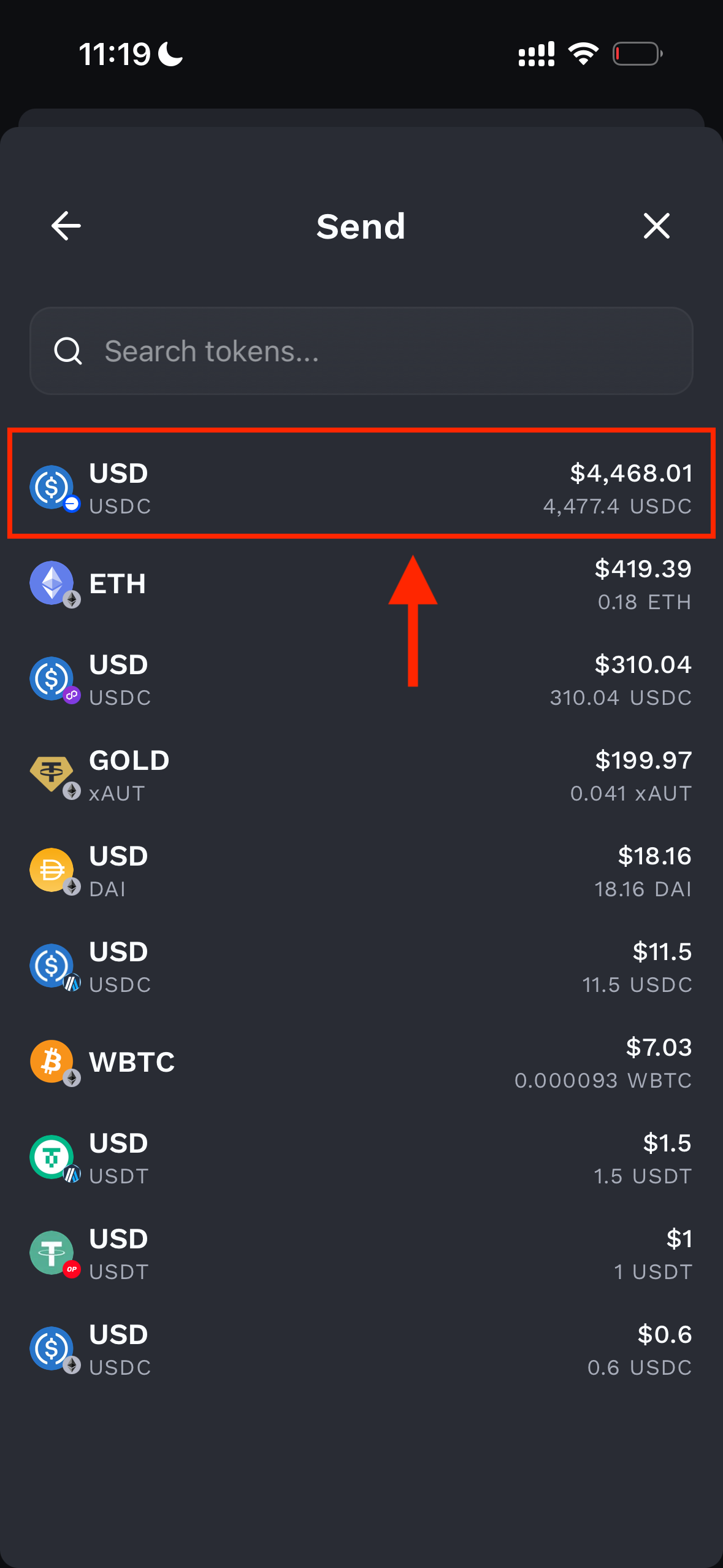
Open Fluidkey, tap Send, then select USDC.
(Note: You can also send other tokens. We will automatically convert before payout, and the full flow remains one-click for you. USDC currently supports a 1:1 withdrawal rate. If you send via Base, no gas fee is required.)
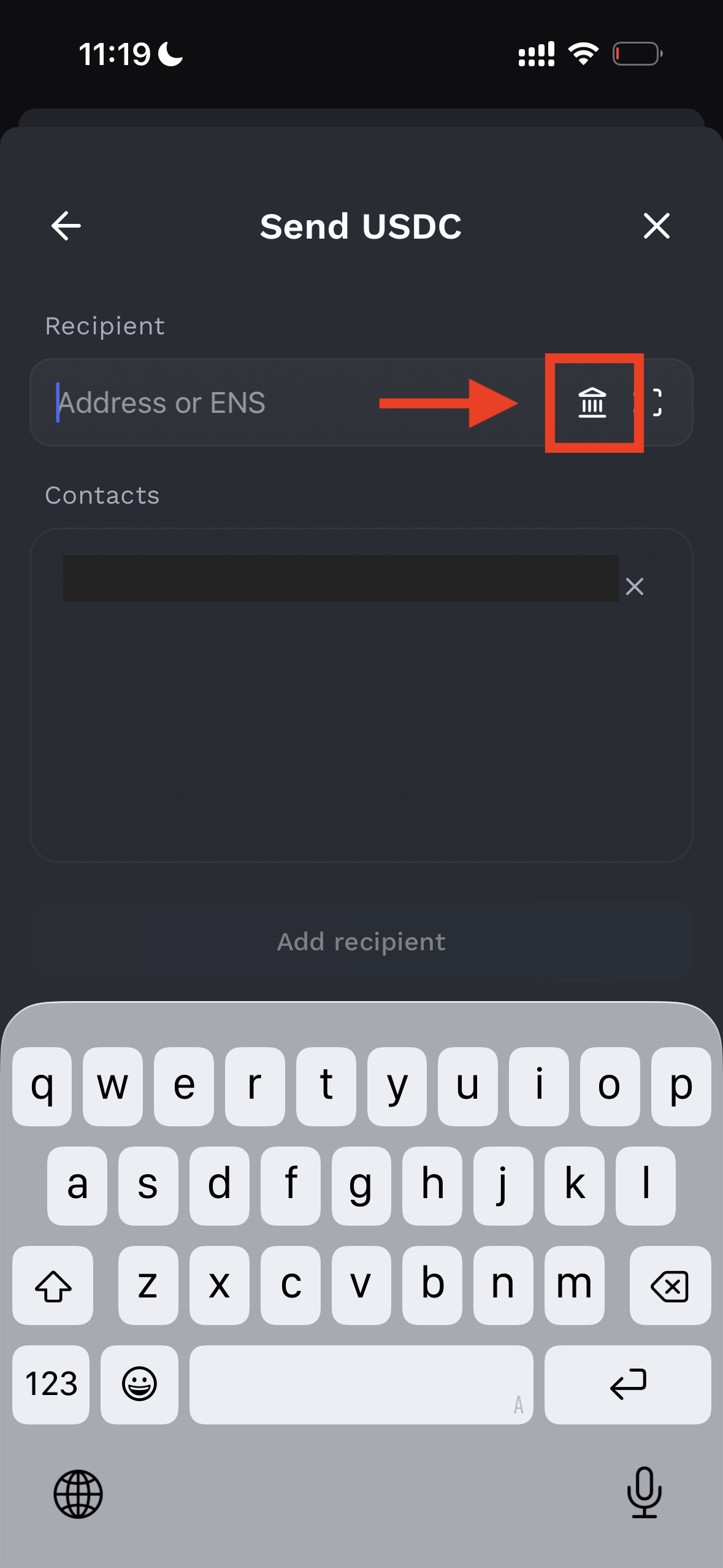
In the address field, tap the Bank icon on the right, choose ACH (USD) and Individual, then enter the Routing Number, bank name, and account number based on IBKR instructions.
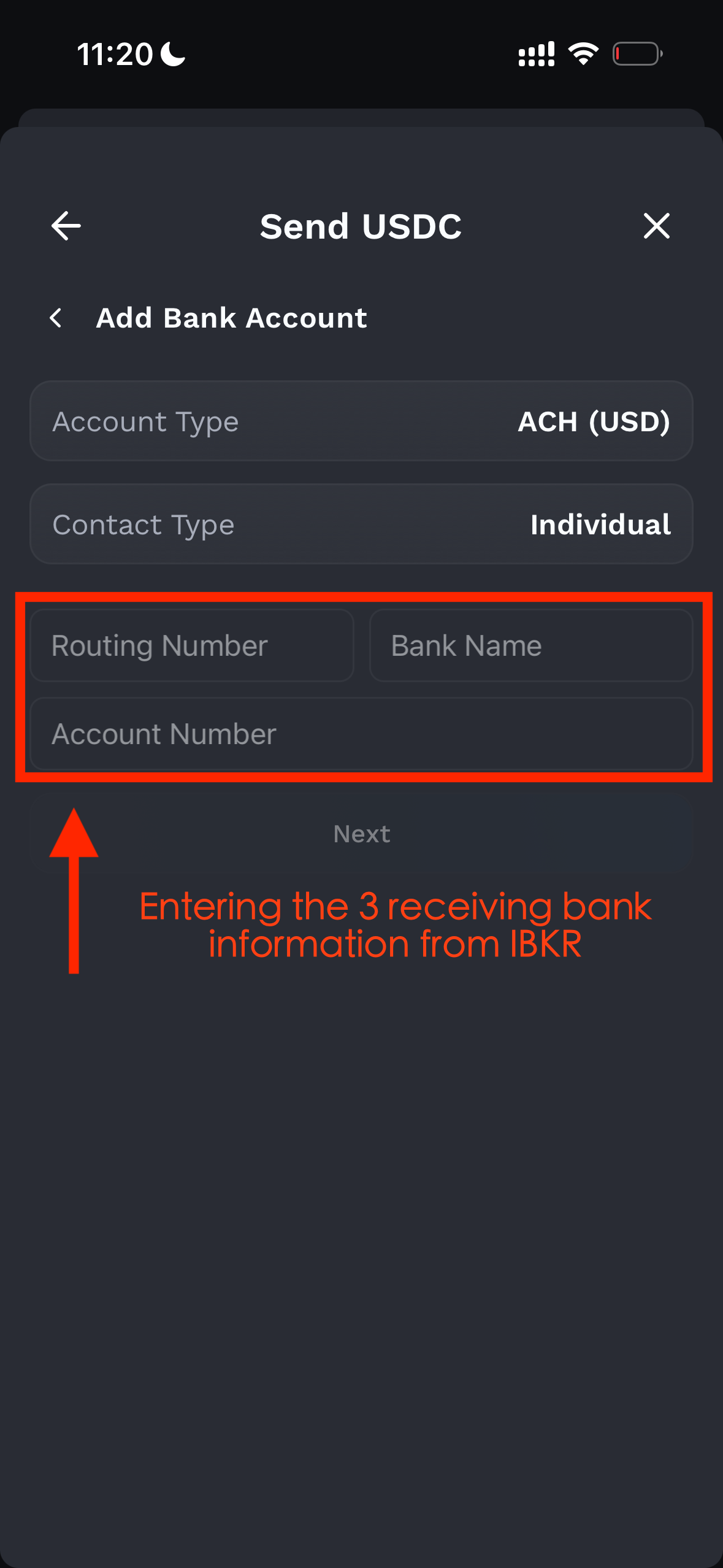
Click Next.
Enter your First Name and Last Name; they must exactly match the name on your IBKR account.
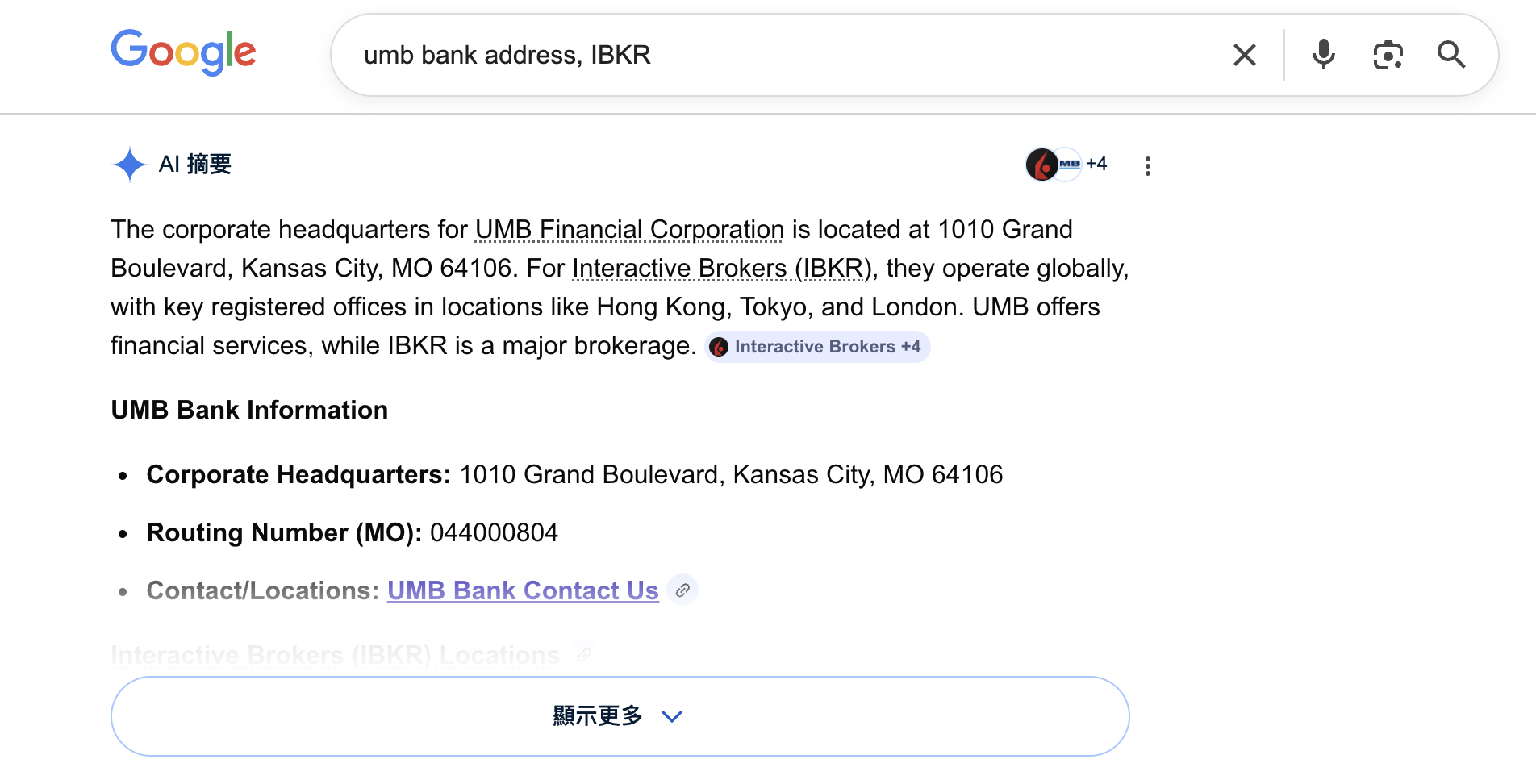
For Country, select USA. For Address, search online for UMB Bank, IBKR, Address. In one example account, you can use:
Address: 1010 Grand Boulevard
City: Kansas City
Zip Code: 64106
State/Province: Missouri (MO)
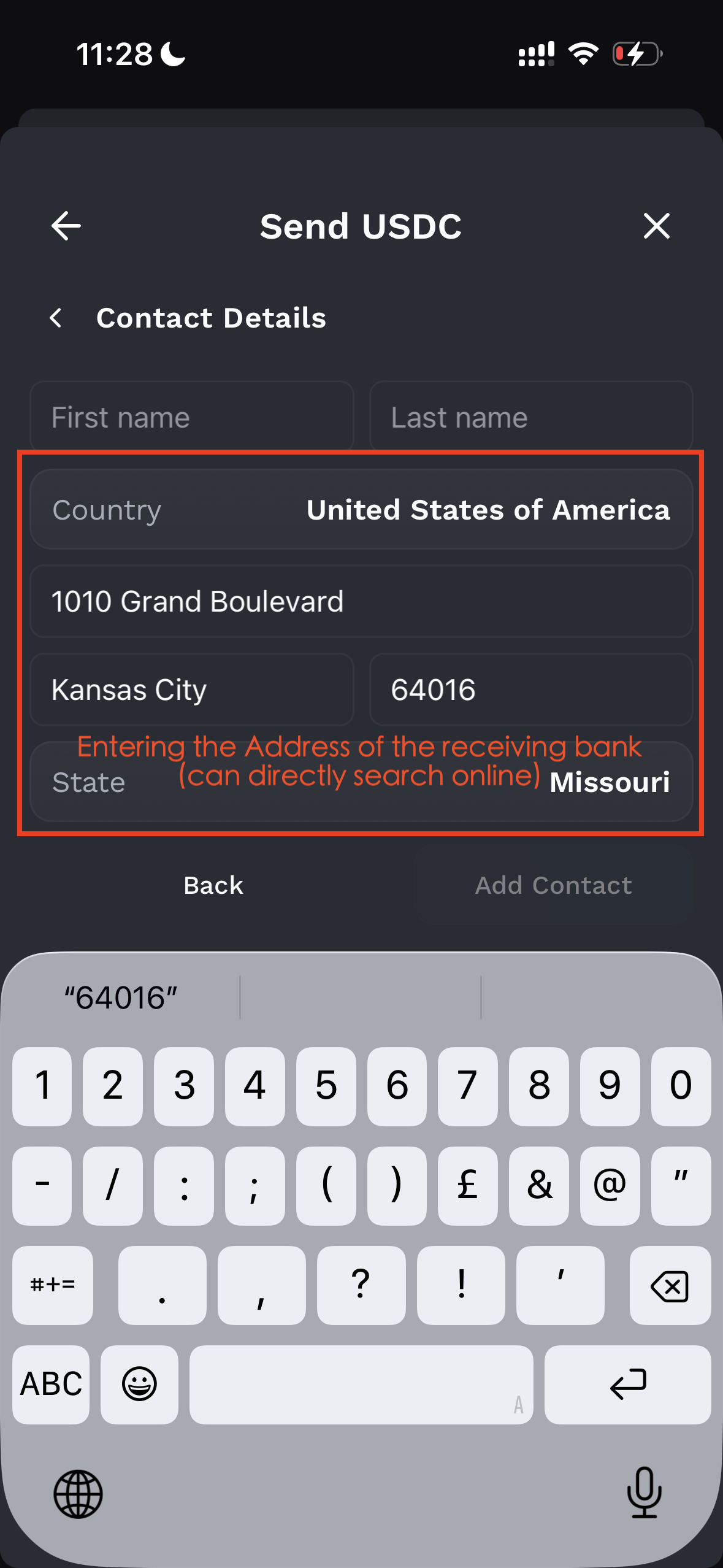
(Note: Some users may be mapped to a different receiving bank. Always verify the bank name and address online before entering.)
Enter the amount to send, click Next, then Confirm.
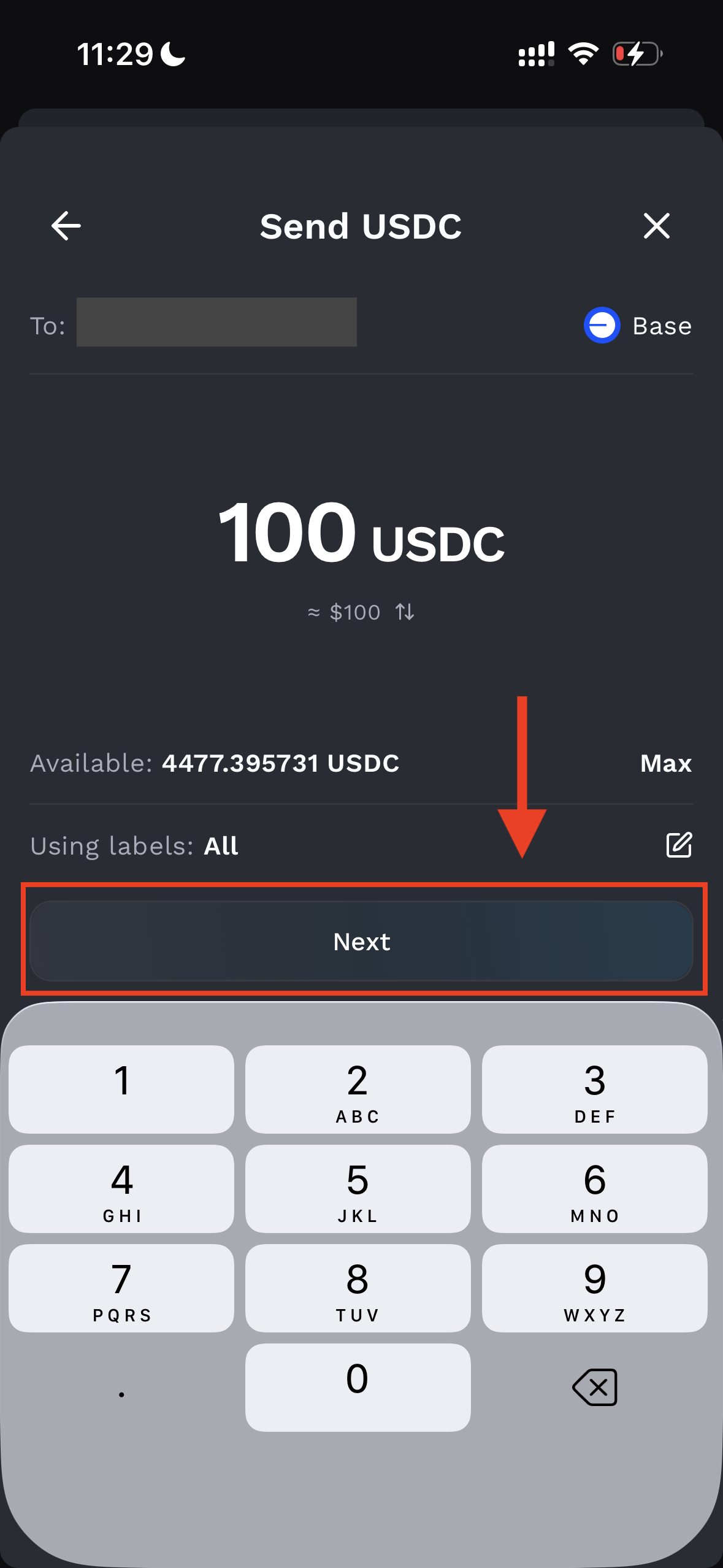
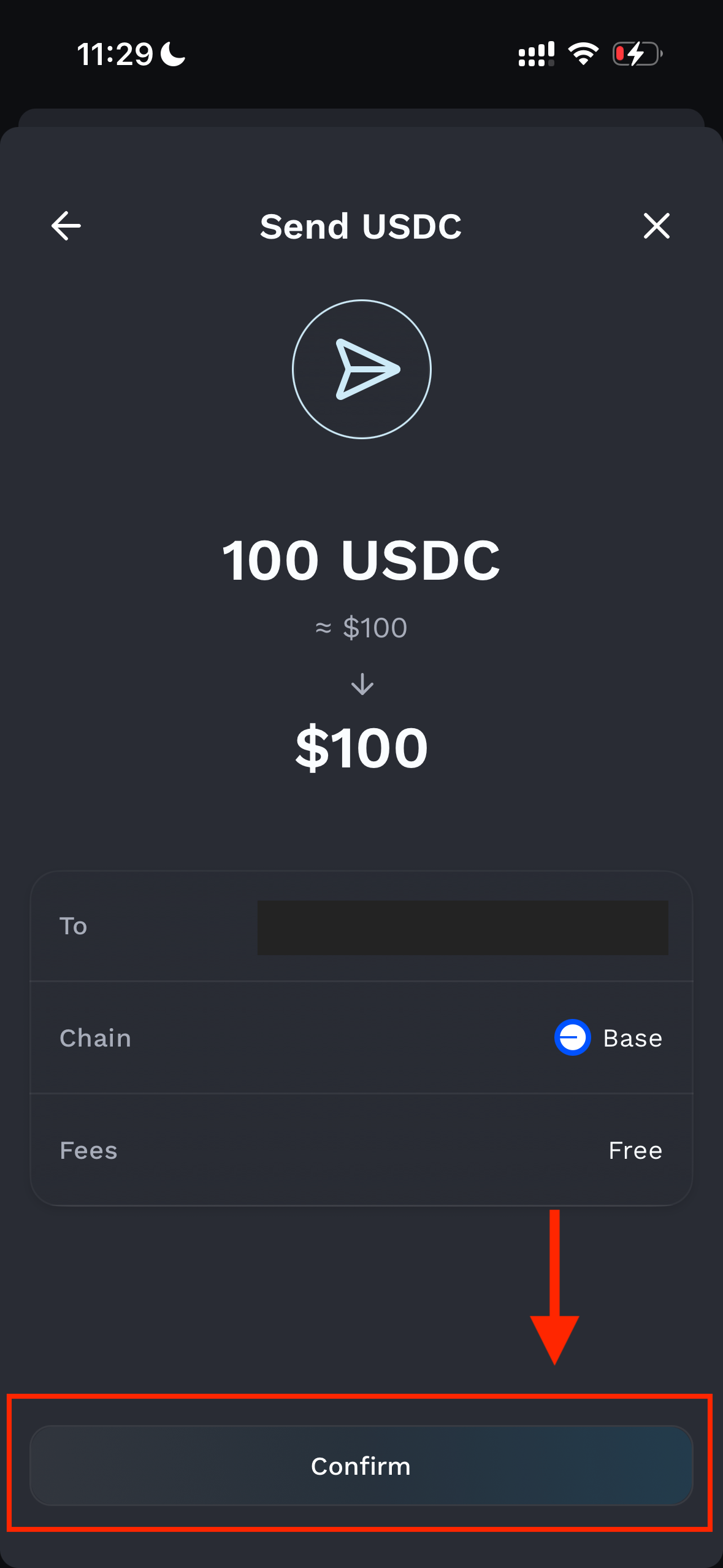
After the transaction, once Noah processes the transfer, you'll receive a receipt from the team. Handling time may vary with each transaction, so please be patient on this. Also note that ACH transfers typically take 1 to 3 business days to clear.
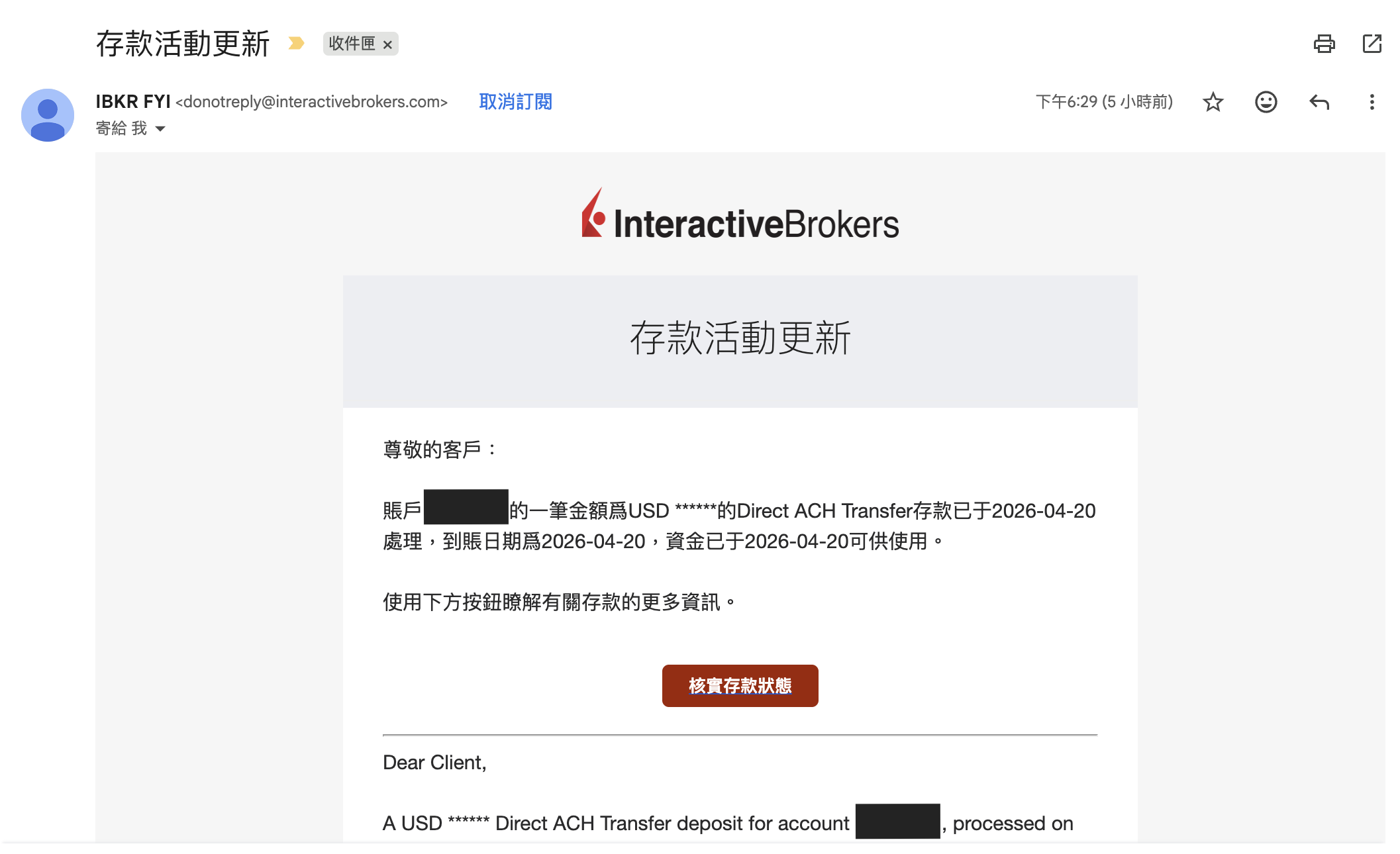
Once the funds are credited on IBKR side, you'll receive an IBKR Deposit Activity Update email, confirming the deposit is complete.
(In this test run, it took three full days. Processing time can vary by transaction.)
Important Reminder: Do Not Do This
Fluidkey does not support fund pull from your bank account. Fluidkey is a self-custodial wallet; we only withdraw to your SSB Bank account via Noah when you send funds. Likewise, when funds arrive in your SSB Bank account, they are immediately deposited back into your Fluidkey wallet via Noah.
That means your SSB Bank account effectively does not keep a standing balance. If you accidentally select the first option in the Deposit section, Link Your Bank Account, and follow that flow, the transfer will fail (because IBKR cannot pull funds from the account), and your account status may also be affected.
How to Withdraw from IBKR to Fluidkey
Withdrawing funds from IBKR (Interactive Brokers) to Fluidkey is quick and straightforward. Follow the steps below to get started.
Note: Make sure you have already linked your Fluidkey account (SSB Bank) in IBKR. If not, please follow the instruction from #How to link Your Bank Account in IBKR below, and add it under your account settings before proceeding.
Steps
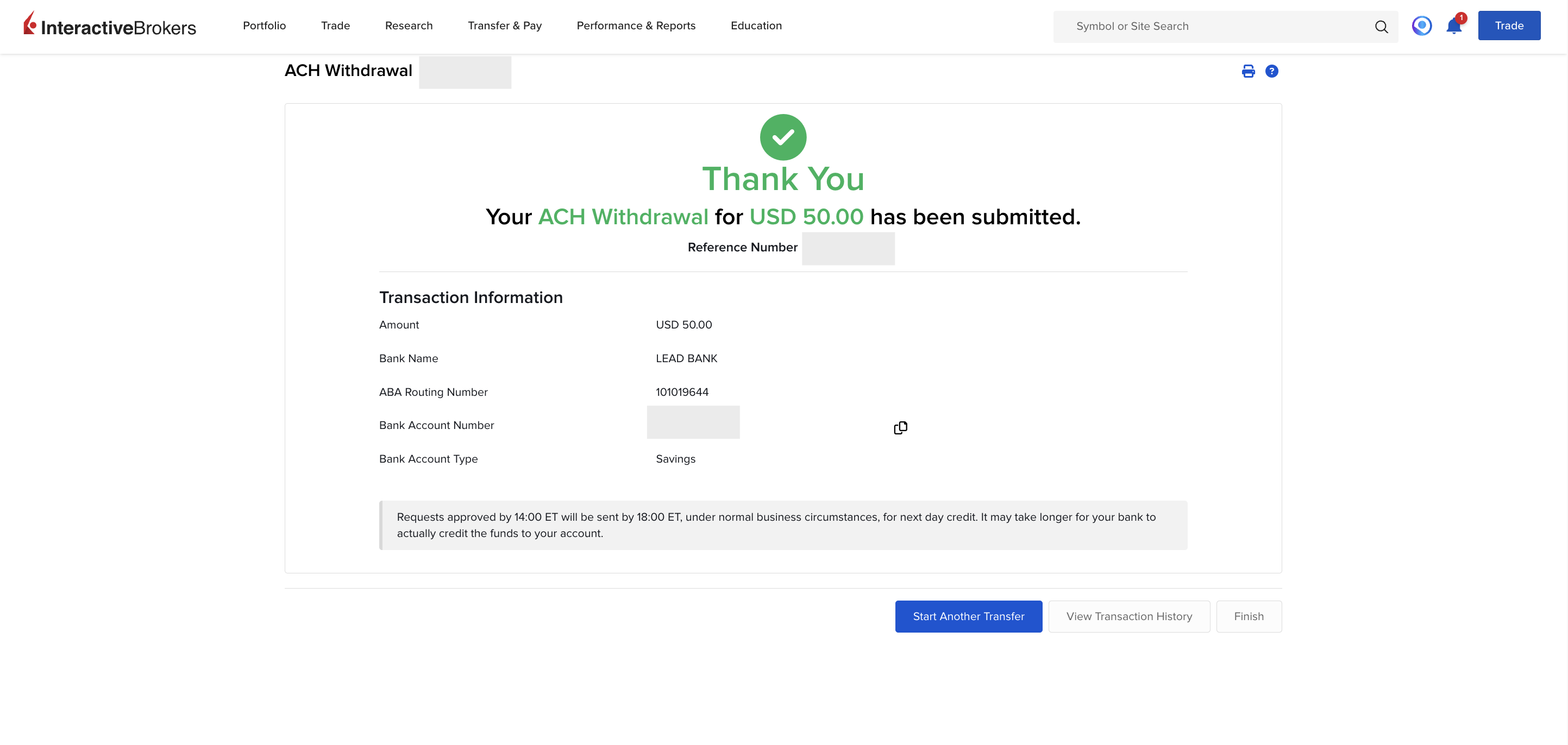
Step 1: Log in to IBKR and select "Withdraw" on the homepage.
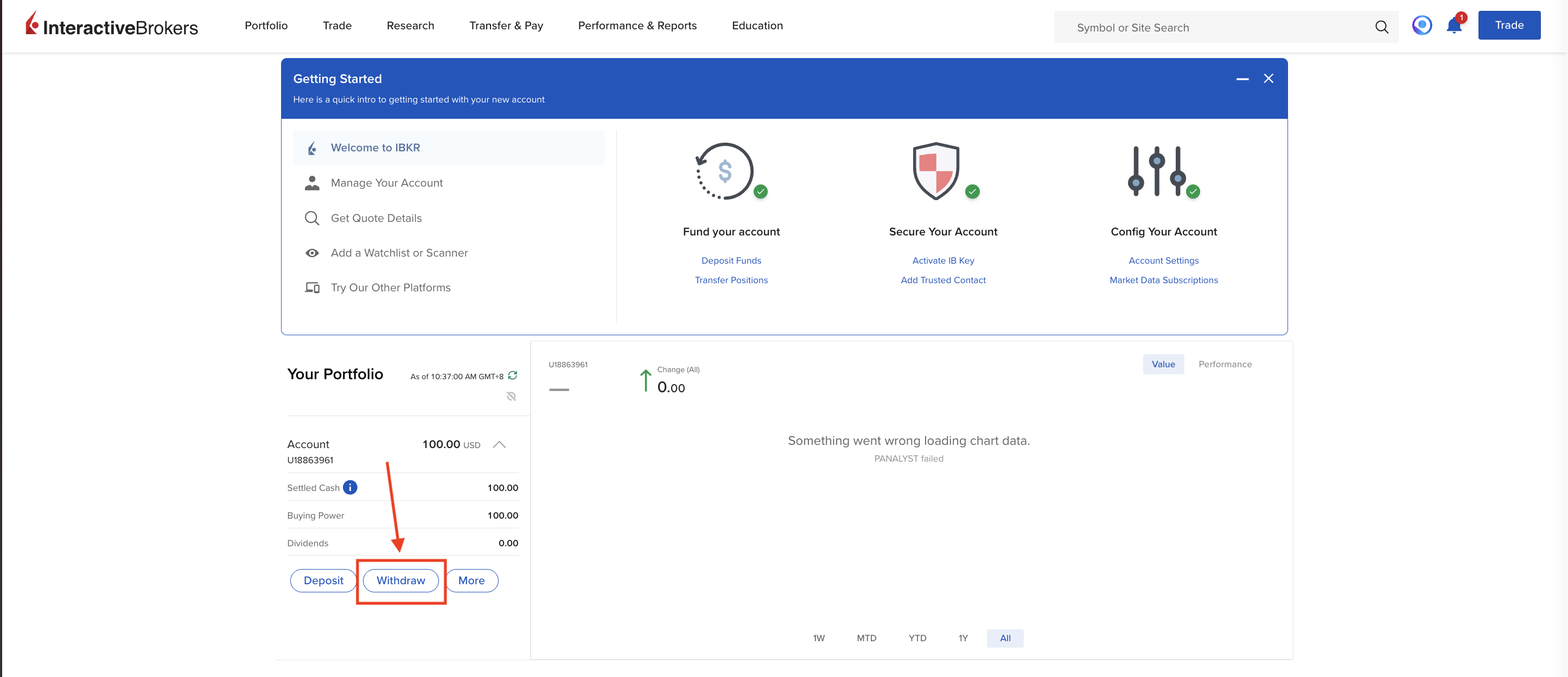
Step 2: From the list of linked accounts, select your Fluidkey (SSB Bank) account.
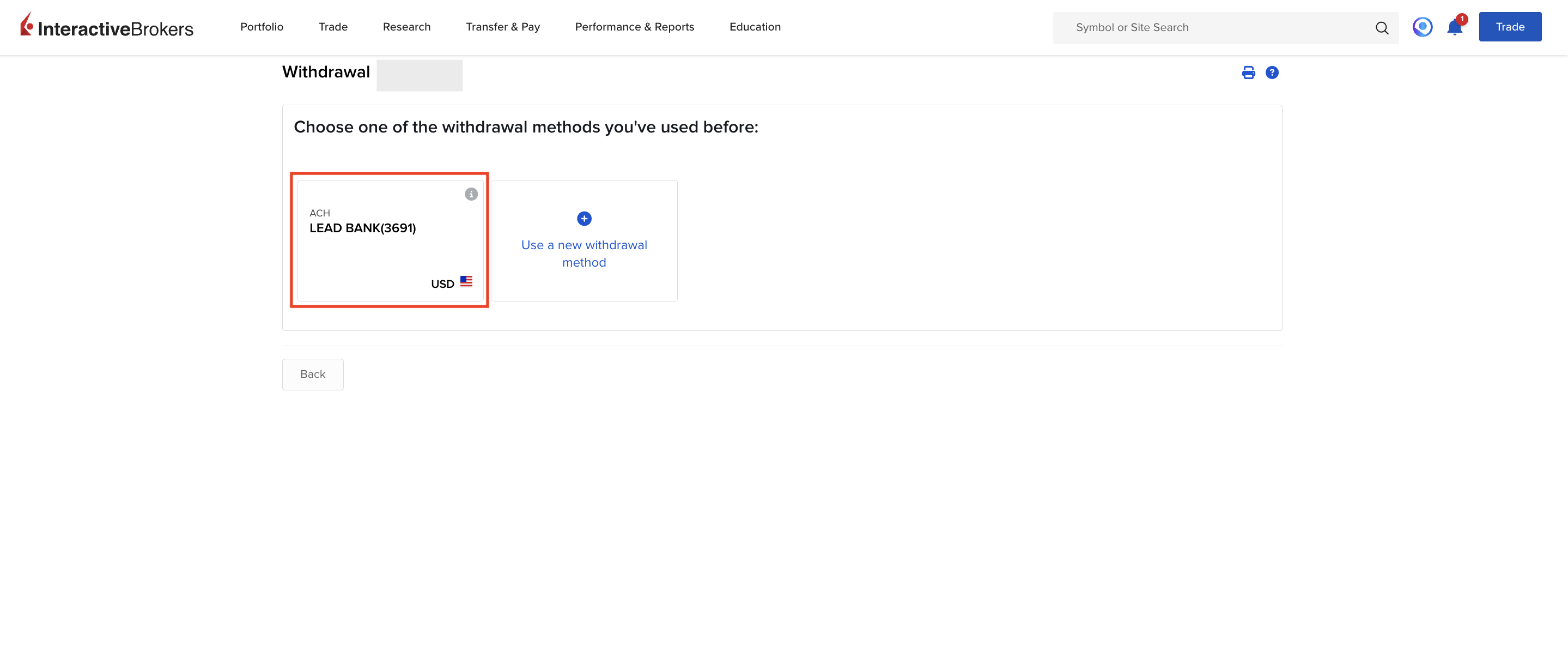
Step 3: Enter the withdrawal amount and fill in the required details, then click "Create Withdrawal".
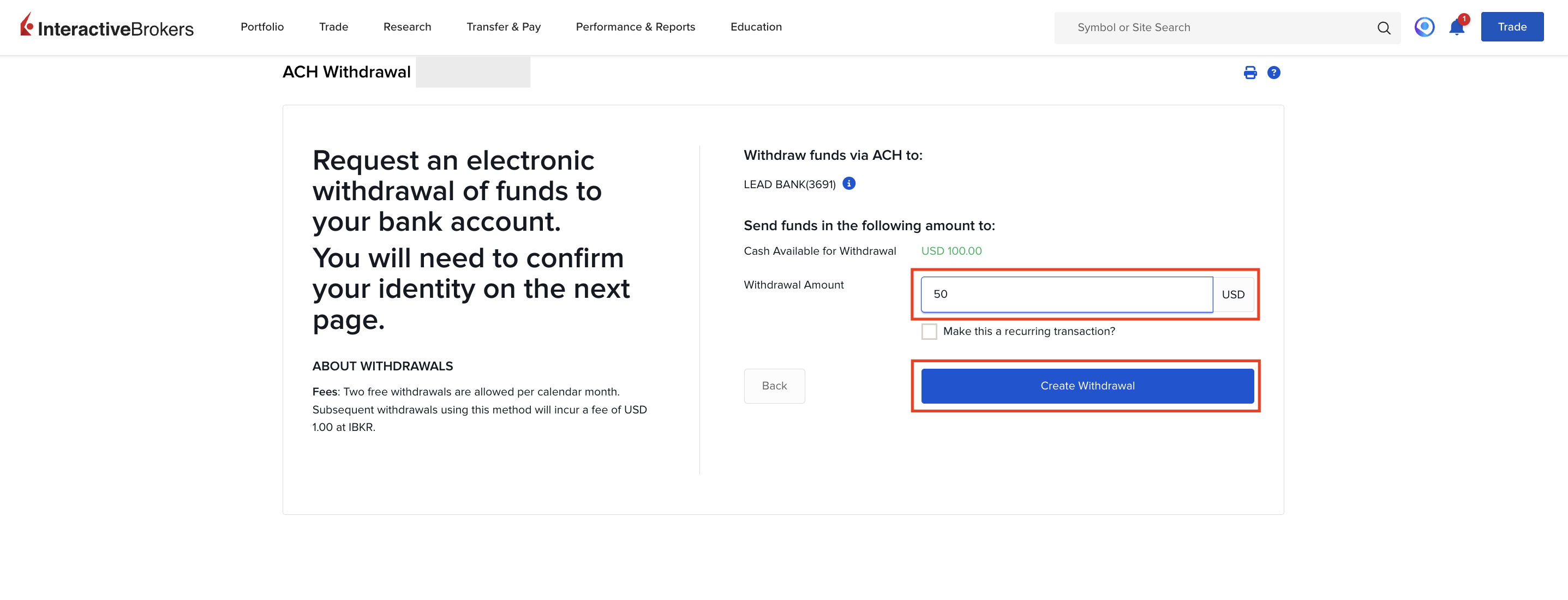
Step 4: A confirmation page will appear — review the amount and account information carefully. Once everything looks correct, click "Confirm Withdrawal" to complete your request.
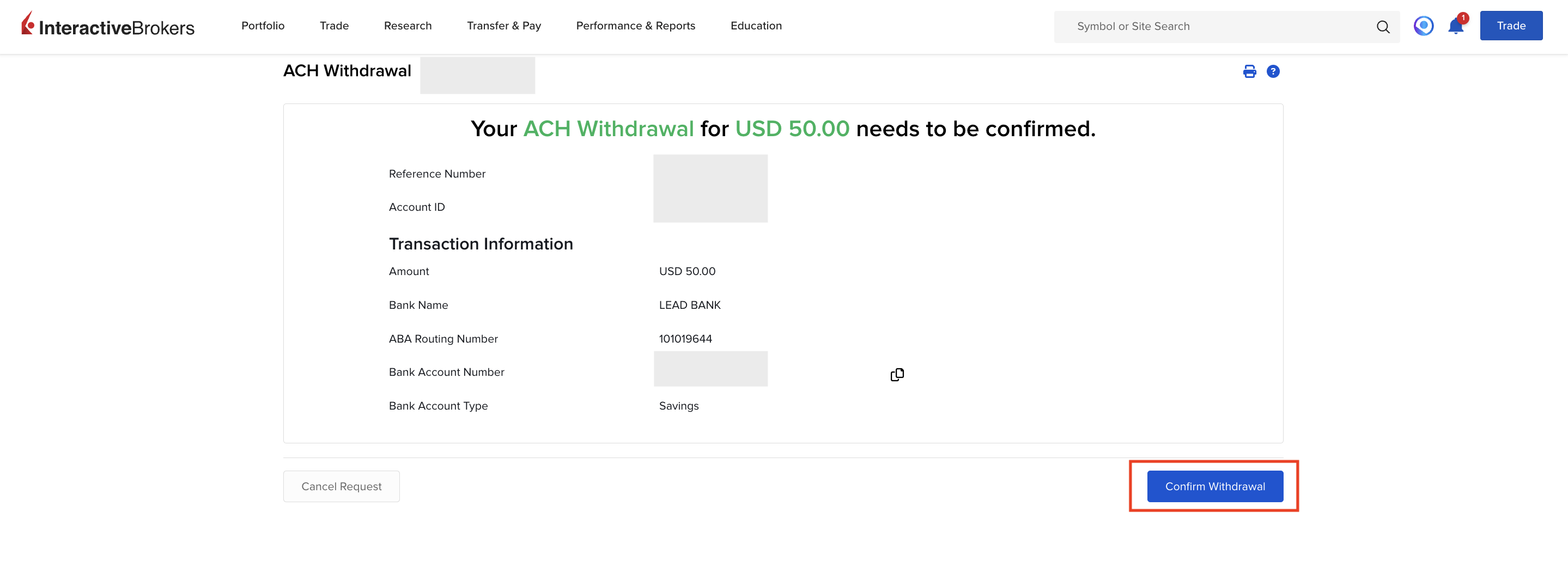
Finish: After submitting, funds typically arrive within 1–3 business days, depending on processing times.
How to link Your Bank Account in IBKR
Step 1: Link Your Bank Account in IBKR
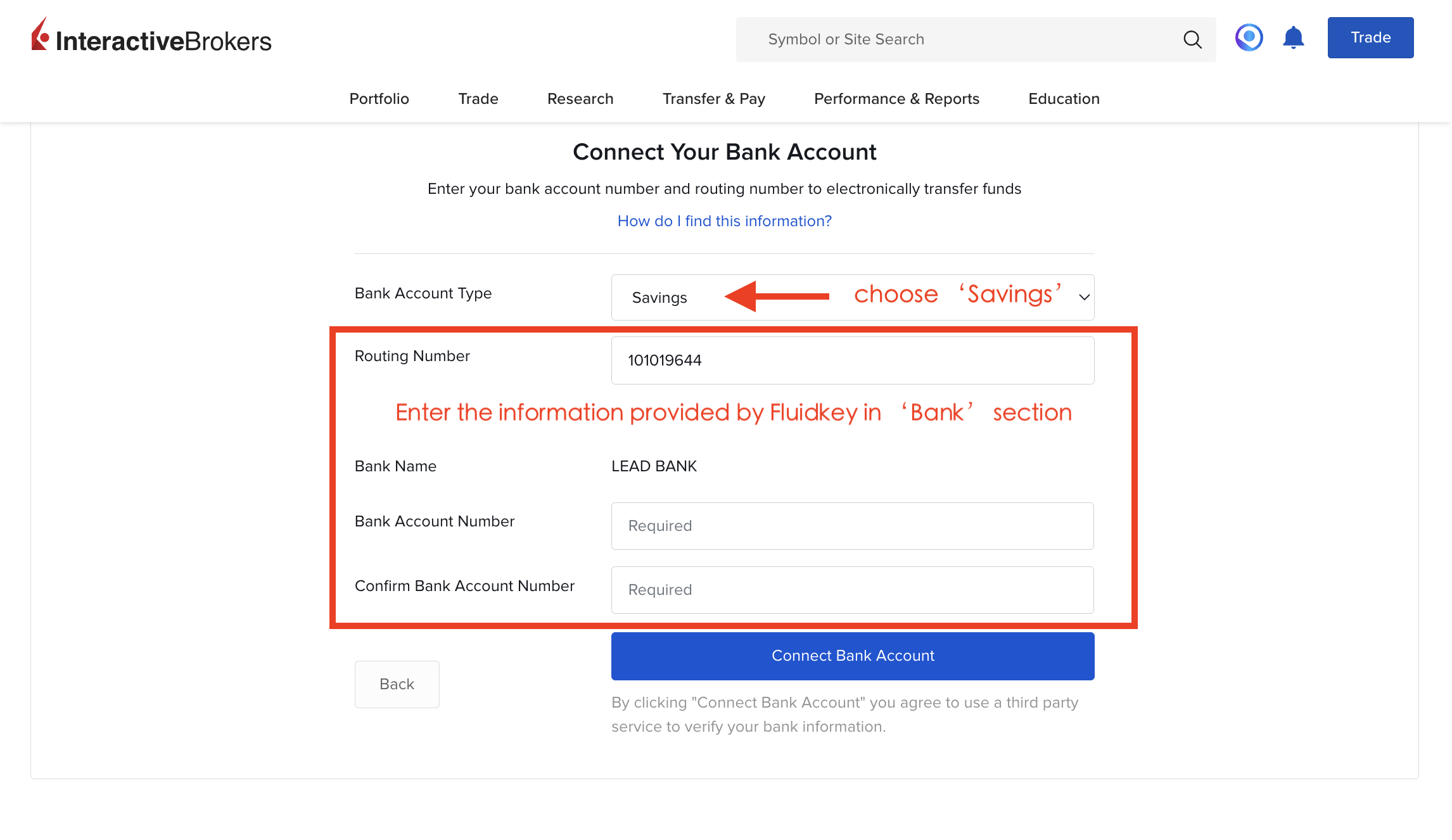
After completing registration, IBKR will first prompt you to link a bank account.
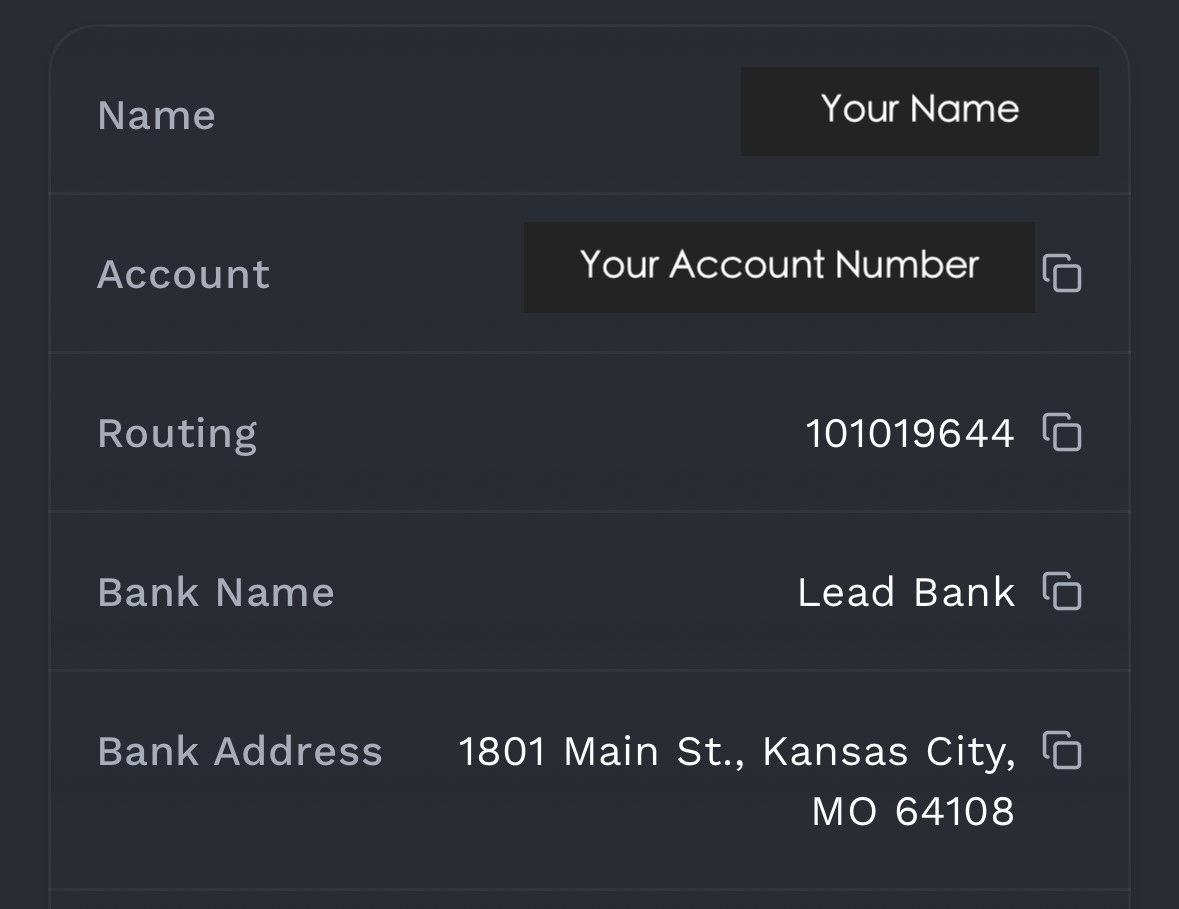
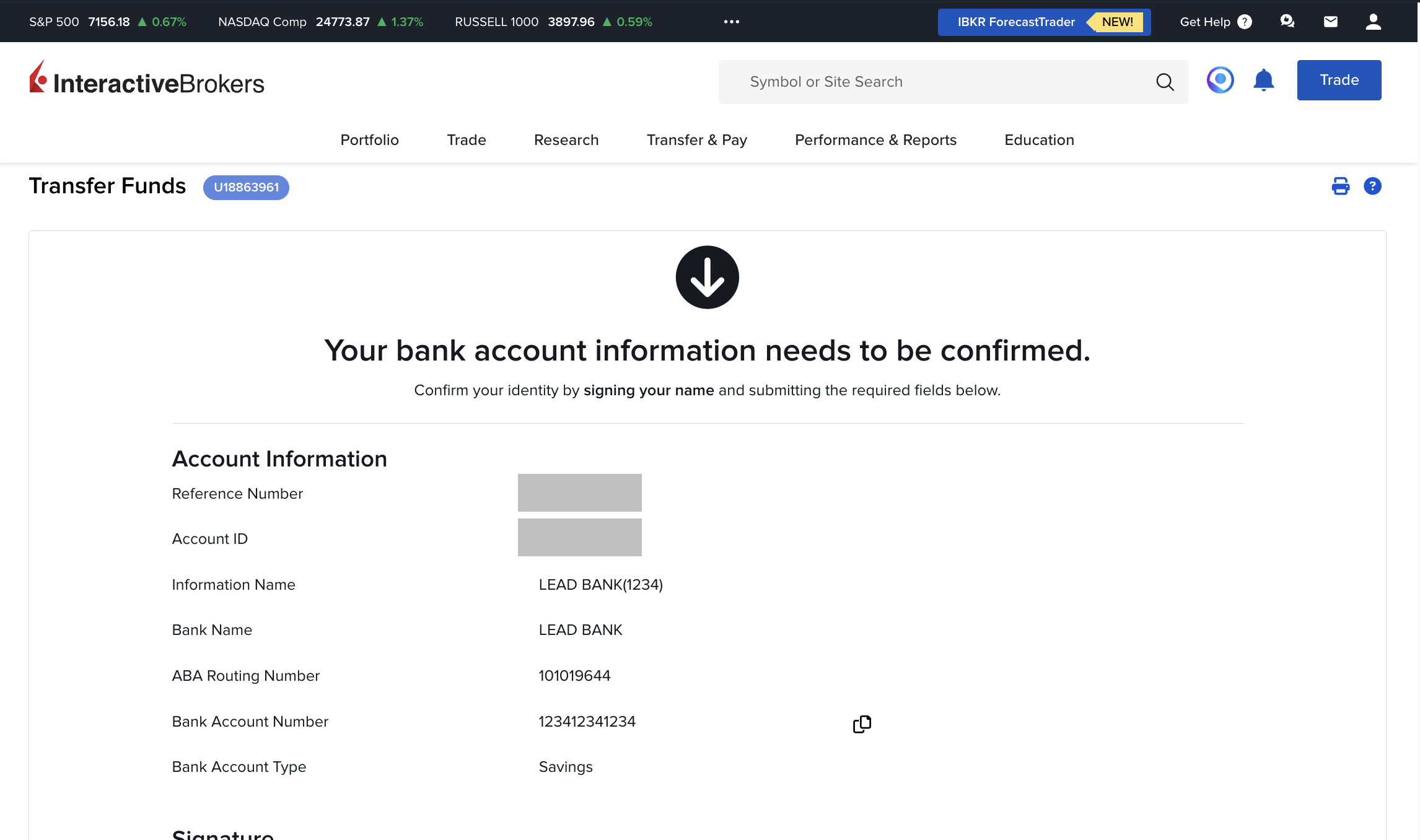
At this step, you need to enter your Routing Number and Account Number.
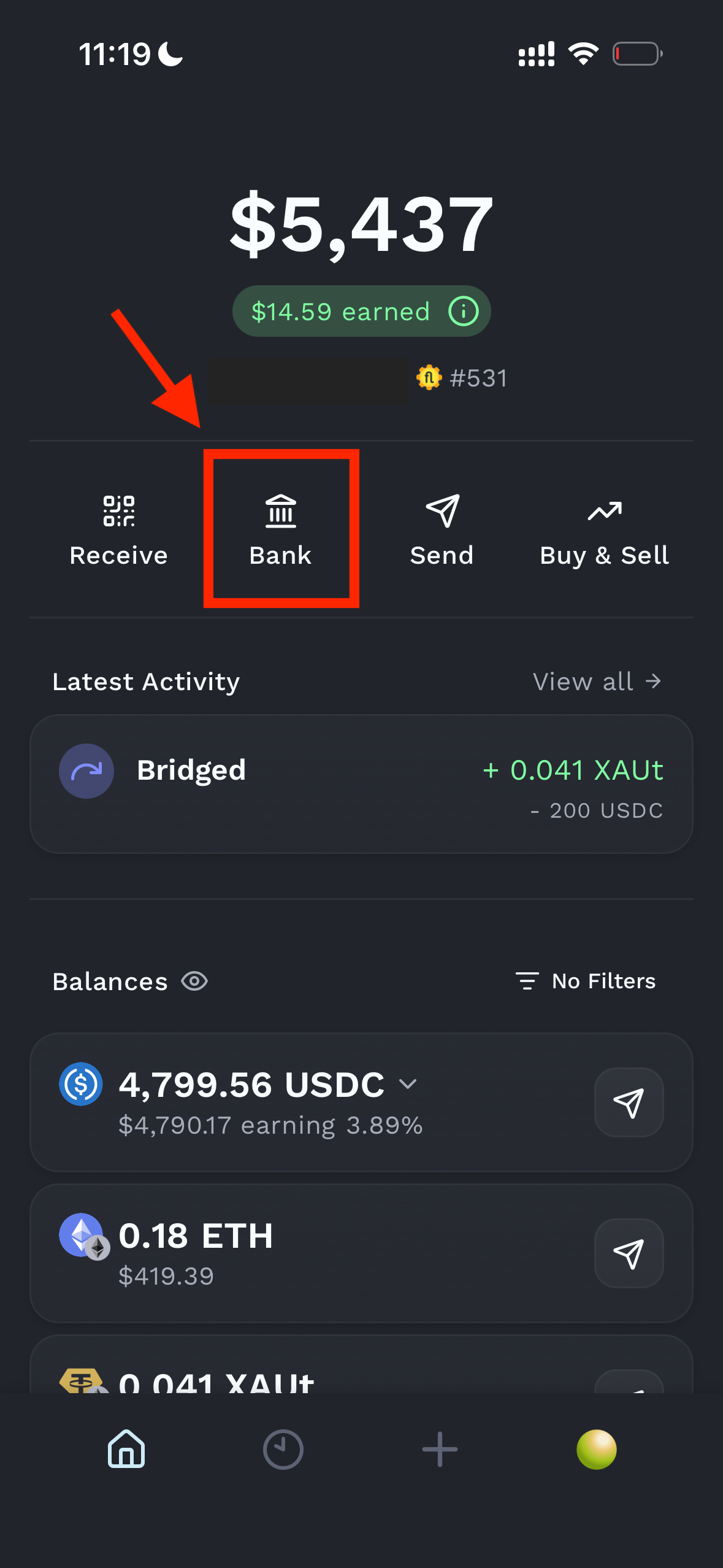
Go to the Bank section on the Fluidkey homepage, where you can find the required account details.
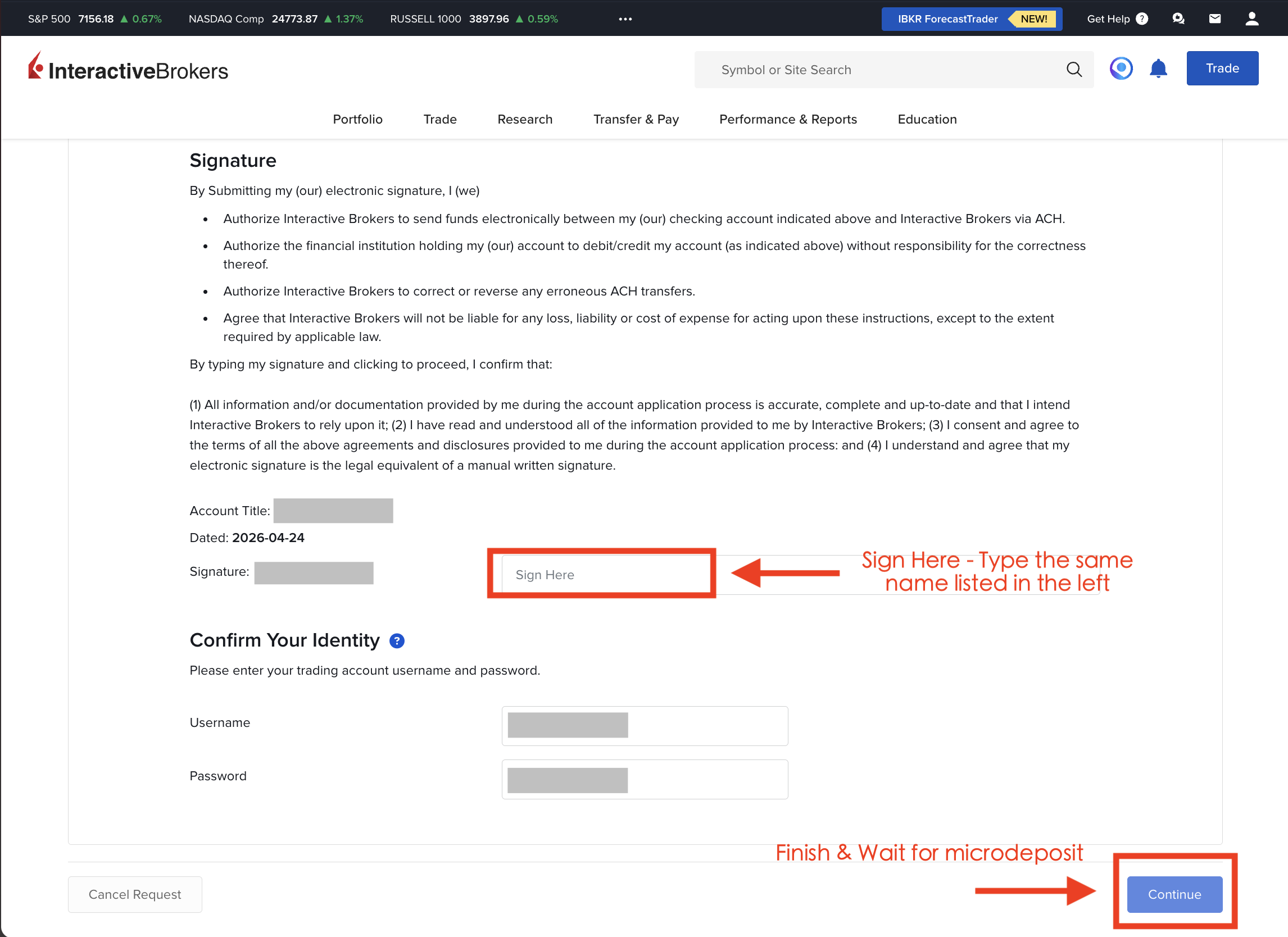
(Note: The full name on your SSB Bank account must exactly match the name on your IBKR account.)
Step 2: Complete IBKR's Additional Verification
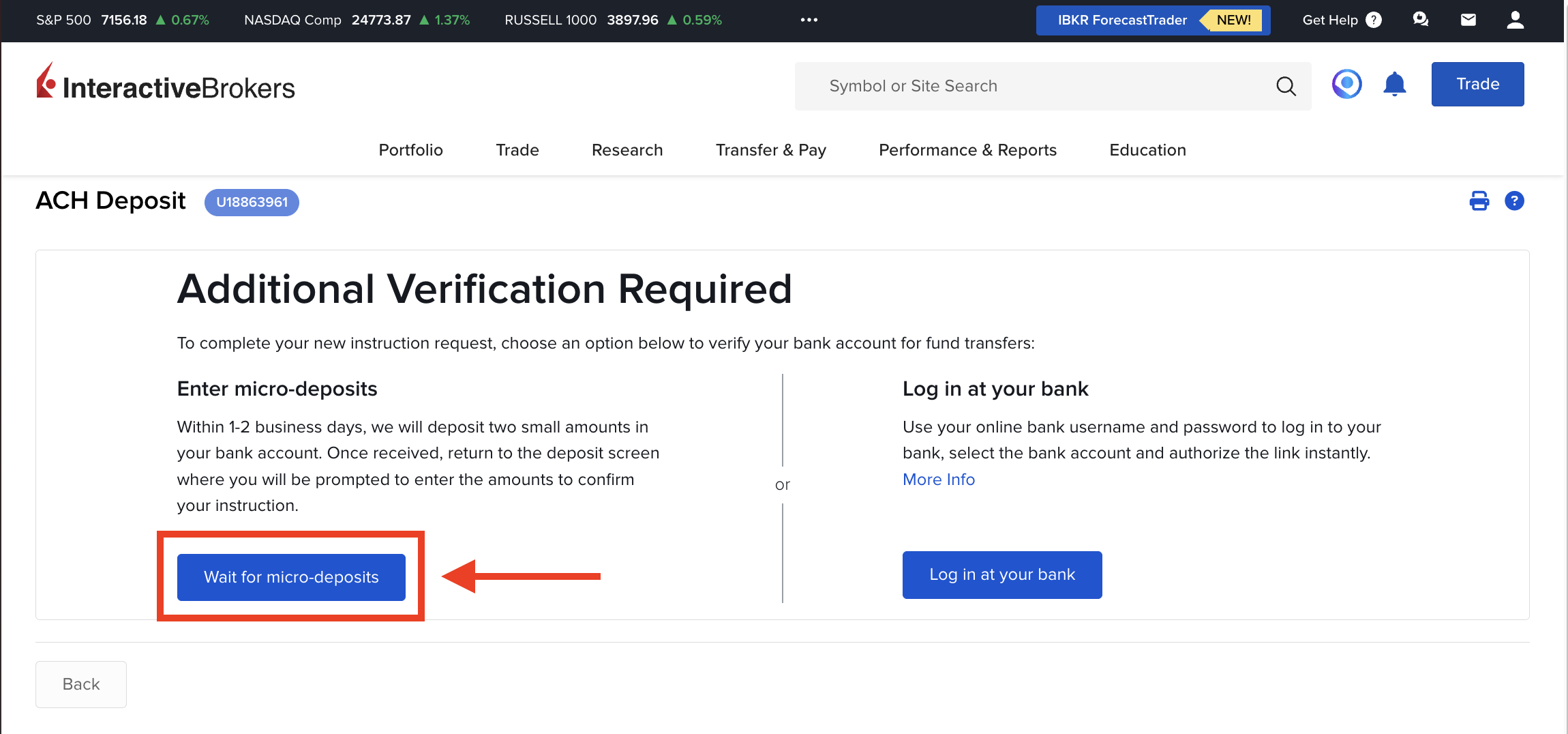
After submitting your account details, IBKR requires additional verification.
Choose the first option: Wait for micro-deposits.
After confirming and submitting all details, you will receive two small deposits (under $1) within a few days for verification. Timing can vary by user, so please be patient.
Step 3: Verify the Micro Deposits
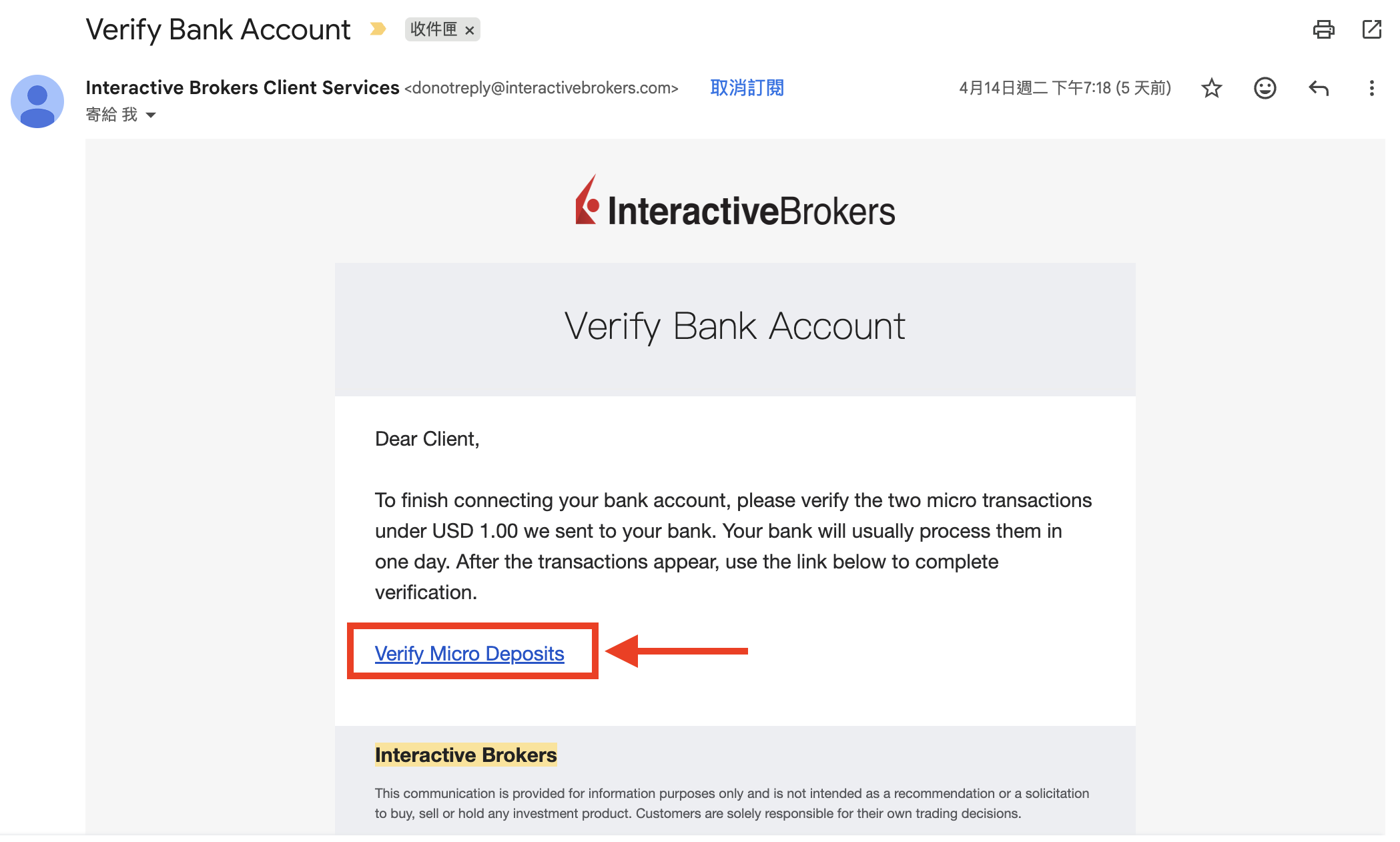
A few days later, IBKR will email you to confirm that the two micro deposits were sent.
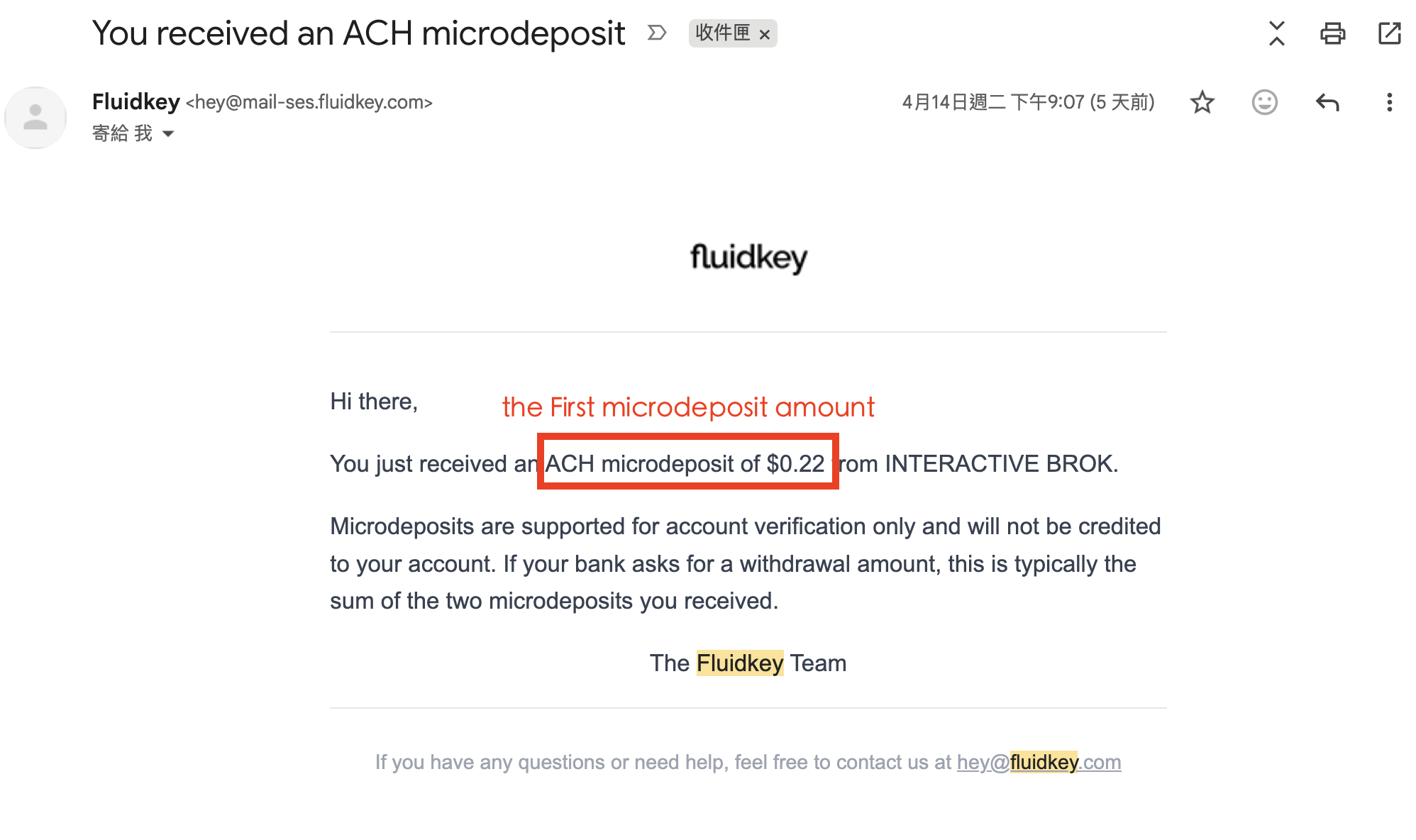
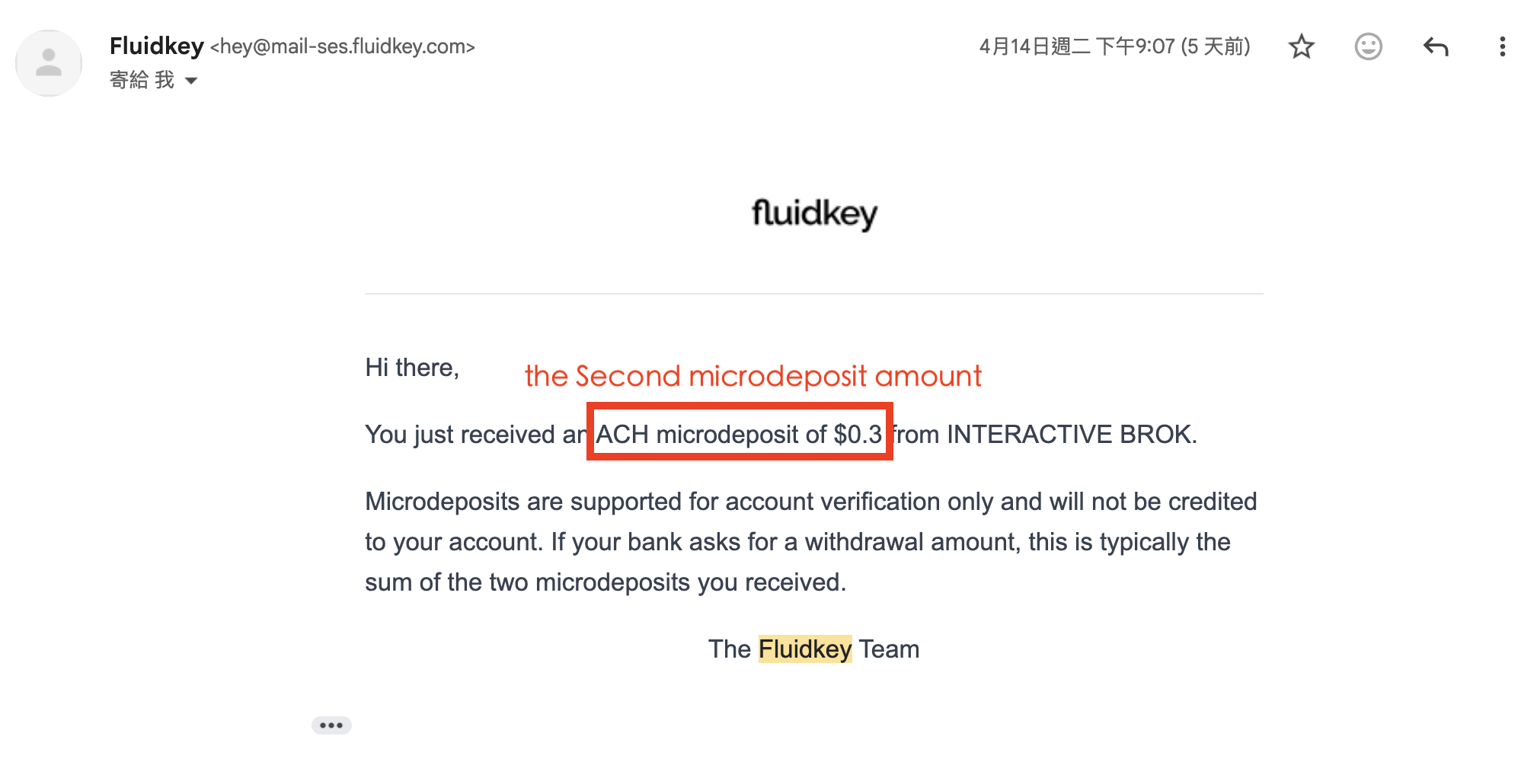
A few hours later, Fluidkey will receive those deposits and notify you by email.
Go back to the IBKR email, click Verify Micro Deposits, and enter the two deposit amounts in order to complete account verification and link your account successfully.
(Note: Every user receives different deposit amounts. Do not enter the amounts shown in the example images.)
Disclaimer
The content of this article is provided solely for the purpose of sharing technical and product information, and does not constitute investment, financial, tax, or legal advice. Cross-border fund transfers are subject to the financial regulations, foreign exchange controls, and tax reporting requirements of the relevant jurisdictions. Users are responsible for verifying the applicable rules based on their own location and circumstances, and for bearing any associated risks. Any operations described herein are for illustrative purposes only; please evaluate carefully and consult a qualified professional before use where appropriate.