Deposit and Withdraw Cryptocurrency with Fluidkey
With Fluidkey, you can receive, manage, and send ETH, USDC, and any other ERC-20 token. Unlike regular wallets, Fluidkey generates a new address for each incoming payment even when using ENS, helping reduce the possibility of different on-chain activities being linked together by outside observers.
This article will guide you step by step through how to deposit cryptocurrency into Fluidkey and how to withdraw cryptocurrency from Fluidkey to another wallet or exchange.
1. Deposit Cryptocurrency into Fluidkey
Step 1: Copy Your Address
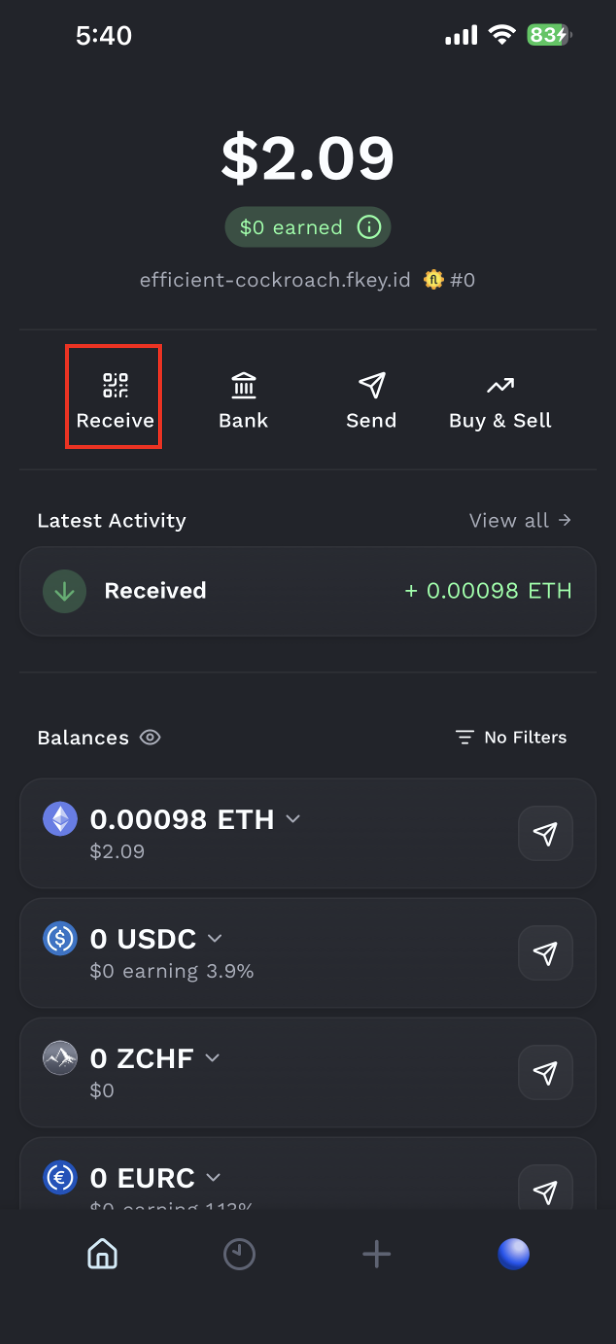
After logging in to Fluidkey, return to the homepage and tap “Receive”.
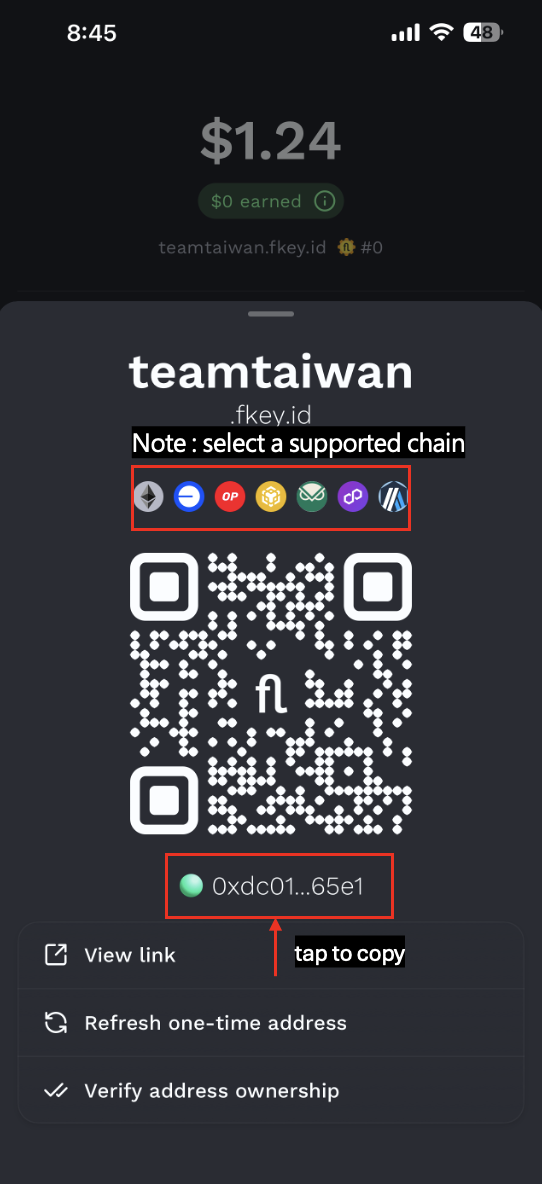
After entering the receive page, tap to copy your address. Please note that Fluidkey currently only supports the BSC, Ethereum, Base, Optimism, Gnosis, Polygon, and Arbitrum networks.
Step 2: Start a Transfer from Your Wallet or Exchange
Go back to the wallet or exchange you want to send funds from. Select “Send,” “Withdraw,” then enter the receiving information provided by Fluidkey.
Please make sure the receiving information matches the following details:
-
Receiving address: Paste the address copied from Fluidkey
-
Token: Select the asset you want to deposit, such as ETH, USDC
-
Network: Select a network that is supported by Fluidkey and matches the asset you are sending.
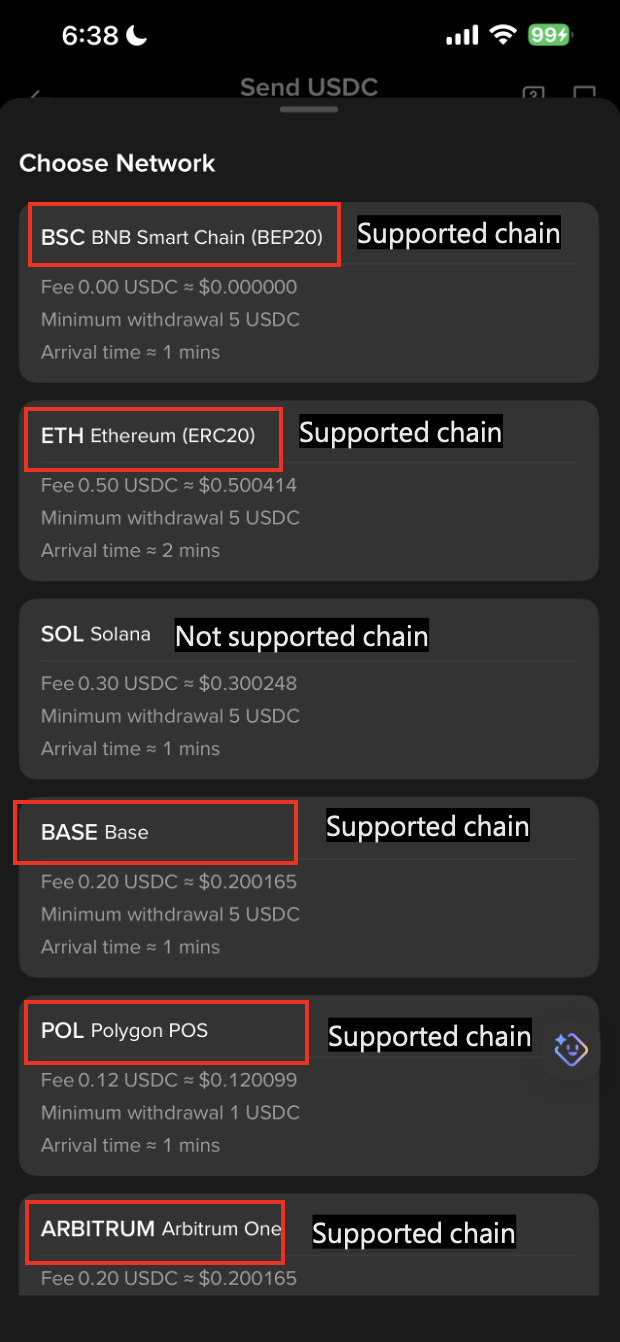
Before submitting the transfer, carefully check that the receiving address, token, network, and amount are all correct. If the address or network is incorrect, your assets may not arrive successfully and may not be recoverable.
⚠️ Note: If you want to deposit funds from a network other than the 7 suported chains mentioned above, please refer to the additional instructions at the bottom of this article.
Step 3: Confirm That the Funds Have Arrived
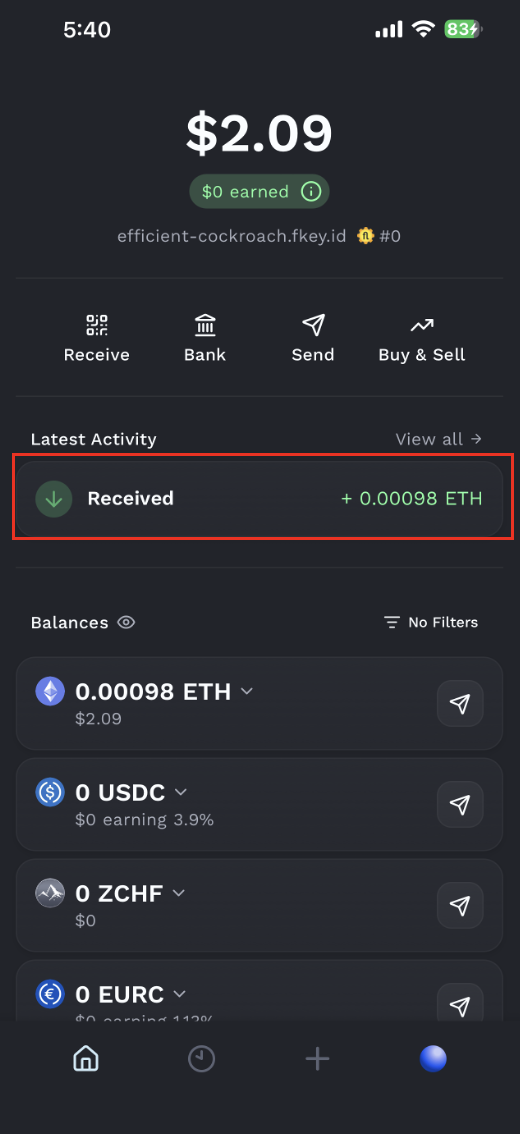
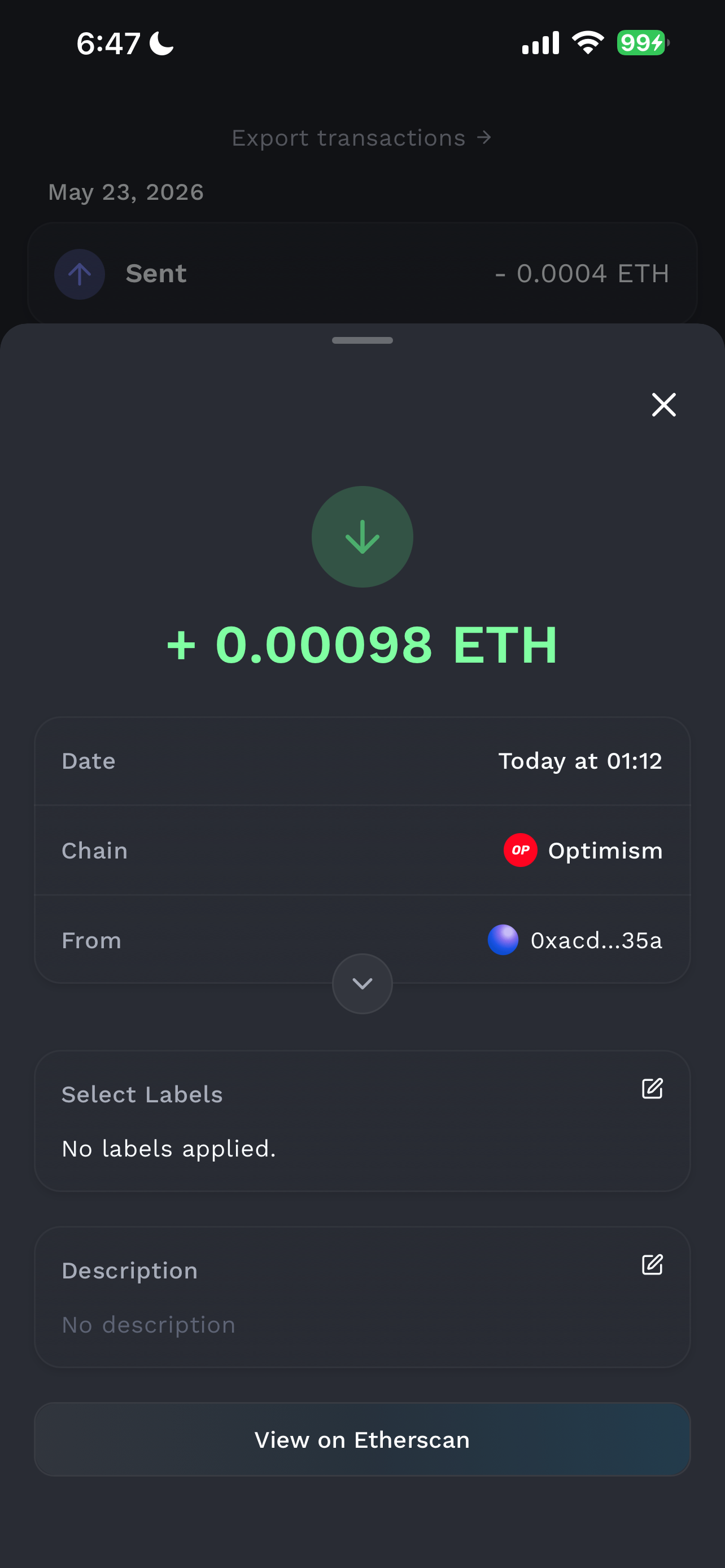
After sending the transaction, patiently wait for the on-chain transaction to be confirmed. The actual arrival time will depend on the blockchain network and current network congestion.
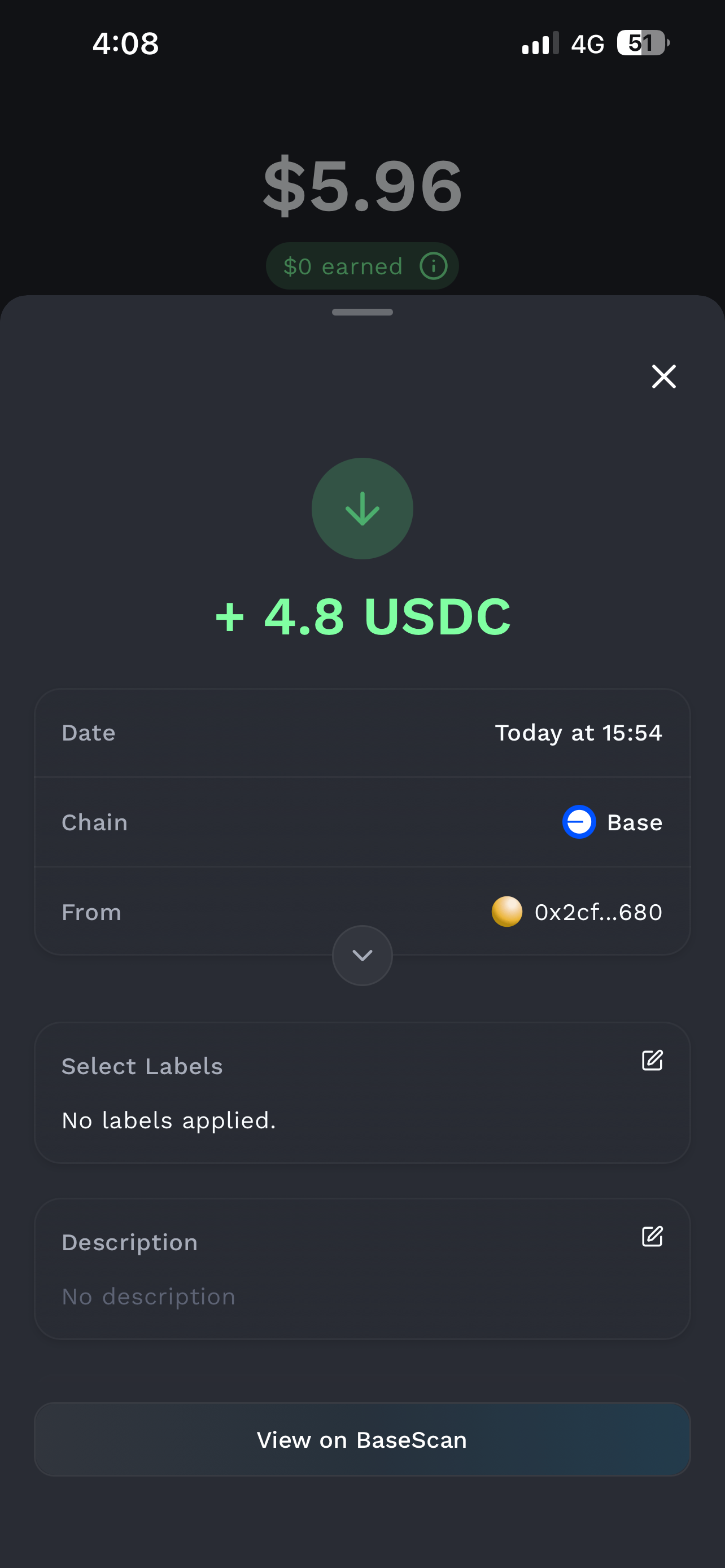
Once the transaction is complete, you can return to the Fluidkey homepage to view the transfer information.
Step 4 (Advanced Privacy Feature): Generate a New Address for Your Next Deposit
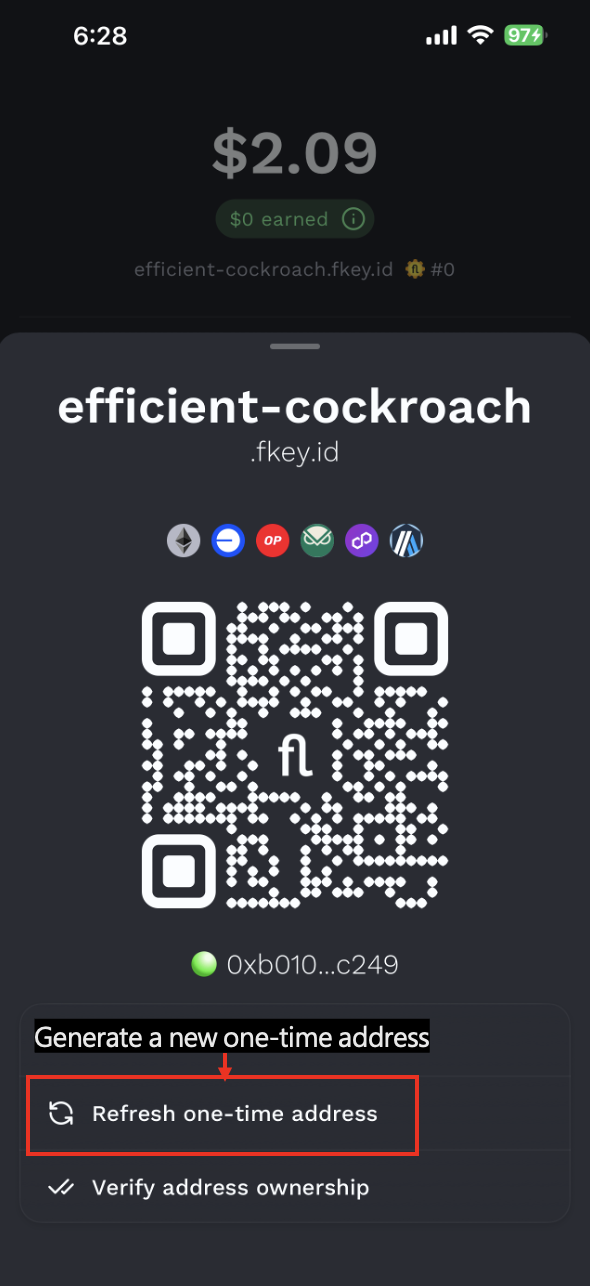
When you need to receive another payment, go back to the Receive page and tap “Generate new one-time address” to get a new receiving address. You can also reopen the app, and Fluidkey will generate a new address automatically. This helps prevent multiple payments from being sent to the same address, reducing the chance that different on-chain transactions can be linked together.
Please note that once an address is generated, it belongs to you permanently, and you are free to continue receiving funds at a previously generated address. If you are unsure whether an address belongs to you, you can verify its ownership via "Receive → Verify Address Ownership.
2. Withdraw Cryptocurrency from Fluidkey
Step 1: Select the Token You Want to Withdraw
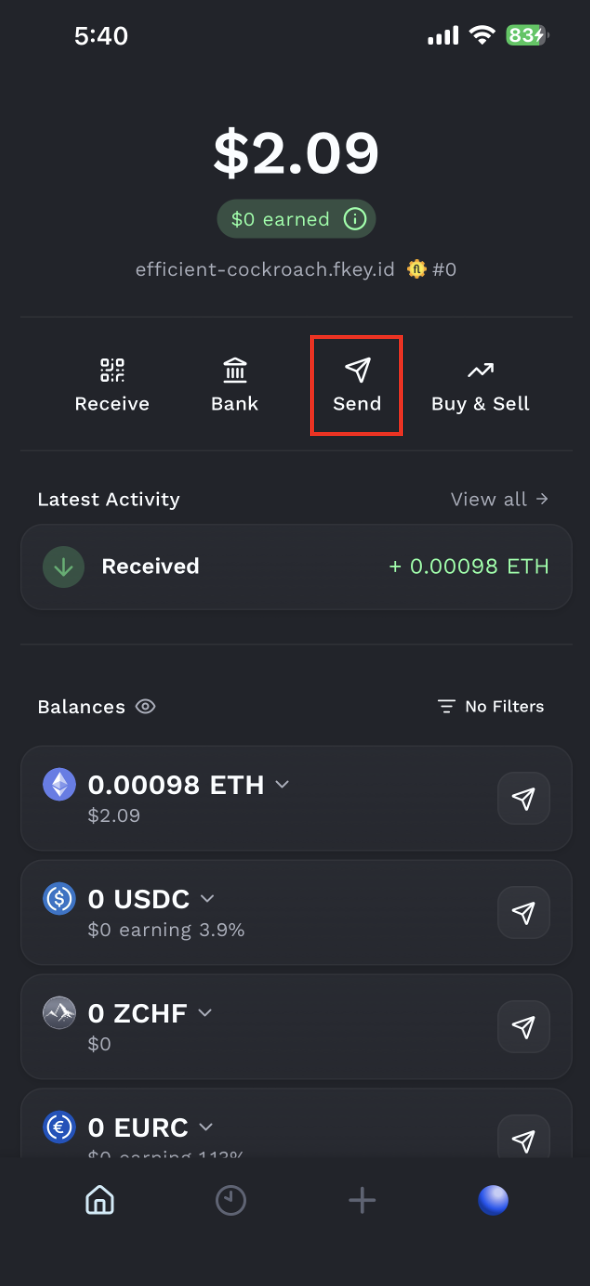
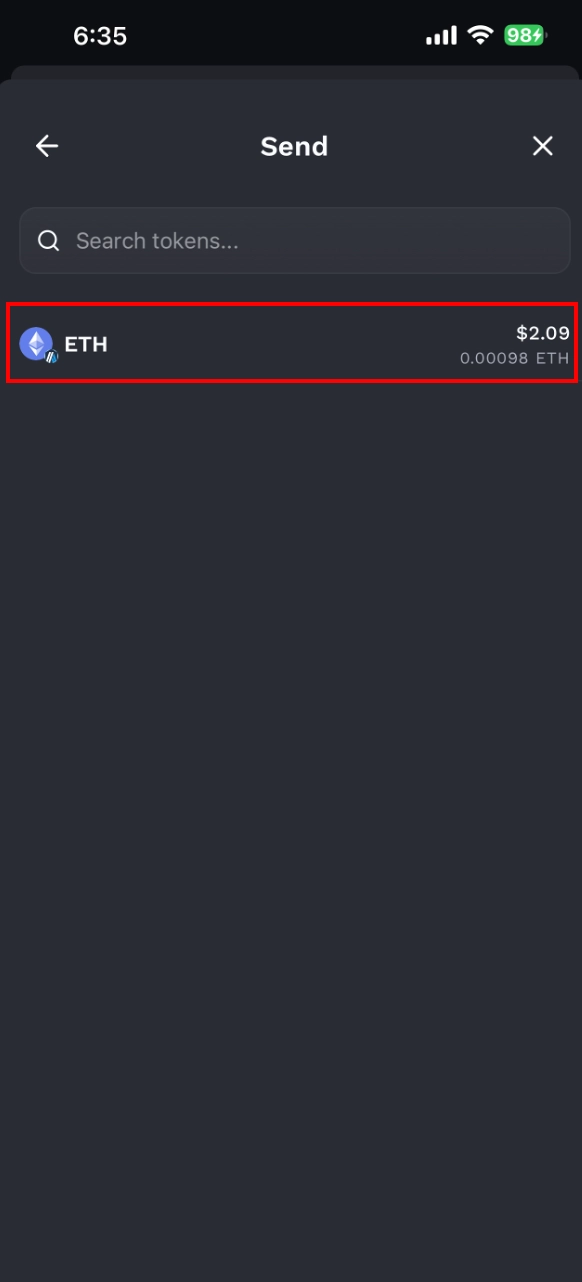
Open the Fluidkey homepage, tap “Send”, then select the token you want to withdraw.
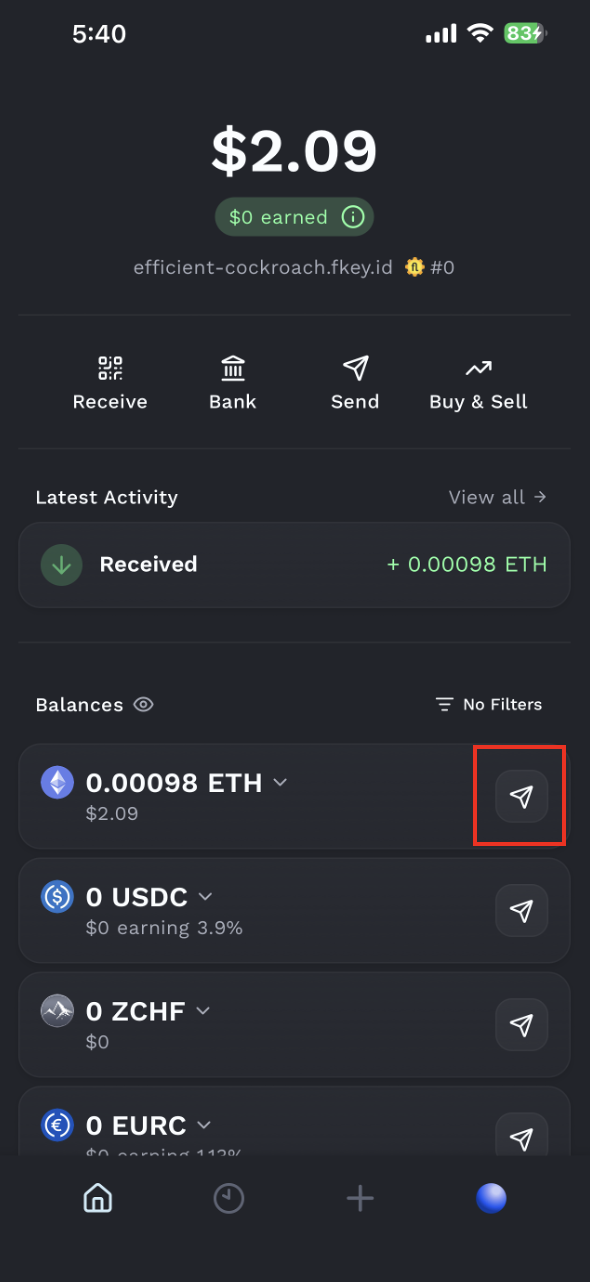
You can also tap the arrow next to the token balance to start a transfer directly from that token.
The gas fee rules vary by network:
-
Base / BSC / Optimism / Gnosis / Polygon / Arbitrum: 20 free transactions per day
-
Ethereum: Requires an additional gas fee
If you'd like to bridge across chains first and then send crypto on a different chain to another address, you can do this all in one step via the "Buy/Sell" → "Advanced" → "Show Advanced Options" → "Swap To" function on the home page.
Step 2: Enter the Receiving Address
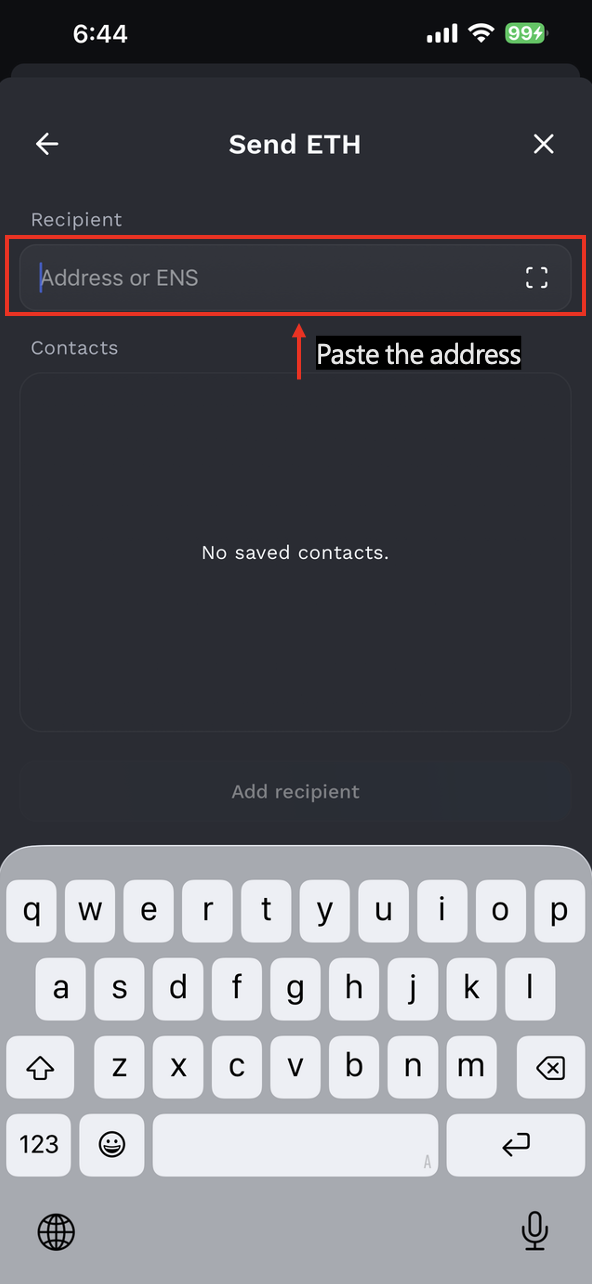
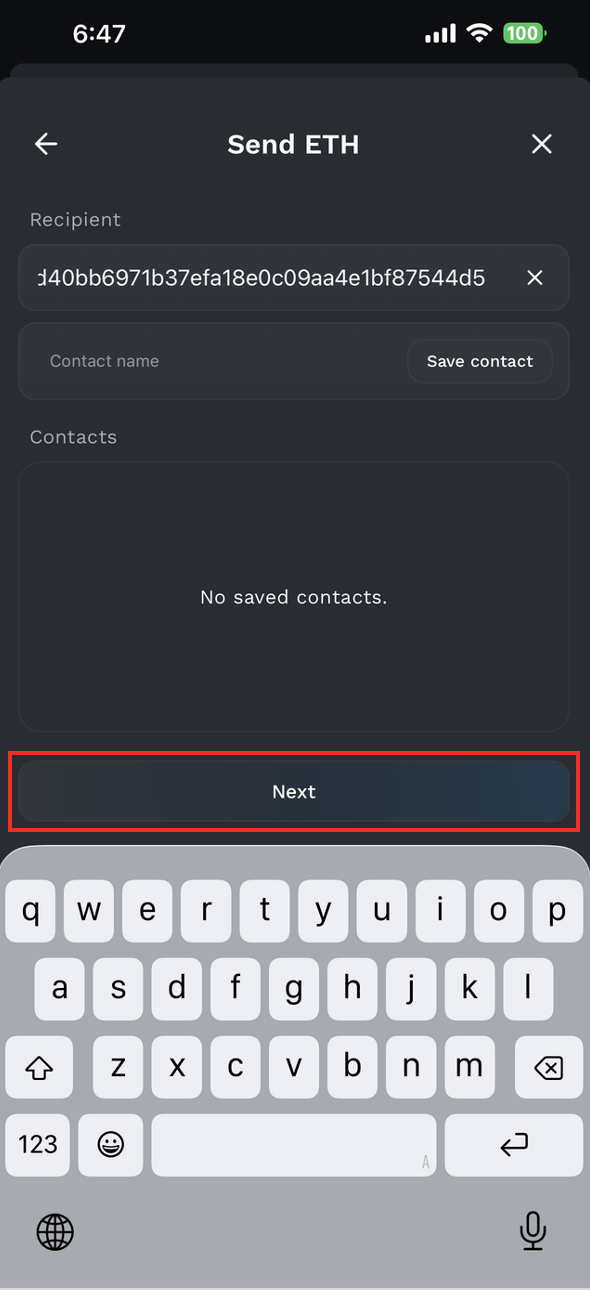
After entering the send page, enter the recipient’s address in the receiving address field. Fluidkey supports standard Ethereum hexadecimal addresses and also supports ENS addresses. You can enter a regular address starting with 0x , or enter the ENS provided by the recipient.
Step 3: Enter the Withdrawal Amount
Next, enter the amount you want to send.
Fluidkey will automatically calculate the best transfer route and send funds from one or more stealth accounts with balances close to the target amount, in order to minimize the simultaneous exposure of multiple on-chain addresses.
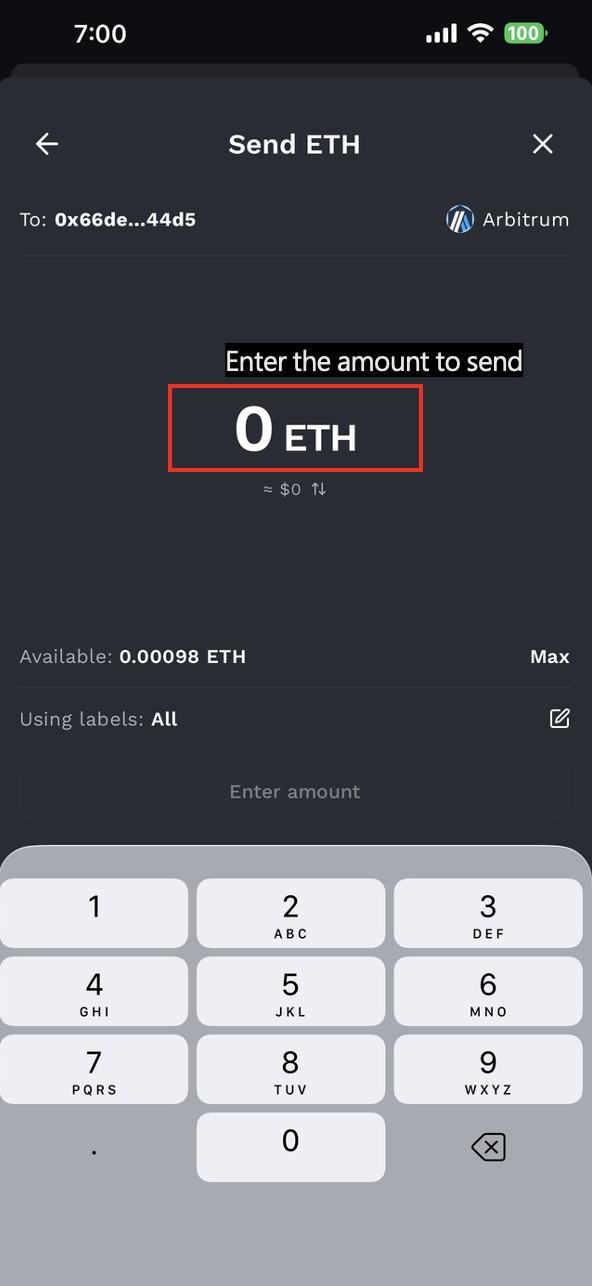
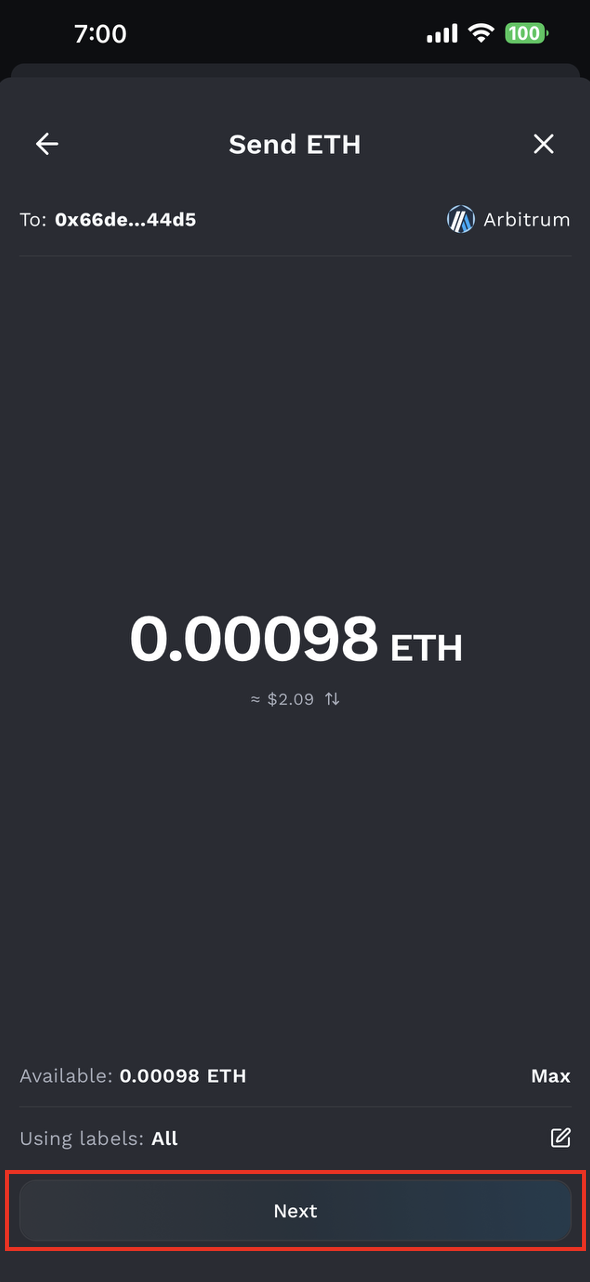
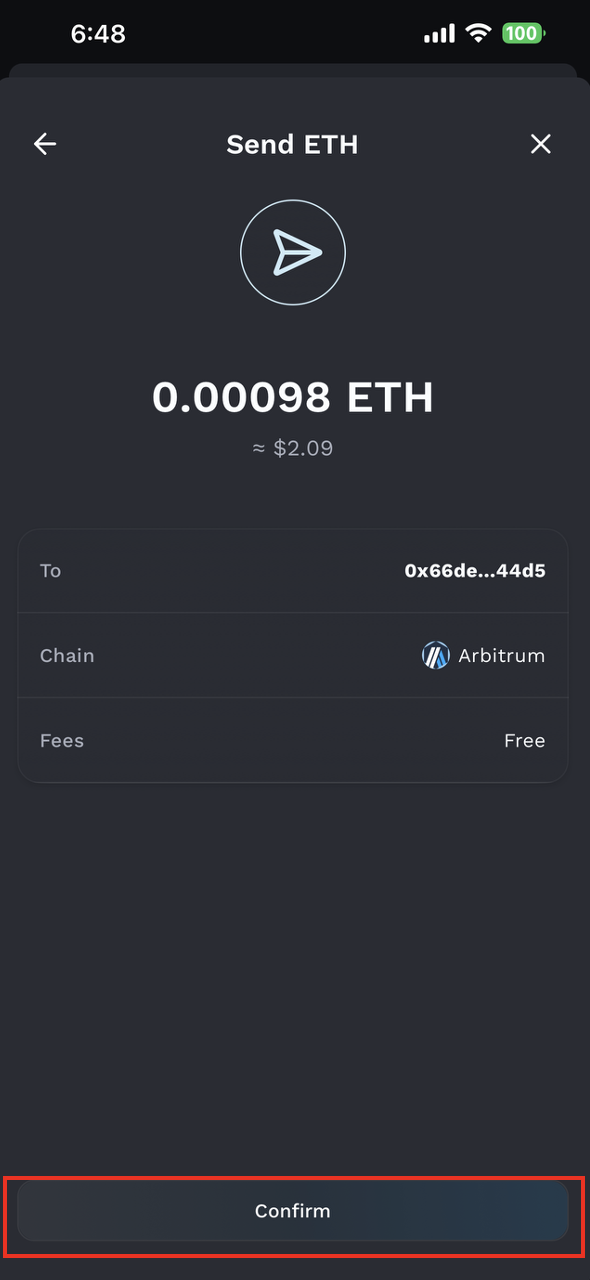
Before submitting, carefully confirm that the receiving address, token being sent, transfer network, and amount are correct.
⚠️ Note: Fluidkey uses a Safe smart contract account architecture. Please double-check, for the chain and token you've selected, whether the recipient supports deposits from smart contract accounts. Once a transaction is submitted on-chain, it generally cannot be cancelled or reversed. If this is your first time sending to a specific address, it is recommended testing with a small amount first, and confirming it arrives successfully before sending a larger amount.
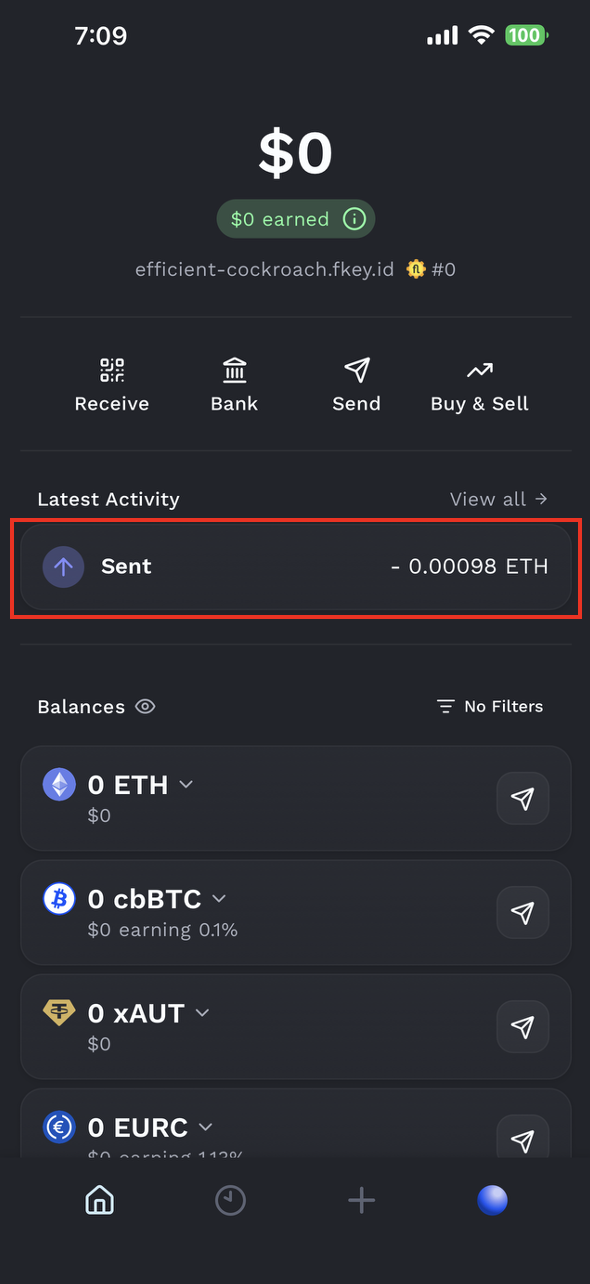
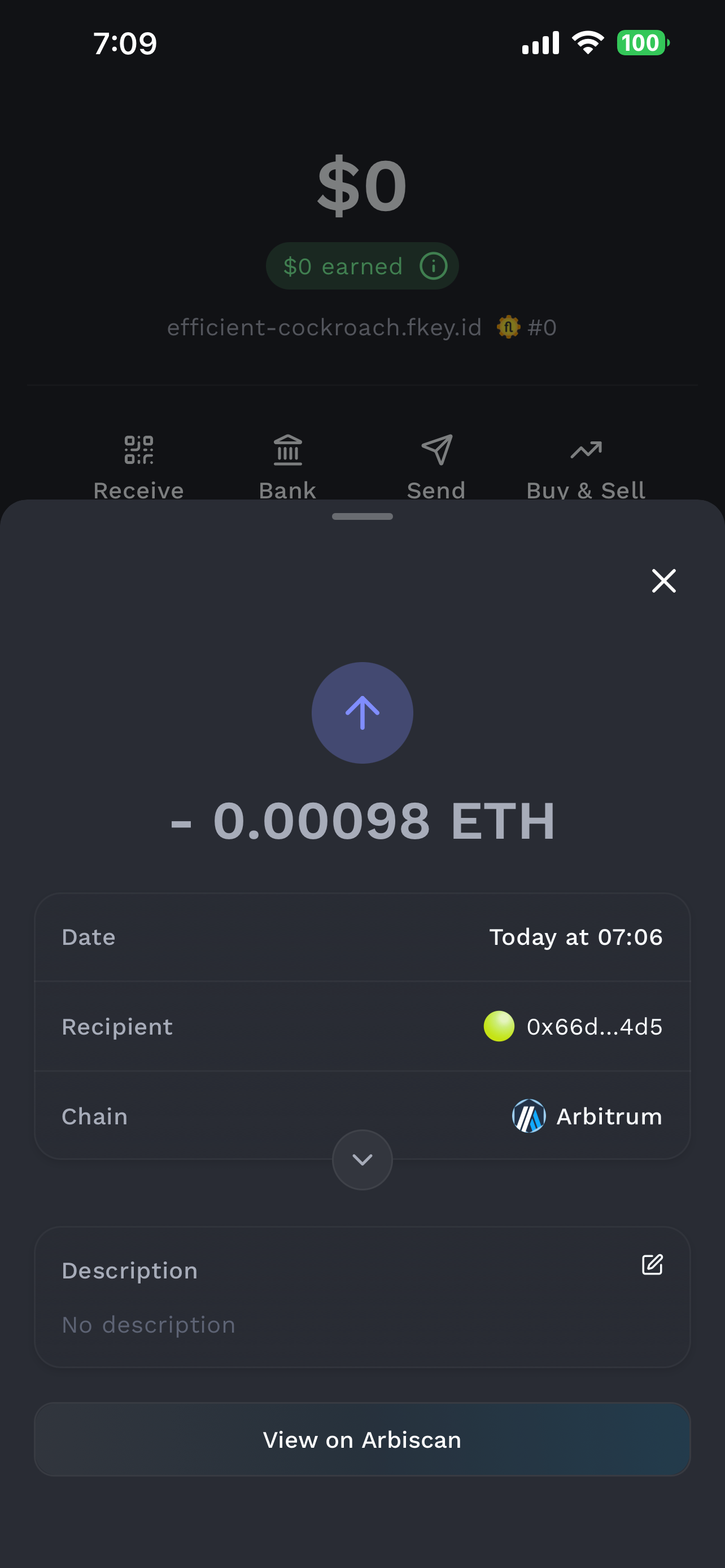
Step 4: Confirm the Transaction Status
Gas fee rules vary by network. Aside from Ethereum, each of the other six supported chains includes 20 gas-free transactions per day. Transactions on the Ethereum mainnet require an additional gas fee.
The exact gas fee is subject to the information displayed in the Fluidkey interface.
Additional Guide: Cross-Chain Crypto Deposits to Fluidkey
In addition to depositing assets from EVM networks supported by Fluidkey, you can also use the cross-chain deposit feature to transfer crypto from other blockchains into Fluidkey. The funds will be automatically bridged through Near Intents and displayed in your Fluidkey balance.
Currently supported source chains include:
Near, Zcash, Bitcoin, Solana, Tron, Binance (BNB), Avalanche, Ton, Sui, Stellar, and Monad
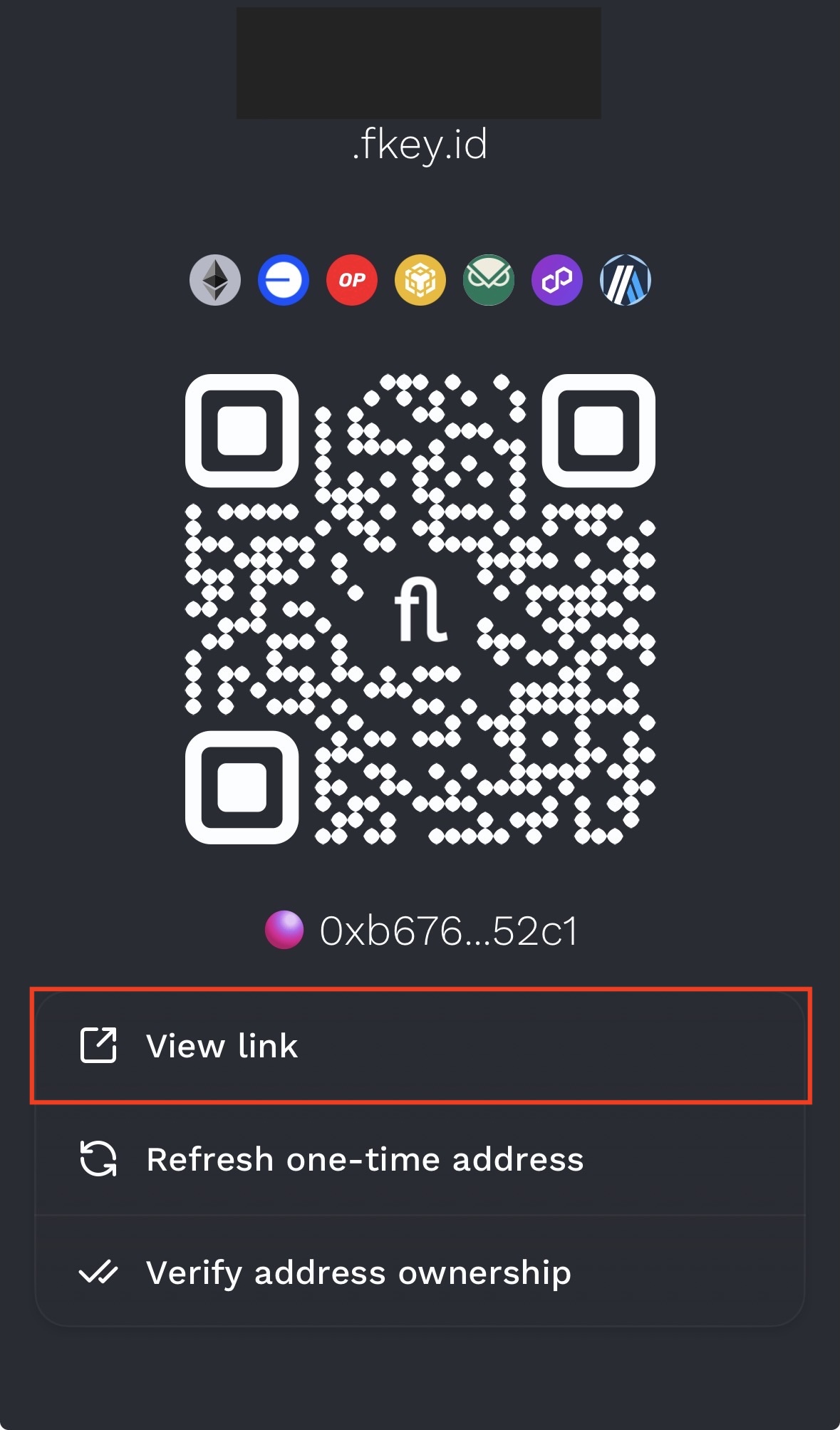
Step 1: Go to Your ENS Payment Page
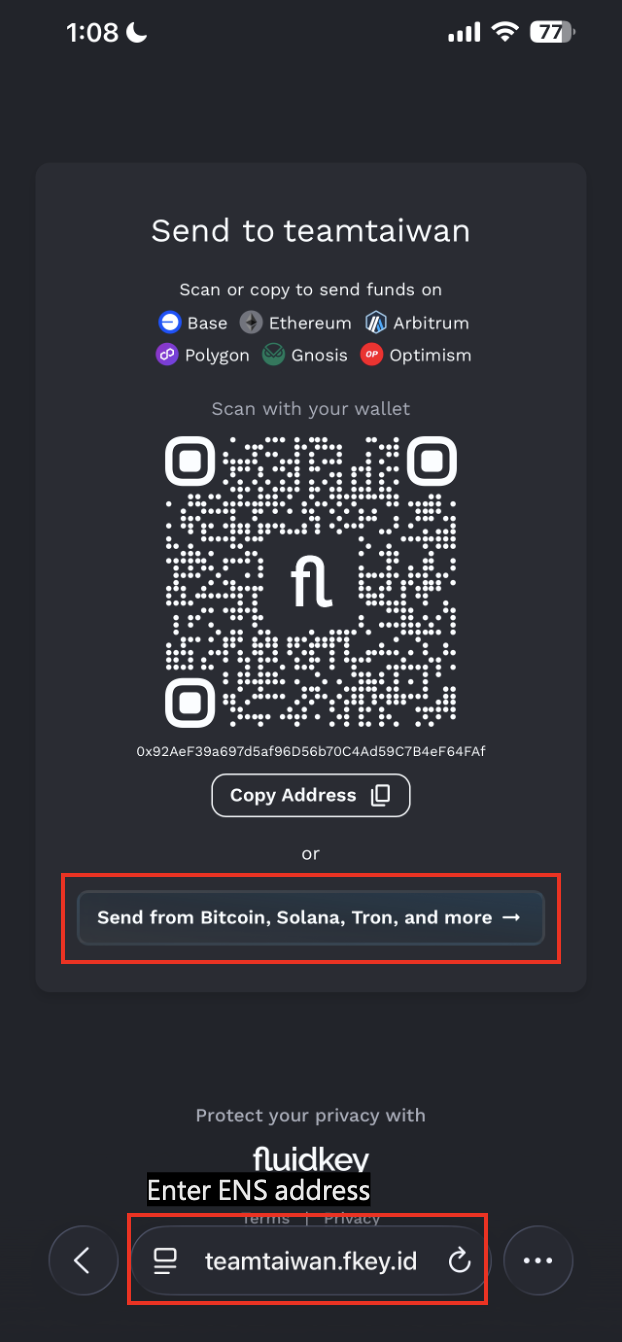
On the homepage, tap "Receive" and select "Open Payment Page". Alternatively, you can open your payment page directly by entering your Fluidkey ENS address in a browser:
yourname.fkey.id
Once on the page, scroll down and tap "Send from Bitcoin, Solana, Tron, and more →".
Step 2: Select the Source Chain and Token
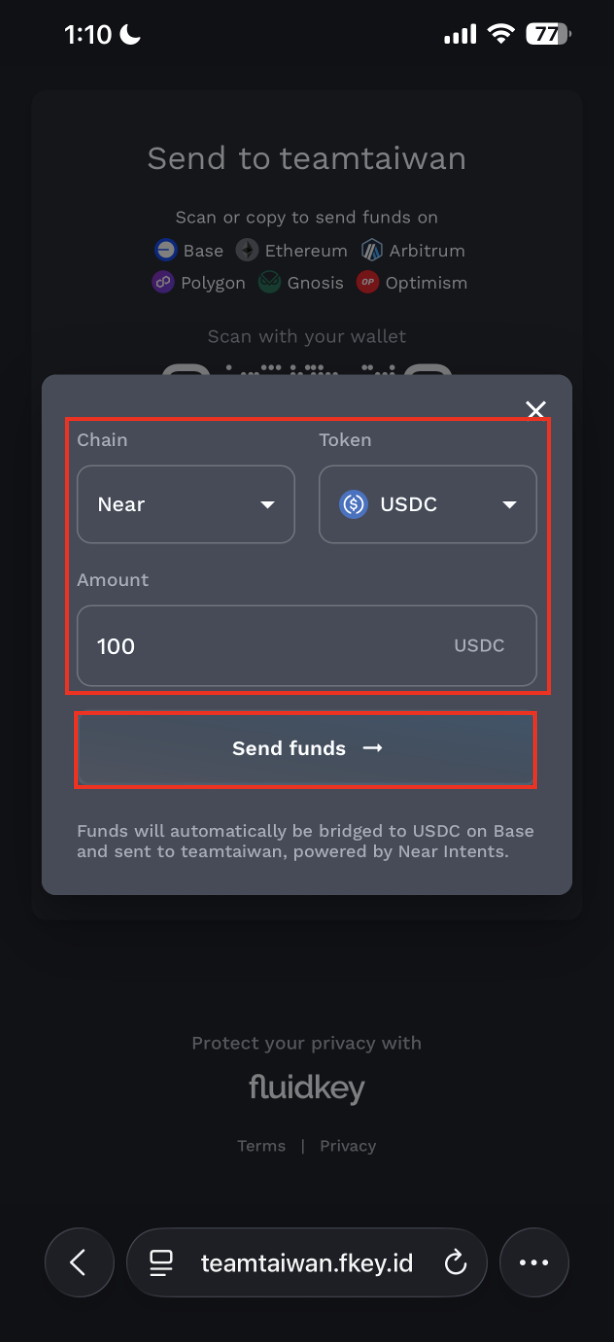
After clicking the button, a cross-chain deposit window will appear. Select the chain you want to send funds from, then choose the corresponding token.
For example, if you want to deposit USDC from Near, select Near as the source chain, choose USDC as the deposit asset, and enter the amount you want to deposit.
Step 3: Send Funds from Your Wallet or Exchange
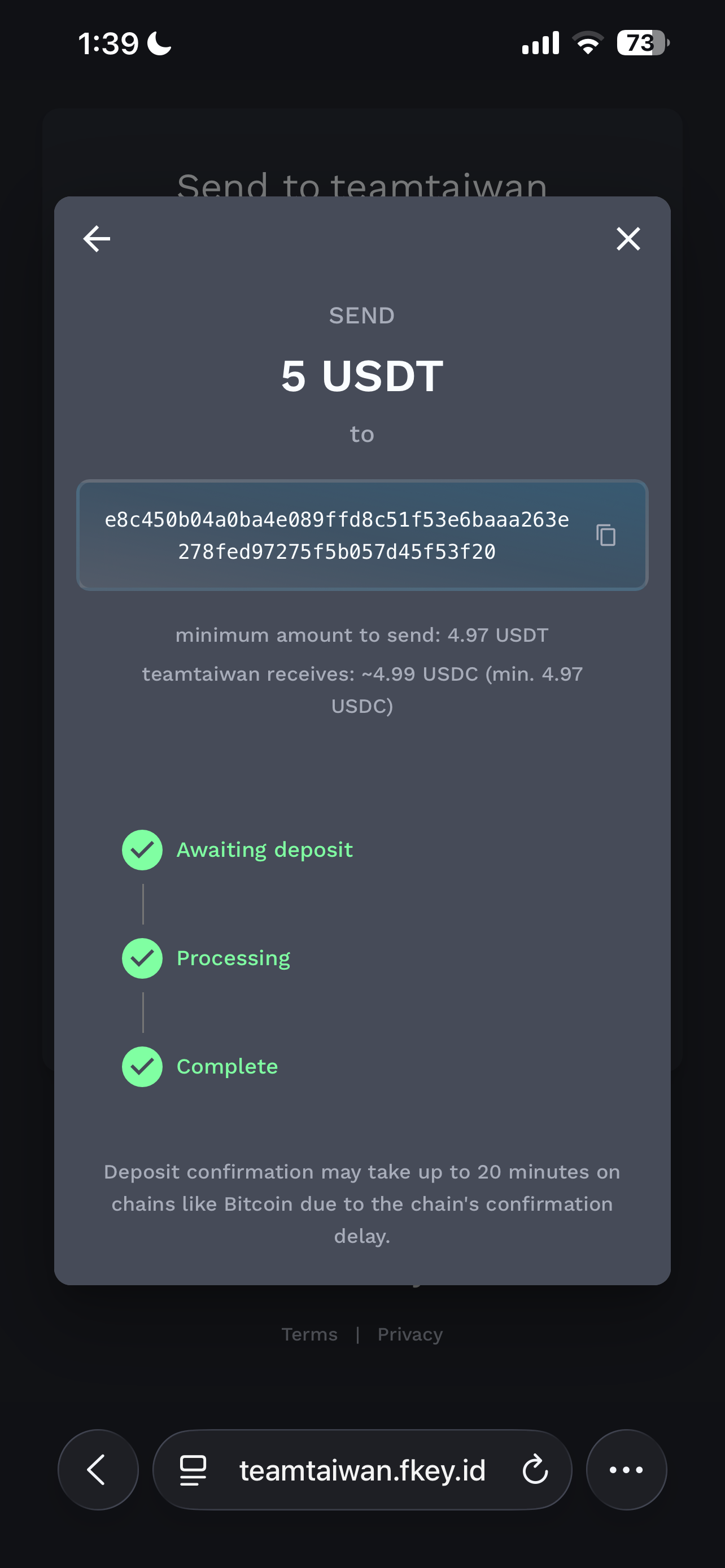
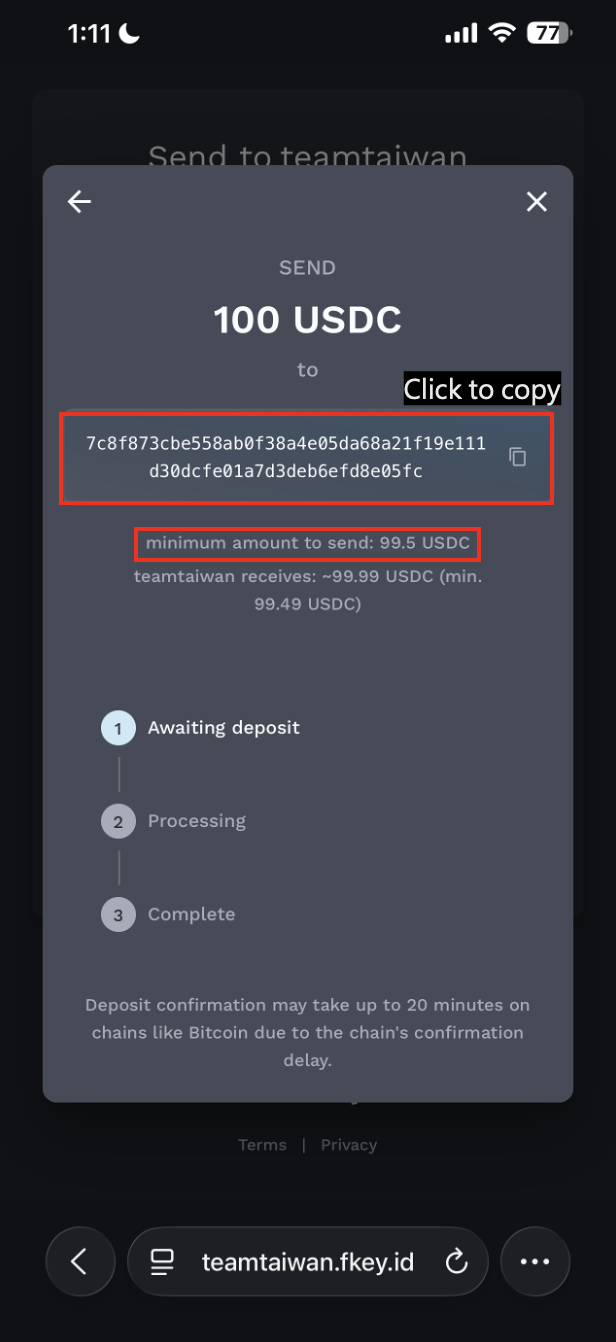
The system will generate a deposit address. Go to your external wallet or exchange and send the corresponding amount to that address. Make sure the chain, token, and amount match exactly what you selected in the previous step — any mismatch may result in the transaction failing to process.
⚠️ Please note that the actual amount sent must not differ significantly from the amount entered, and must not fall below the minimum shown on the page, otherwise the transaction may not be processed.
Before proceeding, double-check the source chain, token, amount, and deposit address, and be mindful of any network fees and the final amount that will be received.
If you have any questions, please reach out via the "Support" in the App, the Fluidkey team will get back to you as soon as possible.
Step 4: Wait for the Funds to Arrive
Once the transaction is sent, your funds will be automatically bridged via Near Intents and converted to USDC before being credited to your Fluidkey balance. In most cases, funds will appear within a few minutes, though it may take up to 20 minutes in some cases.
Once received, the funds will automatically appear in your Fluidkey balance — no manual bridging or additional steps required.