
How to Create a Fluidkey Account
Fluidkey uses a self-custody mechanism, which means users hold the private keys to their account funds themselves. We provide the application and user interface, but we cannot directly access or move your funds.
For this reason, it is very important to choose a secure, stable login method that you will still be able to use in the future when creating your account. As long as you keep access to your login method and account backup, you will be able to regain access to your Fluidkey account even if you change phones later.
The following guide explains how to create an account using the mobile Fluidkey App. This article uses Email login as the example.
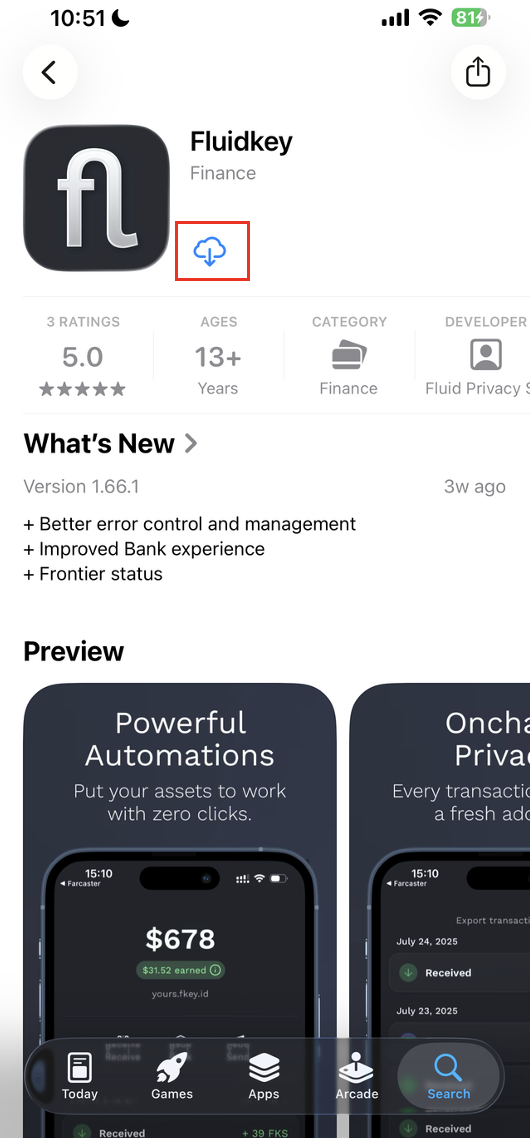
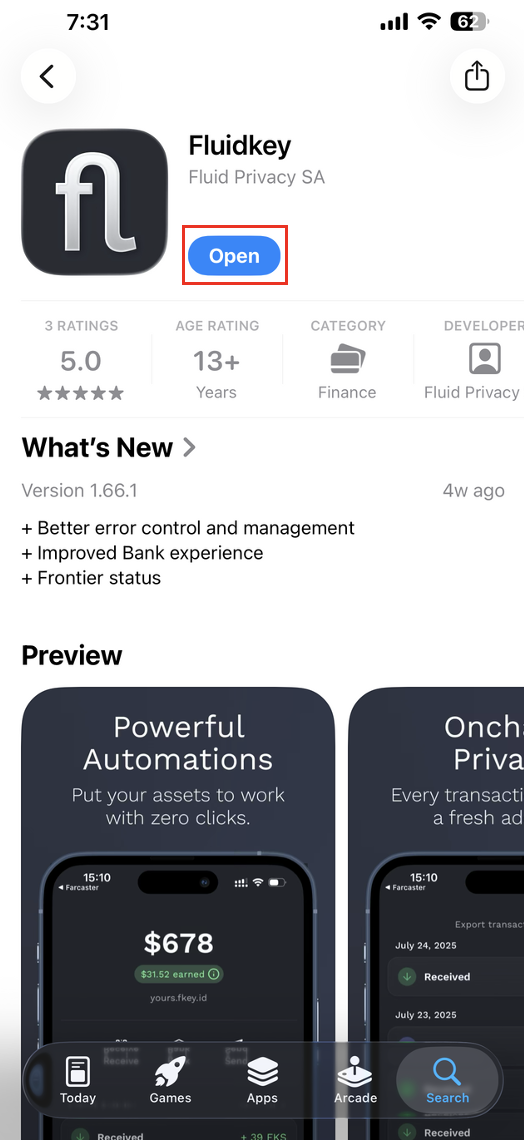
Step 1: Download and Open the Fluidkey App
First, download the Fluidkey App from the App Store or Google Play, depending on your phone’s operating system.
iPhone users can go to the App Store:
https://apps.apple.com/tw/app/fluidkey/id6746163651
Android users can go to Google Play:
https://play.google.com/store/apps/details?id=com.fluidkey
After opening the download page, make sure the app name is Fluidkey, then tap download and open it after installation is complete.
Step 2: Create an Account with Email
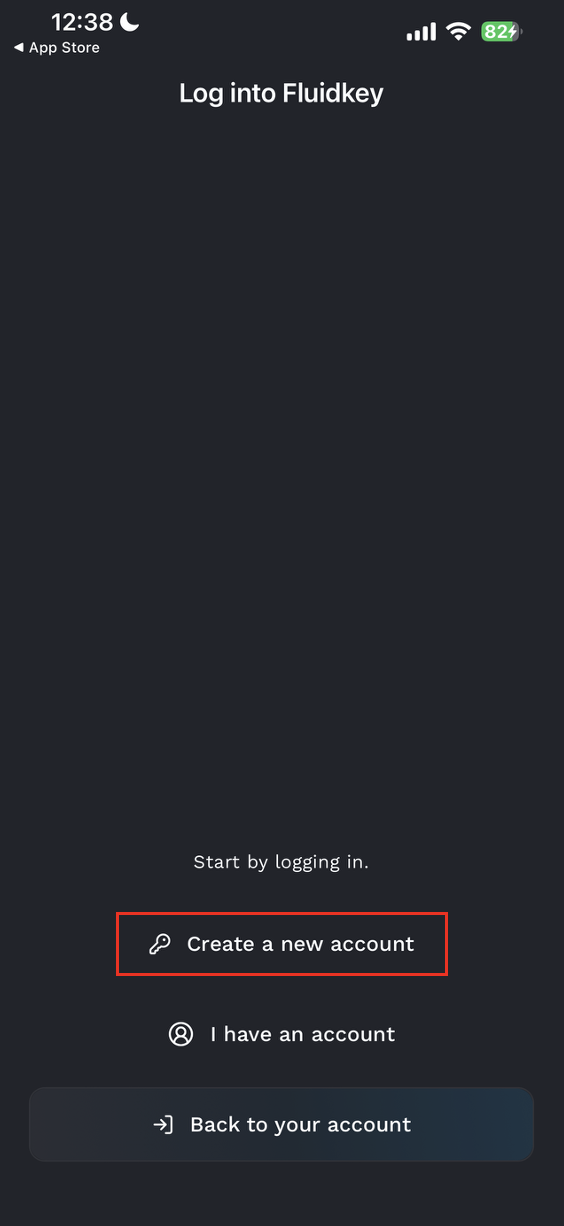
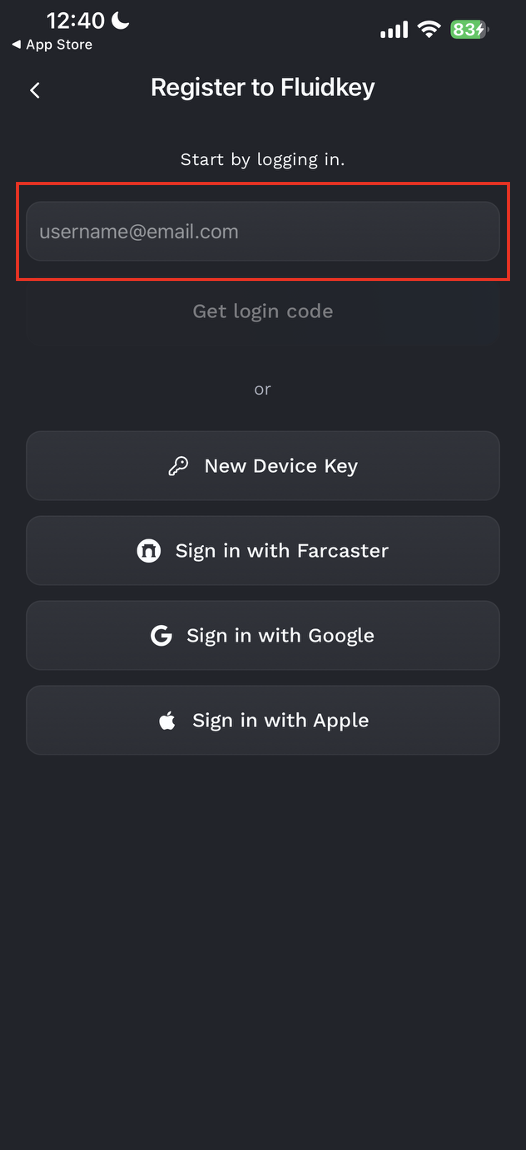
When you open the App for the first time, you will see Fluidkey’s login or account creation screen. Tap create a new account. Fluidkey’s Email login service is provided by Privy. Privy helps generate an embedded wallet, allowing you to log in to Fluidkey with your Email without having to manage complex wallet operations from the beginning.
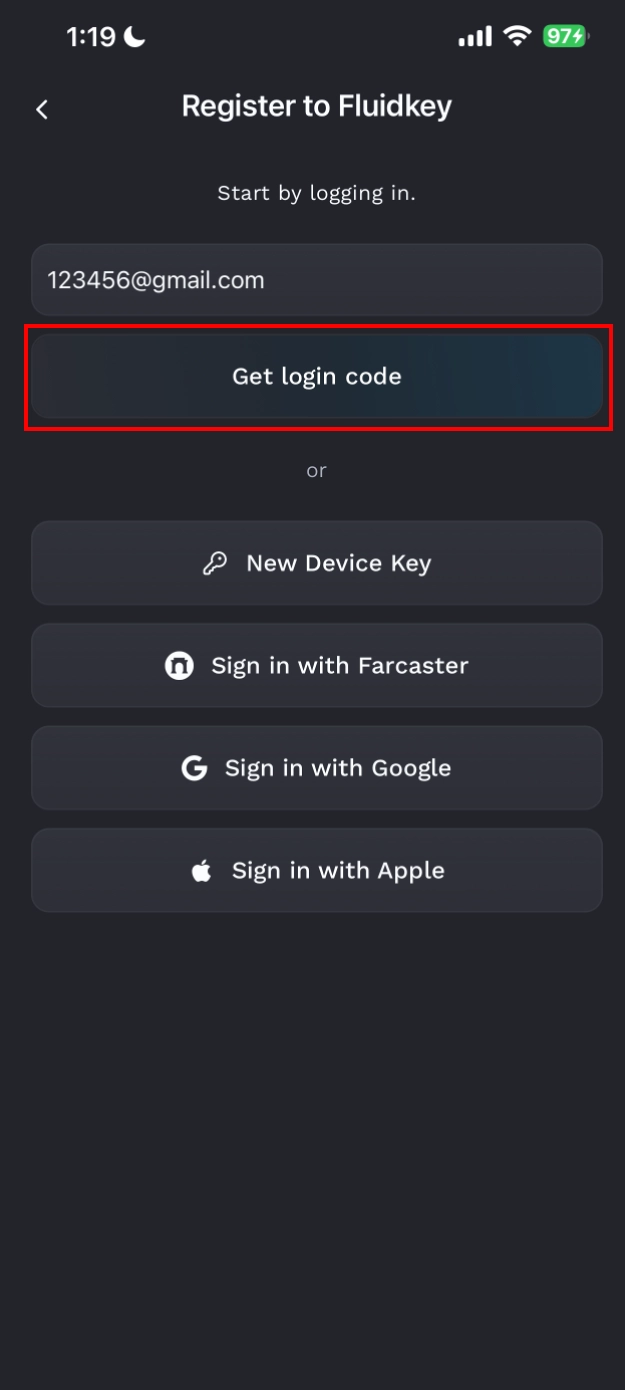
Step 3: Verify Your Email and Mobile PIN Code
Wait for 5 to 10 seconds, then tap the Email verification code. If it does not appear, you can check your inbox for the verification code.
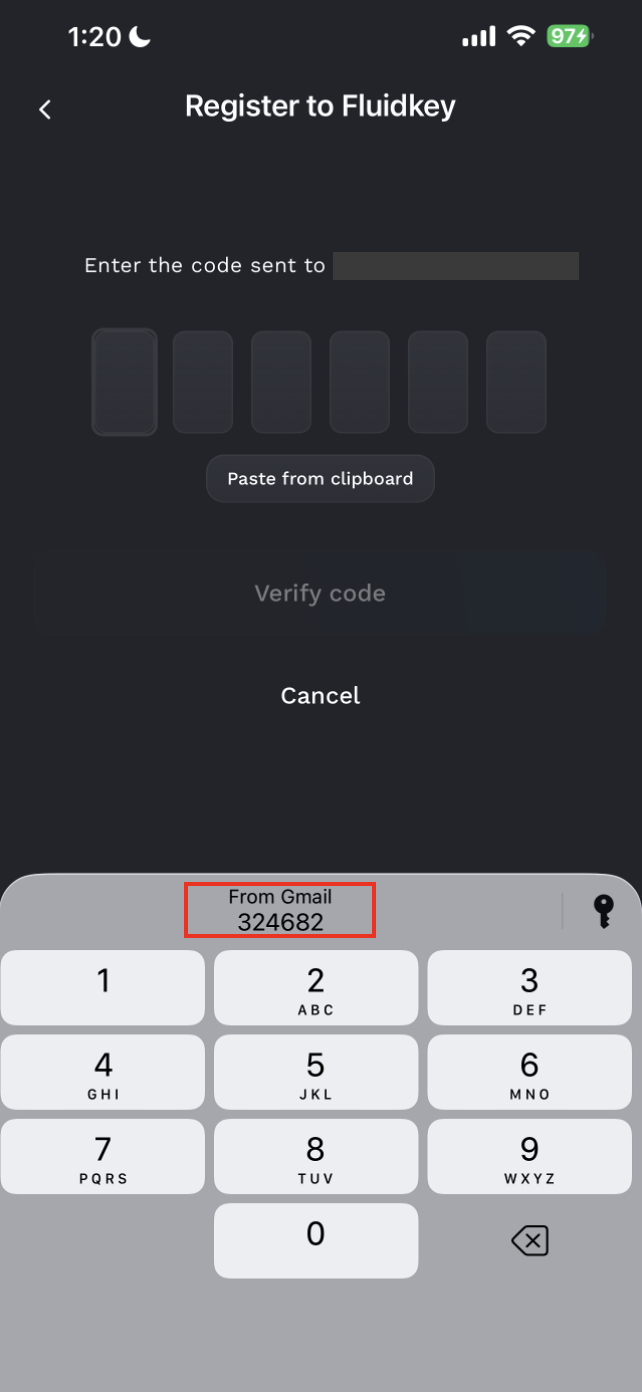
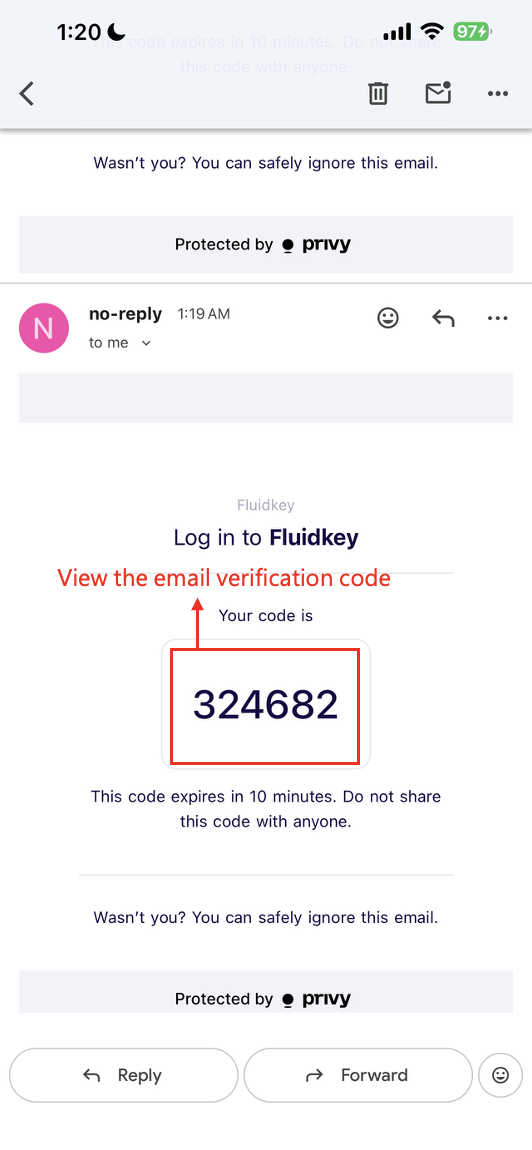
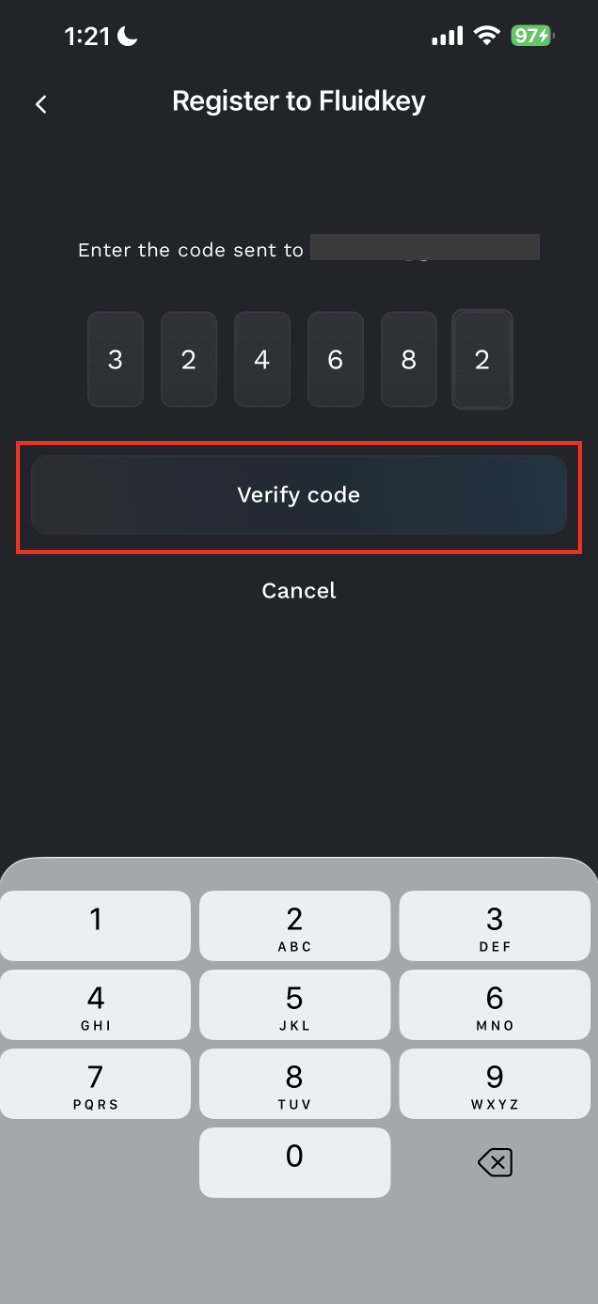
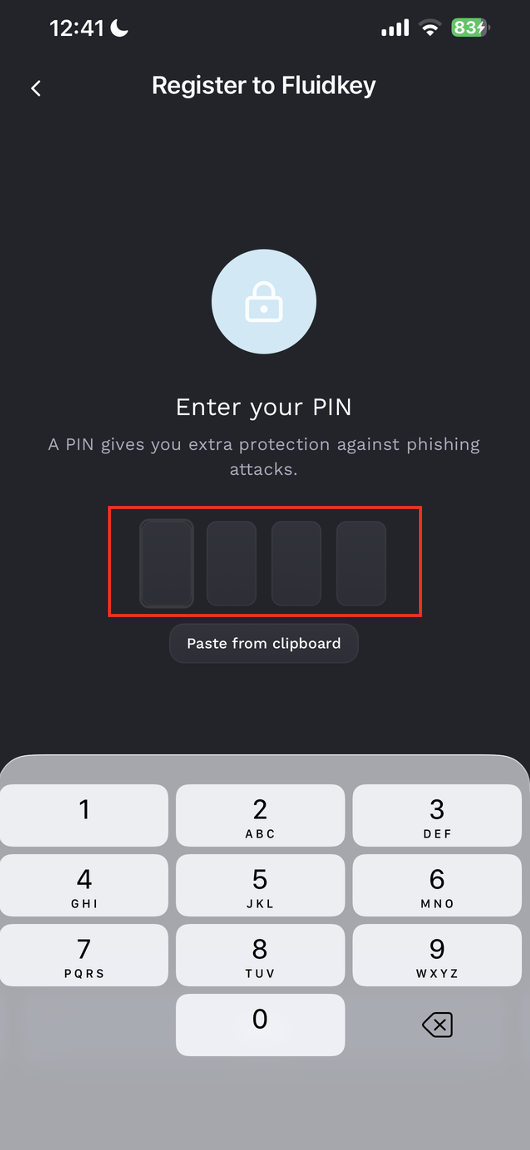
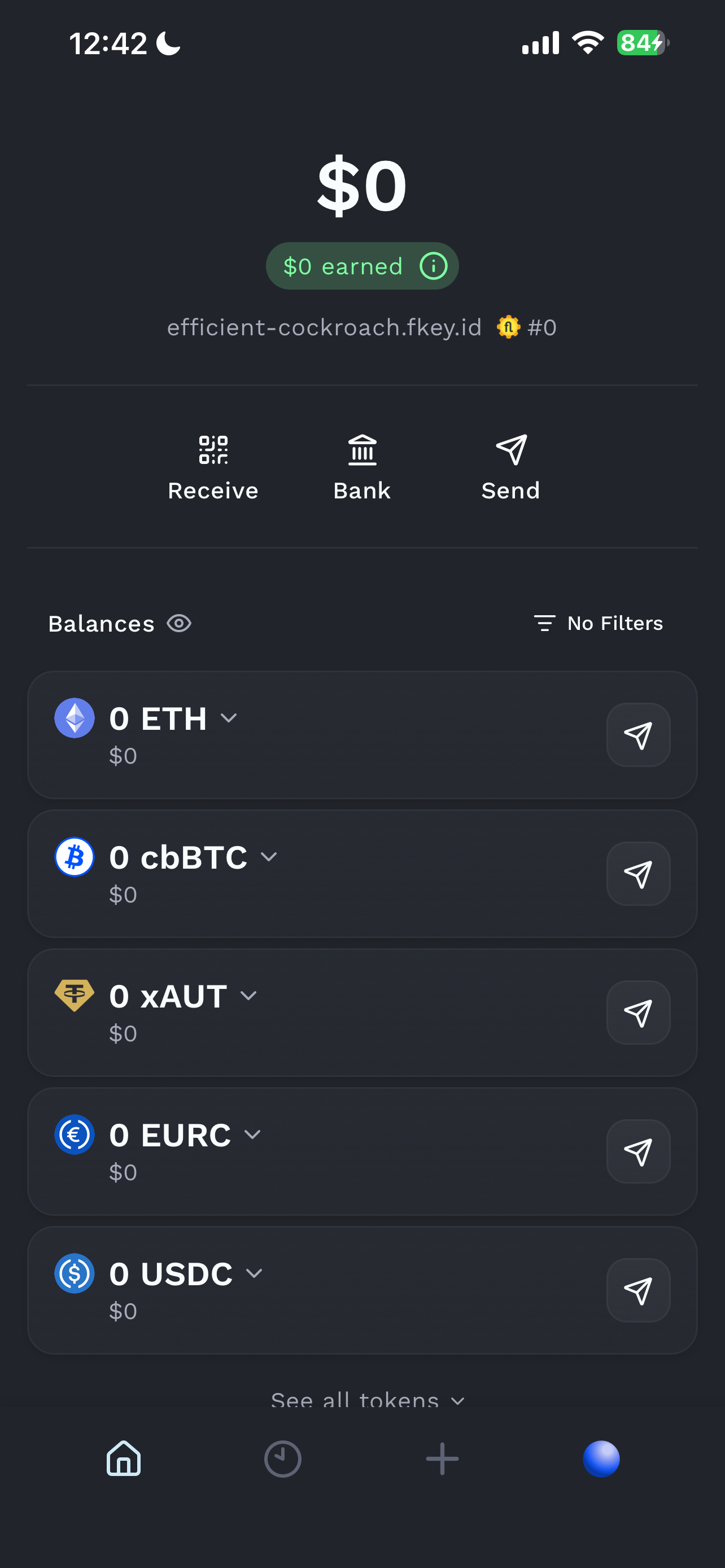
After verification is successful, enter your mobile PIN code. Once the verification is complete, you will be taken to the Fluidkey homepage.
Step 4: Change to Your Preferred Language
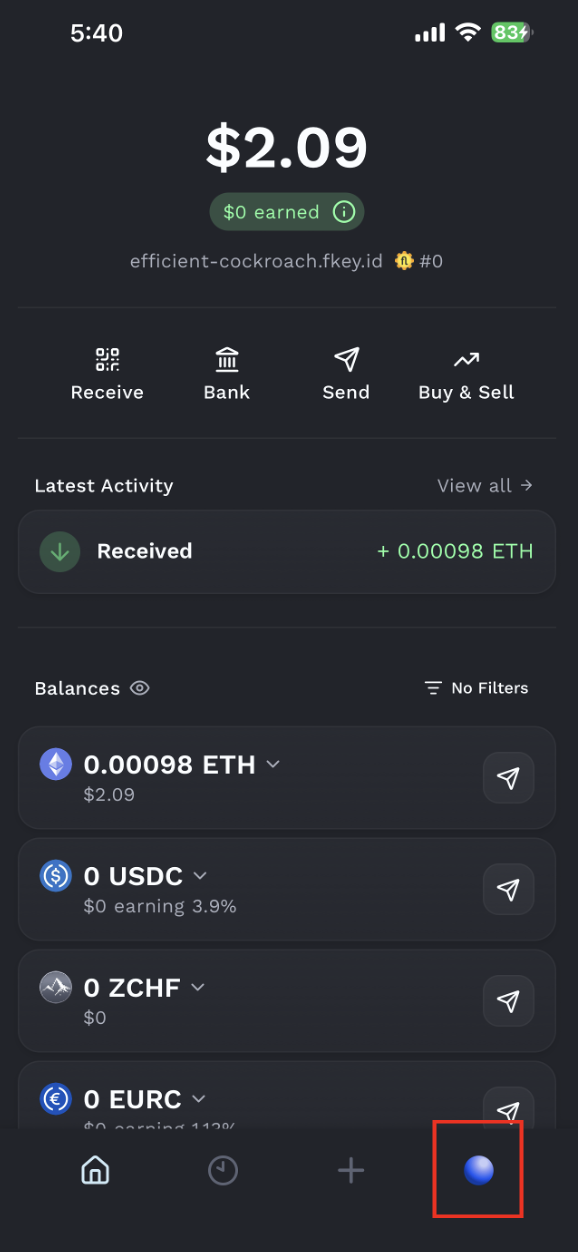
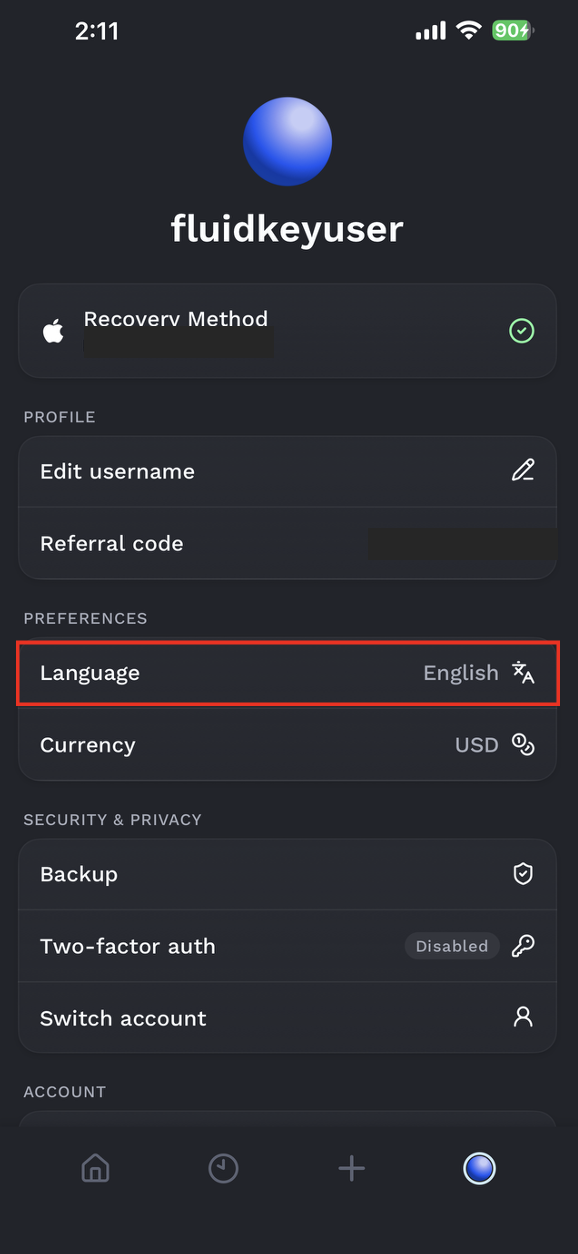
If you are not used to using the English interface, you can change the language.
Please make sure you download the official Fluidkey App. Do not enter your Email, verification code, wallet information, or any account details through unknown links.
This article is only a usage guide for the mobile Fluidkey account creation process. It does not constitute financial, investment, legal, or tax advice. The actual screens, login methods, and feature names may vary depending on the App version and device system.